The Tasks dashboard helps you analyze task records based on your selected reporting status, date range, and filters. It shows task counts, not the number of messages sent or unique contacts.
Go to Reports→Tasks to open the Tasks dashboard.
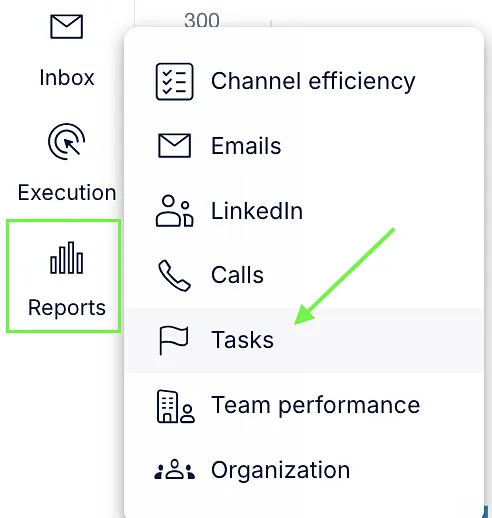
Access to the dashboard and other users’ data depends on your permissions.
Overview
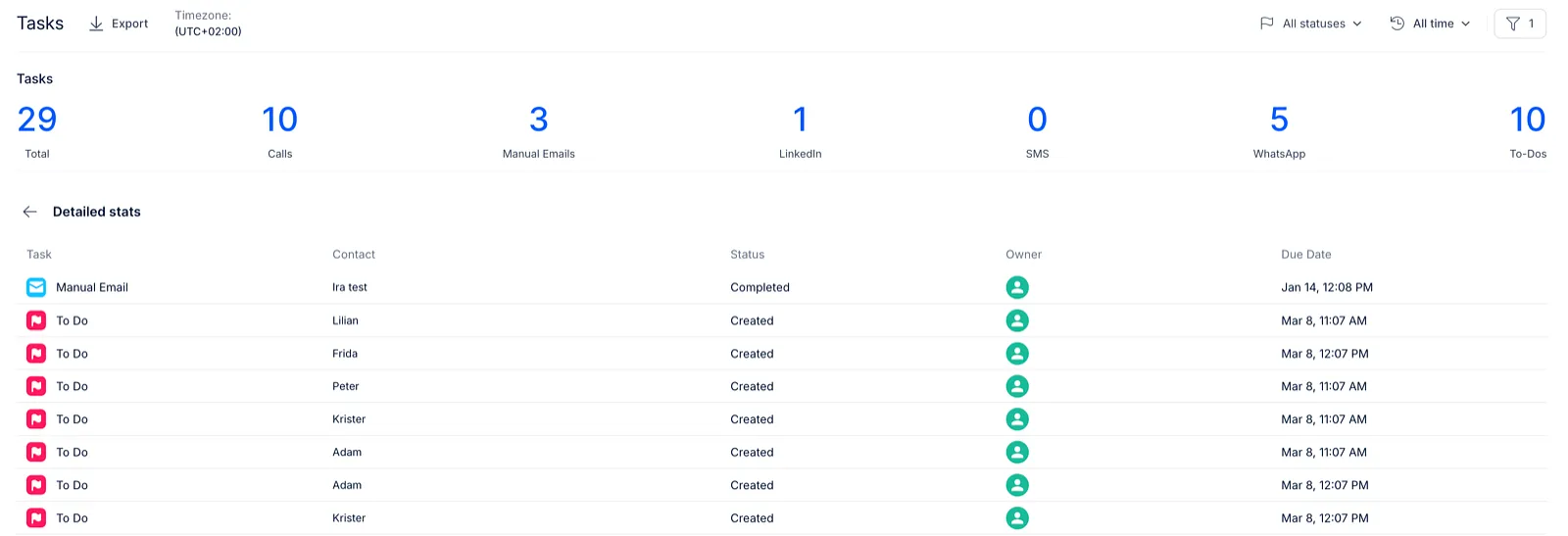
The overview shows the total number of task records that match your selected filters, broken down by task type:

- Total
- Calls
- Emails: Manual email tasks, not automatic sequence emails.
- SMS
- To-dos
A task count does not necessarily mean that a message was sent or a call was made. Use the reporting status filter to narrow your results.
Filter your results
Reporting status
Open All statuses, select Created or Completed, and apply your selection.
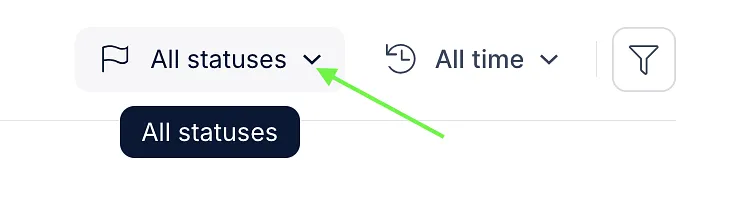
These are reporting categories used to group task records. They are not cumulative totals of every task creation and completion event.
Date range
Choose a predefined period or set a custom date range.
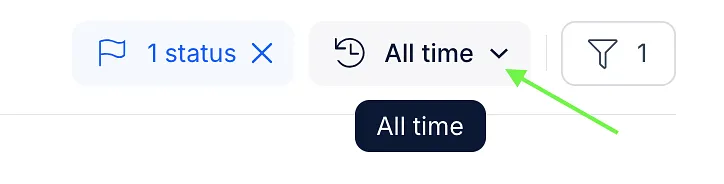
- Created reporting uses the task’s creation date.
- Completed reporting uses the task’s finish date.
A task created in one period and completed in another can appear in different periods, depending on the selected reporting status.
Additional filters
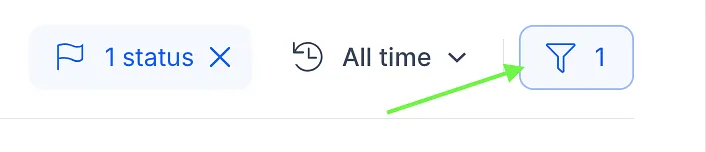
Open the filters panel to narrow your results by task type, user, sequence, or available contact criteria.
Tasks per team member
This section compares task counts across team members, sorted from the highest total to the lowest. Tasks are attributed to their assigned user, who may differ from the person who created them.

For each user, you can review the total task count and its breakdown by task type. Click a task count to open the corresponding records.
Tasks by type chart
The Tasks by type chart shows task counts over time, separated by task type.
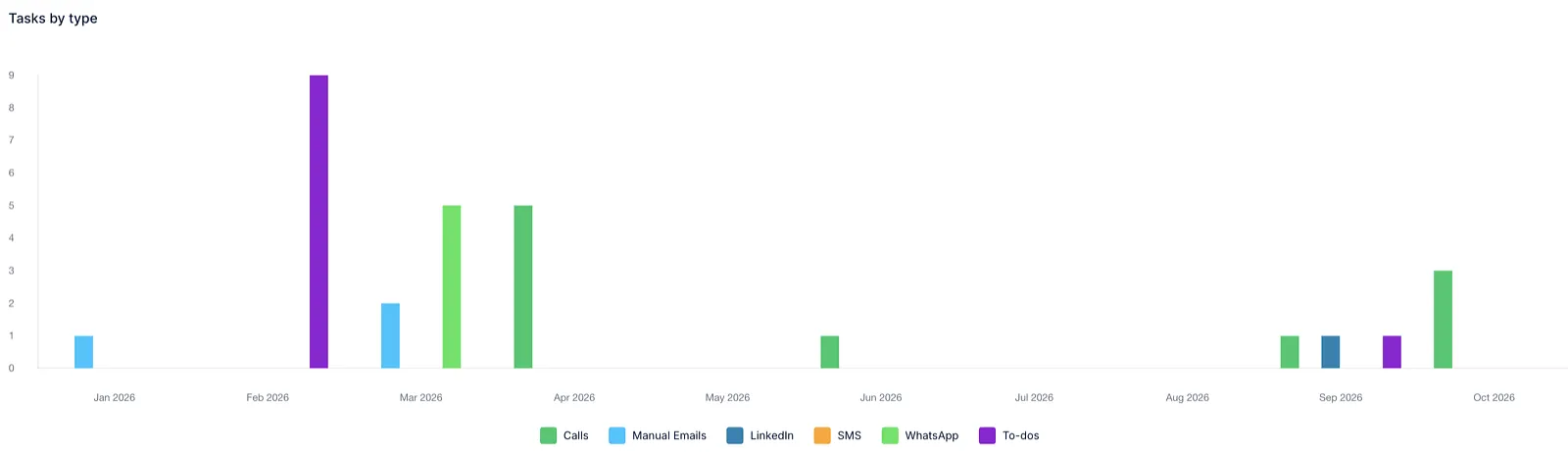
To explore the chart:
- Change the date range or reporting status to update the results.
- Click a task type in the chart legend to hide or show that series.
- Click a bar to open the matching task records for that task type and period.
💡Hiding a series changes only the chart display. It does not remove tasks from the report.
Created and completed tasks
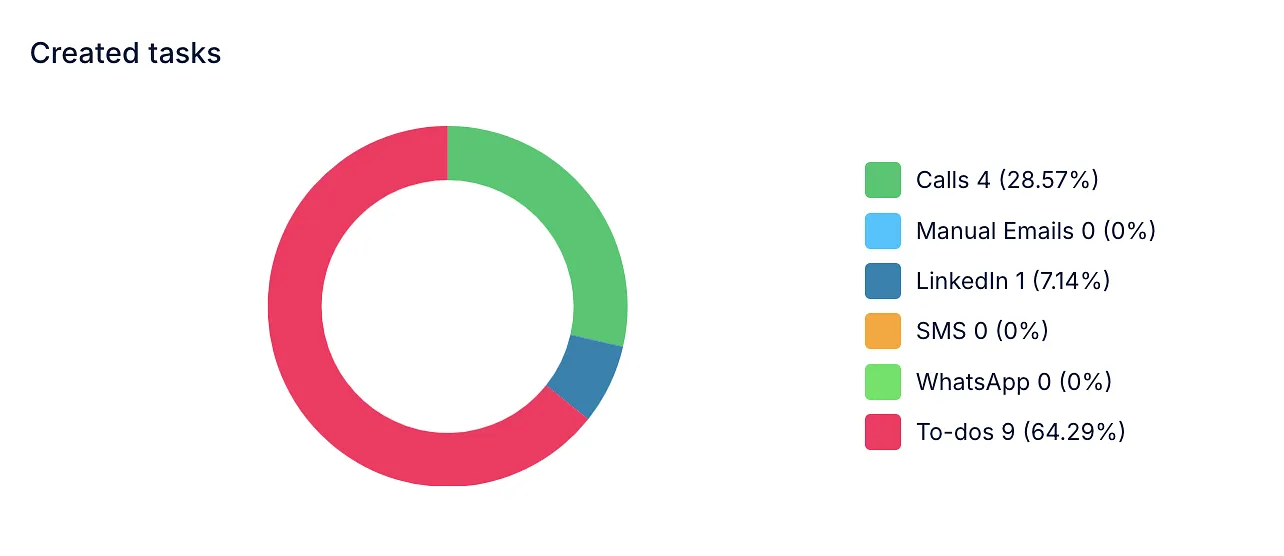
The dashboard includes separate charts for Created tasks and Completed tasks. Each chart shows the distribution of task types within its reporting category.
These charts use their own reporting status:
- The Created tasks chart always shows Created records.
- The Completed tasks chart always shows Completed records.
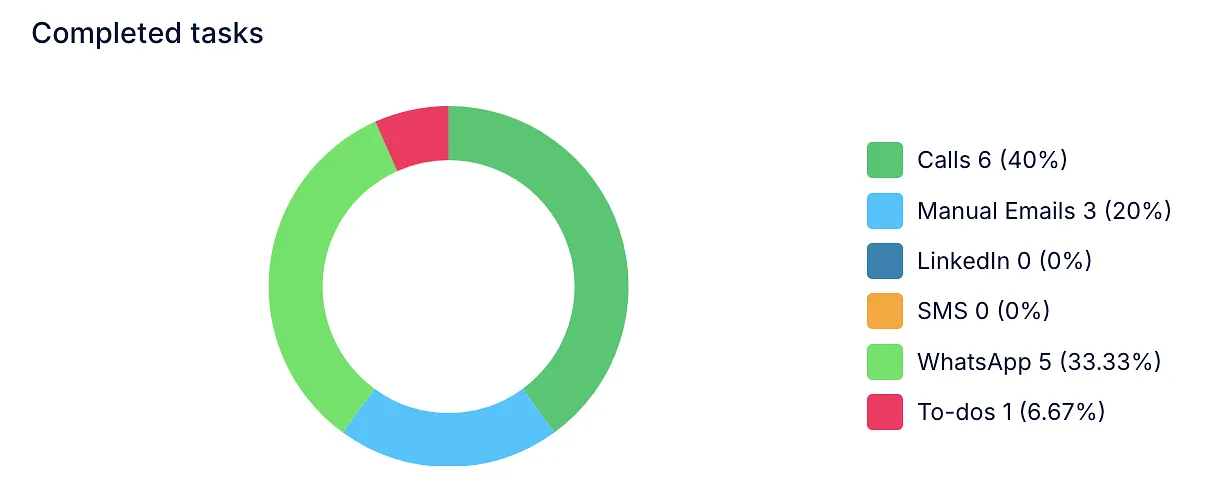
Both charts continue to use the other applicable report filters.
Click a legend item to hide or show a task type, or click a chart segment to inspect the matching records.
💡These charts do not show a completion rate. They do not track what percentage of a group of created tasks was later completed.
View individual task records
Click a supported counter, team-member task count, chart bar, or chart segment to open a detailed view of the matching records.
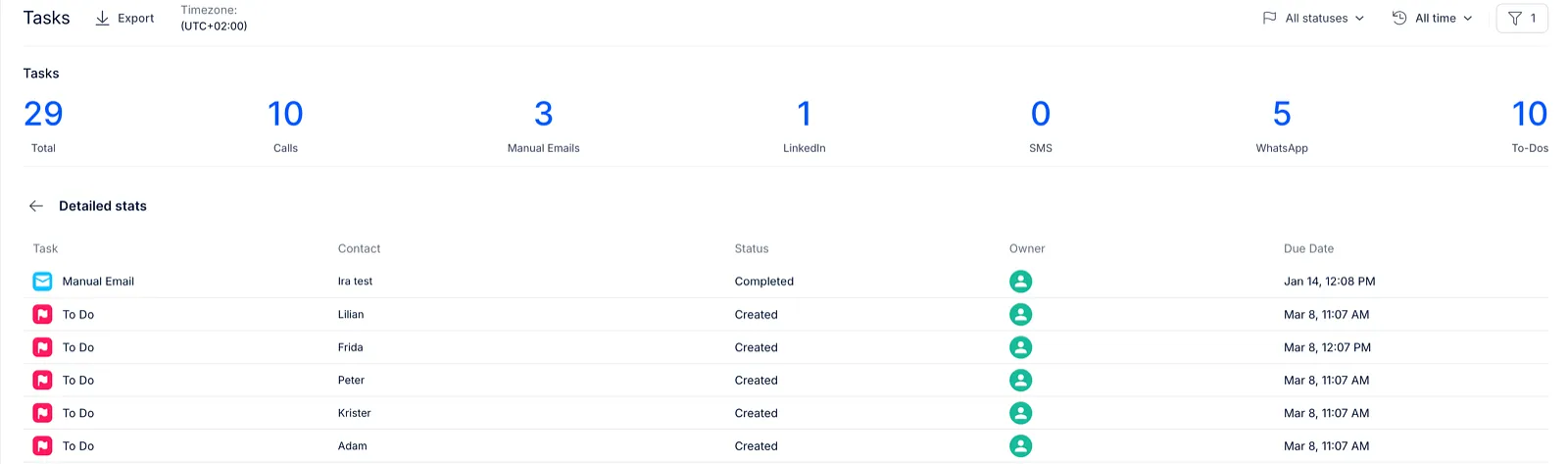
The detailed view includes:
- Task: The task type, including the LinkedIn action where applicable.
- Contact: The associated contact.
- Status: The individual task’s status.
- Owner: The assigned user.
- Date: The task’s due date.
💡The Date column shows the due date, not the creation or finish date used to filter the report. Use the back control to return to the dashboard.
Export task data
Use the export control at the top of the page to request a CSV export based on your current filters.
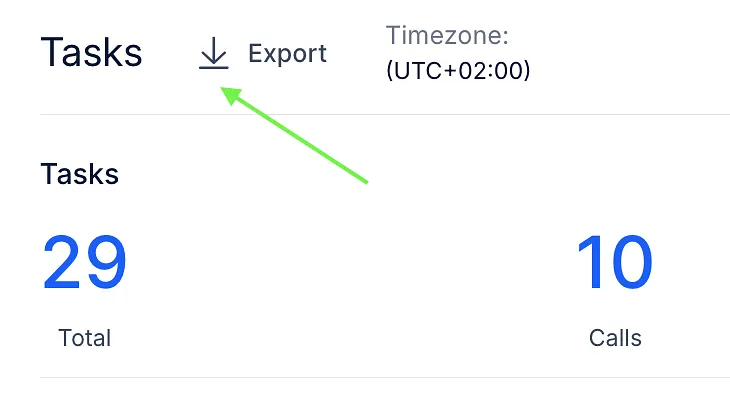
Export is unavailable while the report is loading or when there are no matching results.