Reply lets you create and use smart filters to filter prospects based on different parameters.
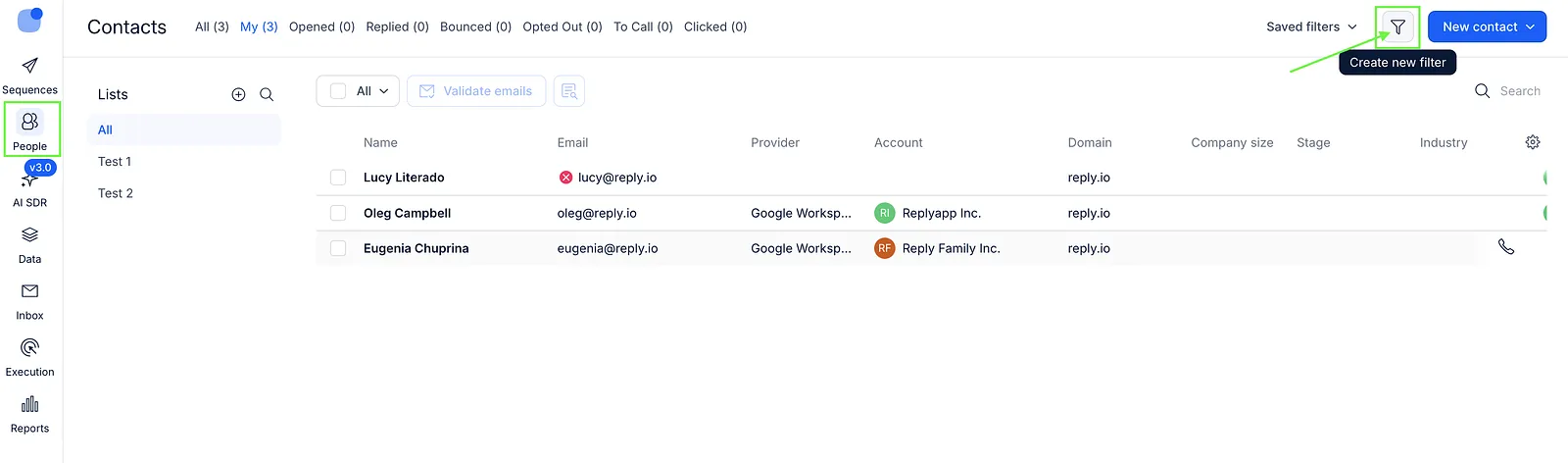
To create a new custom filter, open the People page and click the Create new filter button.
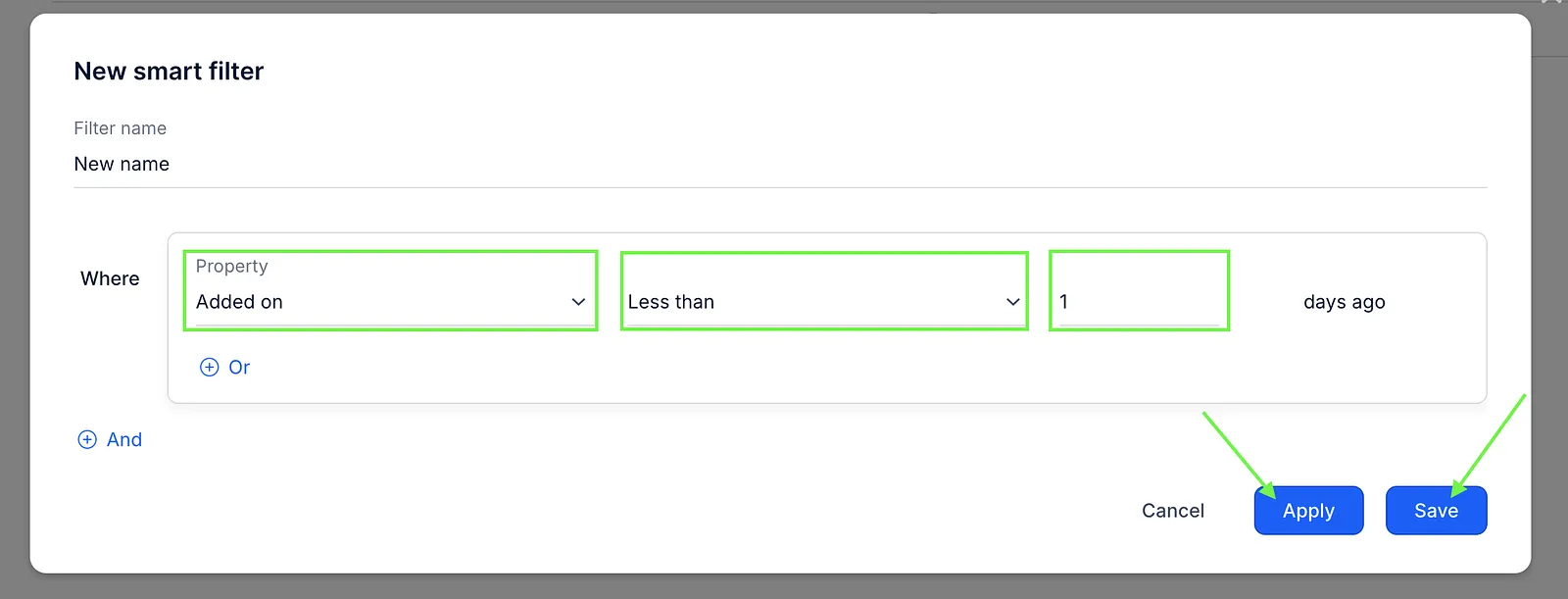
Select the required property, condition, and click Apply to apply the filter or Save to apply and save the filter.
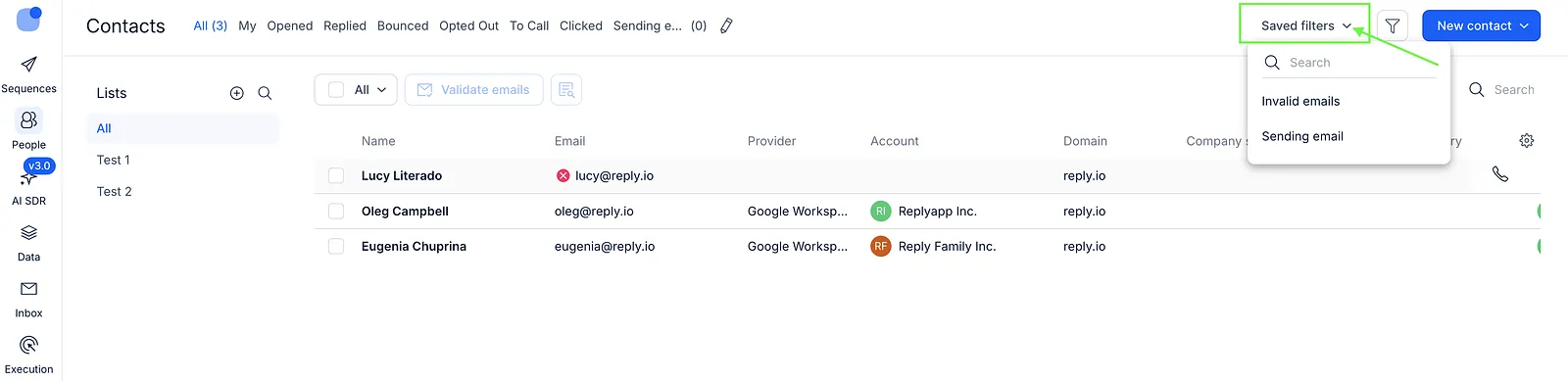
If you have saved a filter, you can use it later by clicking the Saved filters button and selecting the filter.
You can also create complex custom filters with several conditions - learn how to do this by checking this article.
Examples of useful smart filters
- How to create custom filters with several conditions
- How to filter prospects by custom fields
- How to filter out prospects who are/aren't on a specific list
- How to filter prospects by title and move them to a list
- How to filter prospects by call resolution
- How to filter prospects by a specific time zone
- How to filter prospects by statuses in sequence
- How to filter prospects who haven’t opened emails and move them to a duplicate sequence?
- How to filter prospects by email validation status
- How to filter prospects by inbox category?
- How to filter prospects by the creation source?
- How to filter prospects by LinkedIn connection status?