About Zapier
Zapier lets you automate tasks between Reply and other platforms. This is useful when there's no direct integration available.
You can connect Reply with thousands of apps and build automated workflows called Zaps. Each Zap consists of a trigger (an event that starts the workflow) and an action (what happens next).
Supported triggers and actions
Triggers – events in Reply that start a Zap:
- New Emails Sent – triggers when an email is sent (first step or a follow-up).
- New Email Opened – triggers when a prospect opens your email.
- New Email Replied – triggers when a prospect replies to your email.
- New Person Opt Out – triggers when a prospect clicks the opt-out link.
- New Person Bounce – triggers when an email address bounces.
- New Link Clicked – triggers when a prospect clicks a link in your email.
- Inbox Category Set – triggers when a reply is marked with a specific inbox category (e.g. Interested, Not Interested, Out of Office).
- Prospect Finished – triggers when a prospect is finished in a sequence for any reason, for example after completing all steps, replying, bouncing, or being finished manually.
- Add or Update Contact – triggers when a contact is created or updated manually in Reply.
- Zapier Step Launched – triggers when a Zapier step is reached in a sequence. Use this to connect with external apps mid-sequence. See the Zapier Step article for setup instructions.
Actions – what Zapier can do in Reply:
- Create/Update Person – creates a new contact or updates an existing one in Reply.
- Create/Update Person and Push to Sequence – creates or updates a contact and adds them to a sequence.
- Mark as Replied – marks a prospect as replied in a sequence.
- Mark as Finished – marks a prospect as finished.
- Move to Next Step – moves a prospect to the next step in a sequence.
- Remove Person from Campaign – removes a prospect from a sequence.
💡 You can also map custom variables to default fields when creating or updating contacts and pushing them to sequences.
How to connect Reply via Zapier?
Below is an example of how to connect Reply with Slack using Zapier.
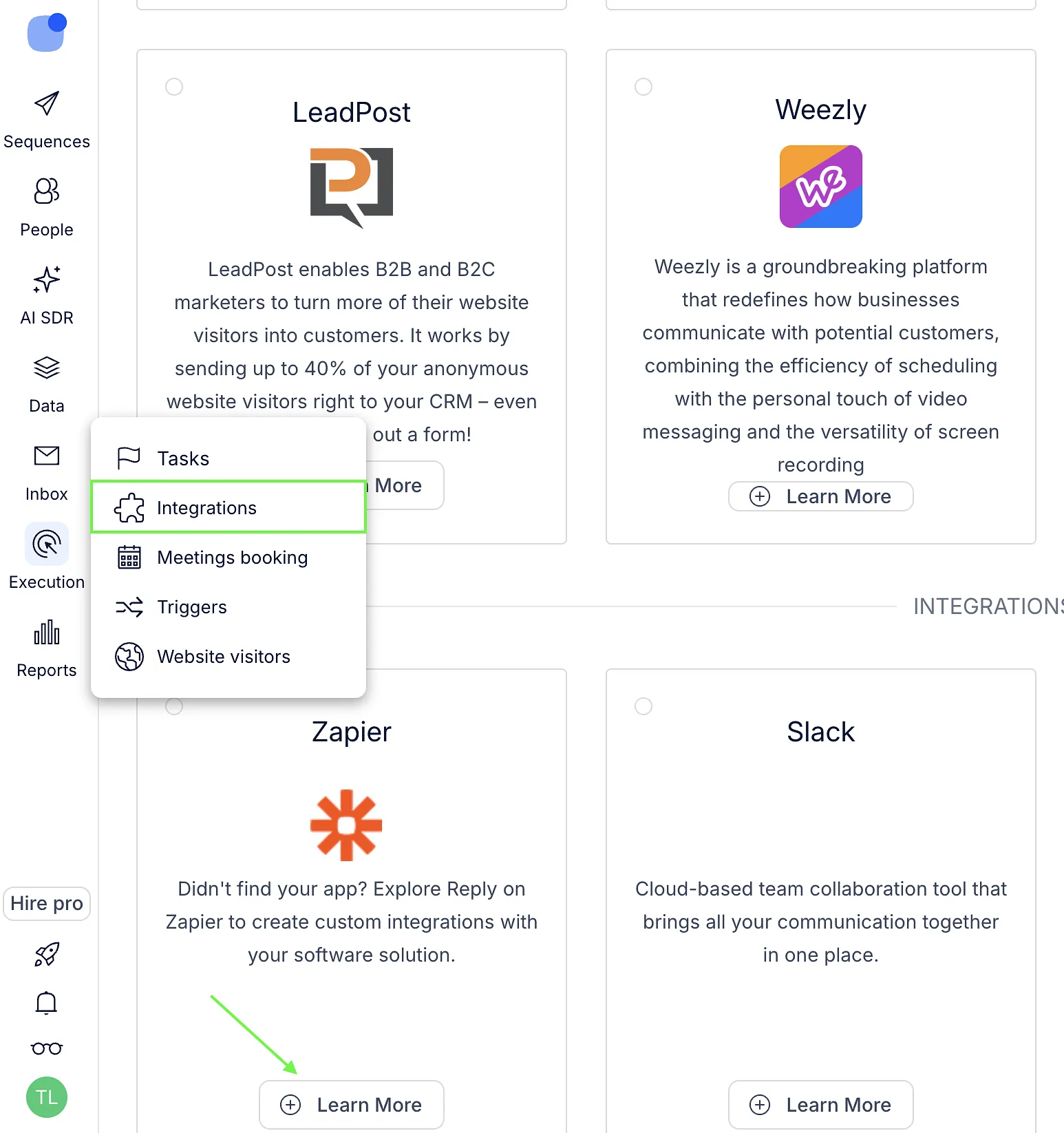
- Go to Execution → Integrations.
- Click Learn More next to Zapier.
- Open Zapier and create a new Zap.
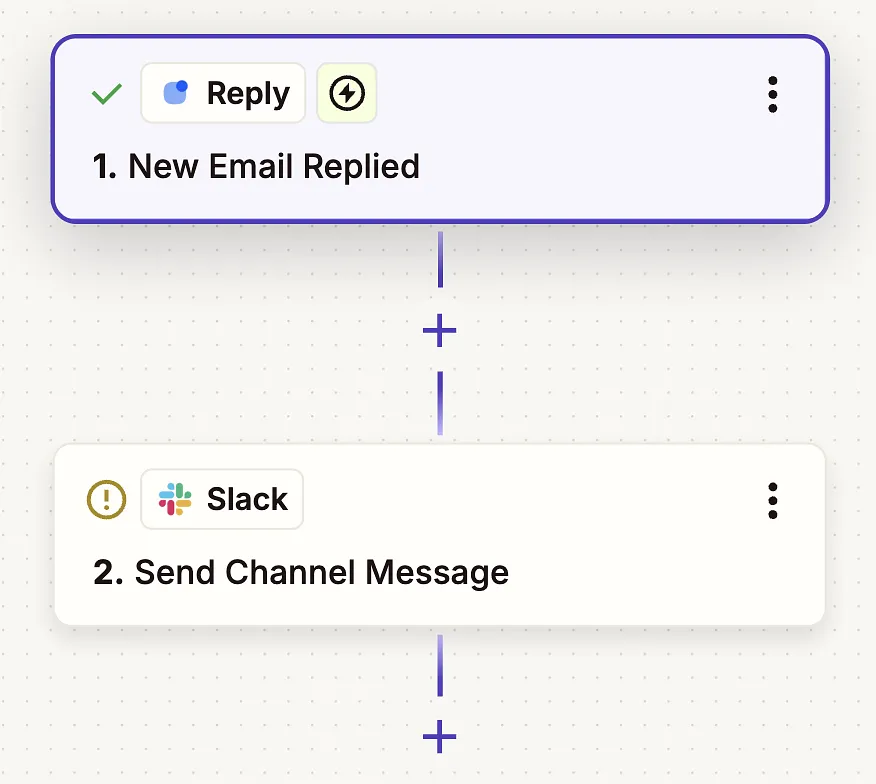
- Connect your Reply account using the API key from Settings.
- Connect your Slack account and allow the required permissions.
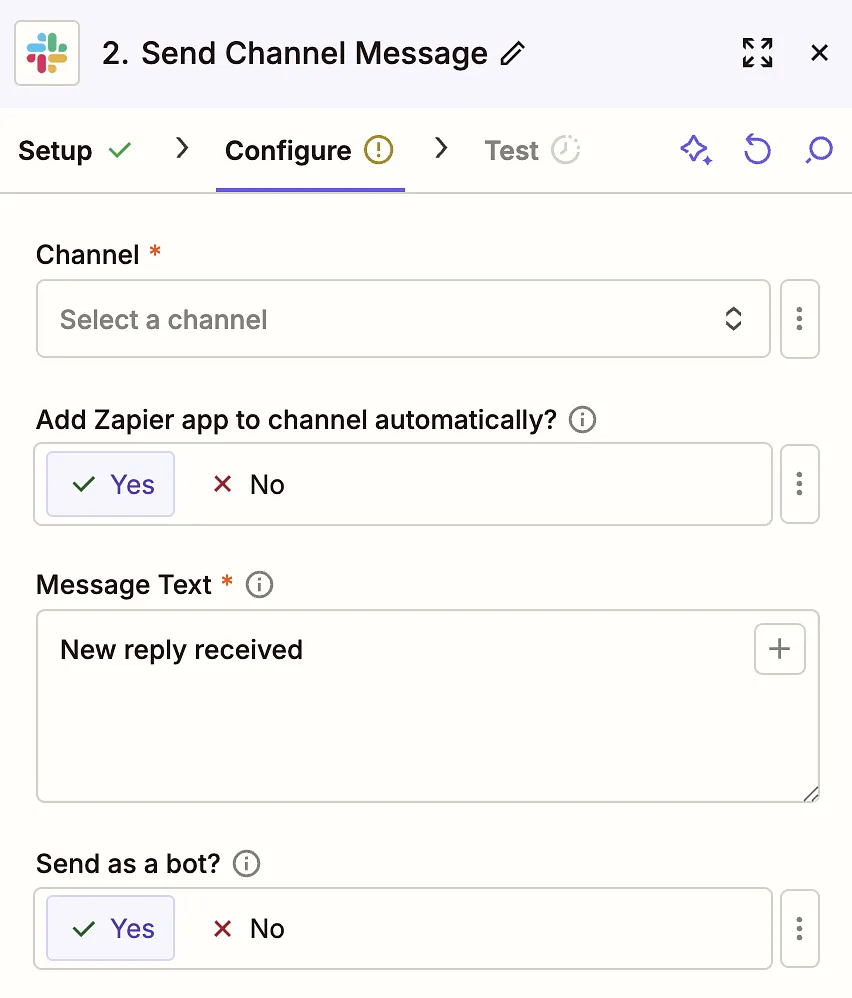
- Choose the Slack channel and set up the message text.
- Test the Zap and publish it.
Once your Zap is active, it will run automatically based on the trigger you selected.