When your team uses Accounts, a contact's company comes from the account the contact is linked to. The old Company text field on the contact is no longer used. This article explains what changes for variables, imports and the People page.
What changes
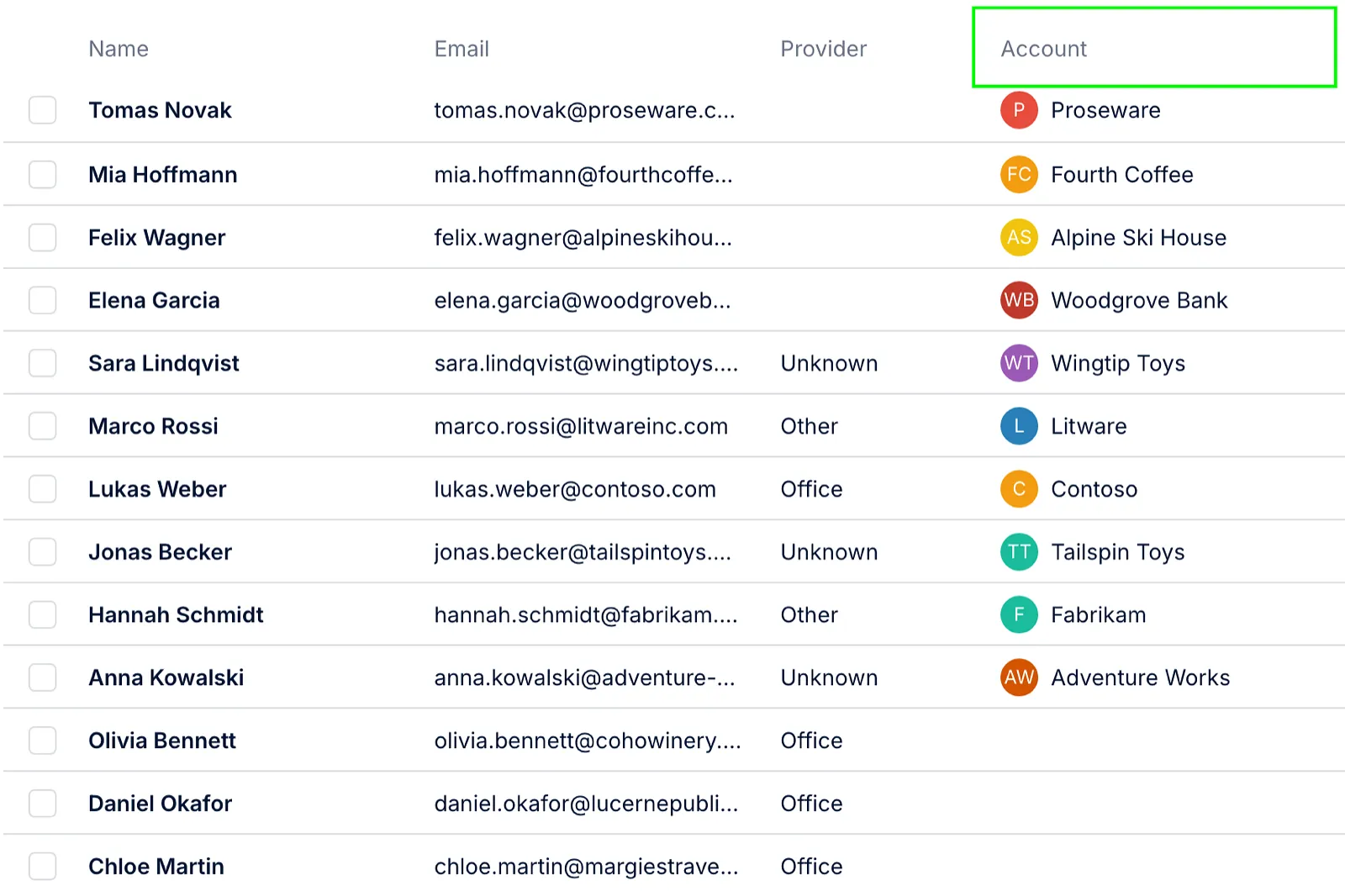
- People page - the Company column is called Account and shows the name of the linked account.
- Company, Company Size and Industry - these values now come from the linked account. City, State and Country stay on the contact.
- Contacts without an account - if a contact isn't linked to an account, its company, company size and industry are empty.
Variables in your templates
You don't need to change your templates. {{Company}} now shows the account name, {{CompanySize}} the account's company size, and {{Industry}} the account's industry. In the variables list, they are described as Account name, Account Company Size and Account Industry.
If a contact has no linked account, these variables are empty and the contact gets the Missing data status in sequences that use them. To fix it, link the contact to an account on its contact page, or import the contacts again with an account name column.
💡 {{CompanySize}} shows a range, for example "11-50".
Importing contacts from a CSV file
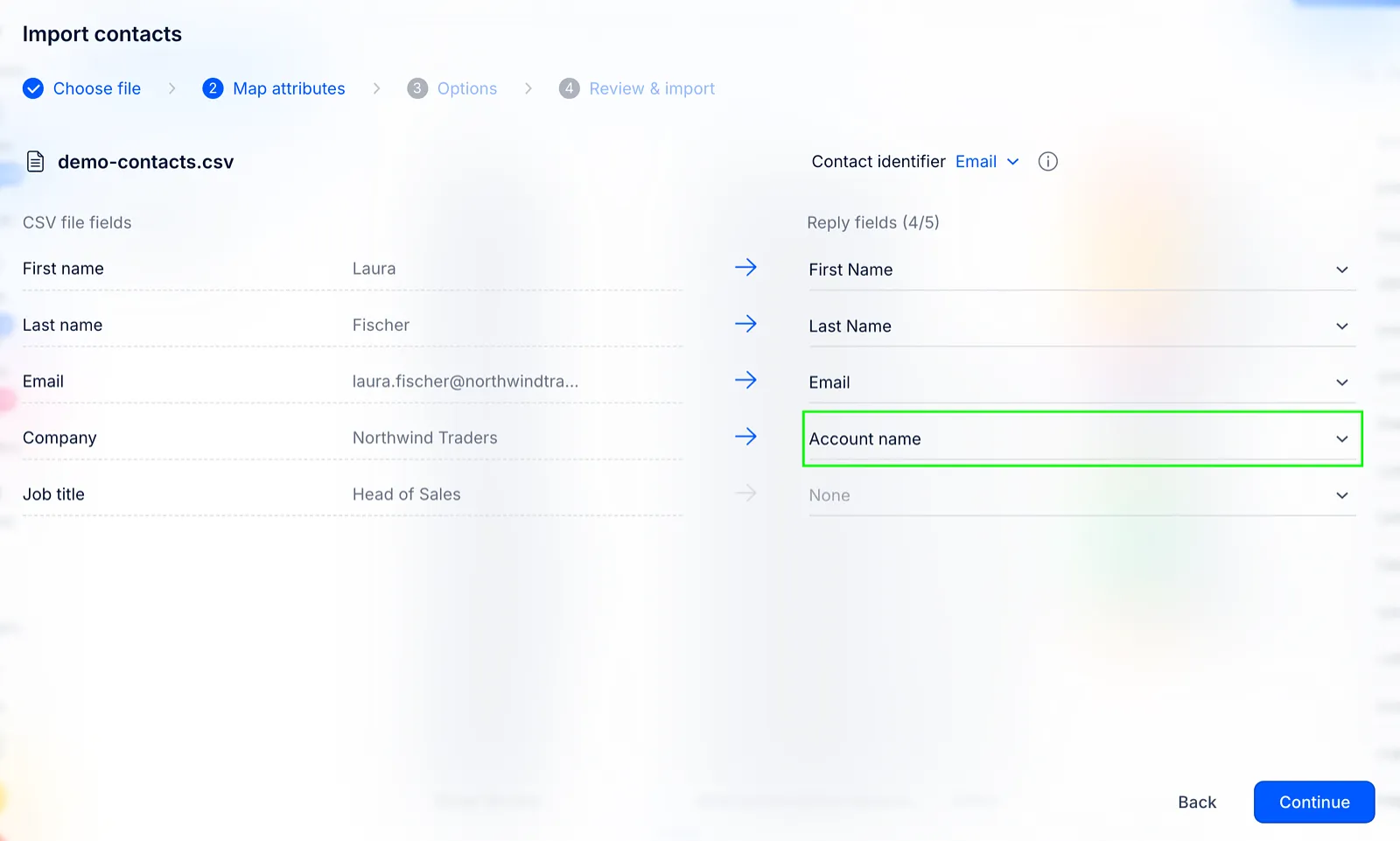
When you import contacts, map your company column to Account name. Reply links each contact to the account with the same name (upper and lower case don't matter) or creates a new account. A new account gets its domain from the contact's email address.
- An existing account's empty fields are filled in from your file. Fields that already have a value are not changed.
- Accounts are matched by name, not by domain. "Acme" and "Acme Inc." become two accounts.
- To create new accounts, your role needs permission to create accounts. Without it, contacts whose account doesn't exist yet are imported without an account, so their company is empty. Ask your admin to check Roles & Permissions.
Can I turn Accounts off?
No, there is no setting to turn Accounts off. If you have questions about how Accounts was set up for your team, contact Support.
Read more about Accounts: