Basic contact variables are the ones you'll use most when creating email or LinkedIn templates. They pull information from the basic fields in your contacts' profile cards so you can personalize your messages.
You can use them to include details like first name, company, or job title, and make your messages feel more personal.
To add a basic contact variable:
- Create a new sequence or open an existing one.
- Open or add the step you want to edit (for example, an email, LinkedIn message, or SMS).
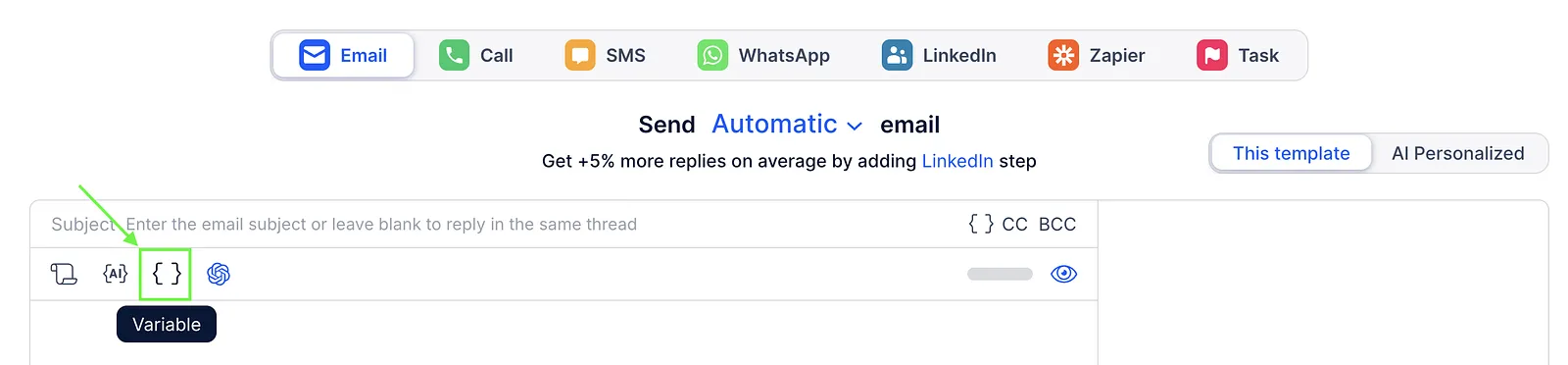
- Click the Variables icon in the top-left corner of the editor.
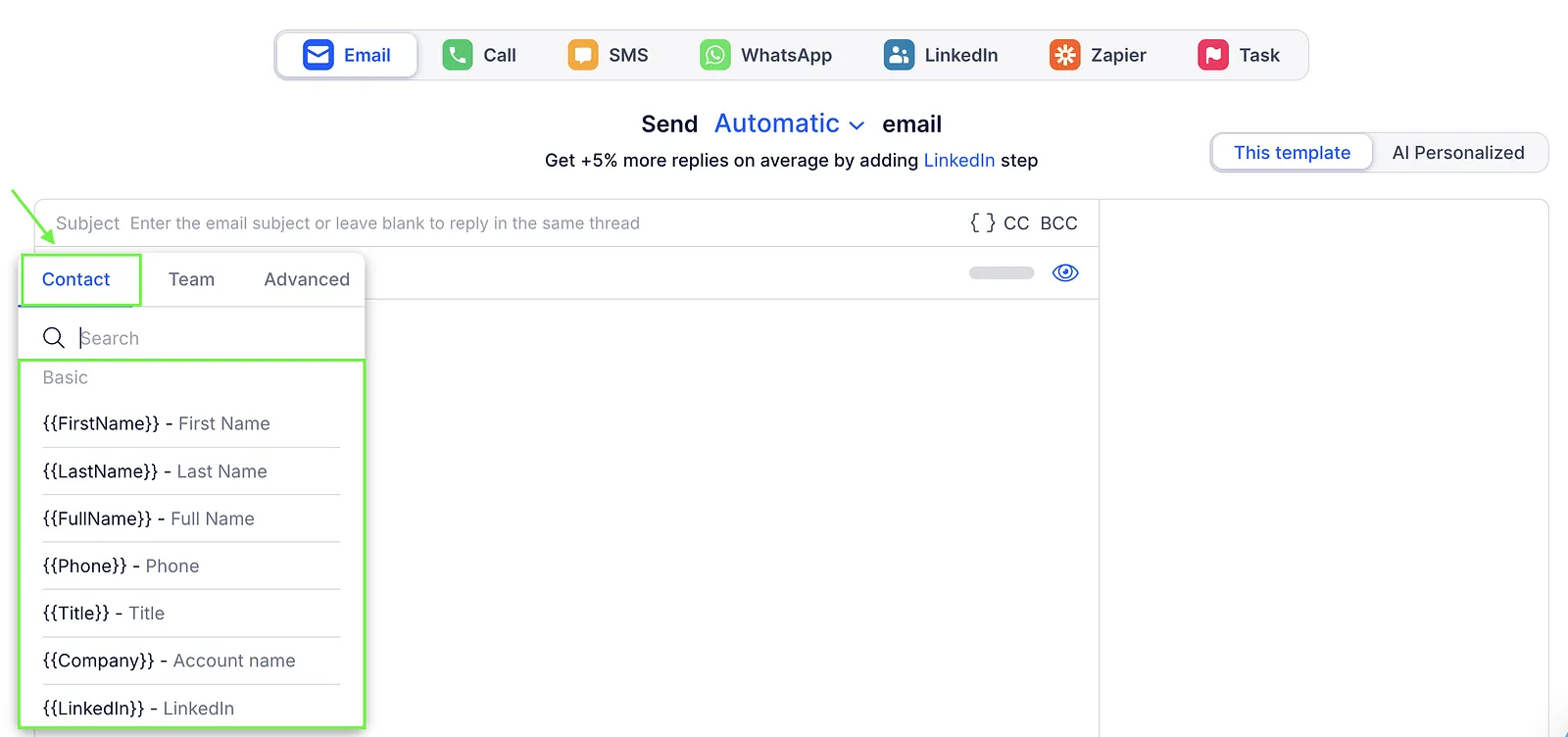
- In the variables window, go to the Contact tab.
- Select the contact variable you want to insert.
- Save!
List of basic contact variables
| Variable | Description | Example |
|---|---|---|
| {{FirstName}} | Adds the contact's first name | Hello, {{FirstName}}! → Hello, Mark! |
| {{LastName}} | Adds the contact's last name | Dear Mr. {{LastName}} → Dear Mr. Johnson |
| {{FullName}} | Adds the contact's full name | Hello, {{FullName}}! → Hello, Mark Johnson! |
| {{Phone}} | Adds the contact's phone number | We will send SMS to your phone {{Phone}} → We will send SMS to your phone +22233222 |
| {{Title}} | Adds the contact's job title | I’m interested in contacting {{Title}} → I’m interested in contacting Marketing Director |
| {{Company}} | Adds the contact's company name | We are glad to work with {{Company}} → We are glad to work with Reply.io |
| {{LinkedIn}} | Adds a LinkedIn profile URL | Nice LinkedIn profile {{LinkedIn}}! → Nice LinkedIn profile https://www.linkedin.com/in/marknjohnson/ |
| {{SalesNavigator}} | Adds the Sales Navigator profile link | Take a look at this profile: {{SalesNavigator}} → Take a look at this profile: https://www.linkedin.com/sales/people/ACoAAA… |
| {{CompanySize}} | Adds the size of the contact's company | Our solution fits companies of {{CompanySize}} employees → Our solution fits companies of 250 employees |
| {{Industry}} | Adds the contact's company industry | We have experience in {{Industry}} → We have experience in Software |
| {{City}} | Adds the contact's city | How is everything in {{City}}? → How is everything in Philadelphia? |
| {{State}} | Adds the contact's state | I see you’re from {{State}} → I see you’re from Pennsylvania |
| {{Country}} | Adds the contact's country | Nice connecting with someone from {{Country}} → Nice connecting with someone from Canada |
| {{Email}} | Adds the contact's email address | Your registration email is {{Email}} → Your registration email is [email protected] |
| {{Domain}} | Adds the domain of the contact's email | We noticed you use {{Domain}} → We noticed you use reply.io |
| {{Opens}} | Shows how many times the contact opened your emails | I see you've opened our emails {{Opens}} times → I see you've opened our emails 5 times |
| {{Replies}} | Shows how many times the contact replied | Appreciate your {{Replies}} responses! → Appreciate your 2 responses! |
| {{Views}} | Shows total email views, including multiple opens | Wow! You opened our emails {{Views}} times! → Wow! You opened our emails 3 times! |
| {{last_touch}} | Shows the day, week, month, or year of the last email sent or reply received. Works only for email steps and only for emails sent within the current sequence. How dates appear: - Earlier this year – in March - Previous year – Last December - Earlier this week –day of the week (e.g., Monday) - Last week – Last Wednesday - 2-3 weeks ago (but not the previous calendar month) – n weeks ago - Previous month – in January |
I wrote to you in {{last_touch}} last time → I wrote to you in August last time |
💡 Tip: Use variables as part of AI Variables. This ensures that all variable values are applied correctly and your sentences are grammatically correct.
If you want to explore further, see more about custom, team, or advanced variables.