Reply doesn't send sequence emails at one fixed time. It checks your sequences every 10 minutes and sends an email once the contact's step delay has ended, the schedule is open and your limits allow it. This article explains each of these, so you can tell when a contact's next email is due.
The first email
- When you start or resume a sequence, Reply plans its emails right away. The emails are then sent one by one, with the delay between emails (see below). If nothing goes out, see Why is my sequence not sending emails?
- After an email account has sent emails, Reply checks its inbox for replies before it plans more emails from it, so that contacts who replied don't get a follow-up. That's why sending happens in rounds and not all the time.
- A contact you add to a sequence that is already running is picked up the next time Reply checks the sequence.
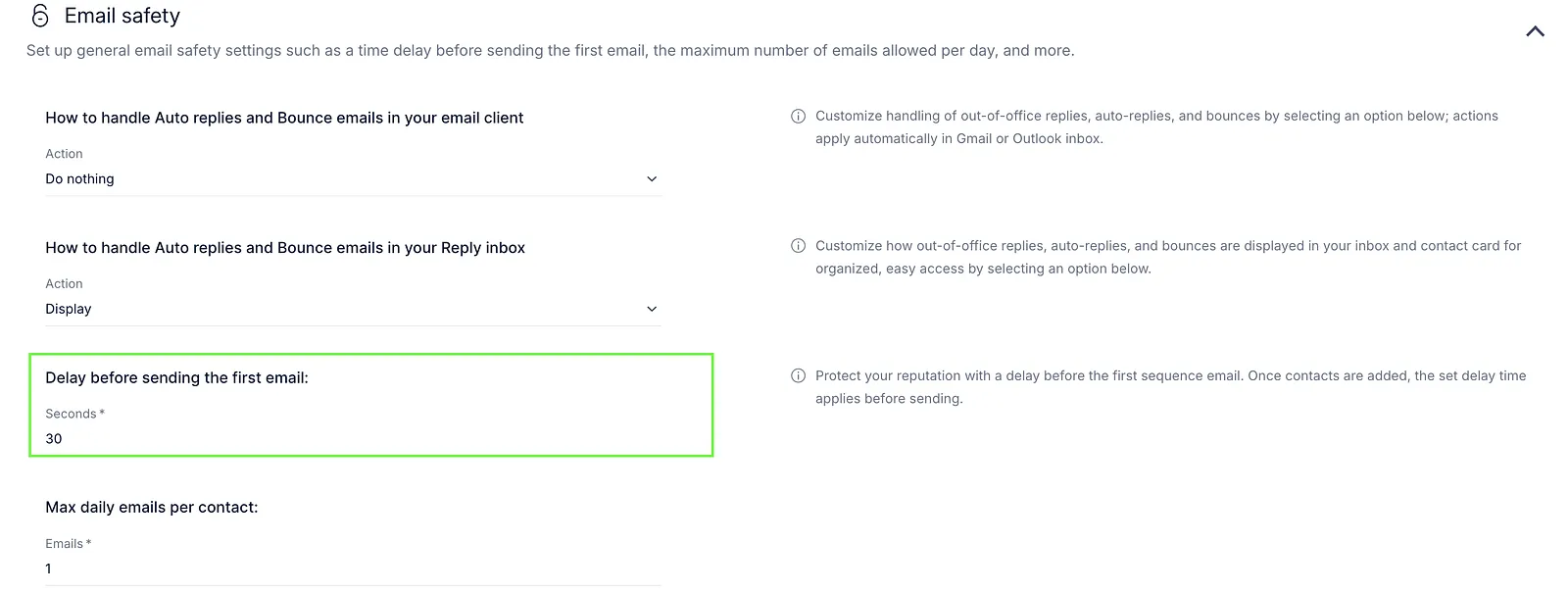
- Before the first email to each contact, Reply also waits for the Delay before sending the first email. You set it in Settings → Emails → Email Safety, as described in our article on managing auto replies.
- If the first step has its own delay, for example 1 day, that delay counts from the moment the contact was added to the sequence.
Follow-ups
The delay of each follow-up step counts from the moment the previous email was actually sent:
- a delay in days means full 24-hour periods. Weekends and holidays count as days;
- if the previous email went out later than planned, the follow-up moves by the same amount of time;
- when the delay ends, the follow-up waits for the next open hours in your schedule (or in the follow-up schedule, if you use Separate schedule for follow-ups).
For example, your schedule sends Monday to Friday, 9:00 to 17:00, and step 1 was sent to a contact on Friday at 10:15:
- with a 3-day delay, step 2 is due on Monday at 10:15 and can go out from then;
- with a 1-day delay, step 2 is due on Saturday at 10:15. The schedule is closed on weekends, so it waits until Monday at 9:00.
You can change the delays on the sequence's Steps tab. See Step delays management.
What decides the exact time
Once a contact's email is due, these settings decide when it actually goes out:
-
Schedule - emails go out only during the open hours of the sequence's schedule, in the schedule's time zone, or in each contact's own time zone if you turned that on. See Schedules.
-
Delay between emails - an email account sends one email at a time, with a pause between emails. That's why emails are spread across the open hours instead of going out all at once. You set the pause in the sequence settings (Delay between each email sent (seconds)) and in the email account's settings. See Sequence settings.

-
Daily limits - the email account's daily limit, the sequence's daily limit and Max new daily contacts. Emails that don't fit into today's limits wait for the next day. Daily limits reset at midnight UTC. See Existing limits in Reply.
-
Sending order - every 10 minutes, each email account gets only as many emails as fit into those 10 minutes with your delay between emails, for example about 5 with a 120-second delay, and only as many as your daily limits still allow. By default, emails for step 1 fill these places first and follow-ups get what's left. So if many contacts are waiting for their first email, follow-ups can wait until those first emails are sent. How many contacts start the sequence each day depends on Max new daily contacts, so a high limit, or no limit, makes this more likely.
To keep conversations you've already started on time, open the sequence Settings and set When sender capacity is limited to Follow-ups first. If there's room for every due email, the setting changes nothing: both go out in the same round. See Sequence settings.

💡 Other things can hold emails back too: ramp-up on a new email account, a disconnected email account, a high bounce rate, the monthly active contacts limit, or AI SDR messages waiting for approval. The color of the sequence toggle tells you which one, as described in Sequence toggle colors explained.
How to see when a contact's next email is due
- Open the sequence and go to the People tab.
- Hover over the contact's Current step.
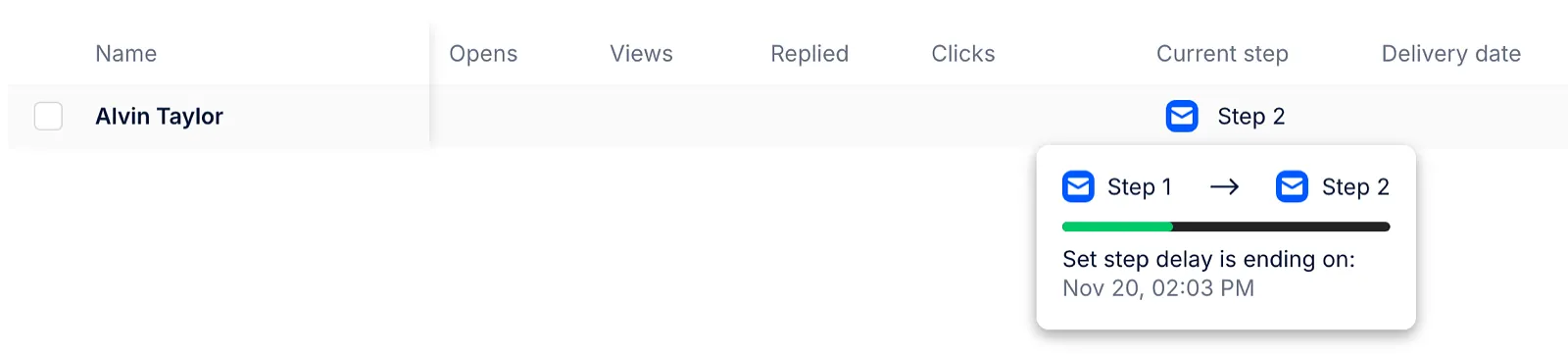
- Set step delay is ending on: shows the date and time when the step delay ends.
- Set step delay has ended means the email is due and waits for the schedule's open hours or for room in your limits.
- For a contact with the Throttled status, the tooltip says The system prepares the contact. Contact processing will begin: with the date the contact starts the sequence.
💡 The date in the tooltip is the earliest time Reply can send the email, not the exact time. The exact minute depends on the schedule, the limits and the other emails waiting, so Reply can't show it in advance.
To see what Reply has already planned, open the sequence's Log tab. A line such as 5 email(s) planned for next 10 min shows the emails about to go out. See Logs in a sequence.
Read more about sending: