The Log tab in a sequence contains technical information about events that take place in the sequence. If an error occurs, the logs can help you understand and resolve the issue.
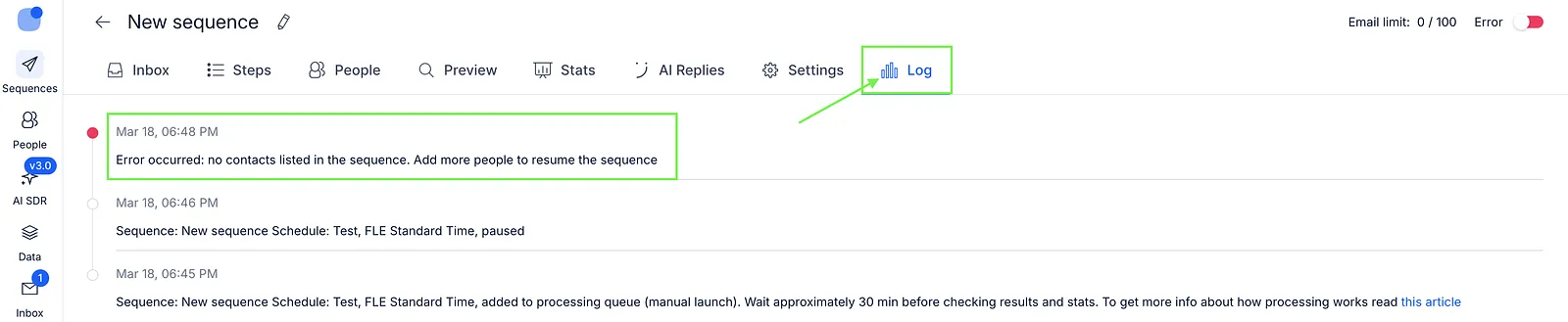
To access them, open your sequence and click the Log tab.

New Log view [Beta]
💡 This feature is currently available in beta. To use it, enable beta in your account settings.
With beta on, the Log tab sorts events into categories, folds repeated events into one line and highlights the errors you need to fix. Without beta, the tab shows one list of events, described further down this article.
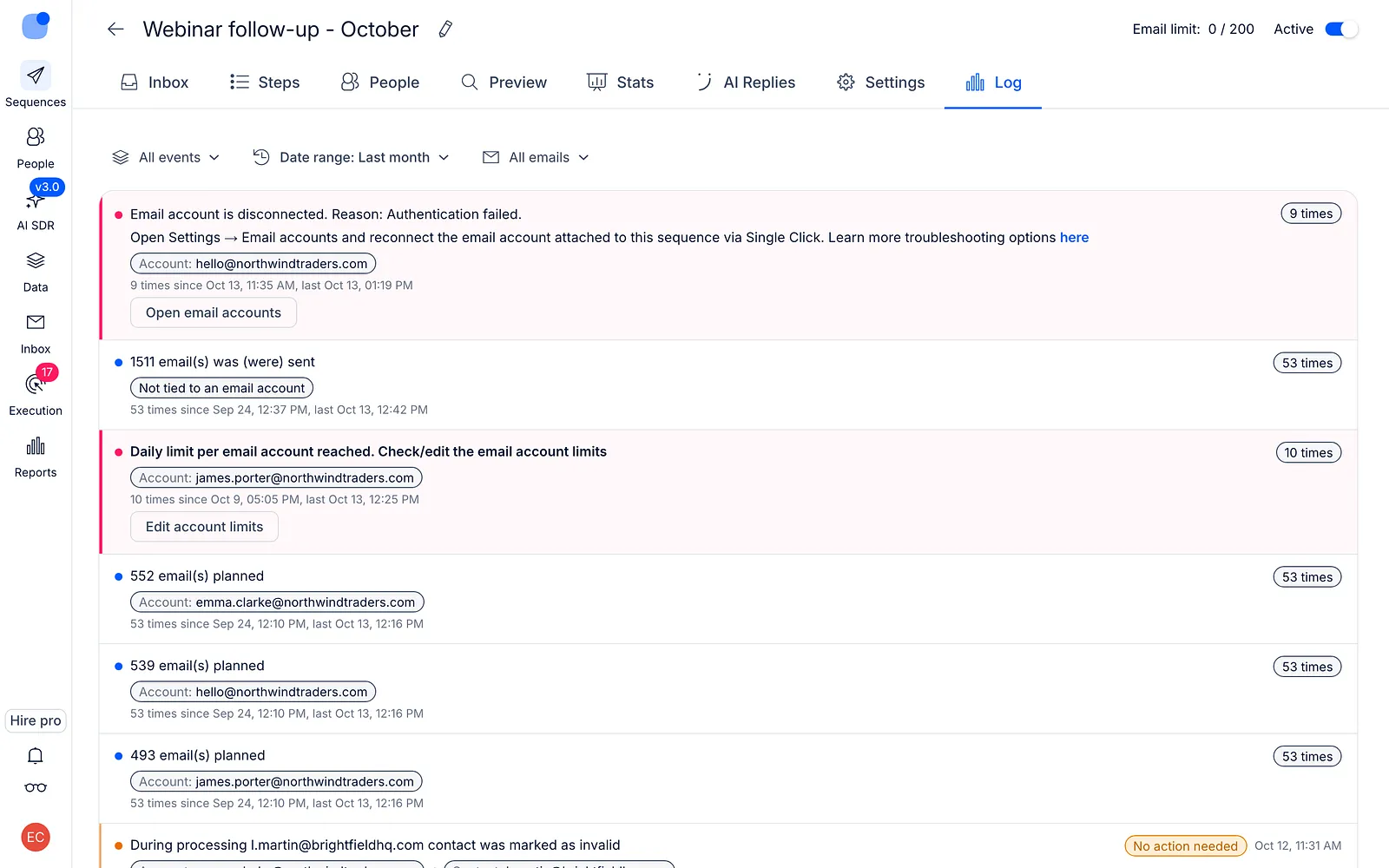
Every event belongs to one of four categories:
- Errors & Issues - problems that stop or slow down sending, such as a disconnected email account or a reached limit.
- Sending Activity - emails and LinkedIn actions planned and sent, sequence starts and pauses, and steps skipped for a contact.
- Settings & Changes - changes to the sequence settings, such as the daily limit, the schedule or tracking. Each one shows who made the change.
- Autopilot - contact searches and filter changes made by Autopilot. This category appears only in sequences that use Autopilot.
Logs are kept for 30 days.
How to filter the logs
-
Open the sequence and go to the Log tab.
-
Use the filters above the list:
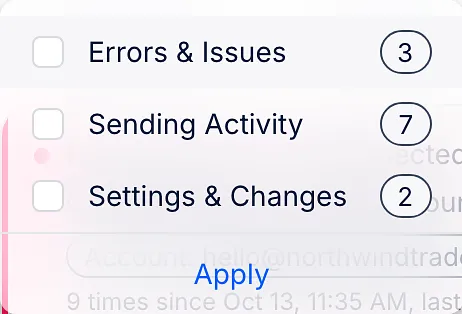
- All events - pick one or more categories and click Apply. The number next to each category shows how many entries it has.
- Date range - choose Today, Last week or Last month. Last month is the default.
- All emails - show only the events of the email accounts you pick.
How to read an event
-
Errors that need action are highlighted in red and come with a button that takes you to the fix: Reconnect account, Open email accounts, Edit account limits or Refresh LinkedIn cookie.

-
No action needed marks an error that has no fix button.
-
Repeated events show once, with a counter such as 9 times and the time of the first and the last one.
-
When four or more email accounts have the same problem, they show as one event with the number of accounts affected. Click Show accounts to see which ones.
Checks before a sequence starts
Before a sequence starts, Reply checks the following:
- The email account is linked to the sequence.
- The email account is set up correctly.
- All prospects are active in the sequence.
- The LinkedIn account is linked to the sequence.
- The selected schedule is valid.
- The follow-up schedule is valid.
If a check fails, the sequence may not start, and an error is recorded in the logs.
Events recorded in sequence logs
Reply creates logs for different events that take place in a sequence. The following sections describe common log events and what they mean.
General sequence logs
| Log name | Description |
|---|---|
| Sequence started (manual/auto) | The sequence was launched manually or automatically. Wait ~30 minutes before checking results. |
| Sequence paused | The sequence has been paused. You can resume it when ready. |
| No prospects in sequence | There are no prospects added. Add contacts to continue. |
Email account logs
| Log name | Description |
|---|---|
| Email account block | Sending paused because your email provider blocked the account. Sequence resumes automatically in 24 hours. Check this article and the Email account page to resume sending. |
| Email account error | An error occurred with the email account. |
| Email account detection failed | Planning paused; detection from the email account failed or the account is inactive. It will resume automatically once detection succeeds. |
| Email account disconnected | Connection failed. Check/edit server settings, SSL, and ports in Email account settings. |
| Processing error: Max emails per account | Daily sending limit reached for the account. |
| Processing error: Max unique contacts per month | Monthly limit of unique contacts reached. |
| No email account connected | The sequence has no email account. Connect one to send emails. |
LinkedIn logs
| Log name | Description |
|---|---|
| LinkedIn limit reached | Daily connection or message limit reached on LinkedIn. |
| InMail step error | Issue executing InMail step; contact support |
| Like recent posts error | Like recent posts error |
| Follow profile error | Contact has disabled following their profile due to privacy settings |
| Connect step already sent | Connection request already sent and pending |
| Connect step with note error | Contact cannot receive connection request messages due to privacy settings |
| Connect step error | Contact cannot receive connection requests at this time due to privacy settings |
| Endorse skills step error | Contact has no skills to endorse |
| Revoked connection request error | Invitation not sent; can resend 3 weeks after withdrawing |
Read more about sequence errors: