You can open Reply in your phone's web browser and get a layout made for a small screen. This helps when you need to check a sequence, answer a reply or finish a task away from your computer.
To start, open run.reply.io in your phone's browser and sign in as usual.
💡 To work with your Inbox, approvals and notifications on the go, you can also use the Jason AI mobile app.
How to move between pages
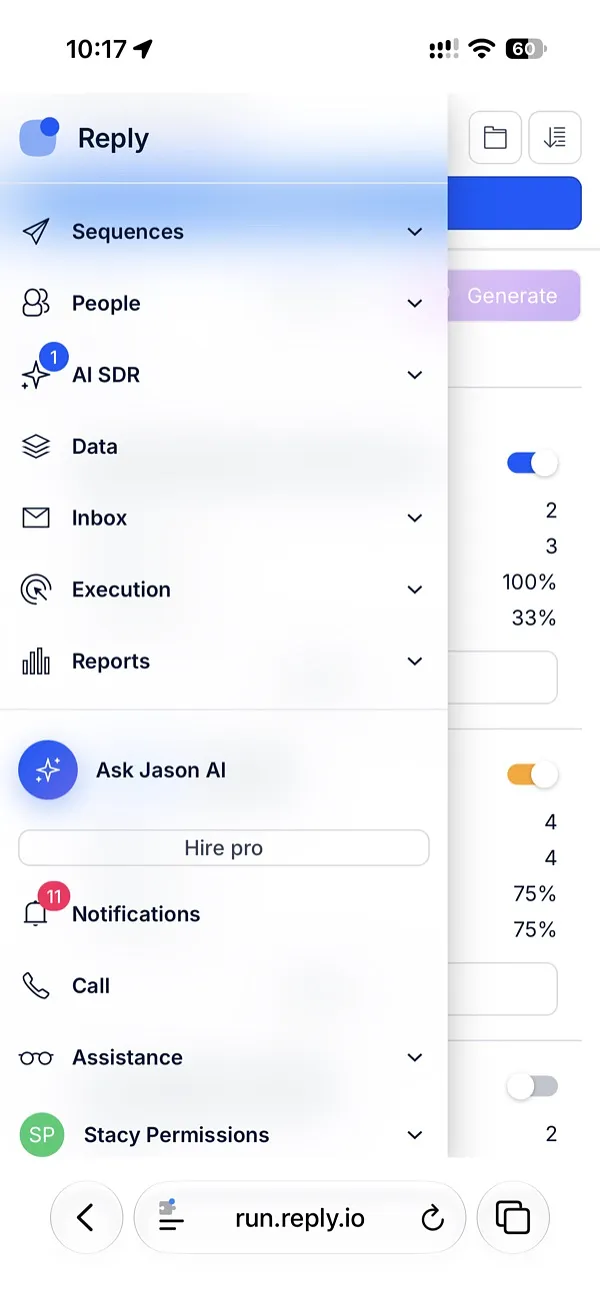
On a phone, the left sidebar is replaced by a menu button in the top-left corner of each page. Tap it to open the menu with:
-
all main pages (Sequences, People, Inbox, Tasks, Reports and others);
-
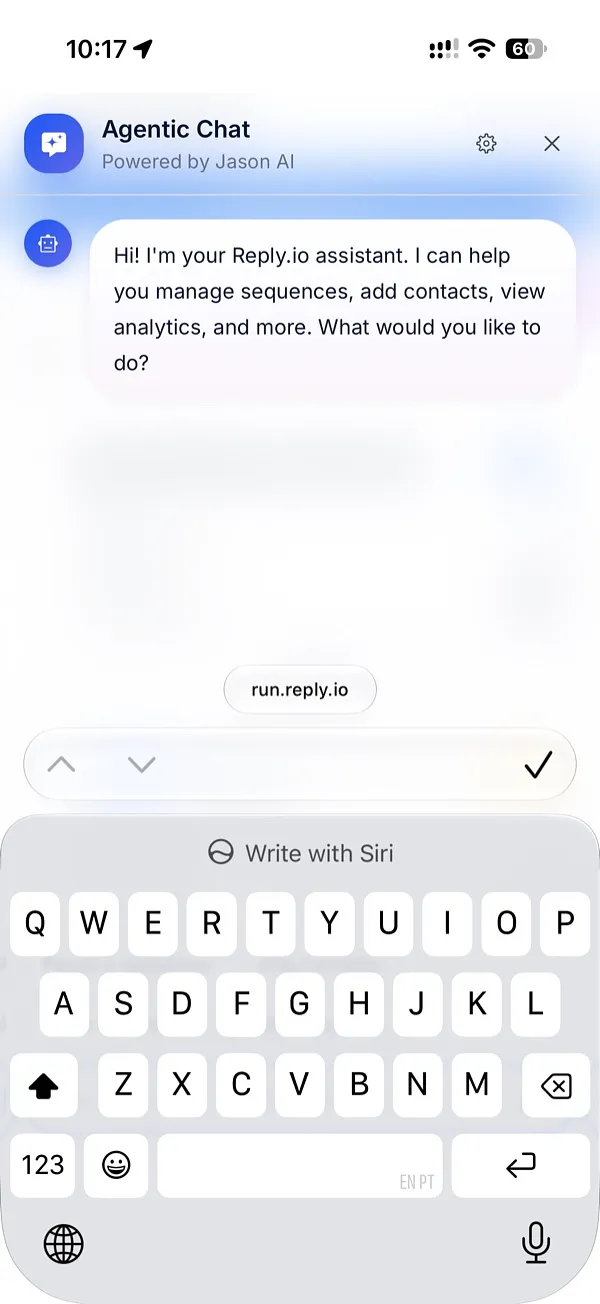
Ask Jason AI, which opens Agentic chat full screen;
-
your notifications;
-
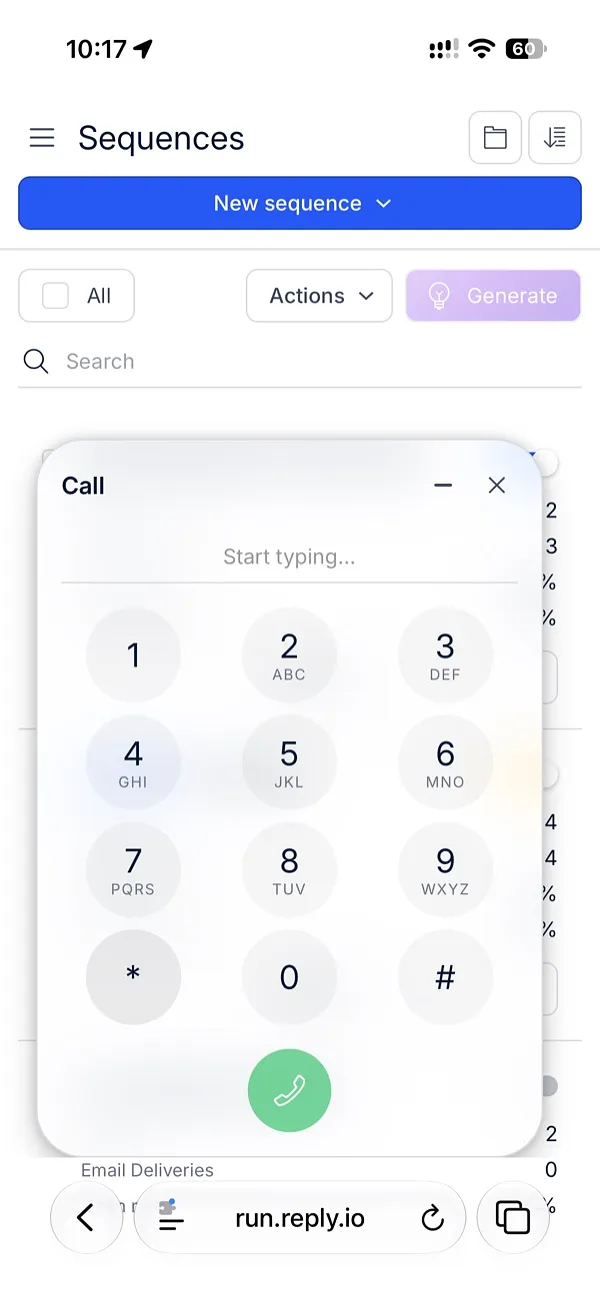
Call, if Cloud Calls are on for you;
-
help and your account menu (Settings, plans and billing, organization, log out).
The menu closes after you pick a page.
How pages look on a phone
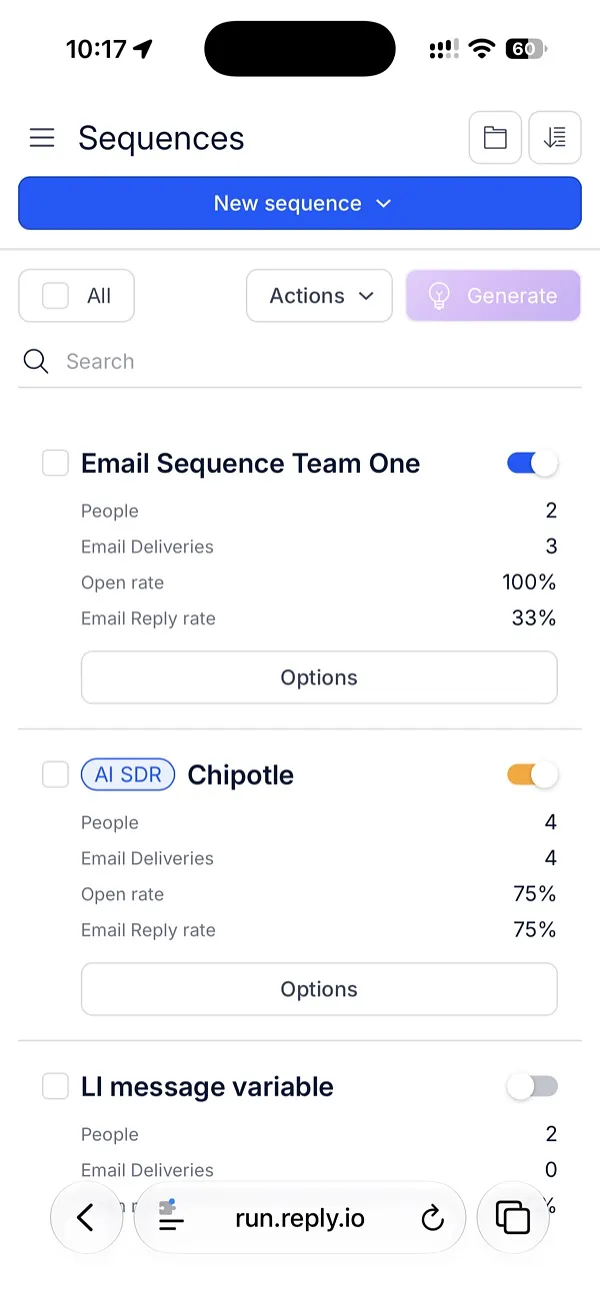
Tables become cards, one card per sequence, contact, task or account. Actions you would find above a table on a computer sit in one Actions list. Filters, folders and lists open in a side panel.
-
Sequences - each card shows People, Deliveries, Open rate and Reply rate, with an on/off switch. Tap Options to add people, clone, change owner, save as template, move to folder, archive or delete.
-
Sequence steps - the steps fit the screen width, and the step editor opens full screen.
-
People - tap a contact to open their card full screen.
-
Inbox - read and answer replies, and use Actions to mark as read or unread, assign to labels, export or delete.
-
Tasks - create a task with New task, start a call session with Start call session, and tap a task to open it.
-
Reports - numbers and tables show as cards.
-
Settings - tap the menu at the top to switch between Settings pages.
What works only on a computer
A few things are not shown on a phone:
-
switching between teams;
-
saved filters in Reports, and the column settings in email stats;
-
the domain view on the Email Accounts page;
-
the formatting toolbar in the email template editor.
On a tablet, Reply keeps the left sidebar, and contact cards open over the page.
Read more about: