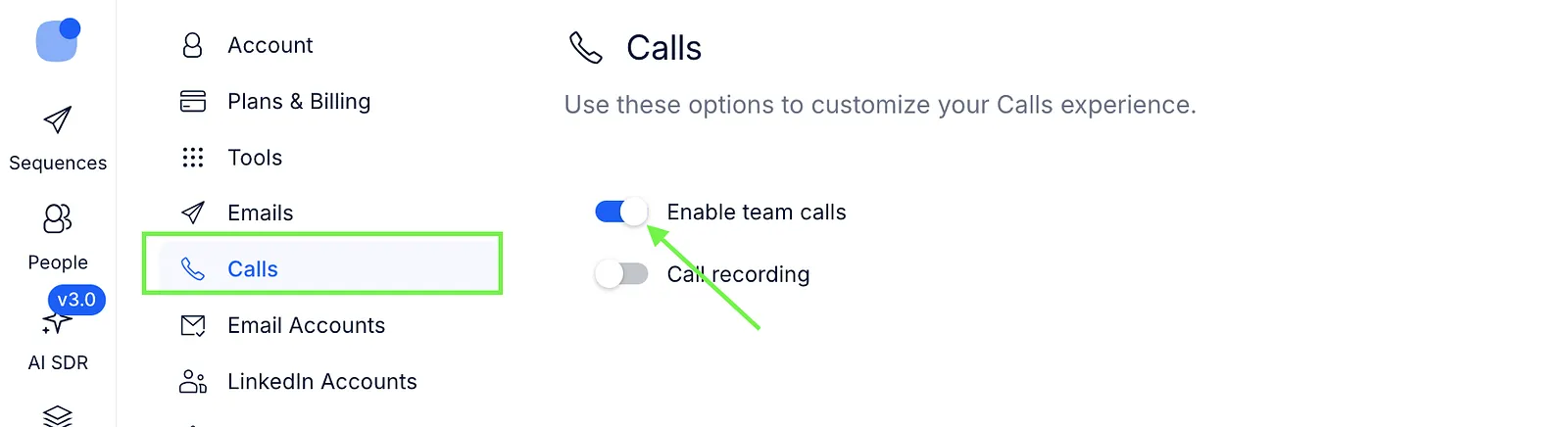
Cloud Calls allows you to make calls from Reply. To use the feature, you first need to enable it and rent a phone number.
Request Cloud Calls
To activate the Cloud Calls feature in your account, follow these steps:
- Go to Settings → Calls.
- Click Request calls.
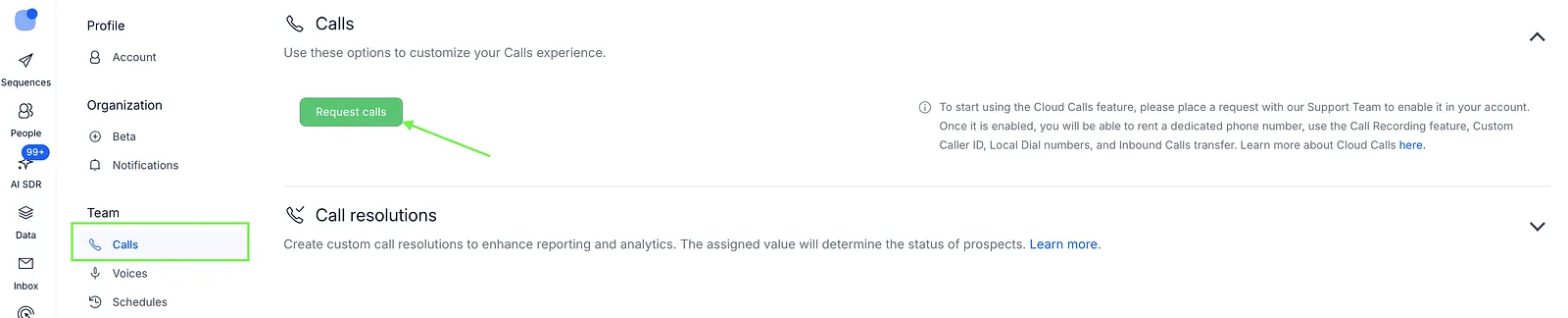
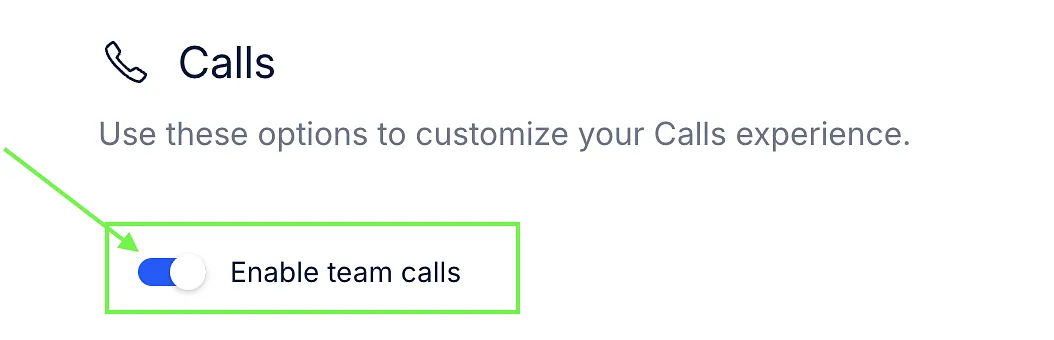
After submitting your request, contact our Support team to enable the feature for your account. Once Support enables Cloud Calls, the Enable team calls toggle will become available.
Manage access for team members
After Cloud Calls are enabled for the team, the team owner can manage access for individual team members.
- Go to Settings → Calls.
- Open Team settings.
- Turn on the toggle next to the relevant team members.
- Save your changes.
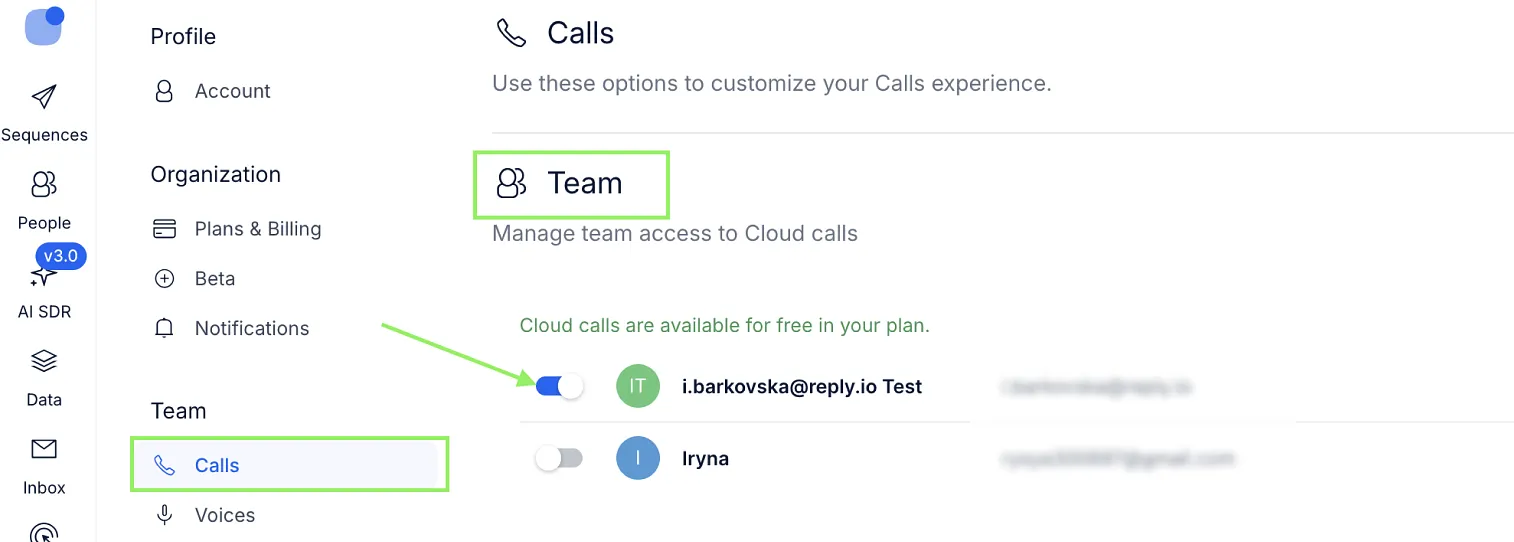
💡Enabling Cloud Calls for the team does not automatically grant every member access.
Team members can also enable or disable their own Cloud Calls access from Settings → Calls if they have the Manage team settings permission.
Once Cloud Calls are enabled, you can rent a phone number to make calls.
Disable Cloud Calls
The team owner can disable Cloud Calls for the team by switching off the Enable team calls toggle. Disabling Cloud Calls removes all rented phone numbers and saved call recordings from the team account. If you use an Agency account where multiple Clients share the same Twilio account, disabling Cloud Calls affects all of them.