Voicemail drop leaves a voicemail for your prospect when they don't pick up a call from a Call task. You set the voicemail once in the Call step, and Reply plays it on every call that reaches the prospect's voicemail. You don't need a separate step for it.
To use it, Cloud Calls must be enabled for your account. Until then, the switch is greyed out and shows Enable Cloud Calls to leave voicemails.
How to add a voicemail to a Call step
-
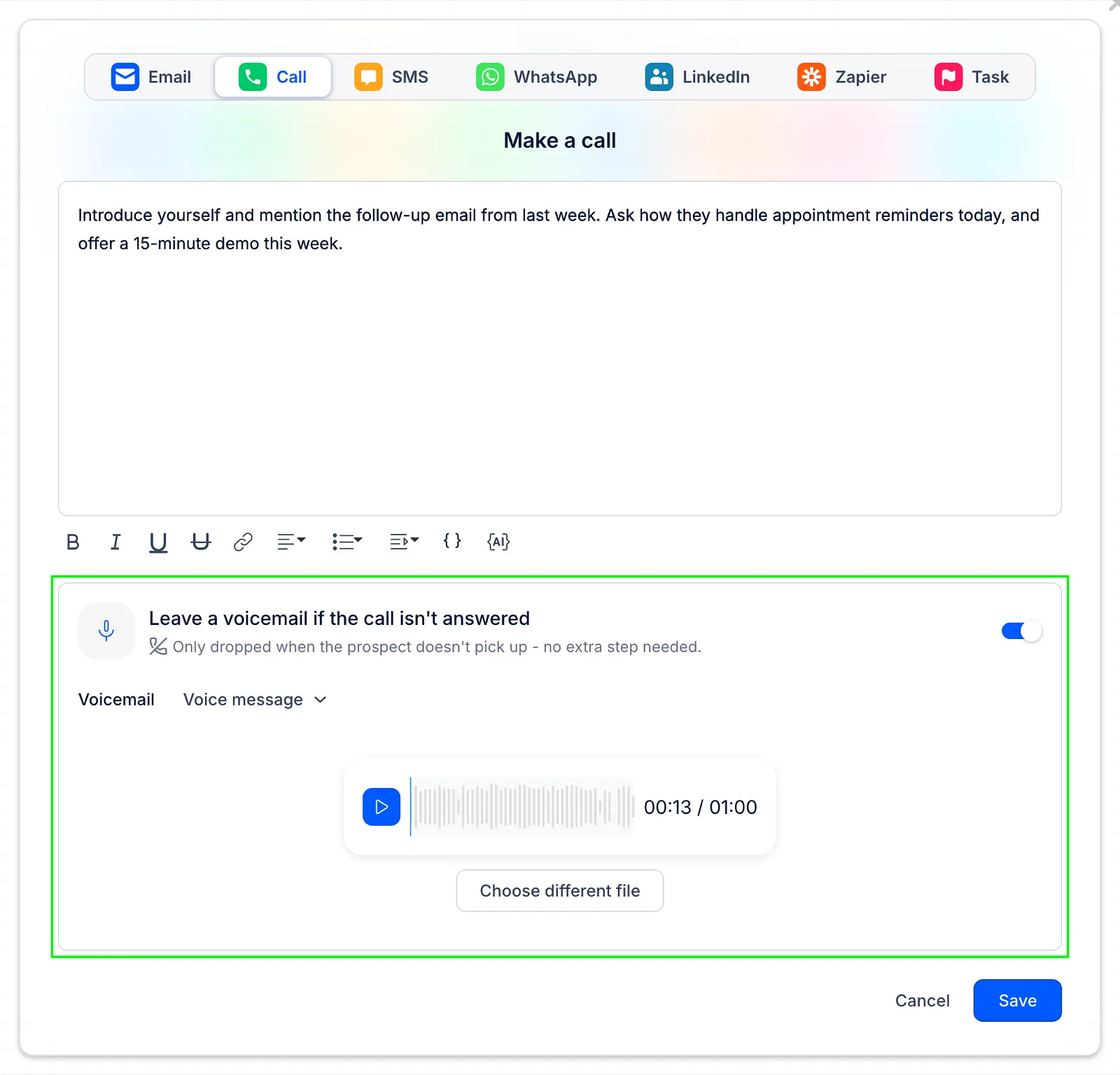
Open your sequence, go to the Steps tab and add a Call step (or open an existing one).
-
Turn on Leave a voicemail if the call isn't answered.
-
Next to Voicemail, choose the type: Voice message (a recording you upload or record) or AI Voice message (a script Reply reads out in your AI voice). Both are described below.
-
Click Save.
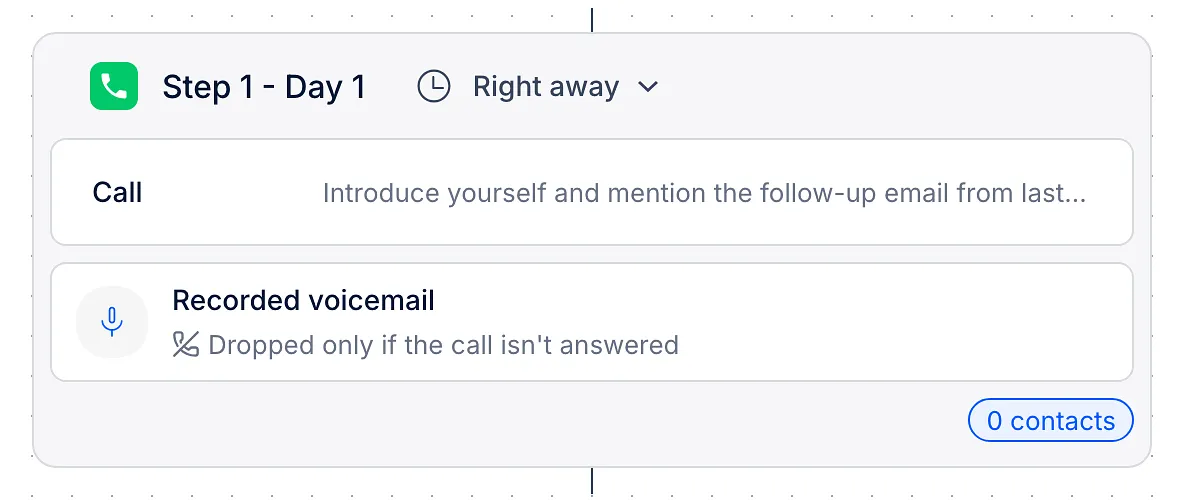
The step card now shows which voicemail is attached, with the note Dropped only if the call isn't answered.
Voice message (recorded)
Every prospect who doesn't pick up hears the same clip. You can:
- drag and drop an audio file, or click Upload from computer;
- click Record here to record the voicemail in your browser.
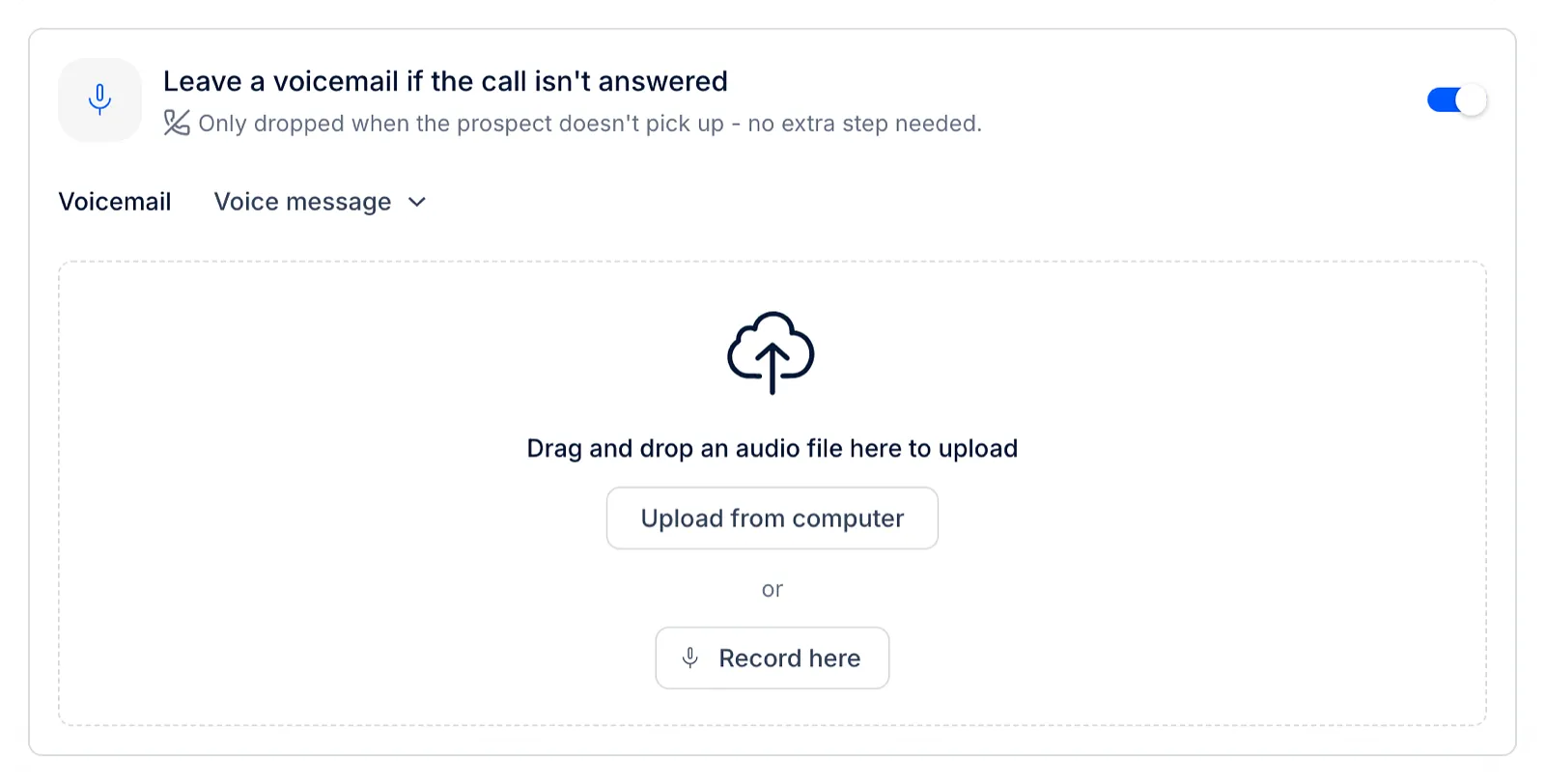
The file must be MP3 or WAV, between 1 and 60 seconds long and no bigger than 10 MB. Once it's added, you can play it back or click Choose different file to replace it.
AI Voice message
Write a script, and Reply turns it into audio in your AI voice for each contact. The script can use variables and AI variables, just like an email, so every prospect hears their own name and company.
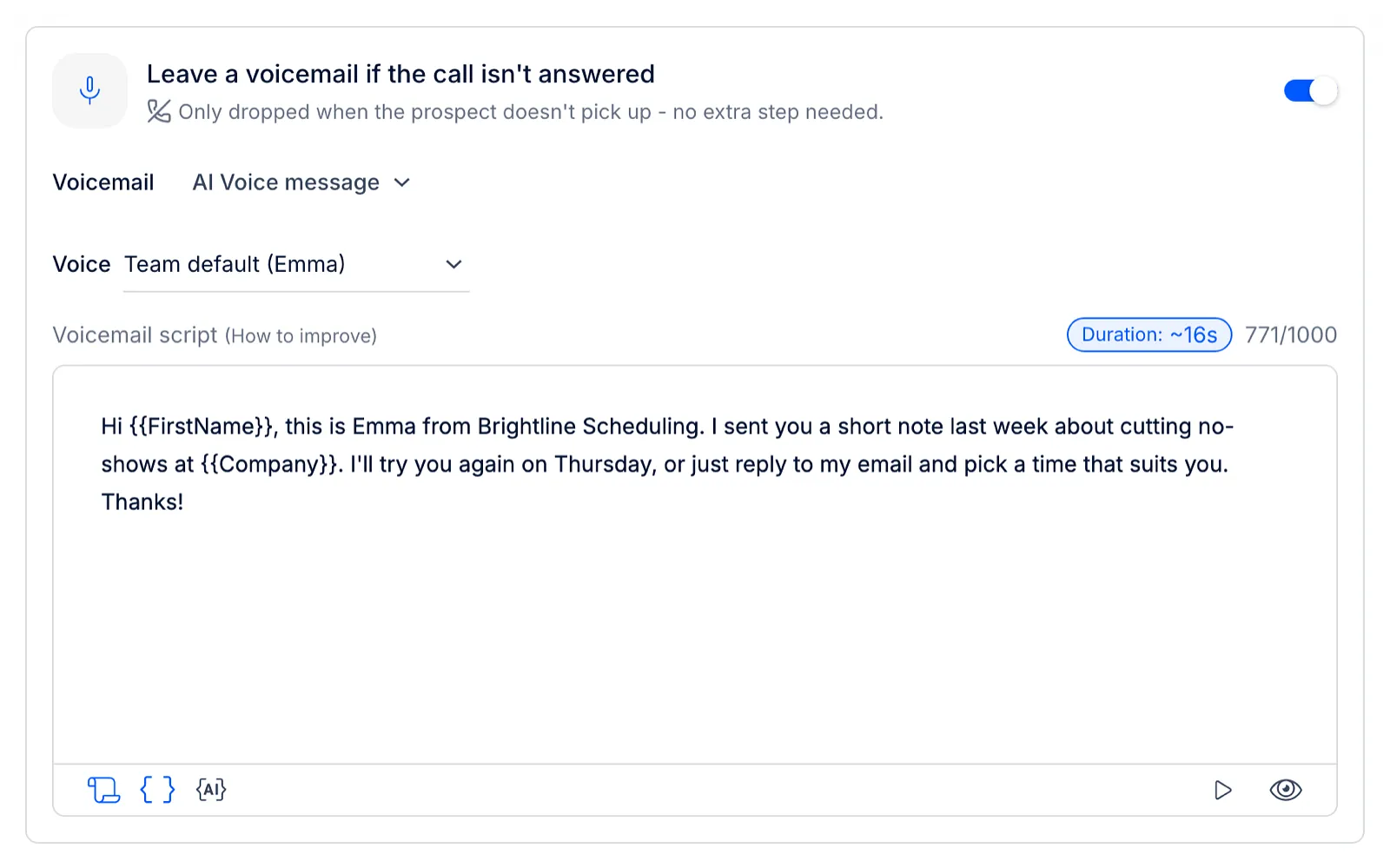
- Under Voice, pick the voice to use. Team default uses your team's default voice profile.
- Write the voicemail in Voicemail script. The counter shows how many characters you have left, and Duration shows roughly how long the voicemail will be.
- Click ▷ to hear a preview.
💡 The AI voice comes from your team's voice profiles. If you don't have one yet, the step shows Your team has no voice profile yet and AI voicemails are skipped until you add one in Settings → Voices. Our article on LinkedIn AI voice messages shows how to create one. The number of voice profiles can't be higher than the number of connected LinkedIn accounts.
A few limits apply to AI voicemails:
- the script can be up to 1,000 characters once the variables are filled in for a contact. For the best result, keep it under 600 characters (20 to 40 seconds of audio);
- if a contact has no value for a variable in the script, no voicemail is left for that contact;
- in AI SDR sequences, you can choose AI Personalized instead: AI SDR writes a different voicemail for each contact when the Call task is created.
What happens during the call
- When you open a Call task, the task shows the voicemail that will be left: the recording you can play, or the AI script written for this contact. You can't edit it from the task. While an AI voicemail is being prepared, the task shows Preparing the voicemail... and the call button waits until it's ready.
- You call the prospect as usual.
- If the prospect answers, nothing changes: you talk to them.
- If the call reaches their voicemail, Reply waits for the greeting to end, plays your voicemail and hangs up.
If the call rings out and no voicemail picks up, nothing is left.
💡 Voicemail drop works only for calls you start from a Call task. When no voicemail can be left for a contact, the task says so before you call, with the reason (for example, No voicemail will be left: your team has no voice profile).
Read more about calls in Reply: