When several people work in one Reply workspace, your role decides which sequences you can see and change, and whose email accounts you can add to a sequence. This article answers the most common questions about working with teammates.
Can I see my teammates' sequences?
It depends on your role. The sequence permissions in Roles & Permissions can be set to:
- Team - you see the sequences of everyone in the workspace;
- My - you only see the sequences you own.
With Team access, the Sequences page shows an owner filter. Click it and choose All or a teammate's name to see their sequences.
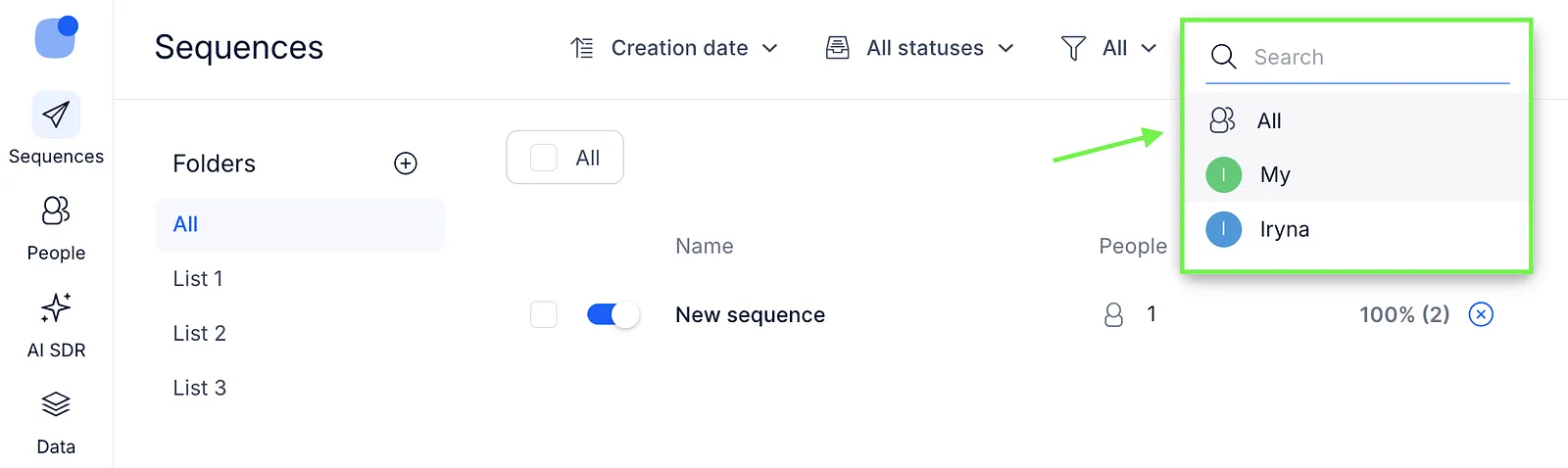
If there is no owner filter, your role only lets you see your own sequences. If the filter was there before and has disappeared, your role or its permissions were changed. Ask your admin to check them.
💡 Seeing a sequence and changing it are separate permissions, so a role can let you see your teammates' sequences without letting you edit them.
How do I find out what my role allows?
Ask your admin or organization owner. They can see each user's role on the Users tab, see what each role allows on the Roles & Permissions tab, and change your access there.
The name of a role, such as "Team member", doesn't tell you what it allows: each organization sets up its own roles.
💡 Users with the Login as any organization user permission can sign in as a teammate to see their sequences and contacts. Learn more in our article on Roles & Permissions.
What happens when I change a sequence's owner?
You can give a sequence to a teammate with the Change owner action on the Sequences page. When the owner changes:
- all email accounts are removed from the sequence, and the emails it had already planned are cancelled. The sequence doesn't send emails until email accounts are added to it again;
- LinkedIn accounts stay in the sequence;
- the Inbox conversations with this sequence's contacts move to the new owner;
- contact owners don't change, except in older team accounts set to Private mode, where the contacts move to the new owner too.
To keep sending from the same email accounts, open the sequence, go to Settings → Email accounts, click Manage email accounts and add them back. Contacts are given email accounts again if Reassign email accounts is on. If it's off, assign them manually.
Can I add a teammate's email account to my sequence?
Yes. You can add your own email accounts and those of teammates in the same workspace as the sequence. Learn how in our article on multiple email accounts per sequence.
If a teammate's email account isn't in the list:
- check that your teammate has connected it to Reply;
- check that your teammate is in the same workspace as the sequence;
- if both are true and the account still isn't there, contact our support team.
Can I move an email account to a teammate?
No, Reply can't change who owns an email account. To make a teammate the owner:
- Remove the email account from your Reply account.
- Ask your teammate to connect it from their own account.
- Add it again to the sequences that used it.
☝🏻 Removing an email account takes it out of every sequence, and the contacts assigned to it become unassigned. Learn how to assign them again in our article on why contacts aren't assigned to an email account.
Read more about working with teammates: