The Sequences page is the first page you see after logging into Reply. It displays all your sequences, their current statuses, and performance metrics.
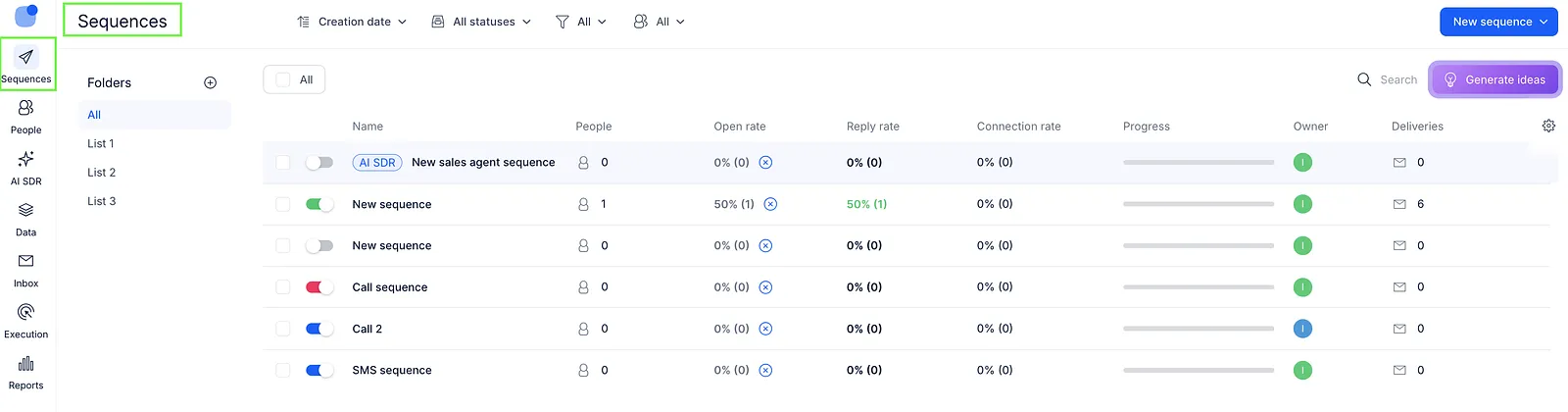
From this page, you can:
- Create and open sequences
- Run or pause sequences
- Archive or delete sequences
- Organize sequences into folders
- Duplicate sequences
- Add people to sequences
- Save sequences as templates
- Search, sort, and filter sequences
- Change sequence owners
Sequence metrics and statuses
Each sequence in the grid includes performance and activity information.
Sequence metrics
The grid contains the following columns:

- Name - Name of the sequence.
- People - Number of contacts currently participating in the sequence.
- Open rate - Number of opened emails.
- Email Reply rate - Percentage of contacts who replied to email steps in the sequence.
- LI Reply rate - Percentage of contacts who replied to LinkedIn steps in the sequence.
- Reply rate - Overall sequence performance indicator:
- 0–3% - Low (red)
- 3–10% - Medium (yellow)
- More than 10% - High (green)
- Connection rate - Number of accepted connection requests.
- Progress - Ratio between active and finished prospects in the sequence.
- Owner - Team member responsible for the sequence.
- Email Deliveries - Number of successfully delivered emails in the sequence.
- LI Deliveries - Number of successfully completed LinkedIn delivery actions in the sequence.
- Deliveries - Number of delivered emails and the ratio between Total people and Contacted metrics.
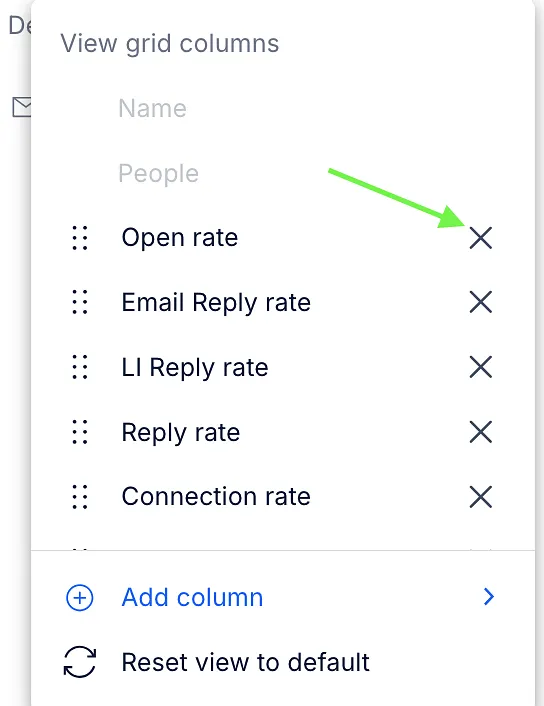
You can manage the columns by adding the ones you want to display on the main page and removing the ones you do not need. To do this:
- Click the Customize columns button on the right side of the page.

- To remove a column, click the X icon next to it.
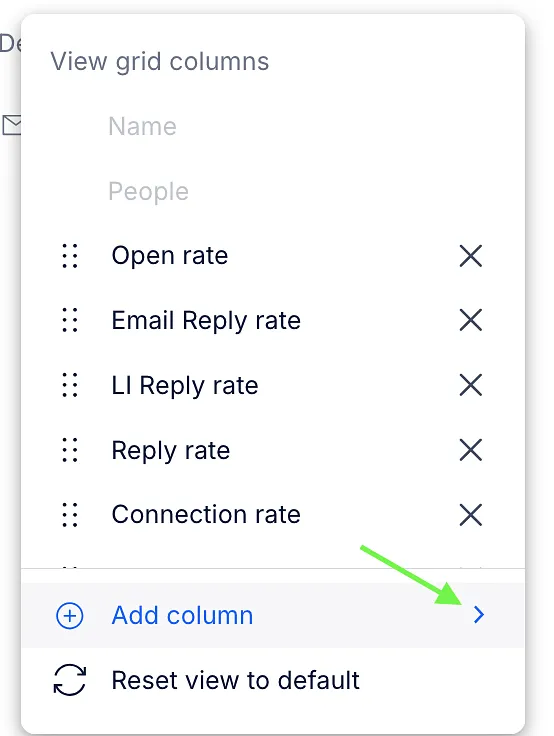
- To add a column, click Add column and select the column you want to display.
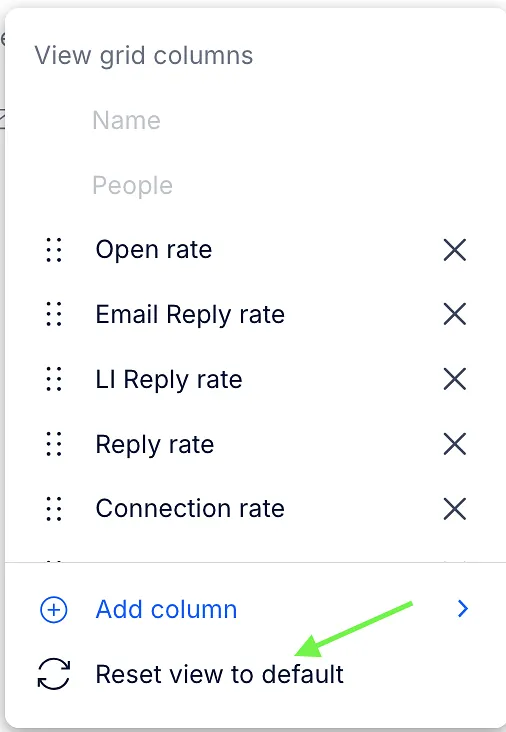
- To restore the default layout, click Reset view to default.
Sequence statuses
The first column in the sequence grid shows the sequence status toggle.
- Green - Active sequence
- Blue - Finished sequence
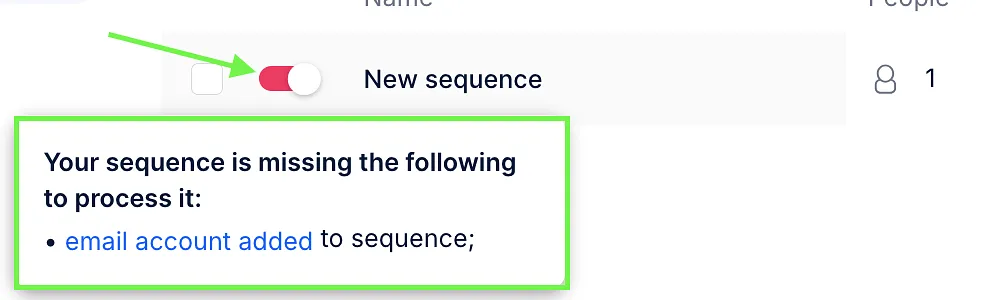
- Orange - The sequence is not running properly because of the issue
- Red - Stopped sequence or sequence with issues
You can use the toggle to start or pause a sequence. If the toggle is orange or red, hover over it to view the reason preventing the sequence from running. For example, the email or LinkedIn account is not added to the sequence. The pop-up message includes links that help you update the required information.
Sequence folders
Sequence folders help you organize multiple sequences. Folders are personal: your teammates don't see your folders, and you don't see theirs.
To create a folder:
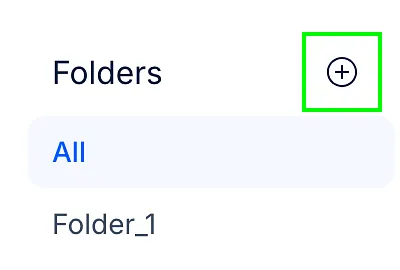
- Next to Folders, click the + icon.
- Enter a name and click Create.
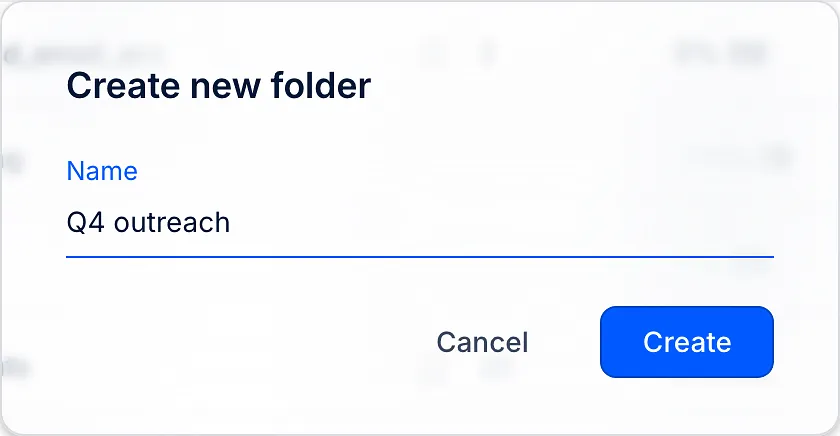
The name can be up to 128 characters, and each of your folders needs a different name.
To move a sequence to a folder:
- Select the sequence in the grid
- Click the Move to folder icon
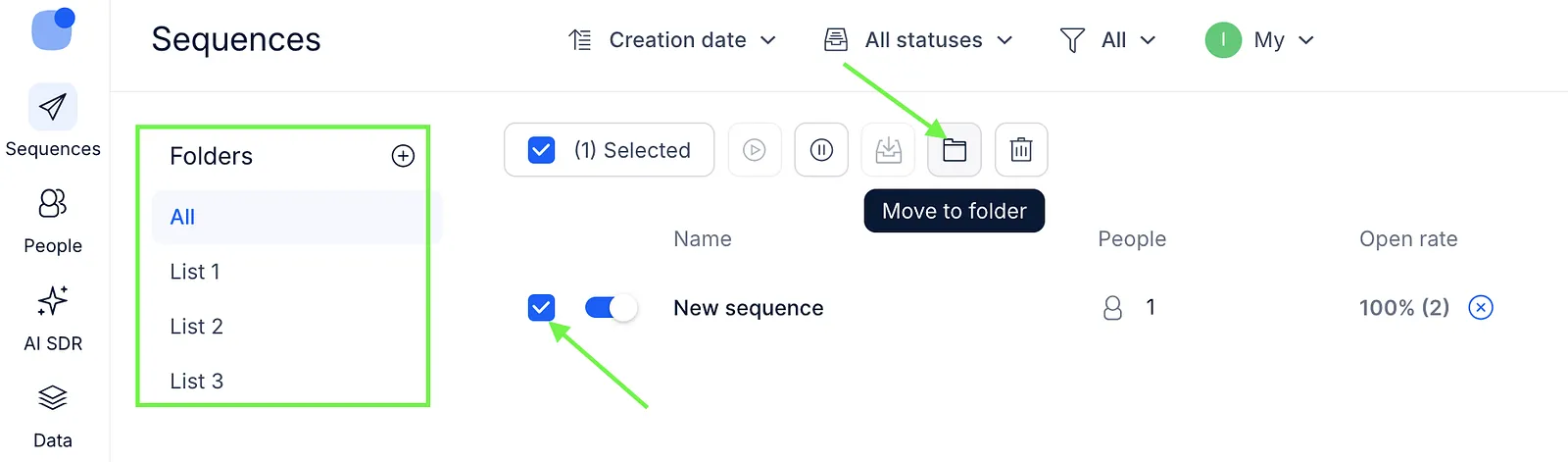
- Select the needed folder
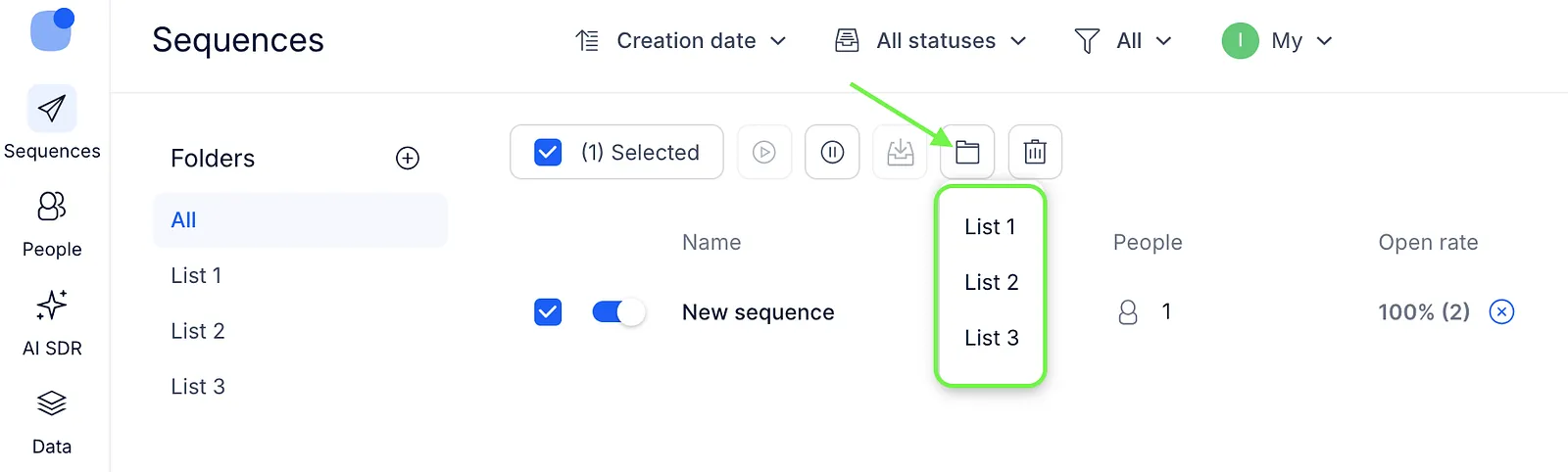
A sequence can sit in one folder at a time. Moving it to another folder takes it out of the first one.
To rename or delete a folder, hover over it, click the three-dot icon (⋮) next to its name and choose Rename or Delete.
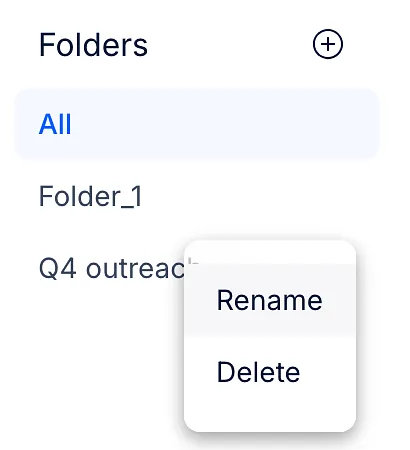
💡 Deleting a folder doesn't delete the sequences inside it. They stay in your sequence list, just without a folder.
Search for a sequence
Use the Search field in the top-right corner of the Sequences page to find sequences by name.

Sorting and filtering
Use the drop-down lists at the top of the Sequences page to sort and filter sequences.
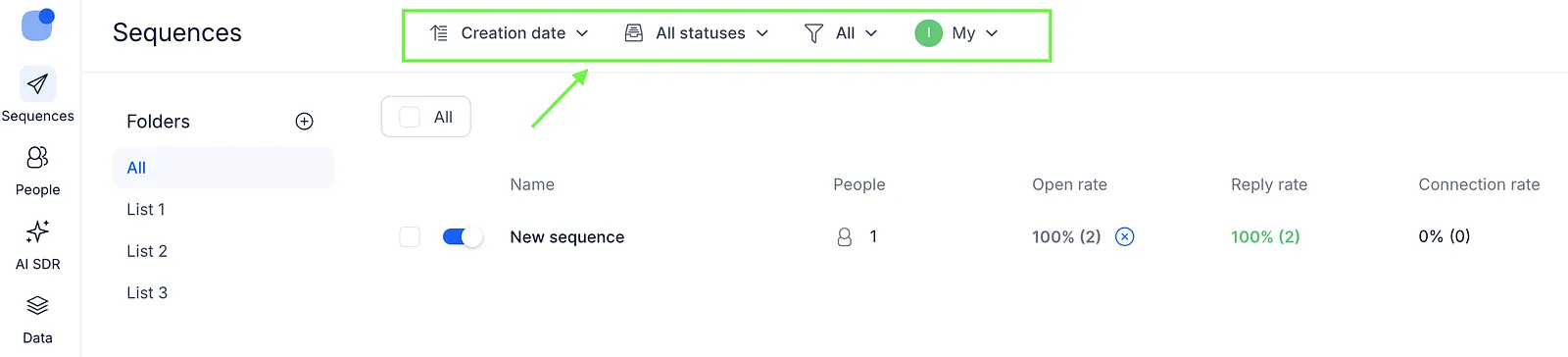
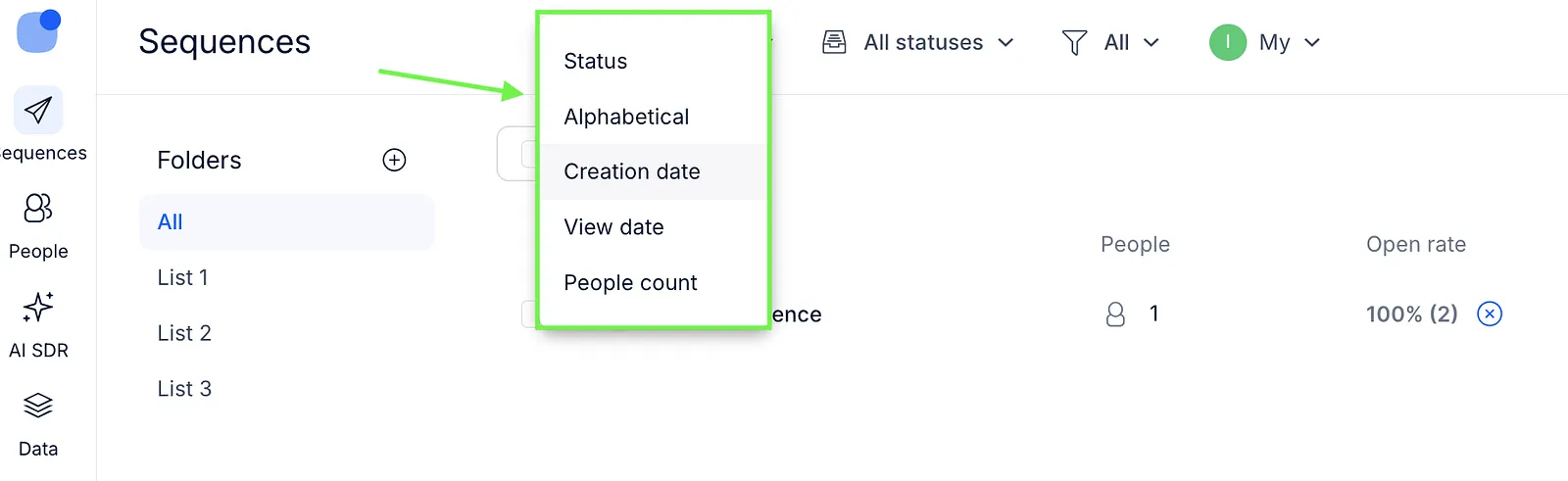
Available sorting options include:
- People count
- Status
- Alphabetical order
- Creation date
- View date
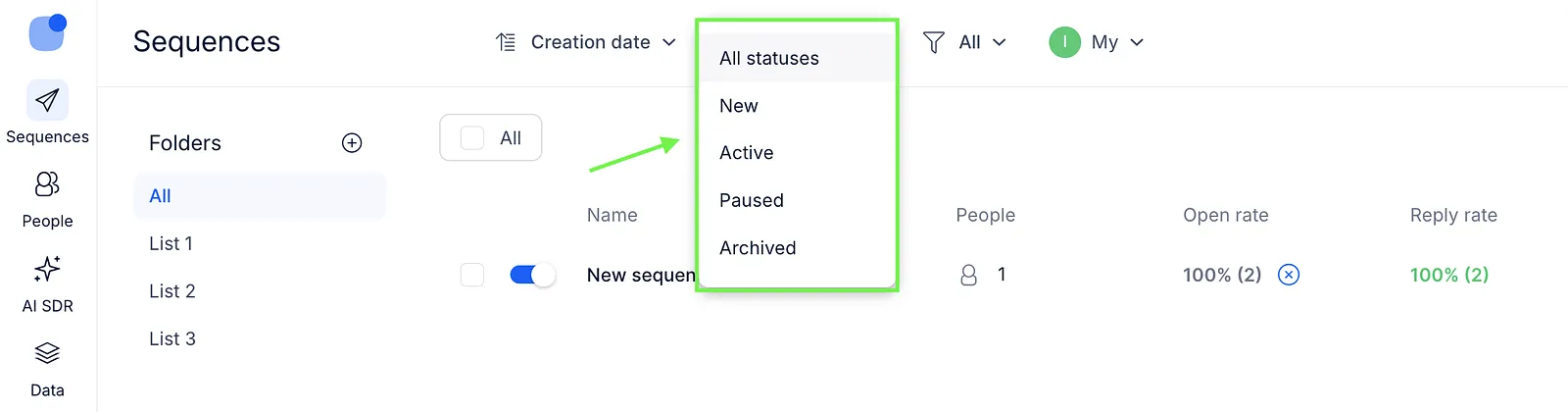
The second drop-down list relates only to statuses, so here you can select particular statuses:
- All statuses (default)
- New
- Active
- Paused
- Archived
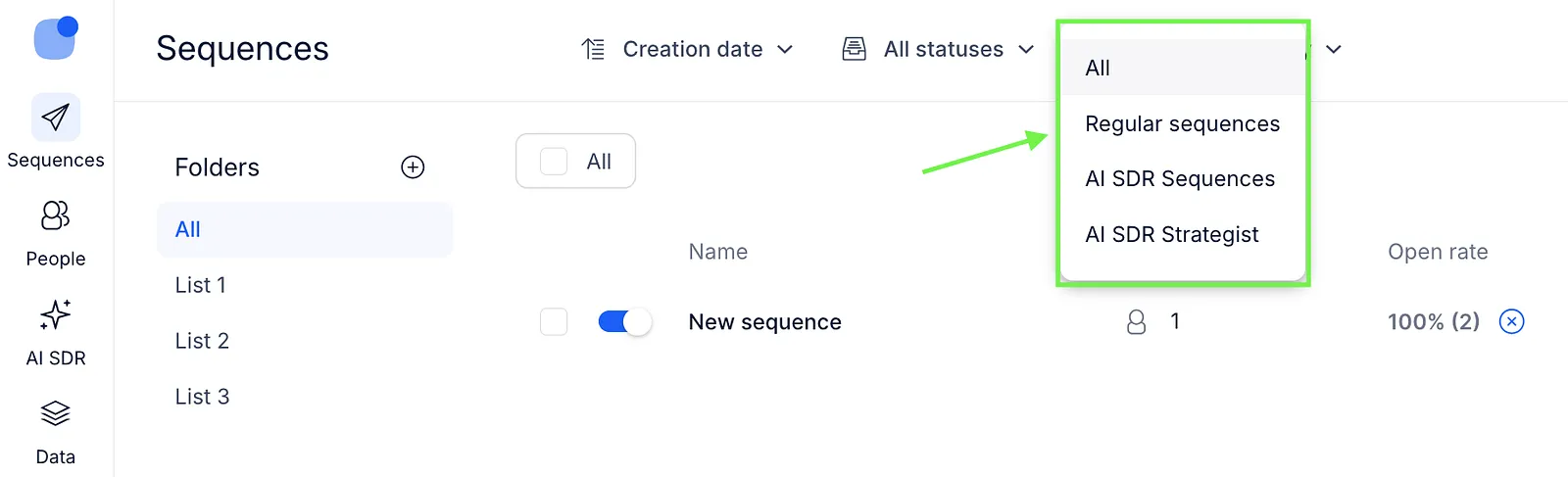
The third drop-down list lets you filter sequences by type:
- All (default)
- Regular sequence
- AI SDR sequence
- AI SDR Strategist sequence
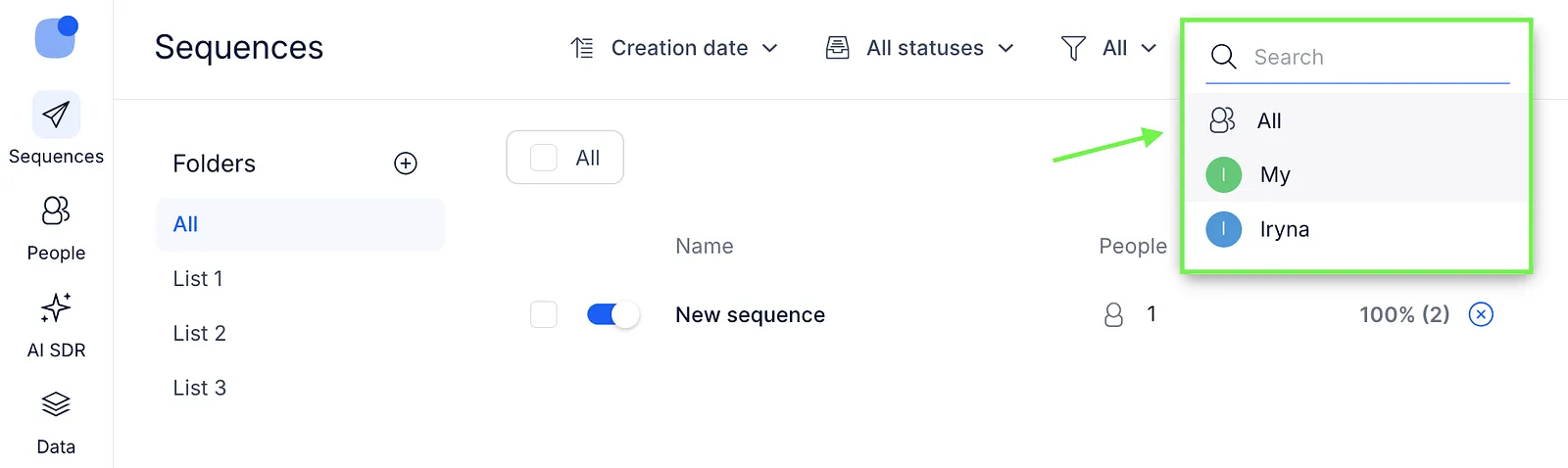
The last drop-down list relates to sequence owners. By selecting a specific sequence owner, you can quickly sort all of your sequences according to their respective owners.
Actions with a sequence
Open the three-dot menu next to a sequence to access additional actions.
You can also select one or multiple sequences and use the quick action icons at the top of the page, such as Activate, Pause, Archive, Move to folder, and Delete.

Add contacts
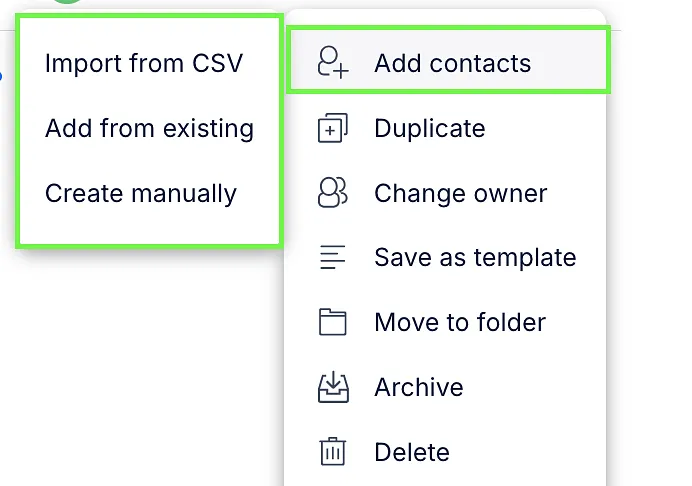
The Add people action lets you add contacts to a sequence.
You can add contacts using:
- Import from CSV
- Add from existing
- Create manually
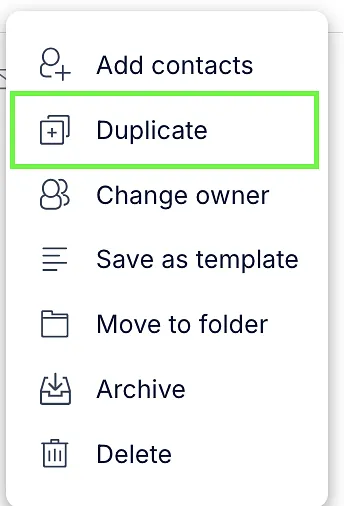
Duplicate
The Duplicate action creates a copy of the sequence with the same settings. The duplicated sequence:
- Does not include contacts
- Has Paused status by default
You must manually add contacts and launch the duplicated sequence.
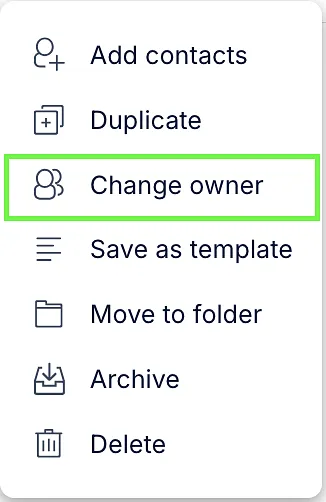
Change owner
The Change owner action lets you assign another team member as the owner of the sequence.
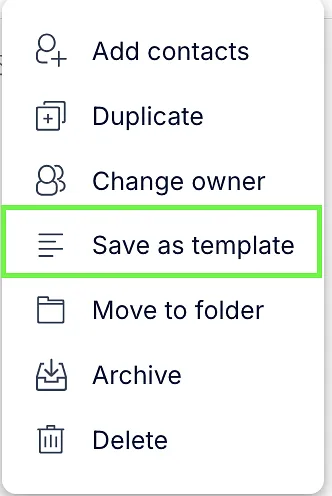
Save as template
The Save as template action saves the sequence to your templates list.
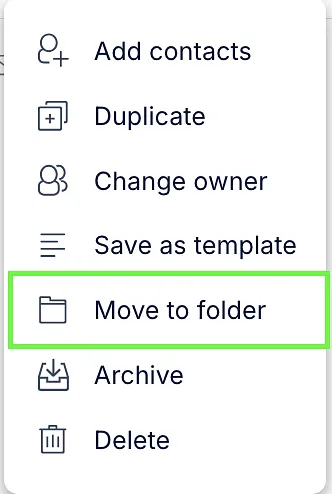
Move to folder
The Move to folder action lets you organize sequences into folders.
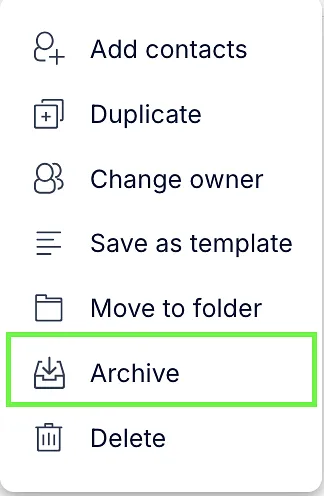
Archive/Unarchive
The Archive action moves the sequence to the archived list. Before archiving, the sequence must be paused. Archived sequences appear at the bottom of the Sequences page.
Delete
The Delete action permanently removes the sequence from the system.
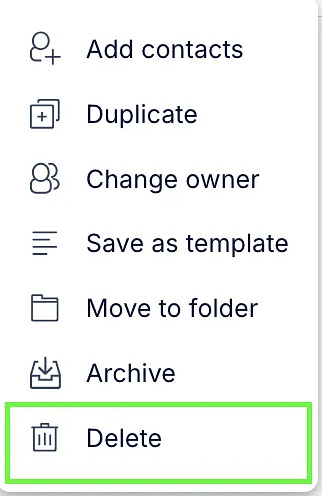
💡 Note that deleted sequences cannot be restored.