Lookalike Search is a contact source in AI SDR sequences. You give it a few of your best customers, and it finds similar companies and the people at them who match your target persona.
How to set up Lookalike Search
-
Create an AI SDR sequence.
-
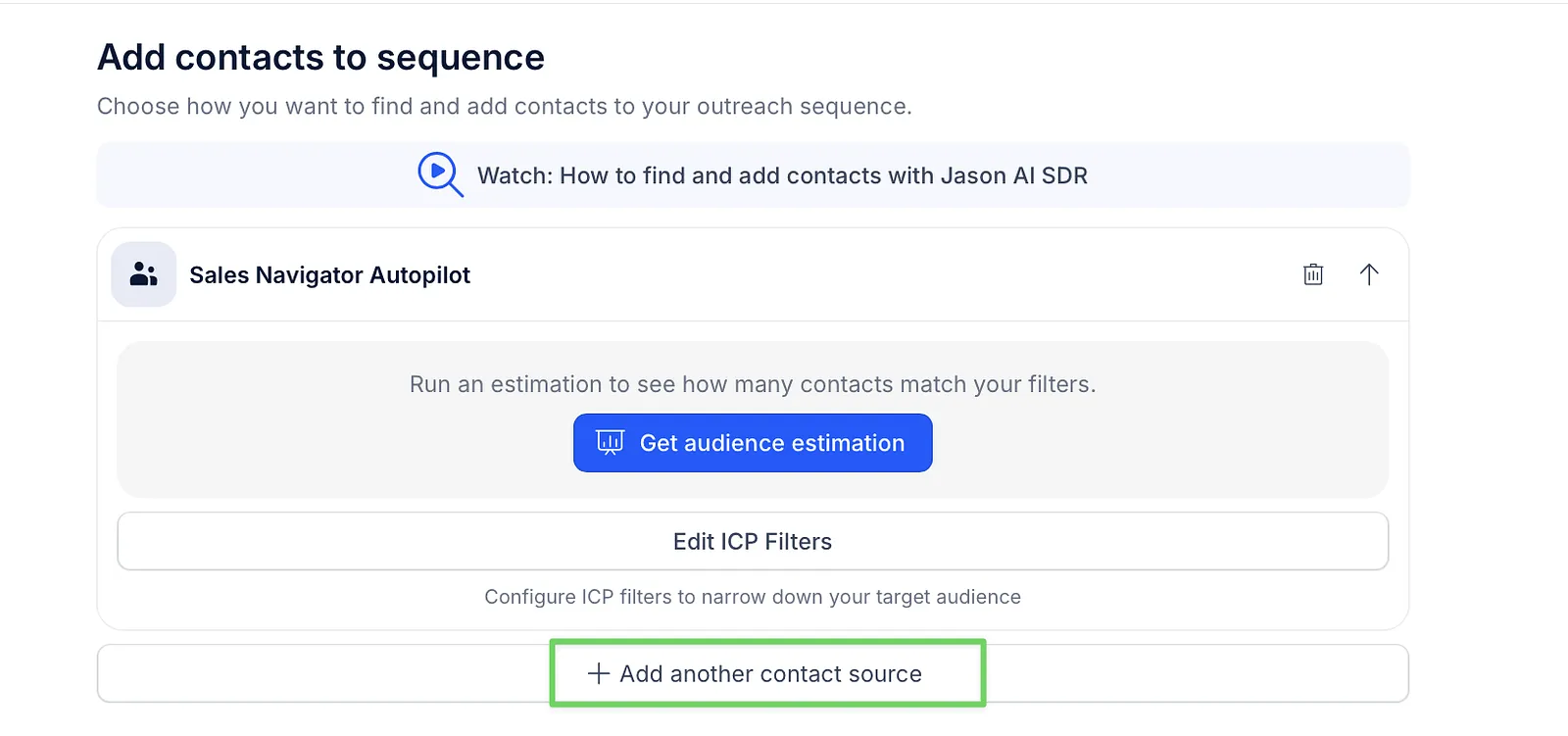
On Step 2 (Contacts), click Add contact sources (or + Add another contact source).
-
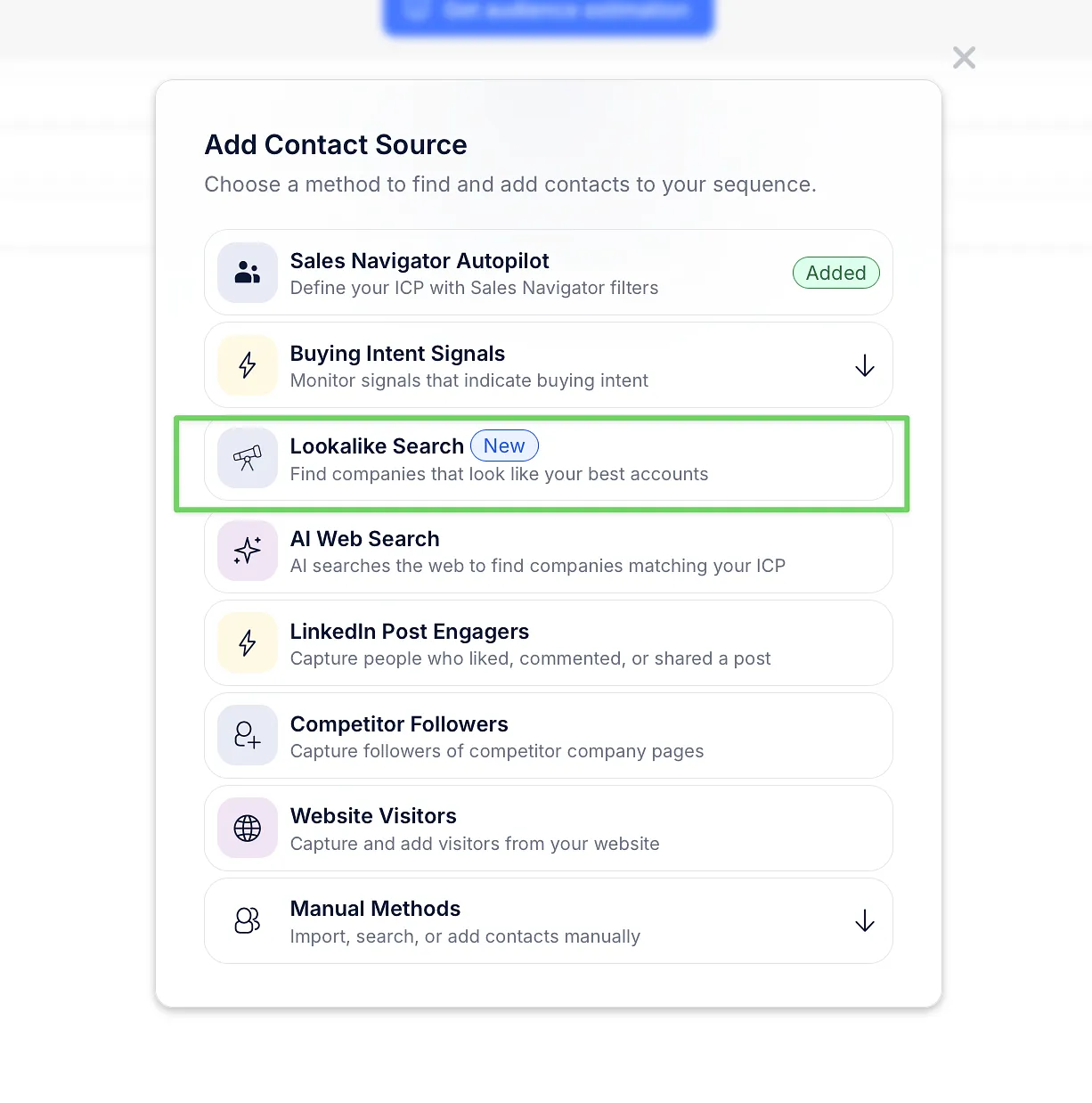
In the Add Contact Source window, select Lookalike Search.
-
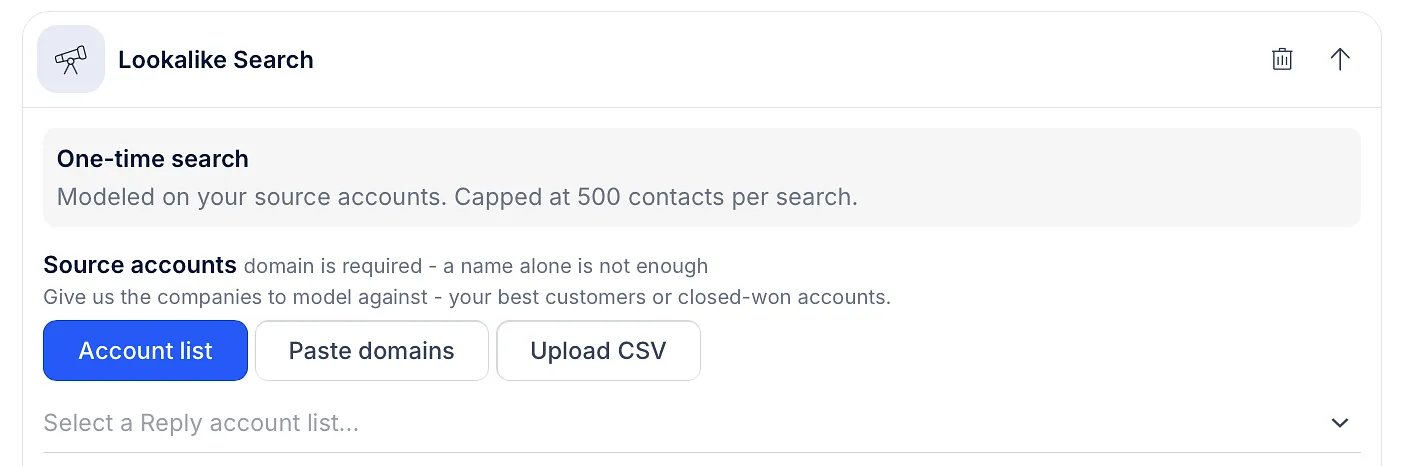
Under Source accounts, add the companies to model against, such as your best customers or closed-won accounts. Choose one of the tabs:
-
Account list - pick one of your account lists in Reply;
-
Paste domains - type or paste company domains, pressing Enter or a comma after each one;
-
Upload CSV - upload a file with company domains.
-
-
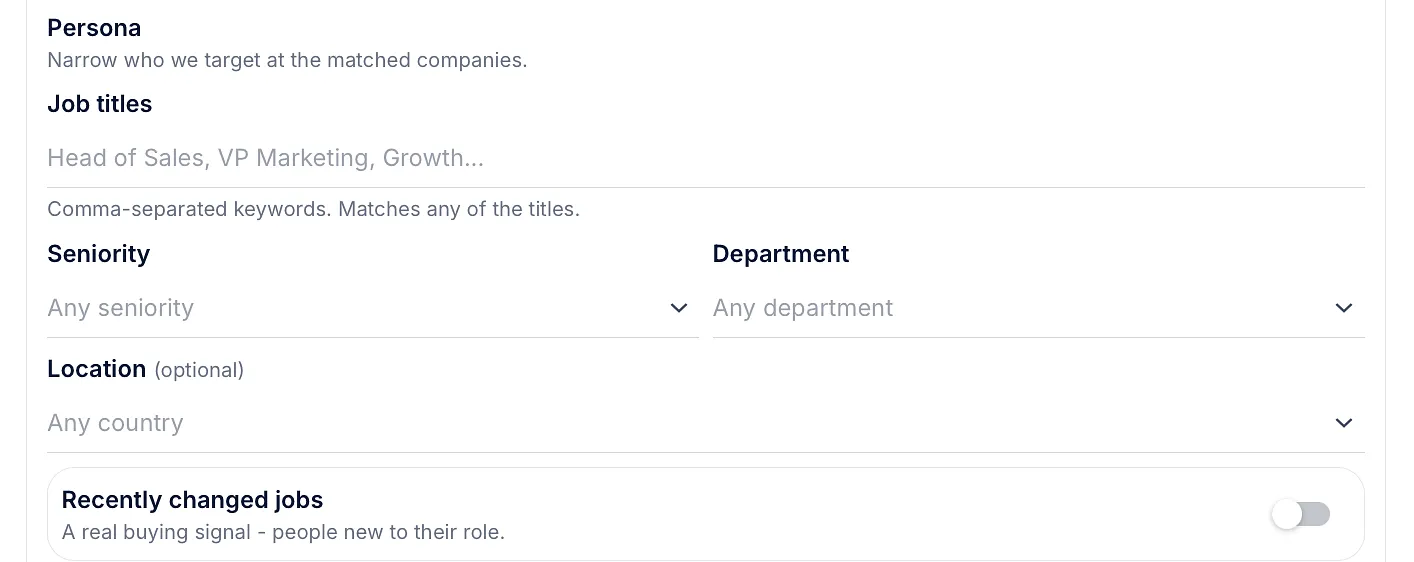
Under Persona, choose who to target at the matched companies:
-
Job titles - keywords separated by commas;
-
Seniority - for example C-Level, VP, Director or Manager;
-
Department - for example Sales or Marketing;
-
Location (optional) - one or more countries;
-
Recently changed jobs - only people who started a new role in the last 3 months.
-
-
Set the volume:
-
Contacts per company - from 1 to 20 (3 by default);
-
Contacts to find - up to 500 (250 by default);
-
Add contacts without email addresses - keeps contacts that only have a LinkedIn URL when no email is found. It's on by default.

-
-
Click Save Lookalike Search.
💡 Each company needs a domain. A company name alone isn't enough.
⚠️ You can add up to 100 domains. A list with more than 100 isn't accepted, so split it into smaller lists.
Results and reruns
Lookalike Search is a one-time search, capped at 500 contacts per search. You'll see each search under In Progress while it runs and under Completed when it finishes, with the number of contacts found and added to the sequence. Expand a completed search to see its contacts.
To find more contacts later, click Rerun this Lookalike Search. A rerun skips companies that earlier searches in this sequence already found contacts at. If you use an account list as the source, a rerun uses the list as it is at that moment, so you can add companies to the list first.
💡 Only one search can run in a sequence at a time. You can change the settings again when the current search finishes.
You can find contacts added this way on the People page with the creation source filter AI SDR · Lookalike Search.
Tips for better matches
-
Choose source companies that are alike. Companies from different segments blend into one profile, so run a separate search for each segment.
-
Contacts found by Lookalike Search count toward your monthly AI SDR contacts limit, shared with Autopilot, AI web search and buying intent signals.
Read more about other contact sources: