Local Presence calls each contact from your phone number with the same area code as theirs. A familiar local number makes people more likely to pick up. If you don't have a number in the contact's area code yet, Reply offers to buy one right before the call.
To use it, Cloud Calls must be enabled for your account, and you need at least one rented phone number.
How to turn on Local Presence
- Go to Settings → Calls.
- In the Local Presence section, turn on Use local presence matching.
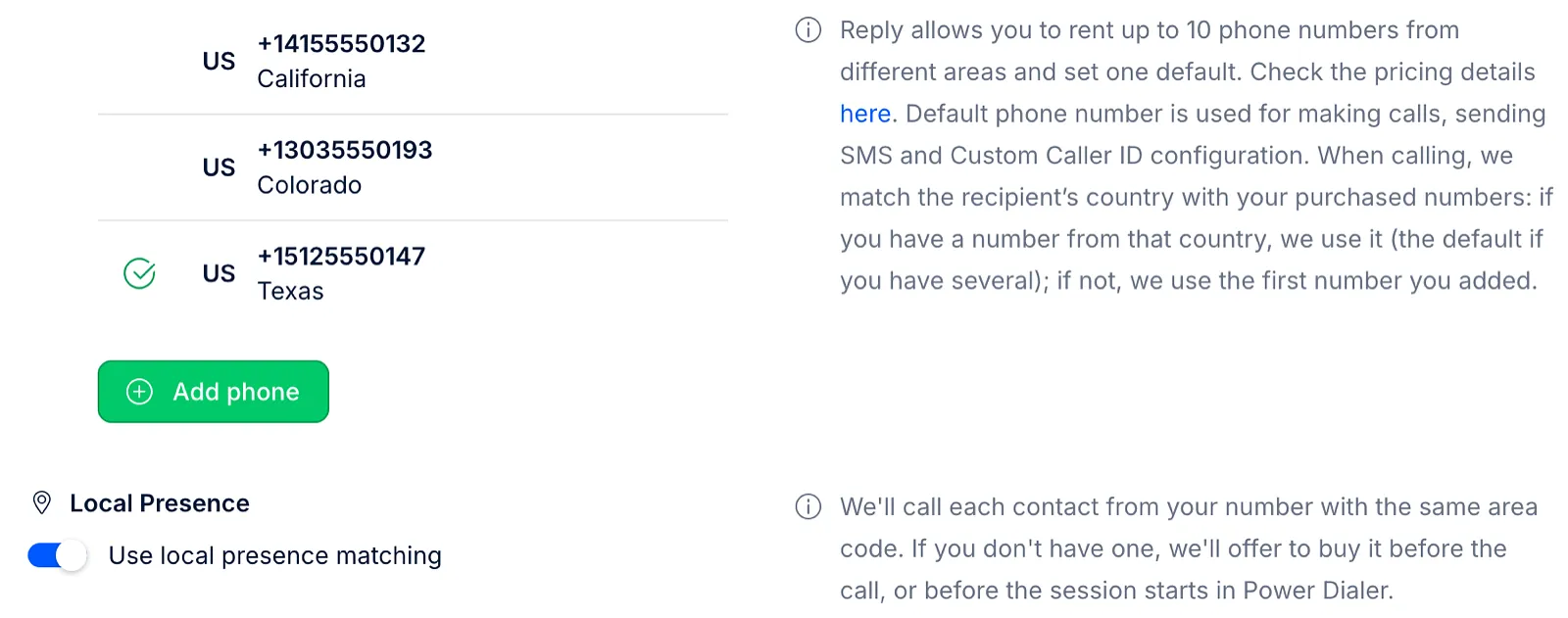
The setting applies to your own calls. It's off by default.
Which number Reply calls from
When you click Call in a call task, Reply calls from the first of your own numbers in this order (your teammates' numbers are never used):
- The number you last used to call this contact.
- Your number with the same area code as the contact.
- Your number from the same city as the contact.
- Your number from the same country as the contact.
- Your default number.
To call from another number, click the arrow next to Call and pick one under Call from. The labels show why a number is suggested:
- Previously used - you called this contact from this number before;
- Local match - the number has the contact's area code or is from their city (US and Canadian contacts only);
- Default - your default number.
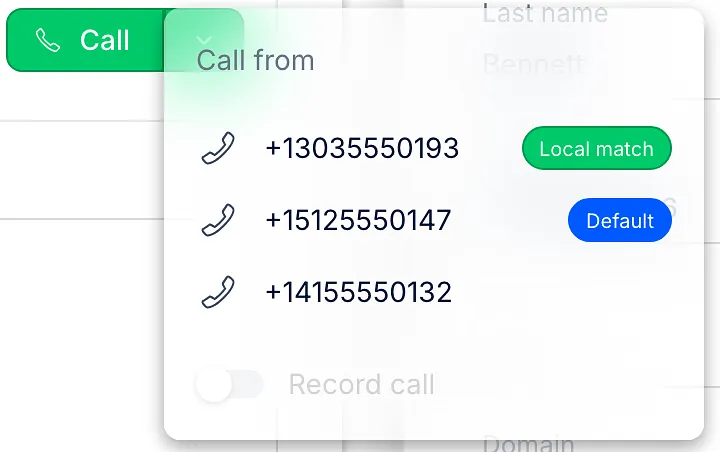
💡 Without Local Presence, Reply still prefers the number you last used and a number from the contact's country. Area code and city matching work only while the switch is on.
Buying a local number before a call
If you have no number with the contact's area code, Reply asks Buy a local number with area code ...? when you click Call. The dialog shows the monthly price, and you can:
- click Buy & call to buy the number and call from it right away;
- click Call from ... to skip the purchase and call from your best matching number;
- tick Don't ask again for area code ... to stop seeing this offer for that area code.
If no numbers are left in that area code, Reply offers a number with another area code from the contact's city instead.
The number is paid from your Wallet, like any rented number. Reply never buys a number without your click.
☝🏻 A few rules apply to the offer:
- it's shown only for contacts with US or Canadian phone numbers;
- a purchase can't take your Wallet below $10, the minimum you need to make calls. If the balance is too low, the dialog shows Not enough funds in your Wallet;
- no offer is shown once your team has reached its phone number limit.
Local Presence in Power Dialer
When you start a Power Dialer session, Reply checks the contacts in it first. If some of their area codes have no local number, a dialog lists them before the session starts, for example 2 area codes in this session don't have a local number.
Each row shows the area code, the city when the number is from the contact's city, and how many contacts in the session it covers. All rows are ticked at first, and the dialog shows the monthly price of the ticked numbers. Untick the ones you don't want, then:
- click Buy 2 & start (the number matches how many you ticked) to buy the numbers and start the session;
- click Start without buying to start right away with the numbers you have.
If your Wallet can't pay for every number in the list and still keep the $10 minimum, the dialog shows Not enough funds in your Wallet with an Add funds button.
Contacts you've called before are skipped, since Reply calls them again from the same number. During the session, calls go out automatically from the first number in the list above, without asking.
How to bring back hidden offers
Area codes you chose Don't ask again for are listed in Settings → Calls under Hidden purchase suggestions. Click Reset to see offers for them again.
Read more about calls in Reply: