The Jason AI Mac app brings your Reply Inbox and pending approvals to your Mac. You can read and answer email and LinkedIn conversations, approve messages written by Jason AI, and get a notification when a contact replies, without keeping Reply open in a browser tab.
💡 The app needs macOS 14 (Sonoma) or later.
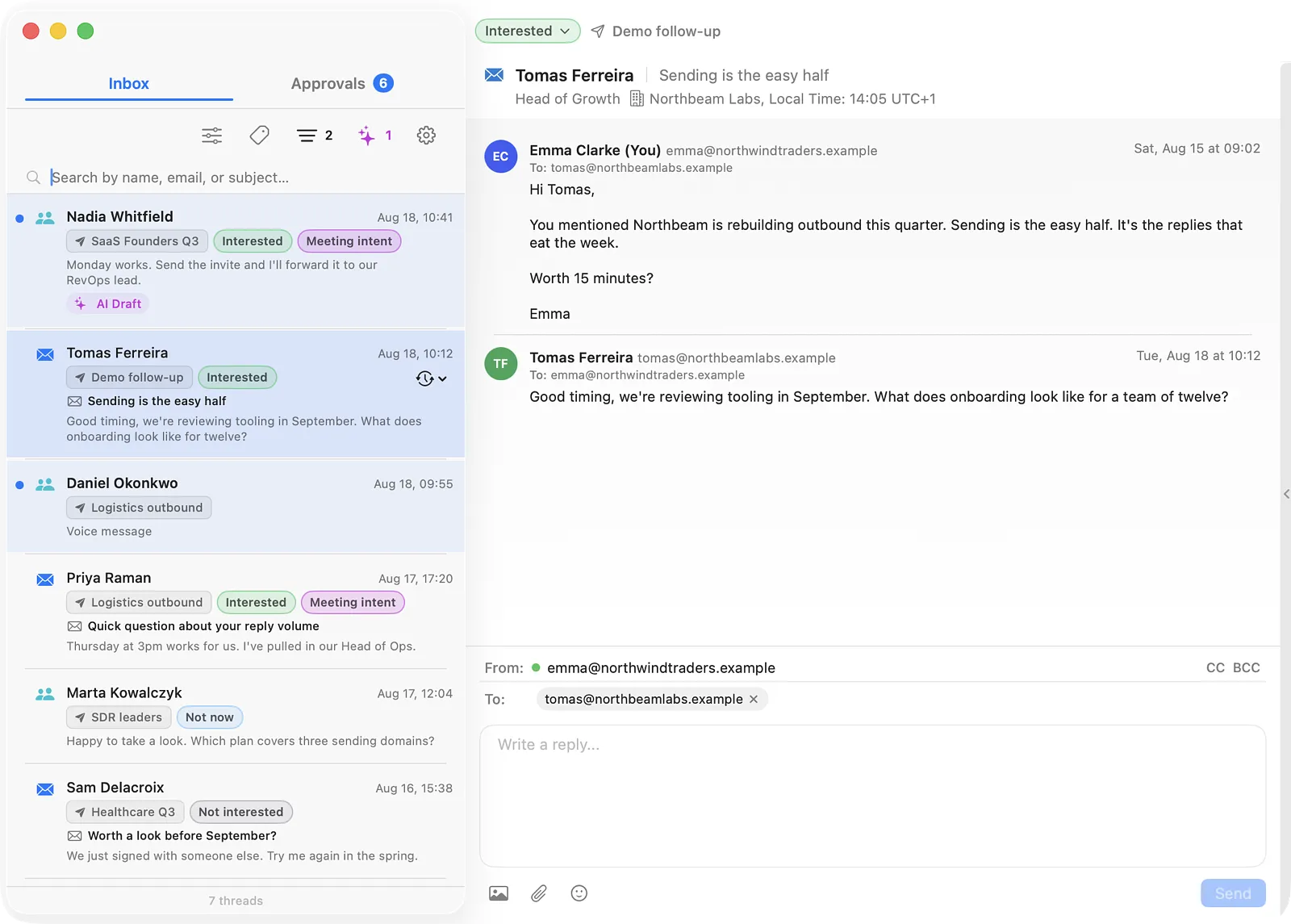
Getting started
How to sign in
-
Open Jason AI and click Sign in to Jason AI / Reply.
-
Sign in on the Reply page that opens. Every sign-in method Reply supports works here, including Google, Apple and SSO.
-
Go back to the app. Your Inbox loads.
After you sign in for the first time, a short welcome tour shows the basics. You can replay it at any time from Settings → General → Show Welcome Tour.
Two ways to use the app
-
Menu bar - the envelope icon in your Mac's menu bar shows how many conversations are unread. Click it for a quick look at your Inbox and to reply without opening the full window.
-
Inbox window - the full app, with search, Approvals and the contact details. To open it, click the window icon in the bottom right corner of the menu bar panel, or right-click the envelope and choose Open Inbox Window.
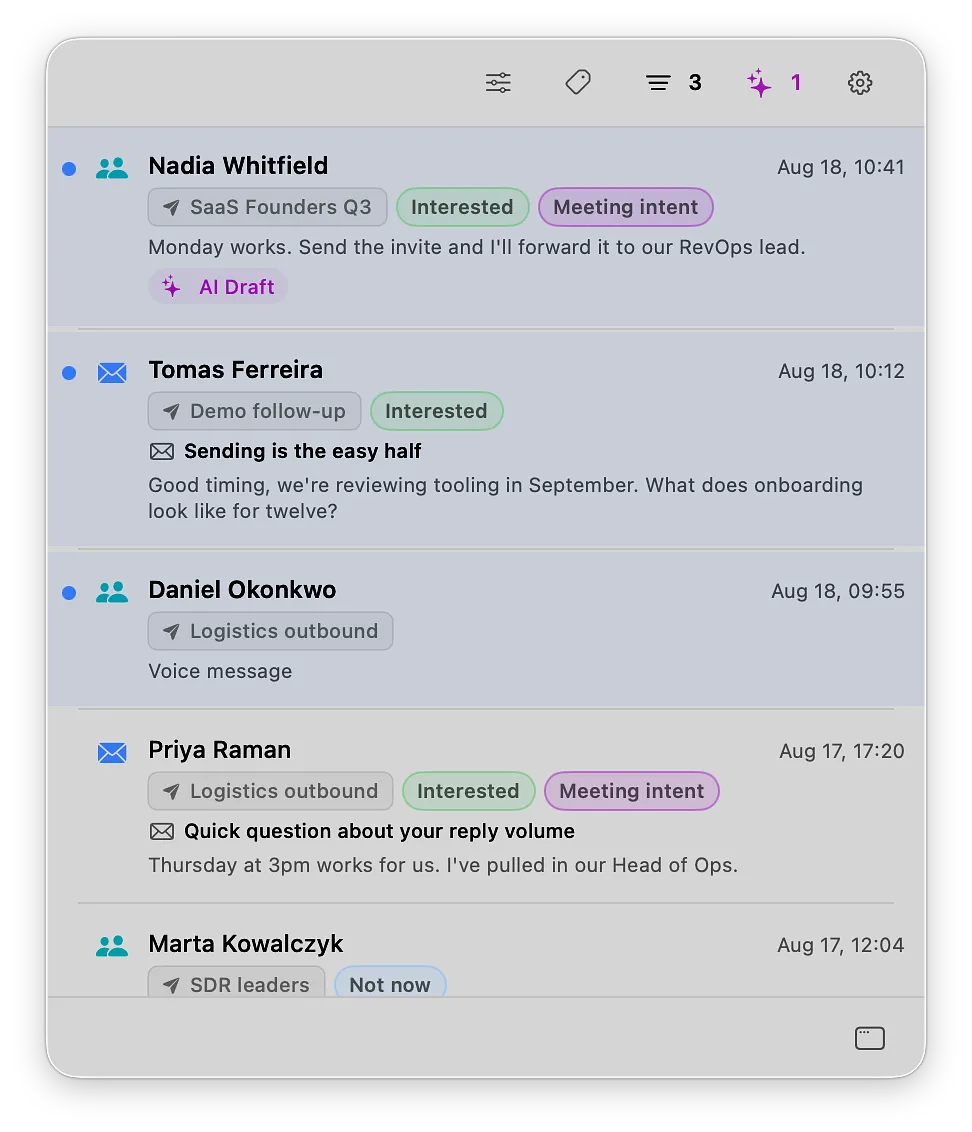
☝🏻 Closing the window doesn't quit the app. It keeps running in the menu bar so you still get notified about new replies. To quit, right-click the envelope and choose Quit.
Inbox
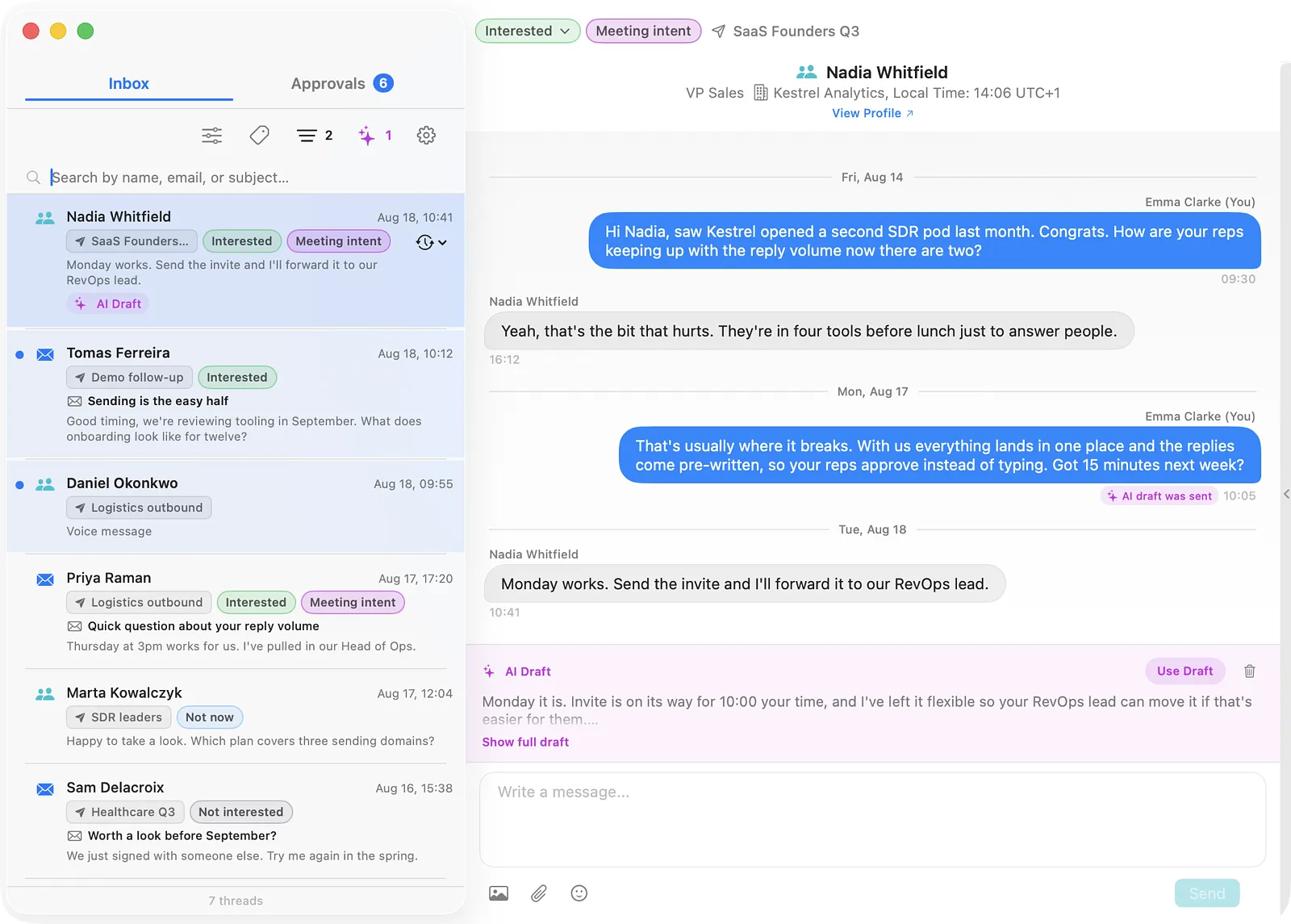
The Inbox tab shows your email and LinkedIn conversations, newest first.
Filters and search
The buttons above the list let you narrow it down:
-
Channel (sliders icon) - All channels, Email or LinkedIn;
-
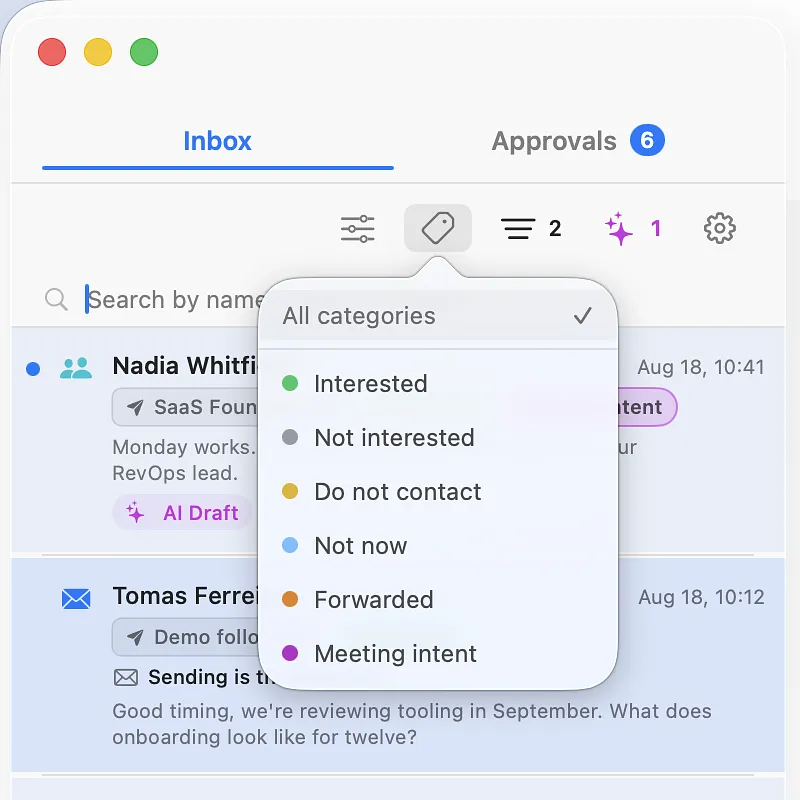
Category (tag icon) - Interested, Not interested, Do not contact, Not now, Forwarded or Meeting intent, plus your own custom categories when you view a single team;
-
Unread (lines icon with a number) - shows unread conversations only. The number is your unread count;
-
AI drafts (sparkles icon with a number) - shows conversations where Jason AI has written a draft reply. It appears only when you have at least one draft.
To show everything again, click the active button again, or the x on the filter label above the list. Use the search bar to find a conversation by name, email or subject.
Conversation actions
Right-click a conversation to:
-
mark it as read or unread;
-
choose Select to pick several conversations and mark them read, unread or delete them at once;
-
delete it.
When you delete a conversation, the app asks you to confirm. A deleted conversation can't be restored.
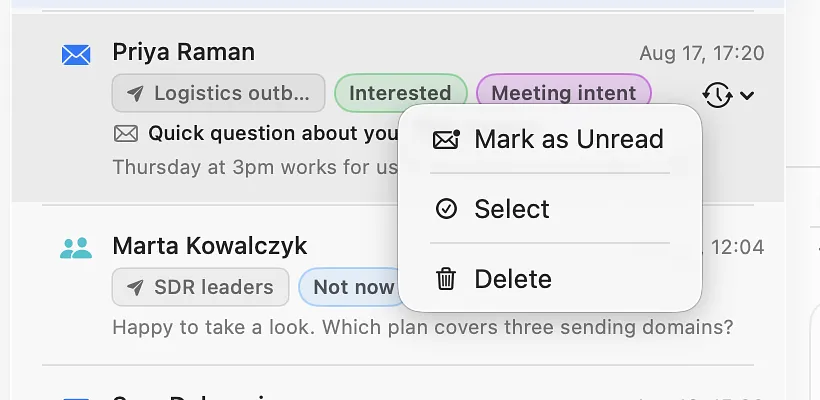
To get a reminder about a conversation later, hover over it and click the clock icon. Choose 5 Minutes, 20 Minutes, 1 Hour, Tonight or Tomorrow.
Reply and forward
Click a conversation to read the full history and reply in the box at the bottom.
-
Email - choose the mailbox to send from, add CC or BCC recipients, and attach images or files (up to 25 MB per reply).
-
LinkedIn - write your message and attach one file. You can also play LinkedIn voice messages from your contacts.
Click Send or press ⌘ Return to send. To answer an older message, or to forward one, use the reply and forward arrows next to that message.
To change the conversation's category, click the category at the top of the conversation and pick a new one.
AI drafts
When Jason AI has written a reply, it shows above the reply box. Click Use Draft to move the text into the reply box, edit it if you like, and send it. Click Show full draft to read all of it, or the trash icon to discard it.
Contact details
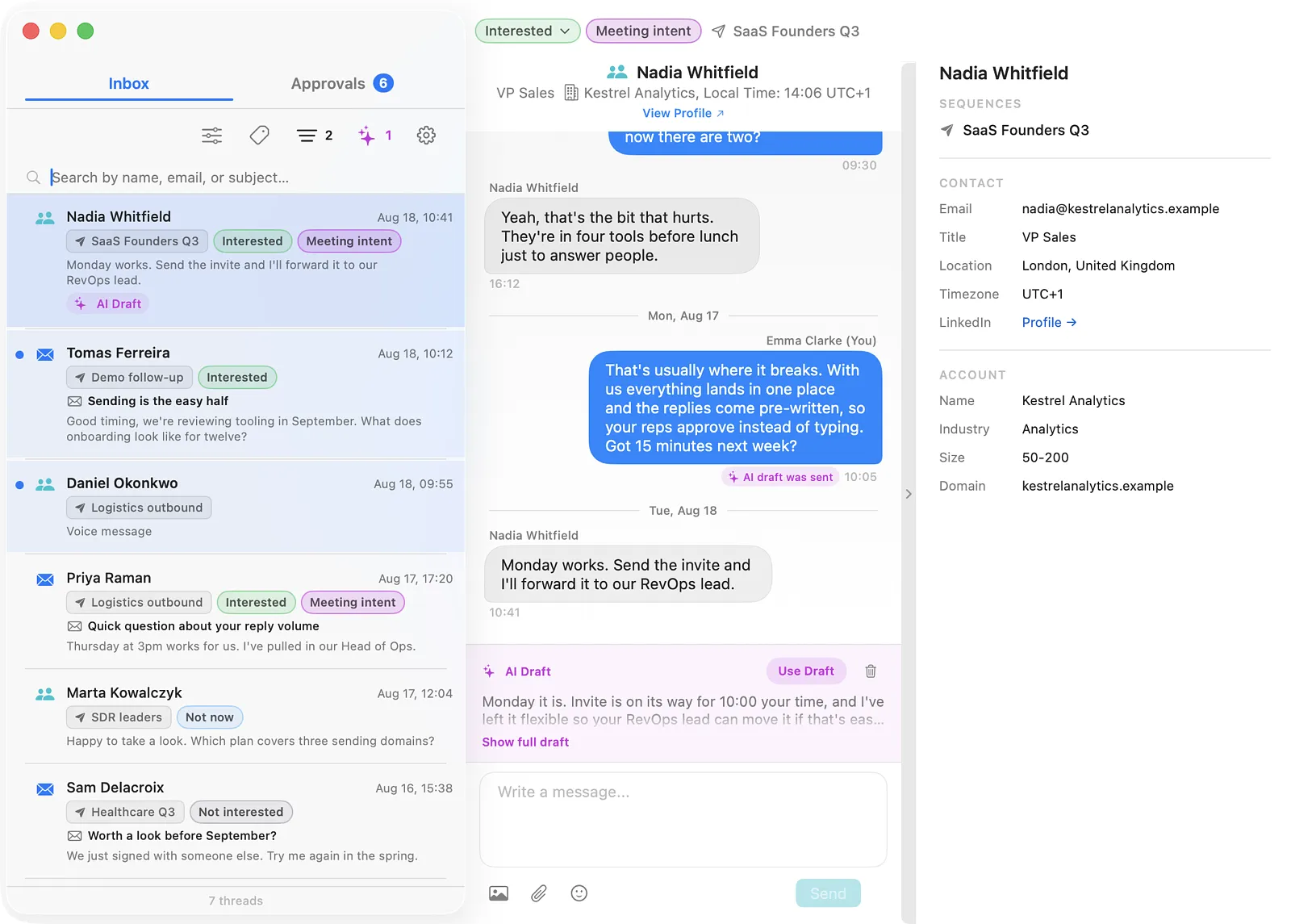
Click the contact's name at the top of a conversation to open the side panel. It shows the contact's sequences and their status, contact details, company details and custom fields. Under the name you also see the contact's job title, company and local time.
Approvals
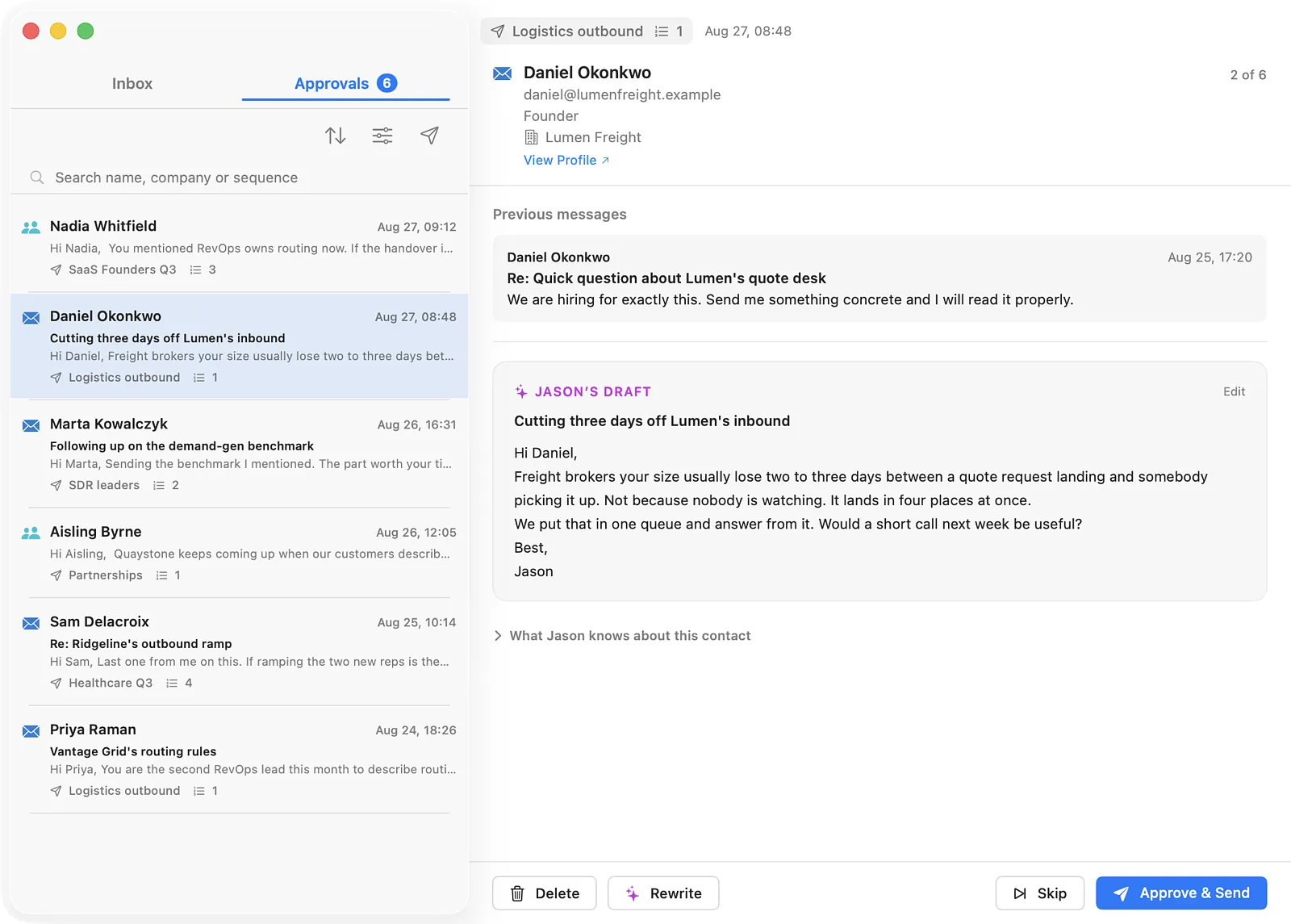
The Approvals tab lists messages Jason AI has written that are waiting for your approval. The number on the tab shows how many are waiting.
Find approvals
Use the buttons above the list to sort by newest or oldest, filter by channel (Email or LinkedIn), or filter by sequence (paper plane icon). The search bar finds approvals by name, company or sequence.
Review a message
Click a message to open it. Under Jason's draft you can:
-
Edit - change the text (and the subject, for email) before you send it;
-
Rewrite - tell Jason what to change, and it writes a new version;
-
Skip - leave this message waiting and move to the next one;
-
Approve & Send - send the message;
-
Delete - delete the draft and remove the contact from the sequence.
Open What Jason knows about this contact to see the information Jason used to write the message.
To approve or delete several messages at once, right-click a message, choose Select, and pick the ones you want.
☝🏻 A sent message can't be recalled, and a deleted draft removes the contact from the sequence. The app asks you to confirm before it deletes a draft, and before it sends several messages at once.
Notifications
The app shows a Mac notification when a contact replies and when new messages are waiting for approval. A reply notification shows the team name, the email subject and the start of the message. LinkedIn messages have no subject, so their notifications show the team name and the message.
If notifications are turned off for Jason AI, a banner above the Inbox says so. Click Open Settings, then switch Allow notifications on for Jason AI.
To manage notifications, go to Settings → Notifications (gear icon above the list, or ⌘ ,):
-
Message notifications - notifications about new Inbox messages;
-
Approval notifications - notifications about new approvals;
-
Push notifications when Jason AI is closed - off by default. Turn it on to keep getting notifications after you quit the app.
💡 Message and approval notifications are settings of your Reply account, so changing them here also changes them in the Jason AI mobile app.
Teams
If you belong to several teams, a team menu sits above the Inbox. Choose one team, or All teams to see every team's conversations in one list. The Approvals tab shows one team at a time.
Under Settings → Notifications → Teams you can see which teams send you notifications. Turning a team off there stops its notifications on your Mac and on your phone.
Settings
Open Settings with the gear icon above the list, or press ⌘ ,.
-
Account - your email, time zone and time format (System, 12-hour or 24-hour), and Log Out;
-
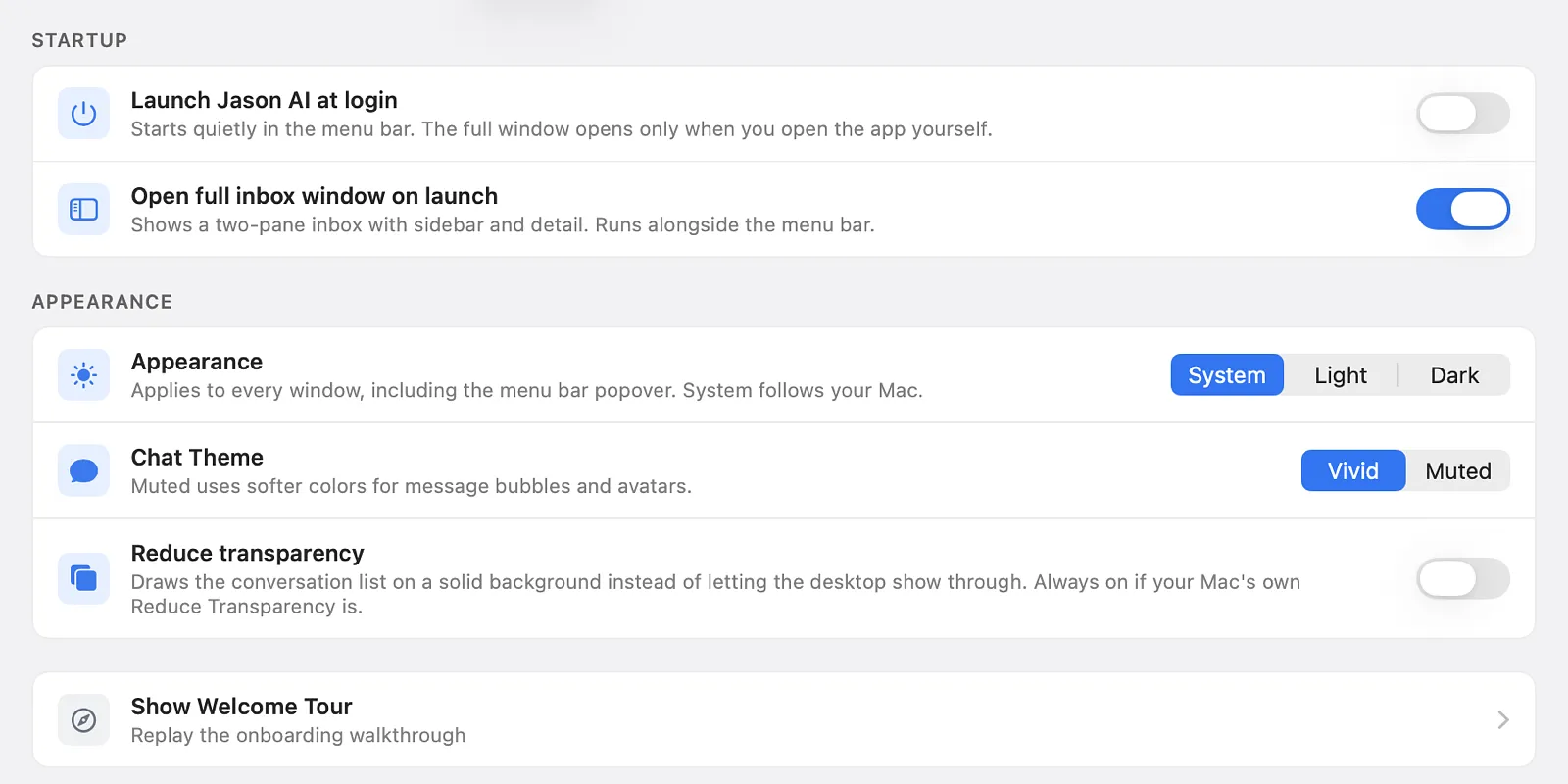
General - Launch Jason AI at login, Open full inbox window on launch, the appearance (System, Light or Dark), and Show Welcome Tour;
-
Notifications - see the Notifications section above;
-
Contact Us - report a problem with the Mac app or request a feature;
-
Diagnostics - the app's diagnostic log, which you can copy or save if our support team asks for it;
-
About - the app version.
Report a problem or request a feature
Go to Settings → Contact Us and choose Report a bug or Request a feature. Add a short summary and a description, attach files if they help, and click Submit. Bug reports include the app's diagnostic log by default. The log has no message text, contact names or file names.

💡 This form is for the Mac app only. For questions about Reply itself, such as sequences, contacts or billing, contact the Reply support team.
Log out or delete your account
Go to Settings → Account.
-
Log Out signs you out on this Mac. You stop getting notifications until you sign in again.
-
Delete Account is at the bottom of the tab.
⚠️ Delete Account deletes your whole Reply account, not just the app. Your Reply sign-in is deleted everywhere, your subscription stops renewing, and you are removed from your Reply team. This can't be undone. To confirm, you type DELETE.
Read more about: