The HubSpot integration keeps Reply and HubSpot in sync: contacts, companies, statuses, and activities like emails, calls and LinkedIn actions. You set it up as workflows. Each workflow is a list of steps, and each step says what to sync and in which direction.
You can connect several HubSpot accounts to one Reply team.
💡 This feature is currently available in beta. To use it, enable beta in your account settings.
How to connect HubSpot
-
Go to Integrations and find the Hubspot card.
-
Click Connect.
-
Sign in to HubSpot in the window that opens, choose the HubSpot account and allow access.
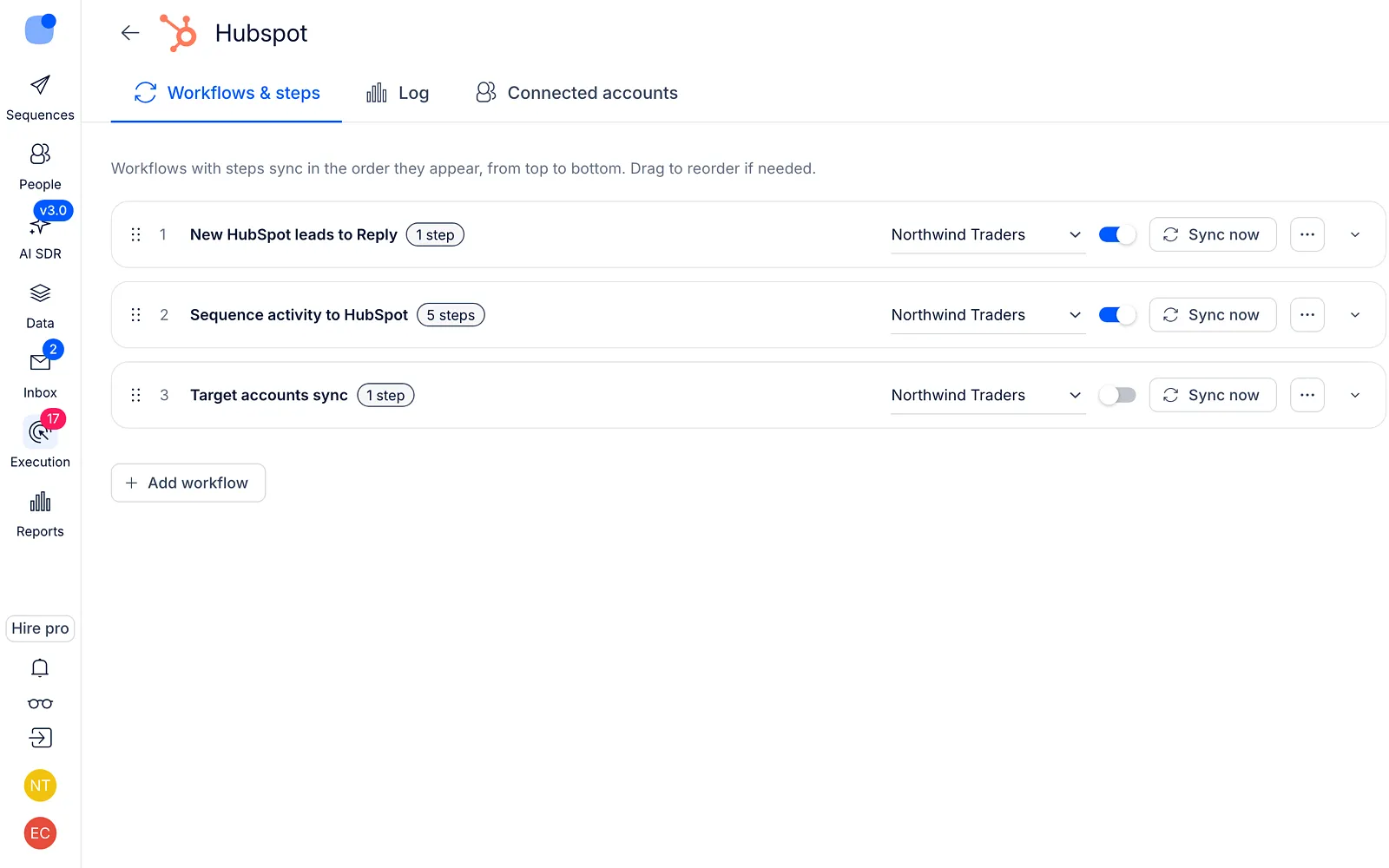
Reply then opens the Workflows & steps tab. To come back to it later, click Configure on the Hubspot card.
💡 Each HubSpot account can be connected to Reply only once. If you see This HubSpot portal is already connected, use the reconnect button on the account that is already connected.
How workflows work
A workflow is a set of steps that run one after another. Workflows also run in order, from top to bottom: drag a workflow by its handle to move it. Each workflow uses one connected HubSpot account, which you pick in its row.
To create a workflow:
-
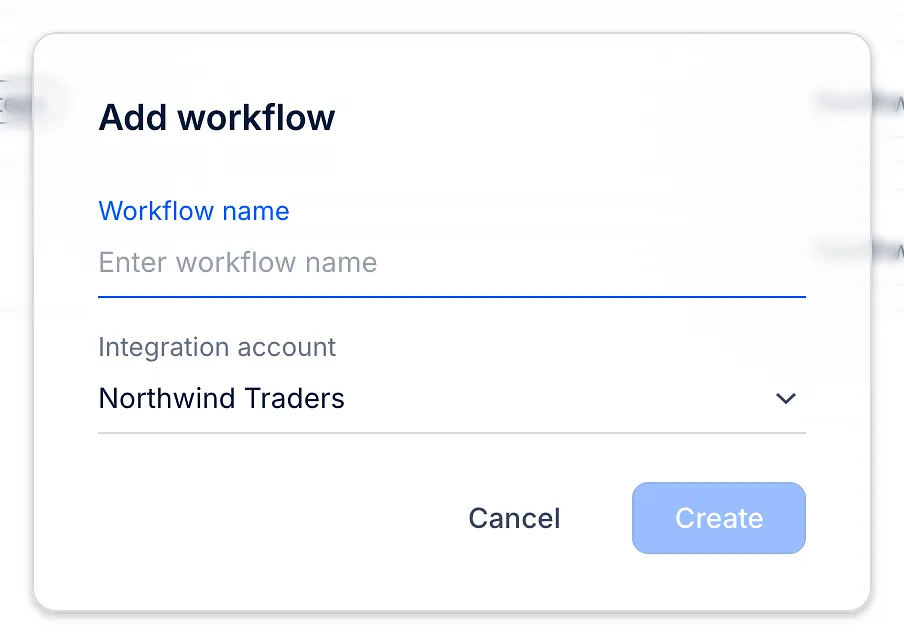
On the Workflows & steps tab, click Add workflow.
-
Enter a Workflow name, pick the Integration account and click Create.
-
Click Add step to add the first step.
Each workflow row has:
-
a switch to turn the workflow on or off;
-
Sync now to run it right away;
-
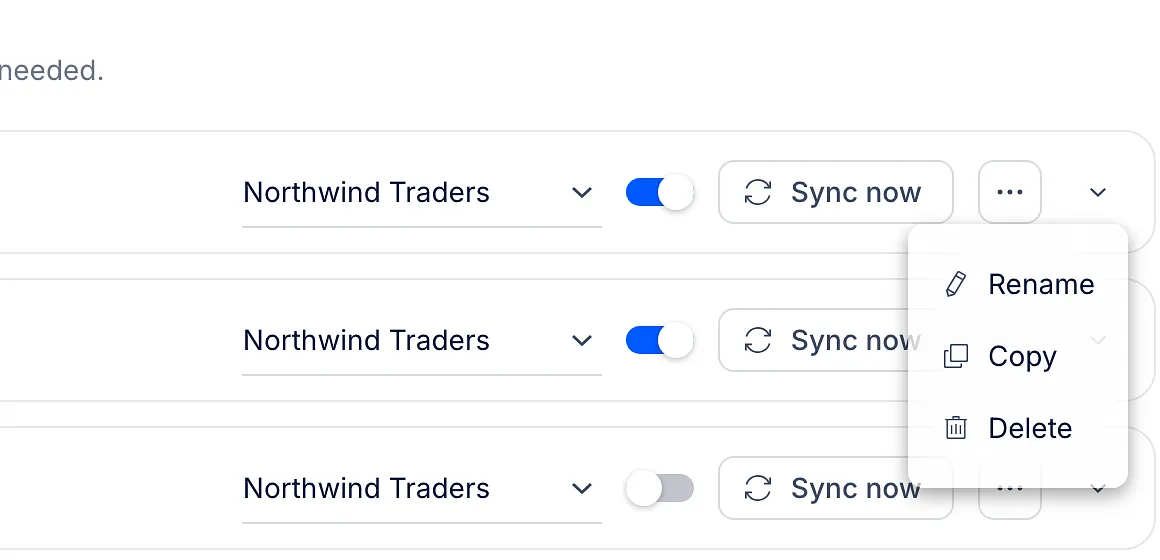
a menu (...) to Rename, Copy or Delete it.
☝🏻 If you switch a workflow to a HubSpot account from another HubSpot portal, Reply clears the HubSpot side of its settings (owners, field mapping, status values, call outcomes, HubSpot filters and sequence actions) and turns the workflow off. Set them up again, then turn the workflow back on.
What you can sync
Click a workflow to see its steps. Each step shows where data comes from, where it goes, and a summary of its settings. Use the icons in a step's row to copy or delete it, and the switch to turn it on or off.
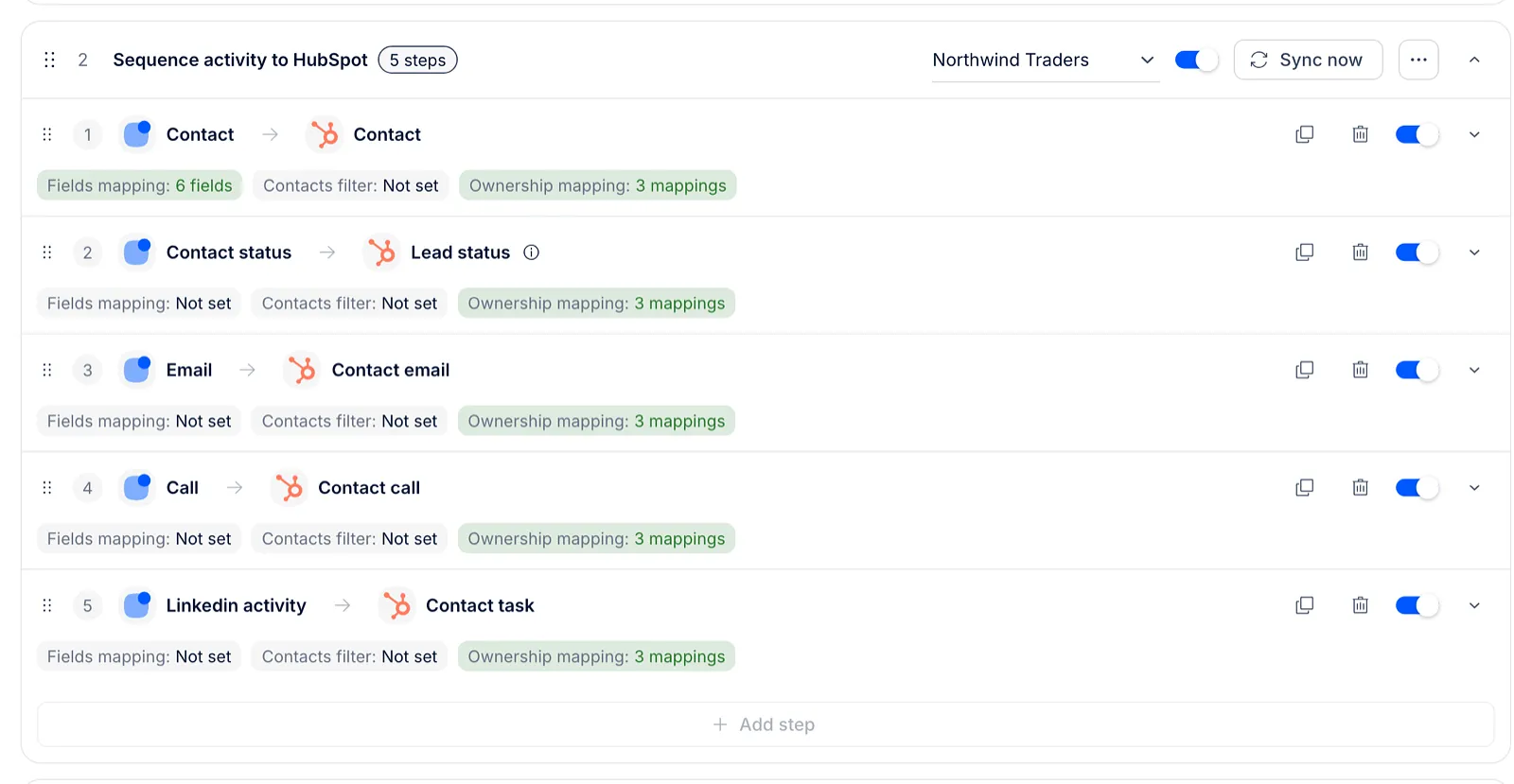
When you click Add step, choose what to sync in Reply and in HubSpot, then click Add:
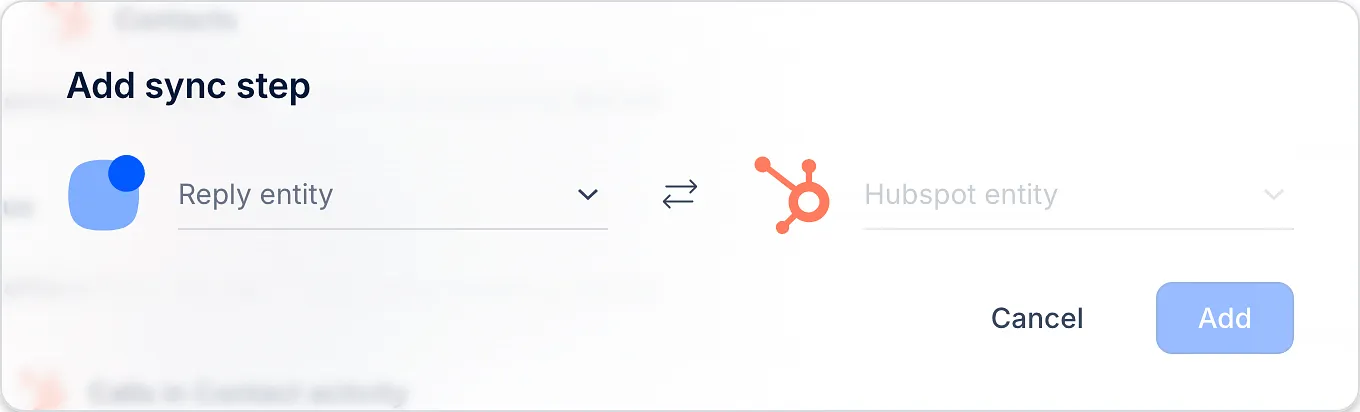
| Reply | HubSpot | Direction |
|---|---|---|
| Contact | Contact | Reply to HubSpot, or HubSpot to Reply |
| Account | Company | Reply to HubSpot, or HubSpot to Reply |
| Contact status, Inbox category | Lead status, Lifecycle stage | Reply to HubSpot |
| Email on a contact, company or deal | Reply to HubSpot | |
| Call | Call on a contact, company or deal | Reply to HubSpot |
| Task | Task on a contact, company or deal | Reply to HubSpot |
| Linkedin activity | Task on a contact, company or deal | Reply to HubSpot |
💡 For contact and account steps you can switch the direction. Switching it deletes the step's filters and sequence settings.
Keep in mind:
-
status and activity steps never create contacts. They only update records that already exist in HubSpot;
-
emails, calls and LinkedIn activities are added to HubSpot once and are not updated later;
-
a call is skipped if its outcome isn't matched to a HubSpot call outcome;
-
Lifecycle stage only moves forward in HubSpot;
-
deals can't be synced as a step of their own, but you can add emails, calls and tasks to deals.
How to set up a step
Click a step to open its settings. Each section has its own Save button. In Fields mapping, Save for all steps of this type copies the field mapping to every step of the same type and direction, in all your workflows that use the same HubSpot account. It replaces their field mappings but keeps their ownership mappings.
Fields mapping
Choose how Reply finds the matching record: by email or LinkedIn for contacts, by domain for companies. If a match is found, Reply updates its fields. If not, Reply creates a new record. When more than one record matches, choose which one to update: the last edited, the last created or the first created.
Then match Reply fields to HubSpot properties. To create a record, a contact needs a first name and a company needs a company name.
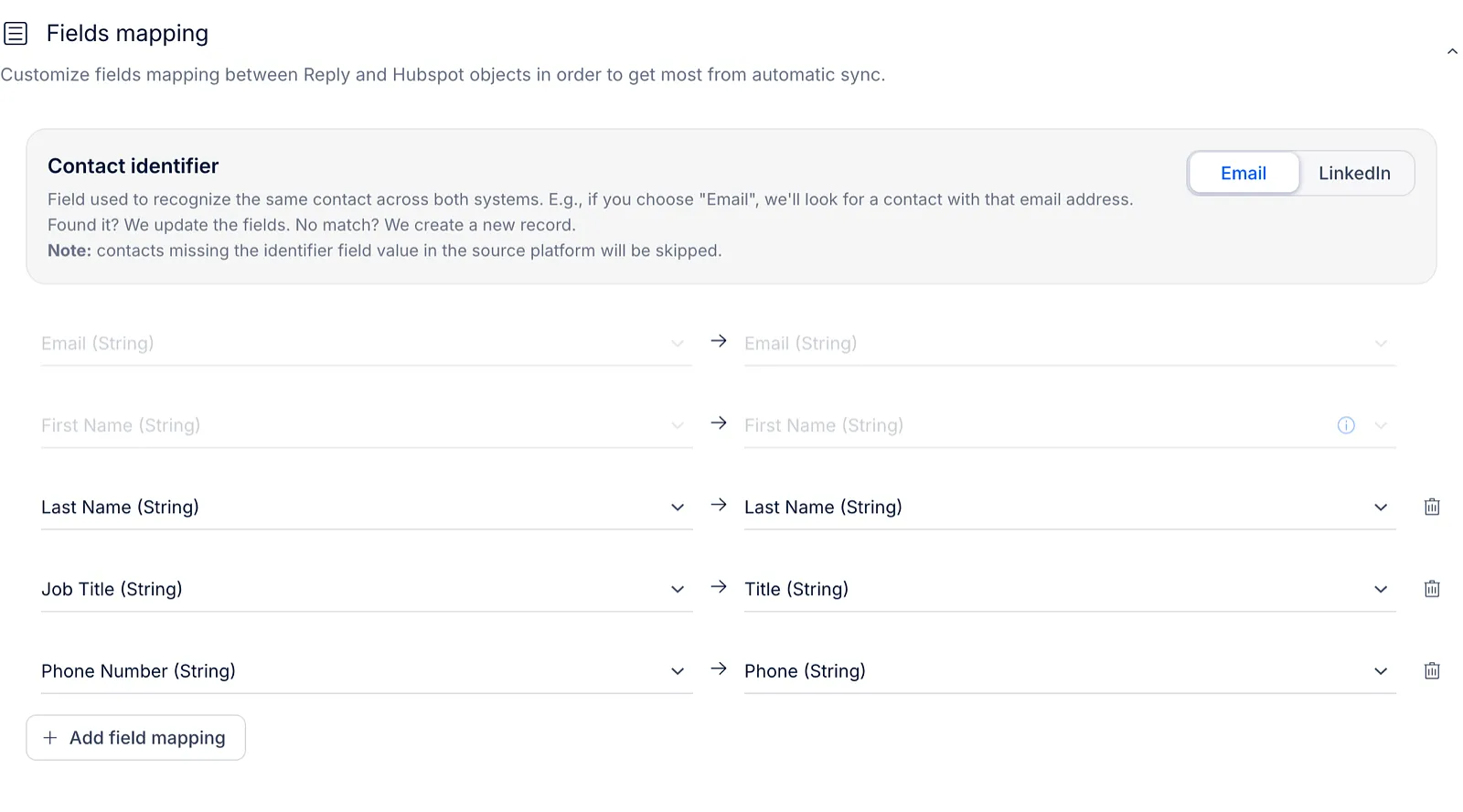
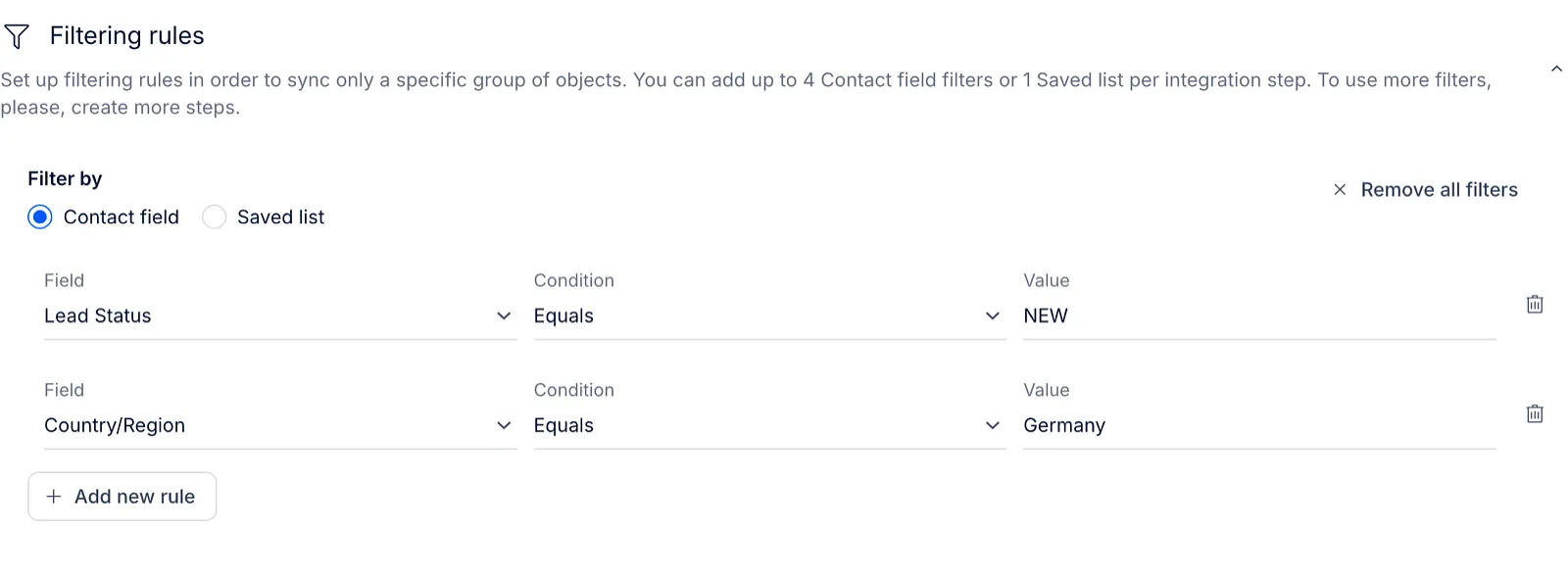
Filtering rules
Sync only the records you need: filter by up to 4 contact fields, or by one HubSpot saved list. To use more filters, add another step.
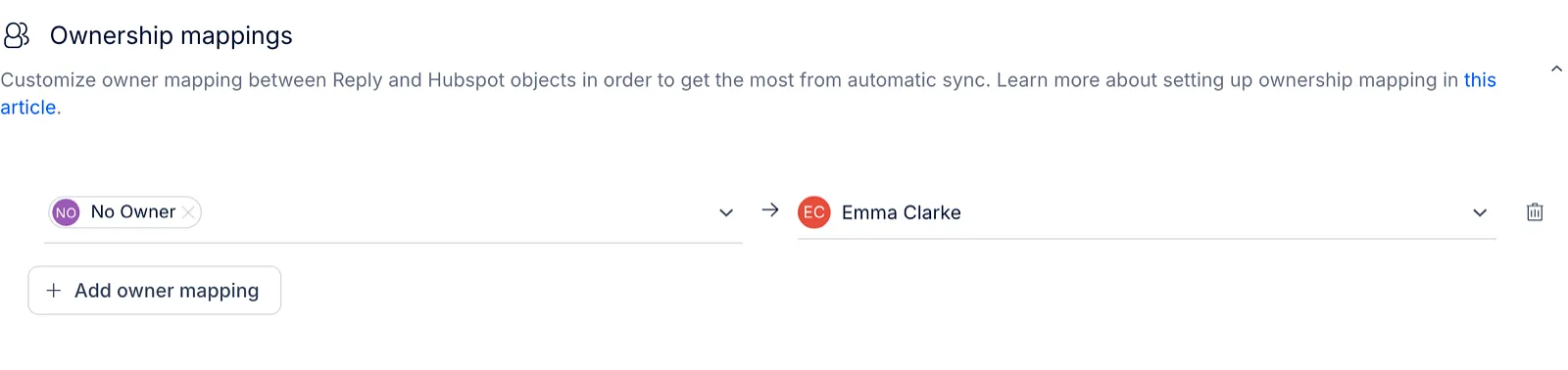
Ownership mappings
Match Reply users to HubSpot owners, so records and activities get the right owner. For steps from HubSpot to Reply you can also map No Owner to a Reply user: HubSpot contacts without an owner then get that user as their owner in Reply.
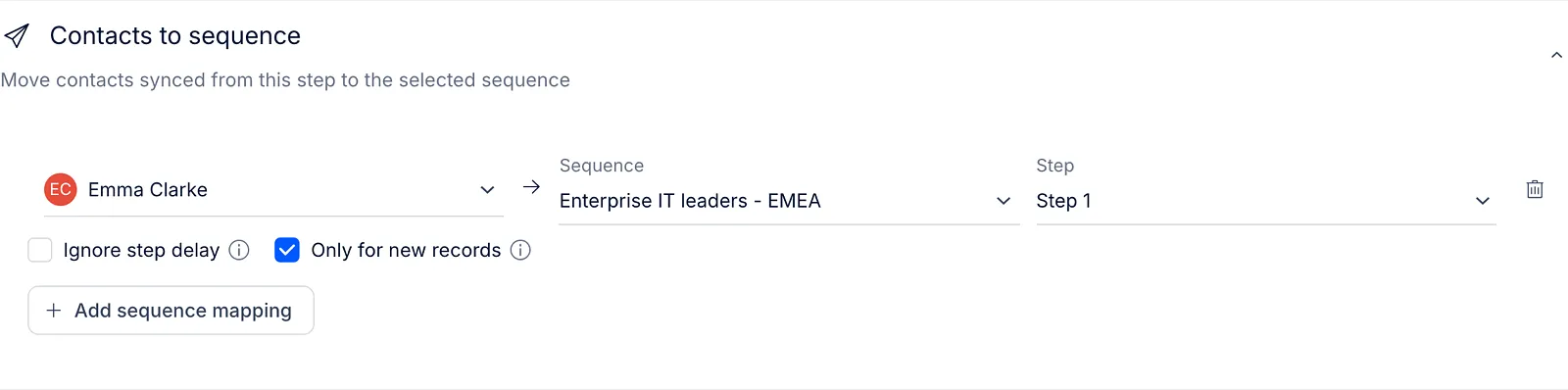
Contacts to sequence
For steps that sync from HubSpot to Reply, you can add the synced contacts to a sequence. Choose a Reply user, the sequence and the step to start from.
-
Ignore step delay - start the sequence for the contact right away;
-
Only for new records - add only contacts that the step created in Reply.
For status steps, turn on Sync each status only once to send each status to HubSpot only one time.
When syncing runs
Each workflow that is turned on syncs every 10 minutes. Click Sync now in its row to run it right away.
Sync log
The Log tab shows every sync run: time, workflow, step, status and how many records were added, updated, failed or skipped. The status is Done, Partly Failed (synced with errors or skipped records) or Failed. Click a Partly Failed or Failed status to see what went wrong.
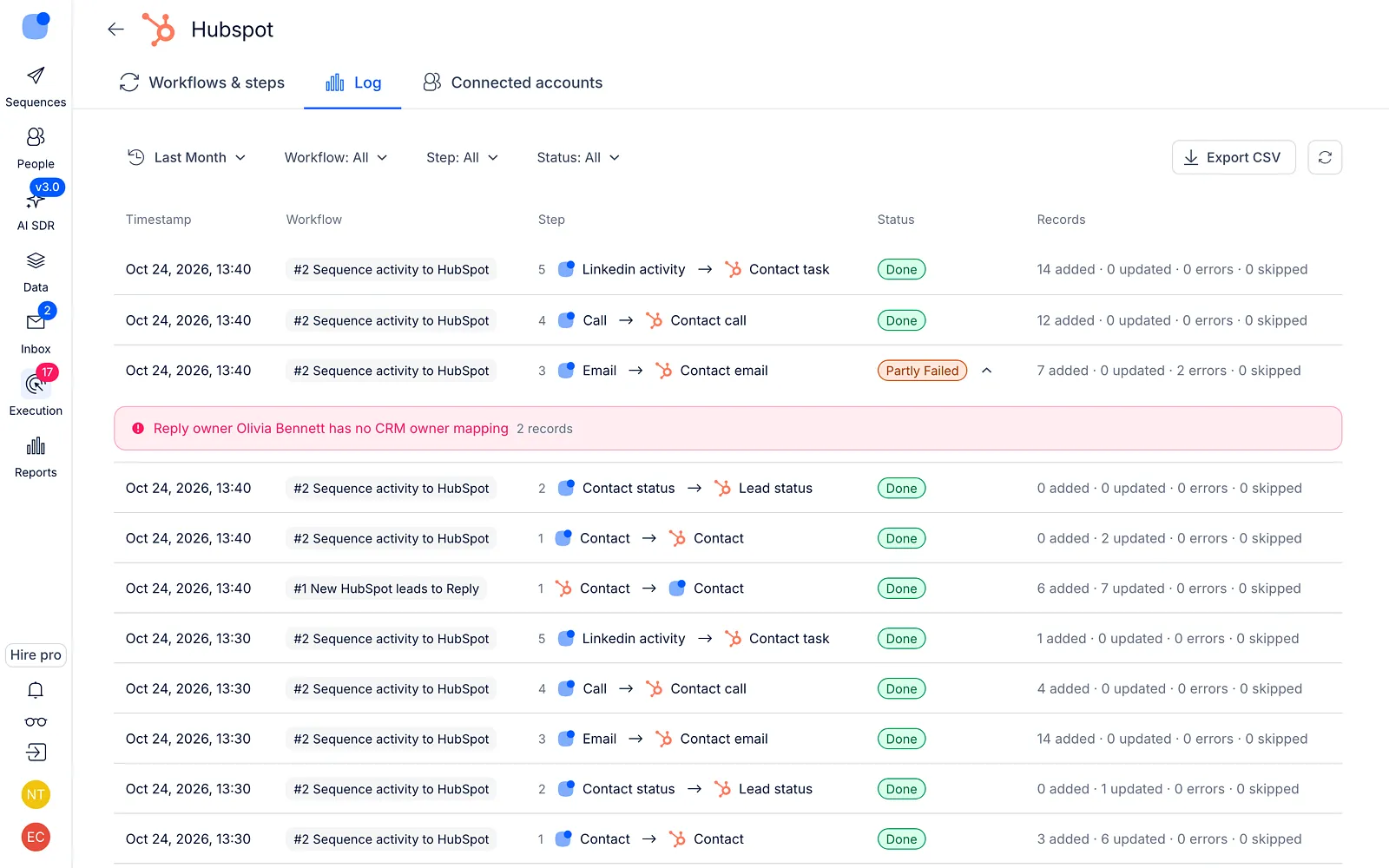
Use the filters at the top to find a run by date, workflow, step or status, and Export CSV to download the log.
Connected accounts
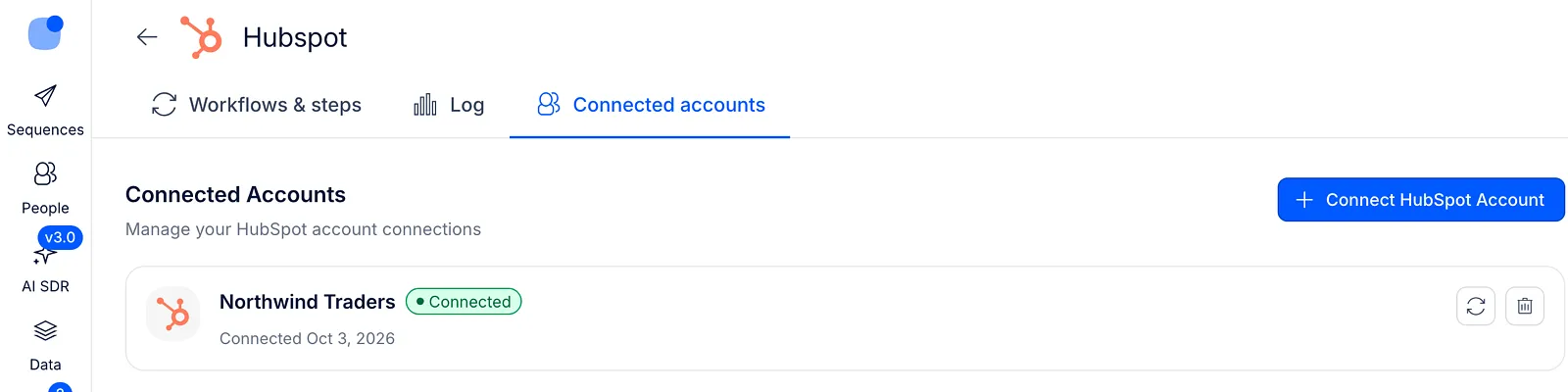
The Connected accounts tab lists your HubSpot accounts. To add one more, click Connect HubSpot Account.
When HubSpot needs reconnecting
If Reply loses access to a HubSpot account, the account shows Needs reconnect and a banner appears at the top of the page. Syncing for that account pauses, but your workflows and steps are kept.
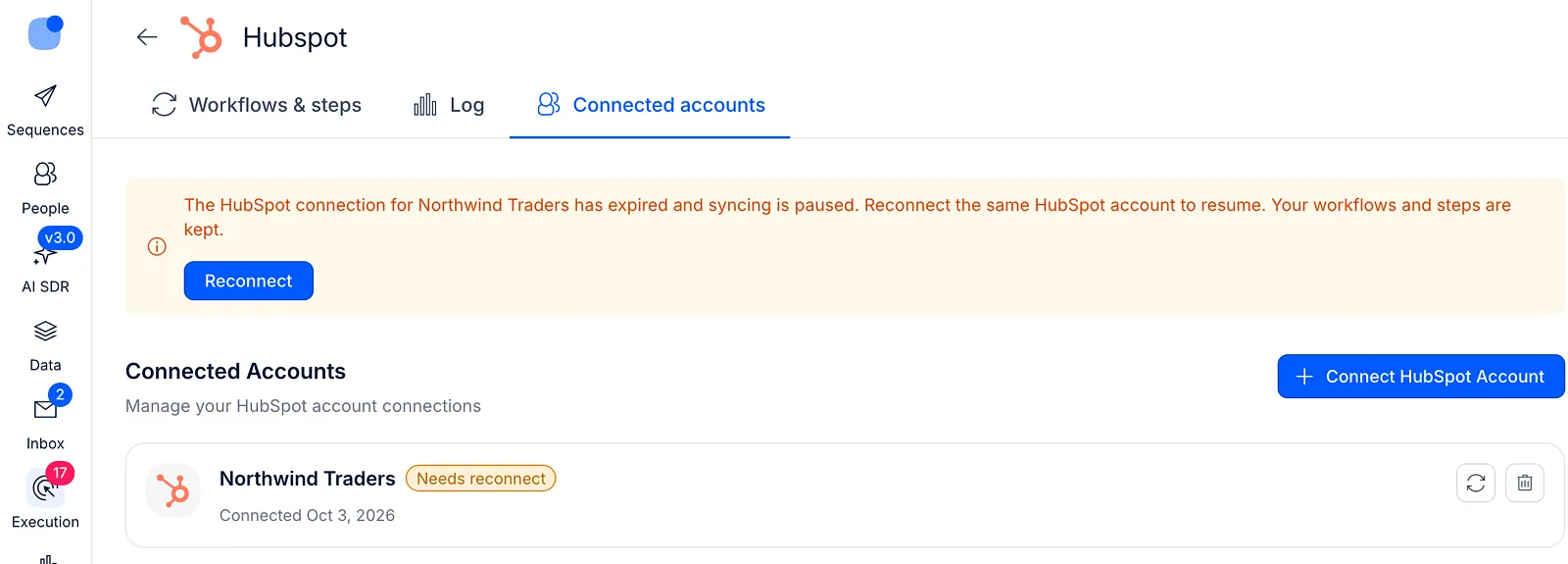
Click Reconnect and sign in to the same HubSpot account. Only the user who connected the account or the team owner can reconnect it.
What the new integration doesn't do yet
The integration is in beta, and work on it continues. For now:
-
Tasks sync only from Reply to HubSpot. Changes to a task in HubSpot don't come back to Reply, and tasks created only in HubSpot aren't synced to Reply.
-
Calls sync only when they're made in Reply. Calls made or logged in HubSpot don't come to Reply.
-
HubSpot activity isn't added to the notes of Reply contacts.
-
Deals and leads aren't synced as records. Activities can still be added to deals, and to leads when Sync lead activities with lead owner is turned on in HubSpot.
-
Triggers between Reply and HubSpot aren't available.
-
Existing HubSpot contacts are always updated when contacts sync from Reply. To keep their owner, turn on Don't change owner on updates.
-
Account custom fields can't be mapped.
-
Automatic replies and out-of-office messages are logged to HubSpot like other emails.
If you used the previous HubSpot integration
The previous version is marked Deprecated on the Integrations page. If your team uses it, you move the whole team to the new version in one go.
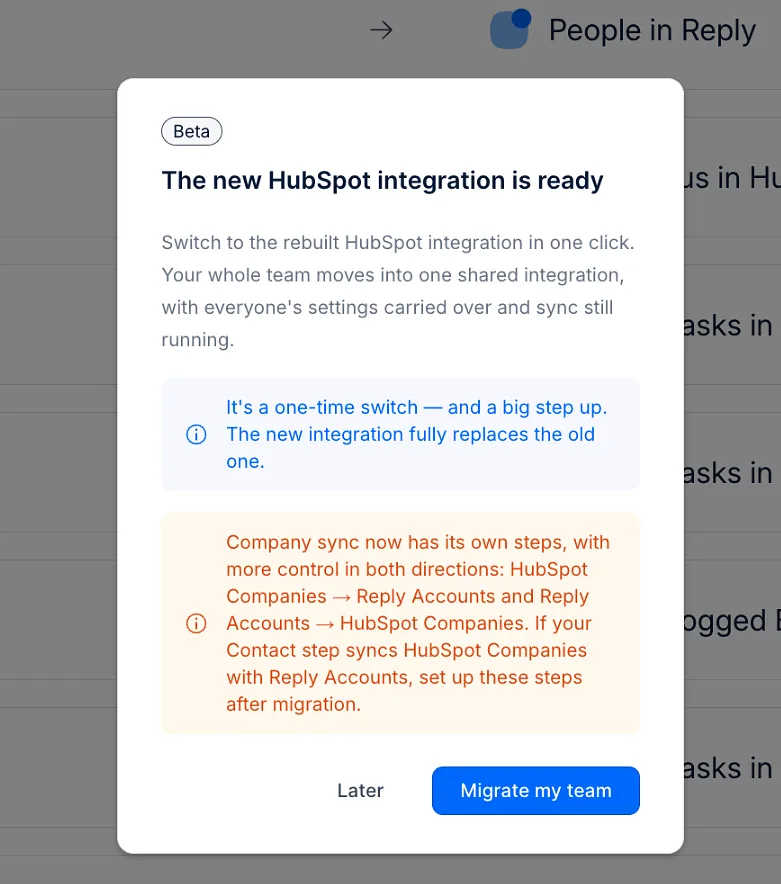
When you open the previous HubSpot integration, Reply shows The new HubSpot integration is ready:
-
Migrate my team - moves your whole team to the new integration. Everyone's settings come along, and syncing keeps running.
-
Later - closes the message. It shows again the next time you open the integration.
Only team members who can manage integrations see Migrate my team.
⚠️ The migration is a one-time switch and can't be undone. The new integration fully replaces the previous one.
While the migration runs, you see Migrating your team to the new HubSpot integration... When it's done, Your team is on the new integration appears. Click Go to the new HubSpot integration to open it.
After the migration, check these:
-
Company sync. Companies now sync in their own steps: HubSpot Companies to Reply Accounts, and Reply Accounts to HubSpot Companies. If your Contact step synced HubSpot Companies with Reply Accounts, set up these steps after the migration.
-
Steps that changed. Some steps may not move exactly as they were: they are switched off or now sync differently. Reply emails the details to the person who started the migration and to the team members concerned.
If the migration can't be completed, the previous integration keeps working as before, and you can try again.
Until your team migrates, the new version can't be connected. Reply shows Your team uses the previous version of the HubSpot integration. Migrate the team to connect the new one.
Read more about integrations: