In this article, we'll cover key metrics in email reports – what they mean and how they're calculated – as well as explain the columns from sequence-based and contact-based reports.
The key metrics are the same across the Sequence Stats tab and the Email dashboard in Reports, and include:
- Total / Contacted
- Total accounts
- Delivery rate
- Open rate
- Reply rate
- Interested
- Meetings booked
- Opt-outs rate
- Bounce rate
- Not reached

Total people
Total people is the overall number of contacts included in the sequence.
Total = Contacted + Out of Office + Bounced + Auto Replied contacts
💡 Note:
- The total for multiple time ranges within a sequence may be higher than the overall total.
- If you delete a contact, the value decreases.
- If you delete a team member in team reports, the metrics do not change.
Contacted
Contacted shows the number of contacts who received at least one email.
💡 Note:
- Does not include Out of Office, Bounced, or Auto Replied contacts.
Total accounts
The number of accounts (companies) involved in the sequence, based on the Total people metric.
Delivery rate
The delivery rate shows the percentage of emails successfully delivered across all sequence steps.
Delivery rate = Delivered emails × 100 ÷ Total people
💡 Note:
- Delivery rate excludes Bounced contacts, but includes Out of Office and Auto replies.
Open rate
The open rate shows how many contacts opened your emails.
Open rate = Opened emails × 100 ÷ Contacted
💡 Note:
- Does not include Out of Office or Auto replies.
Reply rate
The reply rate shows the percentage of contacts who replied. A reply is counted when an email is categorized in the inbox.
Reply rate = Replies × 100 ÷ Contacted
💡 Note:
- Does not include Out of Office or Auto replies.
- It is based on historical data and may change over time.
Interested
The Interested metric represents the number of potentially interested contacts (based on the Inbox category). Here is the formula you need:
- Interested in % = Interested x 100 / Contacted
Meetings booked
The number of meetings scheduled through your emails.
Meetings booked % = Meetings booked × 100 ÷ Contacted
Opt-out rate
The opt-out rate shows how many contacts unsubscribed from your emails. This metric updates in real time.
Opt-out rate = Opted out × 100 ÷ Contacted
💡 Note:
- If you remove the Opted Out status from a contact, the value changes.
- If you remove the contact with this status, the metric does not change.
- If you delete the contact from the sequence and remove the Opted Out status, it will not be included in the stats.
Bounce rate
The bounce rate shows the percentage of emails that could not be delivered.
Bounce rate = Bounced emails × 100 ÷ Total people
Not reached
This metric shows the number of contacts who did not receive an email.
Not reached = Out of Office + Bounced + Auto Replied contacts Not reached rate = Not reached × 100 ÷ Total people
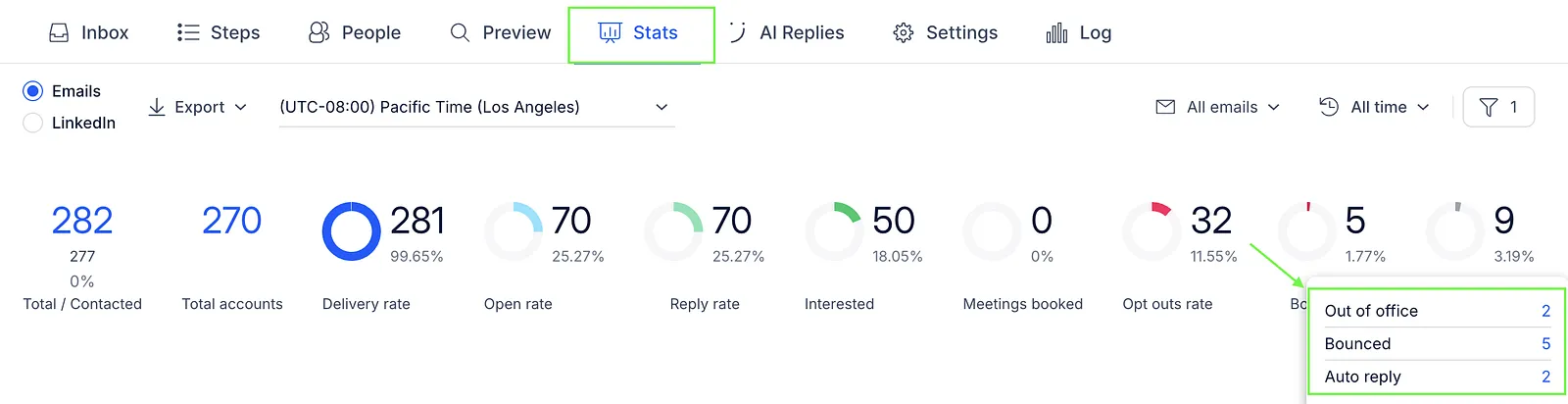
Hover over this metric in the Reports page to see a detailed breakdown of Out of Office, Bounced, and Auto Replied contacts.
Columns in sequence-based reports
When you export a sequence-based CSV report, you'll see additional columns that describe the sequence, ownership, and contact activity.
| Column | Description |
|---|---|
| Sequence name | The name of the sequence |
| Sequence ID | Unique identifier of the sequence |
| Owner email | The user who is the owner of the sequence. If a sequence had more than one owner, the report shows a separate row for each owner |
| Email account | The email account used to send emails. If a sequence has multiple email accounts, the report shows a separate row for each account. Deleted email accounts are also included in the stats |
| Sequence status | Current status of the sequence (New, Active, Paused) |
| Prospects count | Number of contacts who were sent emails |
| Active count | Number of contacts currently in the sequence who have received emails and have the Active status |
| Bounced count | Number of contacts whose emails could not be delivered (for example, invalid email address) |
| Bounce rate % | Percentage of bounced emails, calculated as Bounced count ÷ Prospects count × 100 |
| Clicked count | Number of contacts who clicked at least one link in any email |
| Click through rate | Percentage of contacts who clicked a link, calculated as Clicked count ÷ Delivered count × 100 |
| Contacted count | Number of contacts who received emails and are not in Bounced, Out of Office, or Auto Replied status |
| Delivered count | Number of contacts whose emails were successfully delivered (excluding bounced emails) |
| Interested count | Number of contacts with the Interested inbox category |
| NotInterested count | Number of contacts with the Not interested inbox category |
| NotNow count | Number of contacts with the Not Now inbox category |
| DoNotContact count | Number of contacts with the Do Not Contact inbox category |
| Opened count | Number of contacts who opened at least one email |
| Open rate % | Percentage of opened emails, calculated as Opened count ÷ Contacted count × 100 |
| Paused count | Number of contacts currently in the sequence who have received emails and have the Paused status |
| Replied count | Number of contacts who replied, excluding Bounced, Out of Office, and Auto Replied contacts |
| Reply rate % | Percentage of replies, calculated as Replied count ÷ Contacted count × 100 |
| AutoReplied count | Number of contacts whose reply was detected as an auto reply |
| OutOfOffice count | Number of contacts whose reply was detected as an OOO reply |
| OptedOut count | Number of contacts who unsubscribed from receiving emails |
| Start date | Sequence launch date (UTC time) |
Columns in contact-based reports
When you export contact-based CSV reports, you'll see columns related to contact details, sequence activity, and engagement.
| Field | Description |
|---|---|
| Contact ID | Unique identifier of the contact |
| Contact First name | Contact's first name |
| Contact Last name | Contact's last name |
| Contact email | Contact's email address |
| Contact country | Country associated with the contact |
| Contact company | Company name of the contact |
| Contact industry | Industry of the contact's company |
| Contact company size | Size of the contact's company |
| Email account | The email account used to send emails |
| Sequence | The name of the sequence the contact is in |
| Sequence Step | The step of the sequence the contact is currently in |
| Subject | Subject line of the email |
| Template | Email template used |
| Contacted | Indicates whether the contact received an email (1 = yes, 0 = no) |
| Do not contact | Indicates whether the contact has the Do Not Contact inbox category |
| Delivered | Indicates whether the email was successfully delivered |
| Delivery date | Date and time when the last email was delivered |
| Opened | Indicates whether the email was opened |
| Opens | Number of times the email was opened |
| Replied | Indicates whether the contact replied |
| Interested | Indicates whether the contact has the Interested inbox category |
| Not Interested | Indicates whether the contact has the Not Interested inbox category |
| Not now | Indicates whether the contact has the Not Now inbox category |
| Opted Out | Indicates whether the contact unsubscribed |
| Bounced | Indicates whether the email could not be delivered |
| AutoReplied | Indicates whether the contact's reply was detected as an auto reply |
| Forwarded | Indicates whether the response was forwarded |
| OutOfOffice | Indicates whether the contact's reply was detected as an OOO reply |
| Active | Indicates whether the contact is currently active in the sequence |
| Paused | Indicates whether the contact is paused in the sequence |
| Clicked | Indicates whether the contact clicked a link |
| Unsorted | Indicates whether the contact's reply has not been categorized |
| Custom fields | Any additional custom fields associated with the contact |
💡 Note: Some columns use 1 / 0 to indicate status (1 = yes, 0 = no), for example, Contacted, Opened, etc.