The Email accounts page is where you can connect and manage the email accounts you use for sending from Reply.
From here, you can connect existing mailboxes, purchase domains and mailboxes, check your domain setup, manage mailbox settings, and filter your email accounts.
🎥 See the video below for an overview of the Email accounts page.
To access the page, go to Settings → Email accounts.
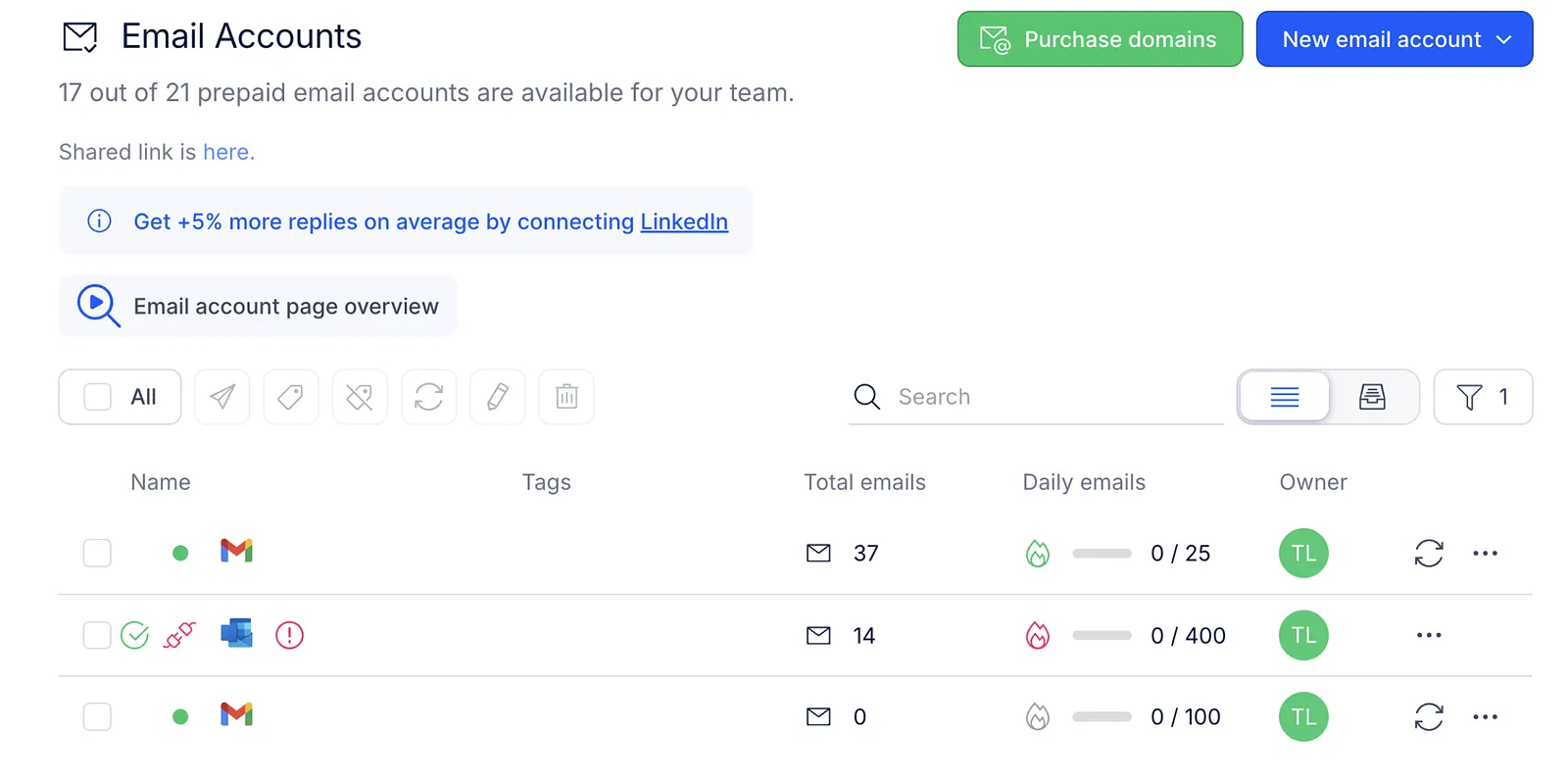
Connect email accounts
To connect an existing email account:
- Click New email account.
- Choose how you'd like to add it:
- Import from CSV
- Create manually

👉 See also:
Purchase domains and mailboxes
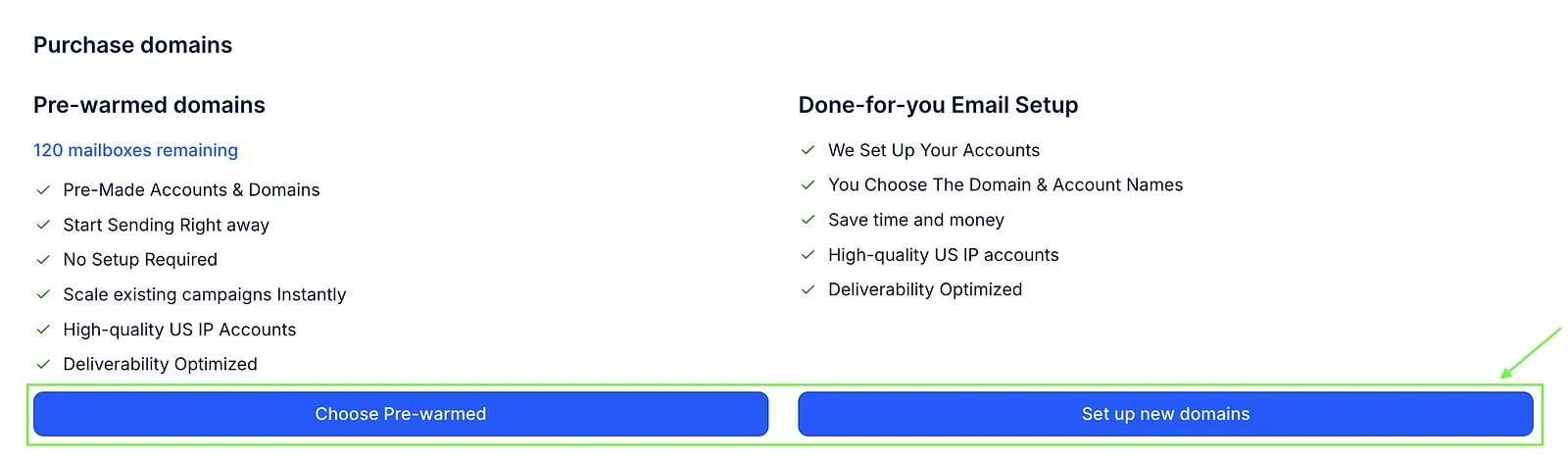
If you don't have a mailbox yet, you can purchase domains and mailboxes directly through Reply. To do this:
- Click Purchase domains.

- Choose between:
- New domains
- Pre-warmed domains
👉 See also:
View and manage email accounts
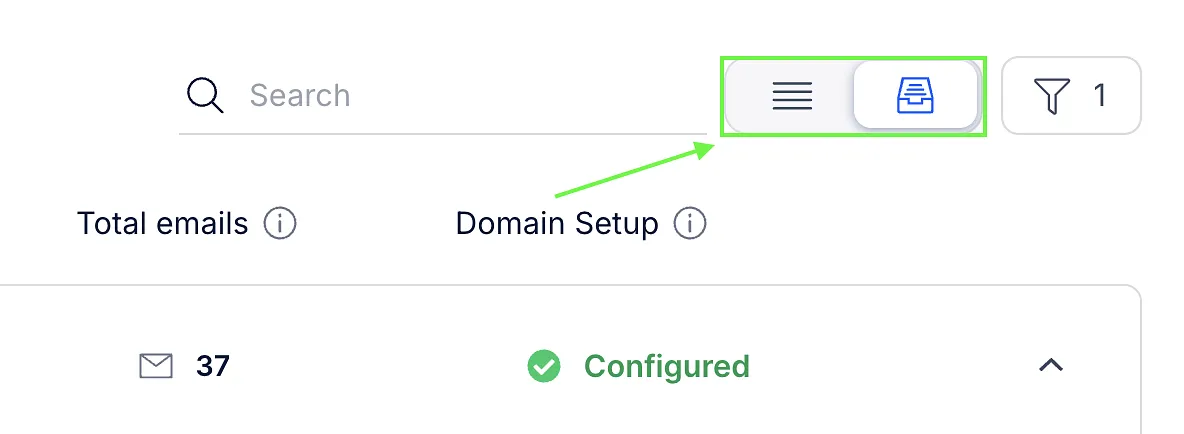
By default, email accounts are grouped by domain. You can switch between List view, which shows all email accounts in one list, and Domain view, which groups them by domain.
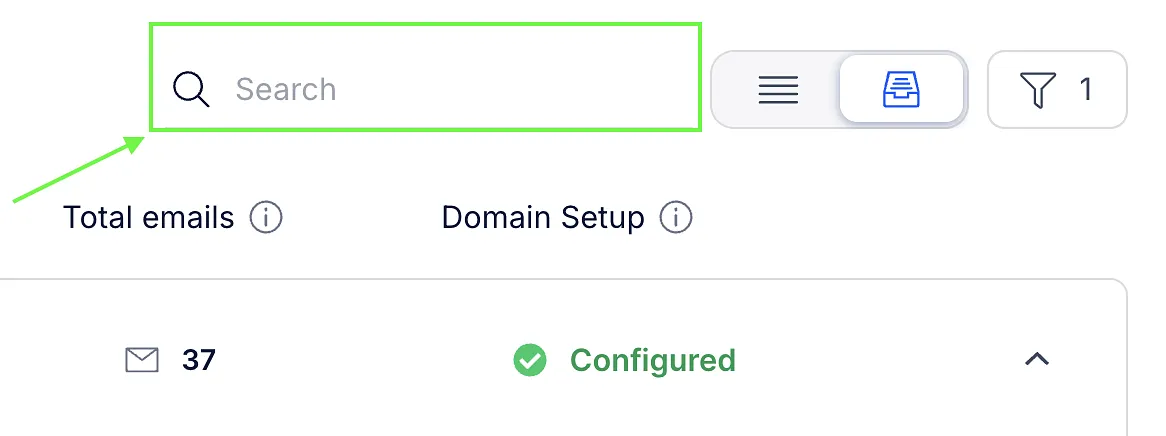
You can also use the search bar to quickly find a specific mailbox.
In Domain view, you can see:
- Number of mailboxes
- Total emails sent from the domain
- Domain setup status

💡 If there's an issue with your domain setup, you can check the details in the Email health checker and make the necessary changes.
Below each domain, you can see the mailboxes connected to it. You can check the following details for each mailbox:
- Status (🟢 active, ⚪ hasn't started sending yet, 🔴 disconnected)
- Tags
- Total emails
- Daily emails
- Owner

Mailbox actions
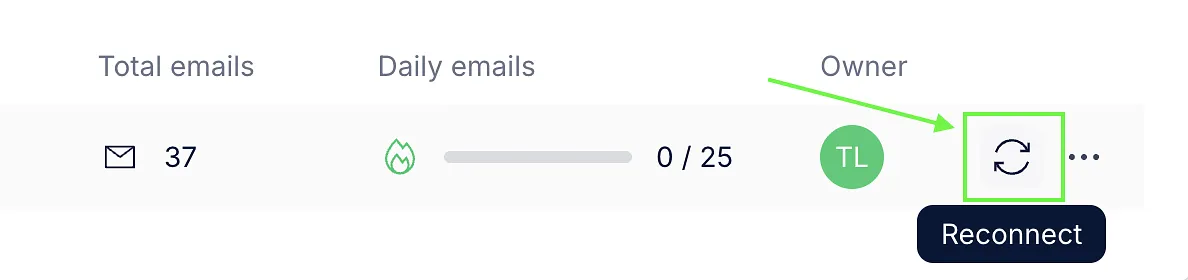
You can manage individual mailboxes using the actions available next to each one:
- Reconnect
- Edit warm-up settings
- Make default
- Remove
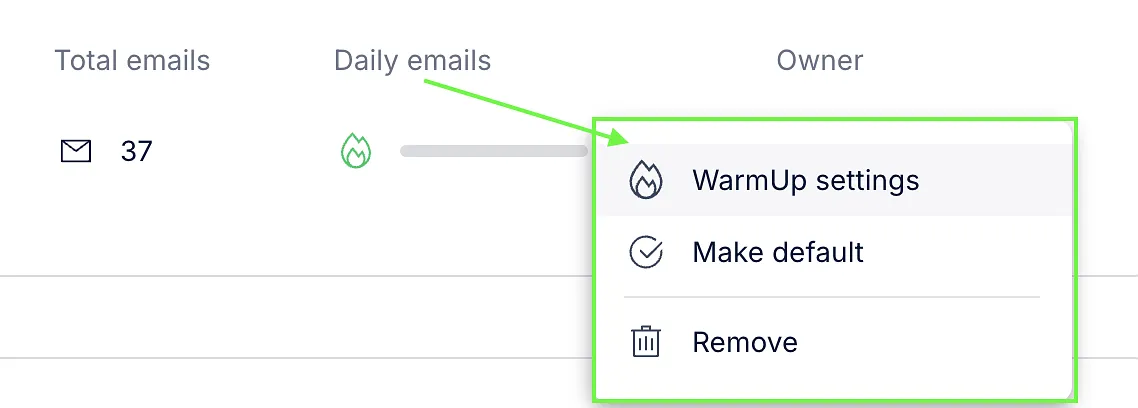
💡 The default email account is used as the default sender for your campaigns. If you remove the default email account, the first mailbox in the list will automatically become the new default sender.
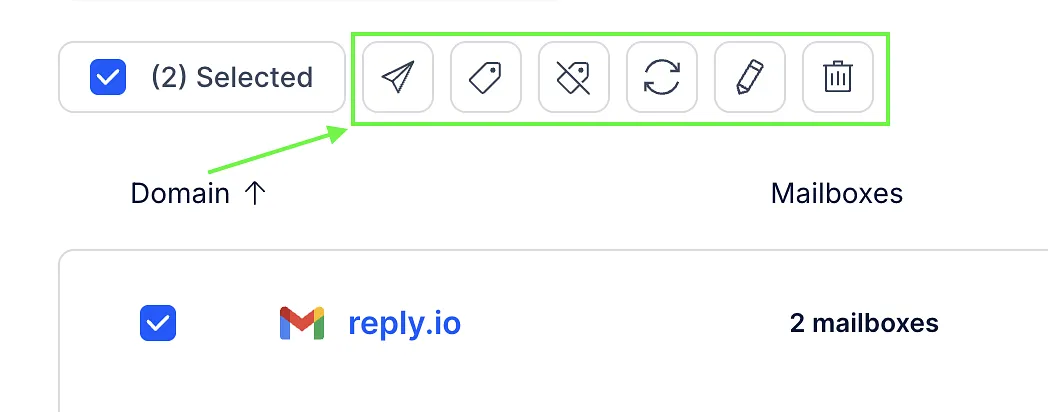
You can also select multiple mailboxes and perform bulk actions:
- Move to sequence
- Add/remove tags
- Retest domain health
- Edit settings
- Delete
👉 See also: Bulk actions for email accounts
Filters
Smart filters make it easier to find the mailboxes you need.
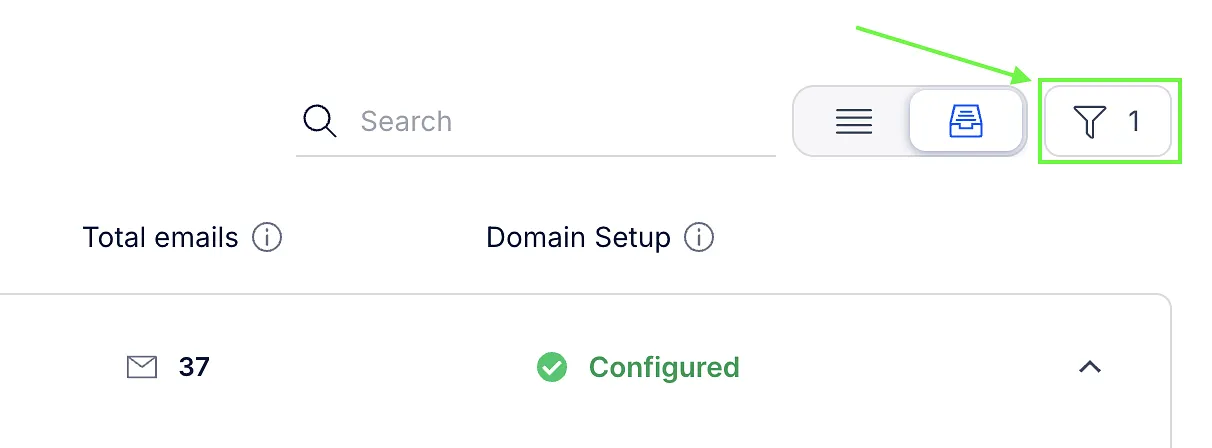
You can filter by:
| Filter | Description |
|---|---|
| Owner | Filter by mailbox owner. |
| Sequence | Filter by the sequence an email account is assigned to. |
| Tags | Filter by assigned tags. |
| Domains | Filter by domain. |
| Email account type | Filter by how the email account is connected: Gmail Manual, Gmail, Exchange On-Premises, Exchange Single Click, Outlook, or Other provider. |
| Domain validation status | Filter by the current domain validation status: Configured, Action Needed, Attention Required, Under Testing, Connectivity Issues, or Missing Emails. |
| Ramp-up | Filter by whether ramp-up is set or not set. |
| Delay between emails | Filter by whether a delay is set or not set. |
| Signature | Filter by whether a signature is set or not set. |
| Opt-out mode | Filter by the configured mode: opt-out link or opt-out text. |
You can combine multiple filters to narrow down the results and find the email accounts you need.