If you need to add multiple email accounts at once, you can import them from a CSV file.
Here are the steps👇:
- Download a sample CSV file.
- Make a copy and add the details for the email accounts you want to import.
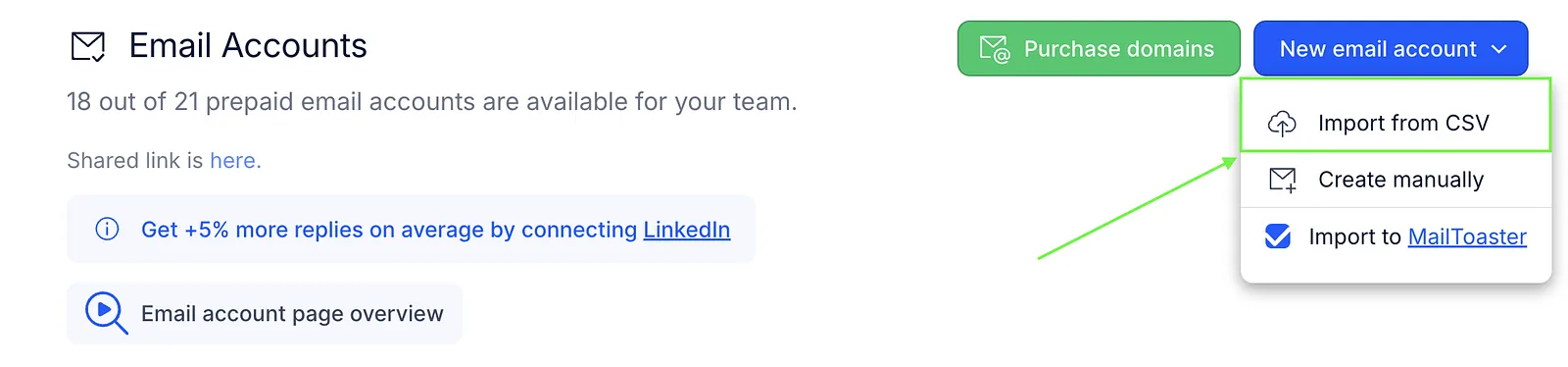
- Go to Settings → Email accounts.
- Click New email account.
- Select Import from CSV and upload your file.
- (Optional) Select Import to MailToaster if you also want to add the accounts for warm-up.
CSV fields
Make sure your CSV file includes the following fields:
- Email – The email address you want to connect.
- Daily Limit – The maximum number of emails that can be sent from the account each day.
- Sender Name – The name that will appear as the sender.
- SMTP Host – The address of the SMTP server used to send emails (smtp.gmail.com for Gmail).
- SMTP Port – The port used to connect to the SMTP server (465 for Gmail).
- SMTP Password – The password used to authenticate with the SMTP server.
- SMTP SSL (optional) – Enter TRUE if SSL is required, or FALSE if not.
- IMAP Host – The address of the IMAP server used to receive emails (imap.gmail.com for Gmail).
- IMAP Port – The port used to connect to the IMAP server (993 for Gmail).
- IMAP Password – The password used to authenticate with the IMAP server.
- IMAP SSL (optional) – Enter TRUE if SSL is required, or FALSE if not.

💡 Important: Bulk import works only for email accounts that use SMTP for sending emails.
- Outlook Single-Click accounts can't be imported in bulk because each account requires individual authorization.
- Gmail accounts can be imported in bulk if 2-step verification is enabled and you use an app password for each account instead of Single-Click authorization.
Import email accounts from mailbox providers
Some mailbox providers let you export your accounts and import them into Reply using the same CSV file. These include:
- Mailreef (supports direct API integration with Reply, as well as CSV files)
- Mission Inbox
- Mailscale
- Inframail
- Mailforge
- InboxAutomate
- Zapmail (also supports a native integration with Reply)