The Calls dashboard includes call records available to you based on your selected filters, including manually logged calls. It helps you understand call activity and review the records behind each metric.
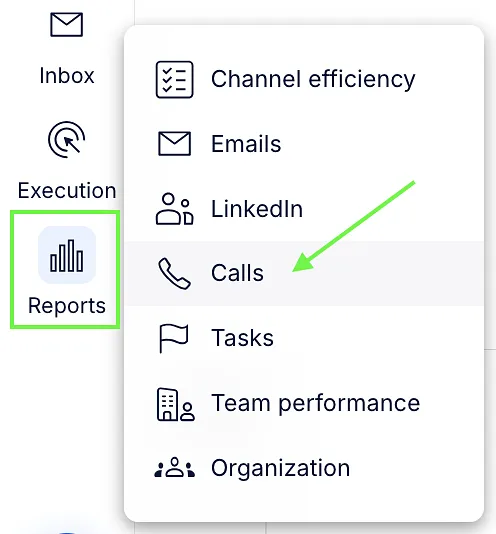
Go to Reports → Calls to open the Calls dashboard.
Calls overview
The overview displays the following metrics:

- Total calls: The number of call records matching your filters, not the number of unique contacts.
- Average duration: Total recorded call duration divided by the number of answered calls.
- Positive calls: Calls with a resolution mapped to Positive. The percentage is calculated as positive calls divided by total calls, multiplied by 100.
- Answered calls: Calls recorded with the Answered disposition.
- Inbound missed calls: Inbound calls recorded with the No answer disposition.
- Calls to contact: Total calls divided by answered calls. This is a ratio, not the number of contacts awaiting a call or tasks marked To Call.
💡Answered and Positive measure different things. An answered call is not automatically a positive call, and a manually logged call is not automatically classified as answered.
Click supported counters, such as Total calls, Positive calls, or Answered calls, to view the matching call records.
Filter your results
Use the controls at the top of the dashboard to narrow the report by:
- Phone number: Select the calling phone numbers to include.

- Call resolution: Focus on specific call outcomes.

- Owners: Select users, where your permissions allow it.

- Date range: Choose a predefined period or set a custom range.

Open the additional filters panel to filter by call disposition, inbound/outbound type, custom call resolution, sequence, or available contact criteria.

For call reporting, the date range applies to the call’s start date.
Calls per team member
This section compares call activity across team members, sorted from the highest total call count to the lowest.

For each team member, you can review the total number of calls, total recorded duration, average duration, answered calls, and percentage of positive calls. Click a supported team-member entry or metric to view the corresponding call records.
Calls over time
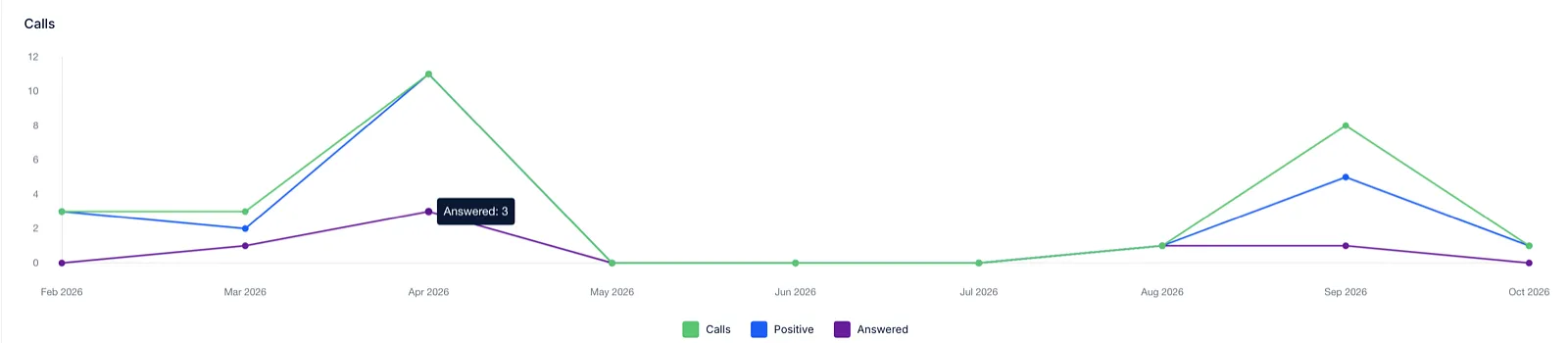
The calls chart shows activity during the selected period, with separate series for Total calls, Answered calls, and Positive calls.
Use the chart legend to identify each series. Click a supported chart point to inspect the calls contributing to that result.
Calls by resolution
A resolution describes the business outcome of a call. The chart groups calls by resolution:
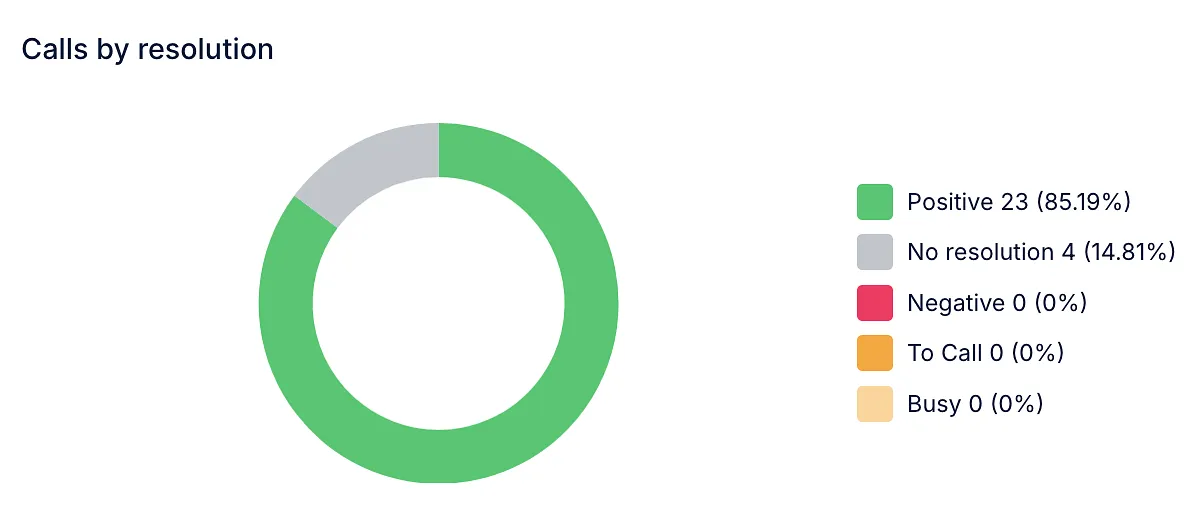
- Positive: A positive call outcome.
- Negative: A negative call outcome.
- To Call: Further calling is needed or the call has been postponed.
- No resolution: No resolution has been recorded.
Your workspace may use custom resolution names. Custom resolutions can be mapped to Positive, Negative, or To Call.
Hover over a chart segment to view its count and percentage. Click a segment to open the matching call records.
Calls by disposition
A disposition describes the recorded call status, not its business outcome.
The chart groups calls into the following categories:
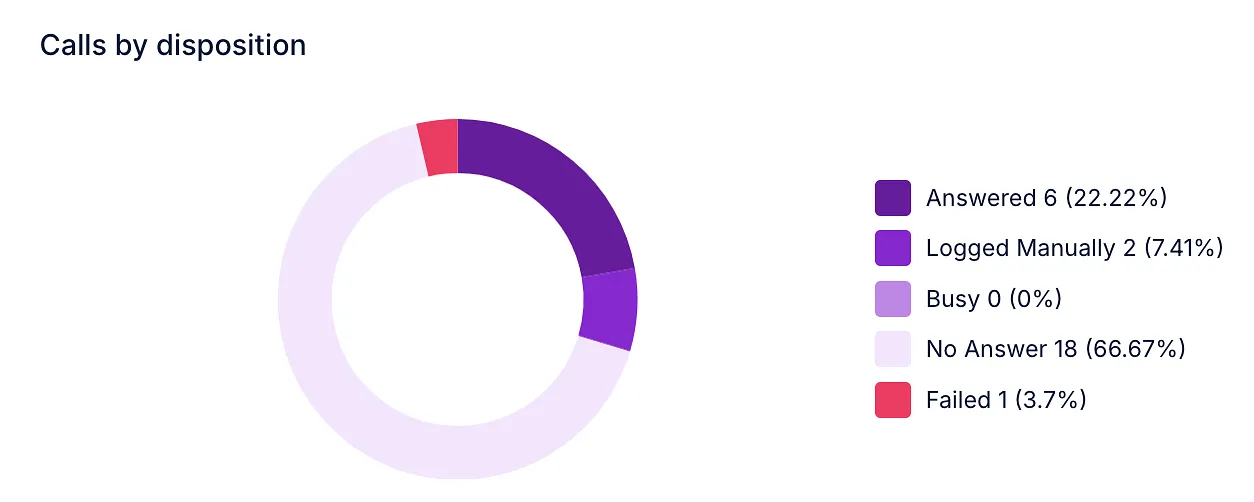
- Answered
- Logged manually
- No answer
- Busy
- Failed
Hover over a chart segment to view its count and percentage. Click a segment to inspect the corresponding calls.
Example: A call can have an Answered disposition and a Negative resolution. The disposition describes the call status, while the resolution describes its outcome.
Answered calls by day and time
The Answered calls chart groups answered calls by day of the week and hour.
Larger bubbles represent more answered calls. Hover over a bubble to see the number of answered calls, or click a bubble with recorded activity to inspect those calls.
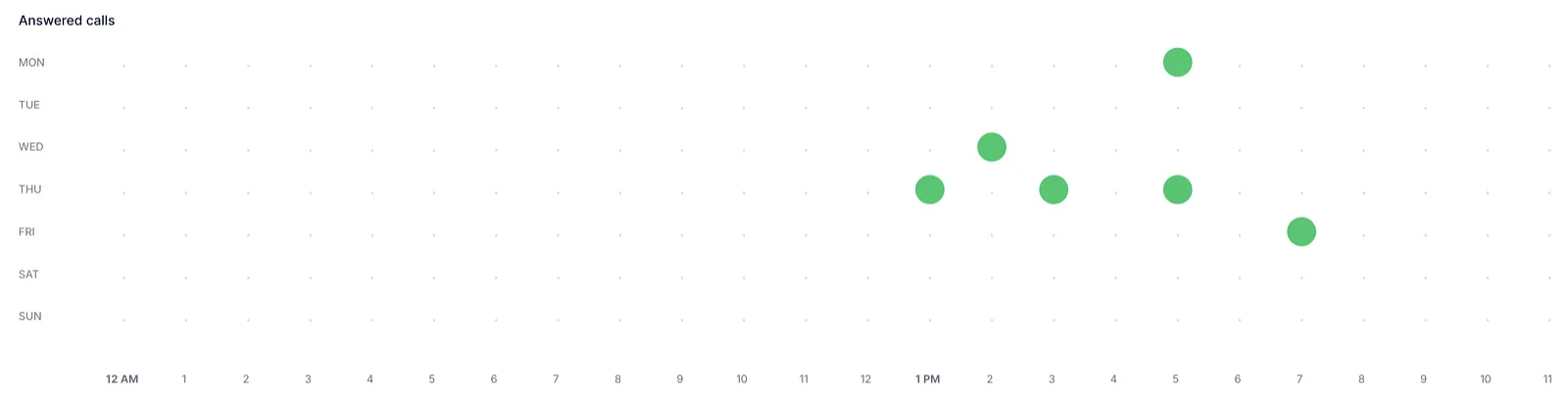
This chart shows historical activity, not an answer-rate comparison or a guarantee of the best time to call.
View individual call records
Click a supported counter, team-member entry, chart point, or chart segment to open the detailed call view.
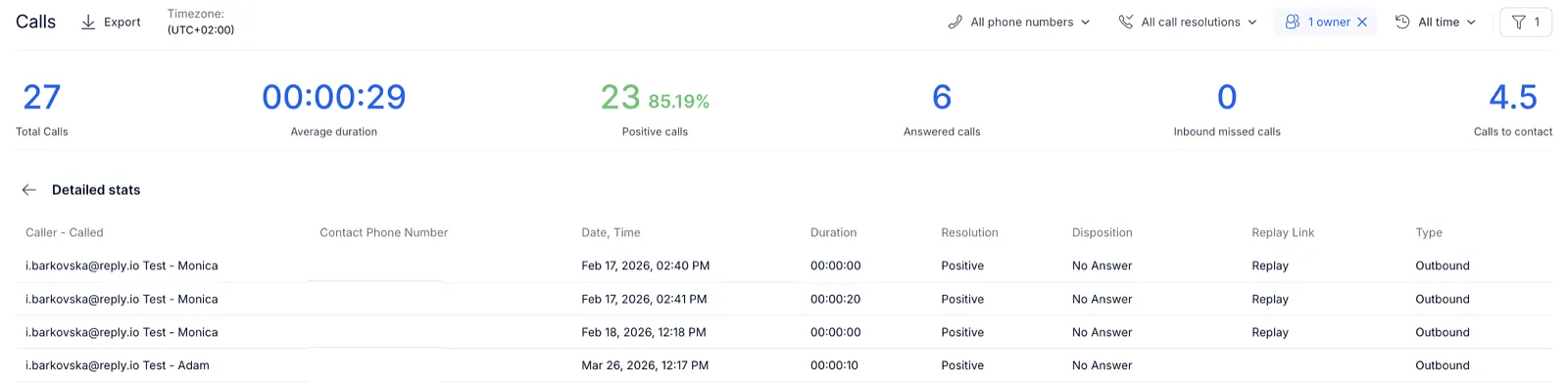
The detailed view includes:
- Caller – Called: The Reply user and associated contact.
- Contact phone number: The contact’s phone number.
- Date and time: The call’s start date and time.
- Duration: The recorded call duration.
- Resolution: The recorded resolution name, where available.
- Disposition: The recorded call status.
- Replay link: Available when the call record contains a recording.
- Type: Inbound or outbound, where recorded.
Click a row linked to a contact to open the contact’s profile. Use the back control to return to the dashboard.
💡A missing replay link does not mean the call was unanswered. It means no recording link is available for that record.
SMS statistics
The Calls dashboard also includes SMS counters and an activity chart.
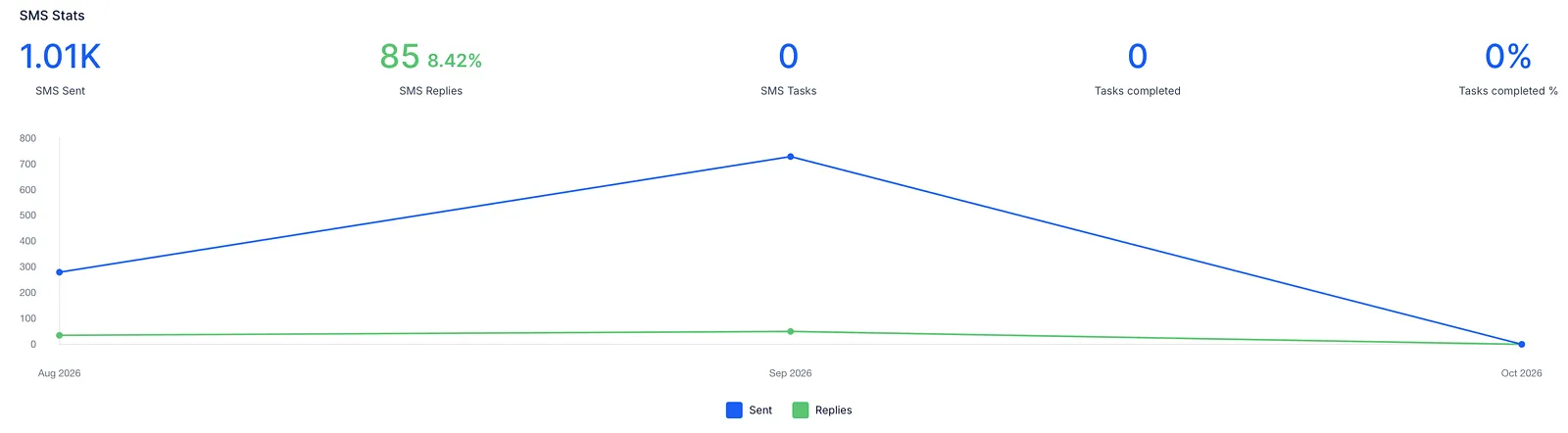
The message statistics show:
- SMS sent: Recorded outgoing SMS messages.
- SMS replies: Recorded incoming SMS messages.
- Reply percentage: Received SMS messages divided by sent SMS messages, multiplied by 100.
- SMS tasks
- Tasks completed
- Tasks completed %
The SMS chart shows sent and received message counts over time.
Where your permissions allow access to task reporting, the dashboard also displays SMS task counts for the Created and Completed reporting categories. Click supported task counters to inspect the matching task records.
💡SMS message counts and SMS task counts measure different things. A task record does not confirm that a message was sent, and the reply percentage is not a unique-contact response rate.
Export call data
Use the export control at the top of the dashboard to request a CSV export based on your selected filters.
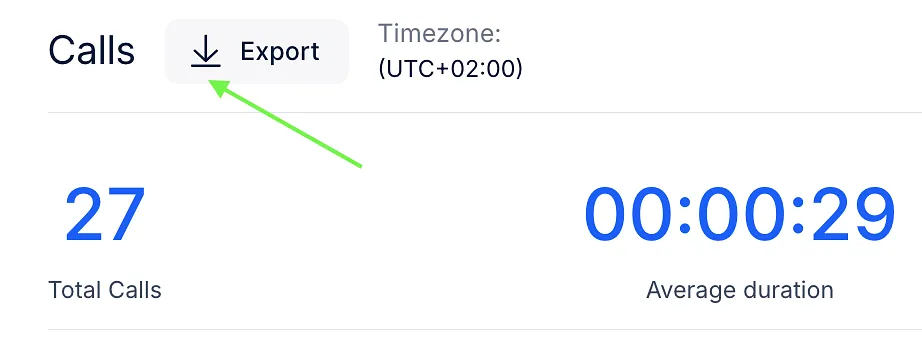
Export is unavailable while the report is loading or when there are no matching call results.