The Organization dashboard gives you a centralized view of your outreach activity and performance. You can compare results across workspaces and users, monitor email and LinkedIn activity, review tasks, and track progress toward your KPIs.
To access the dashboard, go to Reports → Organization.
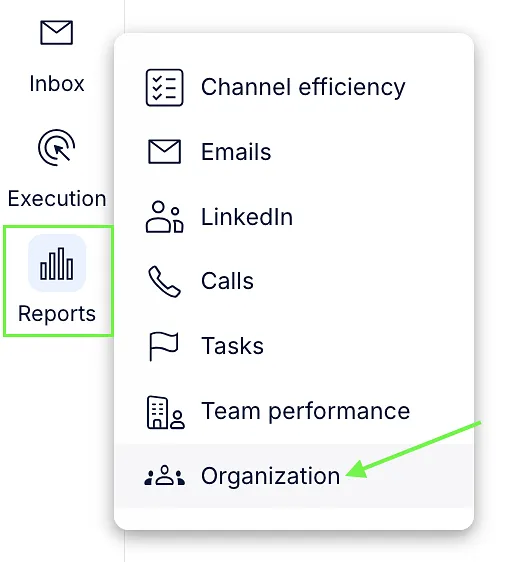
💡Your access to the dashboard and the available workspaces and KPIs depend on your reporting permissions.
The dashboard includes the following tabs:
- KPI charts
- KPI lists
- Workspace performance
- Email users
- Email accounts
- Tasks
Dashboard overview
The top of the dashboard shows summary metrics based on your selected filters.

| Metric | Description |
|---|---|
| Total touches | Outreach activity and task records included in the report. This is an activity count, not a count of unique contacts. |
| Total prospects contacted | Distinct contacts represented in the report's activity. Each contact is counted once within the relevant reporting group. |
| Booked meetings | Meeting records included in the report. |
| Meeting conversion | Booked meetings divided by total touches × 100. |
| Replies | Recorded responses across supported outreach channels, including calls with a positive resolution. |
| Replies conversion | Replies divided by total touches × 100. |
| Completed manual tasks | Task records classified as completed in reporting. |
| Created manual tasks | Task records classified as created in reporting. This is not a cumulative count of every task ever created. |
💡A contact can appear under multiple users or workspaces. Because of this, adding individual contact counts may produce a different result from the overall distinct-contact count.
Filters
Use the filters at the top of the dashboard to narrow down the data:
- Workspaces – view results for selected workspaces.

- Owners – view results for selected users.

- Date range – select a reporting period or set a custom range.

- Smart filters – apply additional criteria to the report.

These filters affect the summary metrics and performance tabs.
💡Dashboard filters do not affect KPI charts or KPI lists. Each KPI uses its own workspace or user assignment and date range.
KPIs
KPI charts
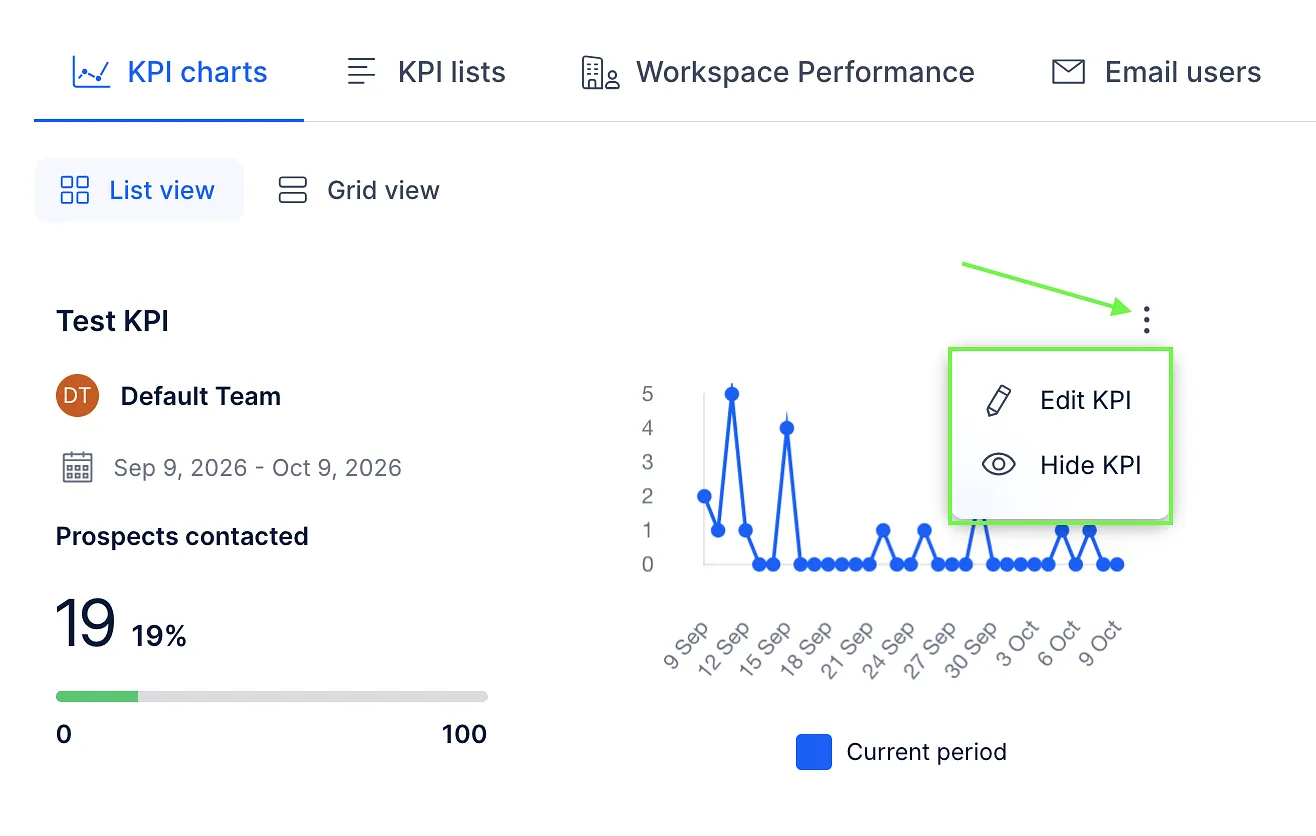
The KPI charts tab helps you monitor progress toward your targets. Each chart shows the KPI name, assignment, reporting period, progress, and daily results.
You can switch between List view and Grid view.
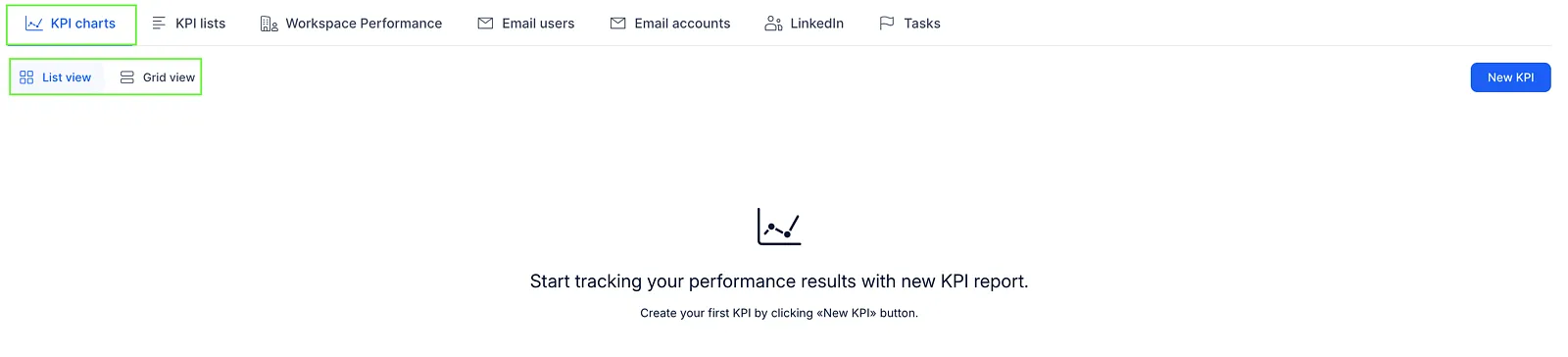
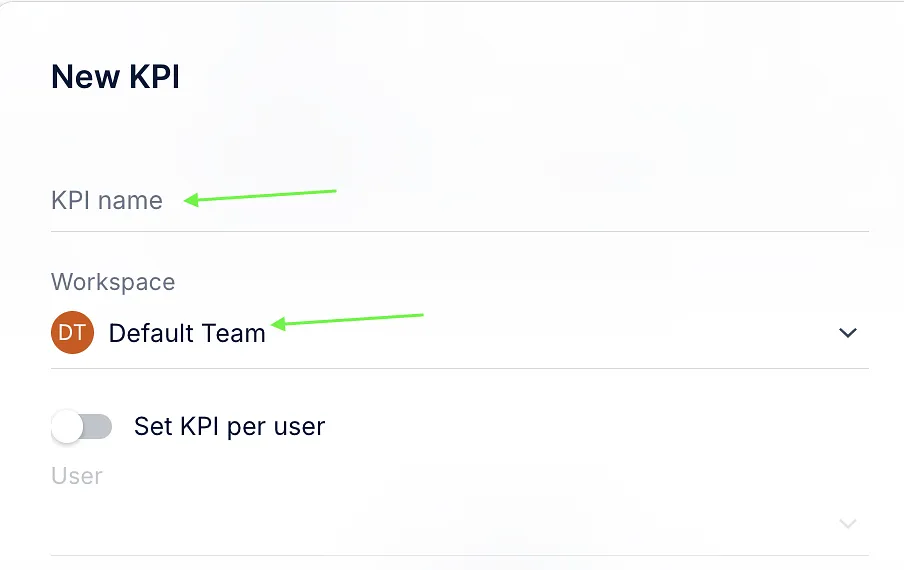
To create a KPI:
- Open KPI charts or KPI lists and click New KPI.

- Enter a KPI name, select the workspace.
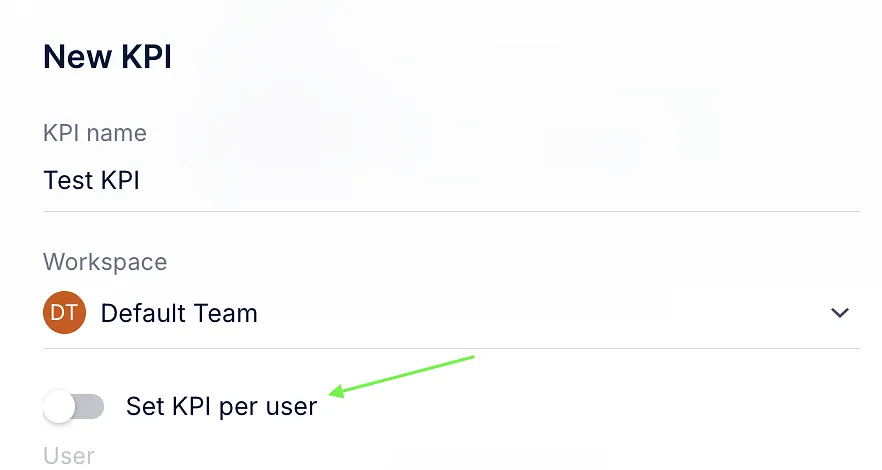
- To track an individual user, enable Set KPI per user and select the user. Otherwise, leave it disabled to track the workspace.
- Select a KPI type:
- Meetings booked
- Prospects contacted
- Replies
- Interested
- Enter the target.
- Set the From and To dates.
- Click Save.
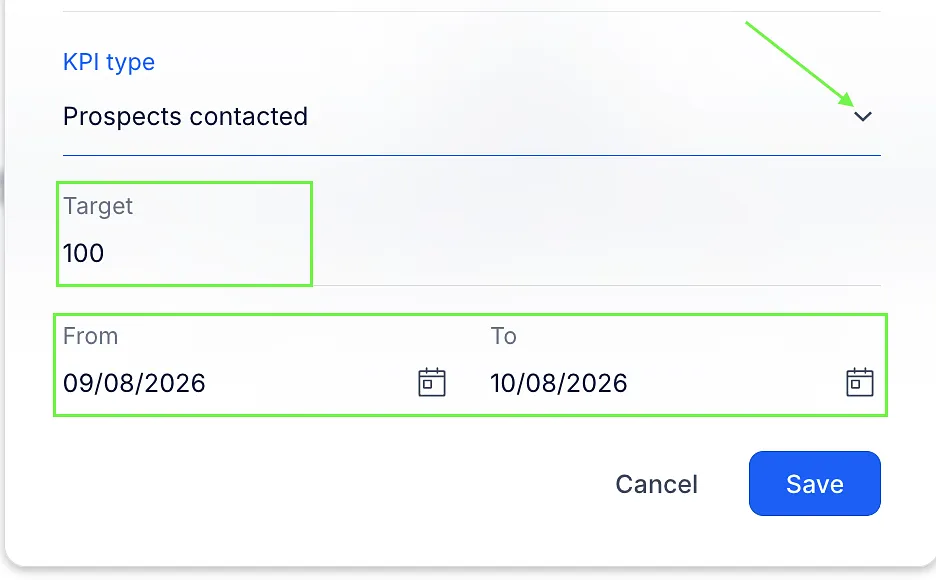
New KPIs appear in the charts by default.
To edit or hide a KPI, open its three-dot menu and select the corresponding action. Hiding a KPI chart does not delete the KPI. It remains available in KPI lists.
KPI lists
The KPI lists tab lets you review and manage your KPIs in one place. You can also create a KPI by clicking New KPI.
The list includes:

- KPI name – the name assigned to the KPI.
- Type – the metric being tracked.
- Target – the result you want to achieve.
- Duration – the KPI's reporting period.
- Completion – the achieved result compared with the target.
- Status – On track, Completed, or Overdue.
- User – the assigned user, if the KPI is set per user.
- Workspace – the workspace associated with the KPI.
- Show KPI chart – show or hide the KPI in the charts.
- Actions – edit or delete the KPI.
Performance and activity
Workspace performance
The Workspace performance tab lets you compare outreach results across workspaces and users. Expand a workspace to view results for its users.

It includes:
- Total touches
- Prospects contacted
- Booked meetings
- Replies
- Completed manual tasks
- Created manual tasks
The filters at the top of the dashboard apply to this tab.
Email users
The Email users tab shows email performance by Reply user. Results are grouped by workspace. Expand a workspace to view its users and their metrics.
You can click supported column headers to sort the results.

Email metrics are based on distinct contacts meeting each condition within the reporting group, rather than individual email messages. A contact can contribute to more than one metric.
The available metrics include:
- Deliveries – contacts with a delivered email.
- Opens – contacts with a recorded open. Replies may also count as opens when the corresponding tracking setting is enabled.
- Replies – contacts with a qualifying email reply. For sequence emails, Out of Office and Auto replied records are excluded from the contacted/replied calculation.
- Clicks – contacts who clicked at least one tracked link.
- CTR – clicked contacts divided by delivered contacts × 100.
- Bounce rate – bounced contacts divided by the total contacts represented in the email report × 100.
- Opt-outs – contacts recorded as opted out.
- Not reached – for sequence emails, contacts recorded as bounced, auto-replied, or Out of Office. This does not necessarily mean that the email failed to arrive.
- Interested – contacts whose conversation is categorized as Interested.
- Booked meetings – contacts marked as having a booked meeting, not the total number of meeting events.
Open rate is calculated as opened contacts divided by contacted contacts × 100.
Reply rate is calculated as replied contacts divided by contacted contacts × 100.
For sequence email reporting, the contacted count excludes bounced, Out of Office, and auto-replied records.
Depending on the selected filters, email reporting can also include direct emails sent outside sequences. For direct emails, the contacted count uses delivered contacts, and Not reached counts bounced contacts.
Email accounts
The Email accounts tab shows performance by connected sending mailbox.
Expand a workspace to view its email accounts and compare their results. You can also click supported column headers to sort the data.

This tab uses the same metrics and calculation rules as Email users.
The LinkedIn tab shows outreach activity across workspaces and users.

Connections
- Sent – total automated and manual connections sent.
- Accepted (auto) – automatically tracked accepted connections.
- Acceptance rate – automatically tracked accepted connections divided by total connections sent × 100.
Messages
- Sent – total automated and manual messages sent.
- Replied (auto) – automatically tracked message replies.
- Reply rate – automatically tracked message replies divided by total messages sent × 100.
InMail
- Sent – total automated and manual InMails sent.
- Replied – automatically tracked InMail replies.
- Reply rate – automatically tracked InMail replies divided by total InMails sent × 100.
Automated connection notes
- Sent – number of automated connection notes sent.
- Replied – replies to automated connection notes.
- Reply rate – replied automated connection notes divided by automated connection notes sent × 100.
The tab also includes additional activity such as Profile views, Likes, Follows, Endorsements, and Comments, when available.
💡Connection, message, and InMail rates include both manual and automated activity in the total sent count. However, Reply does not automatically track all responses to manually sent activity.
Tasks
The Tasks tab shows task counts grouped by workspace and assigned user.

It includes totals and breakdowns for:
- Total tasks
- Calls
- Manual emails
- LinkedIn tasks
- SMS
- To-dos
Task counts follow the selected filters and are not limited to completed tasks.
💡The user associated with a task is its assignee, not necessarily the person who created it.