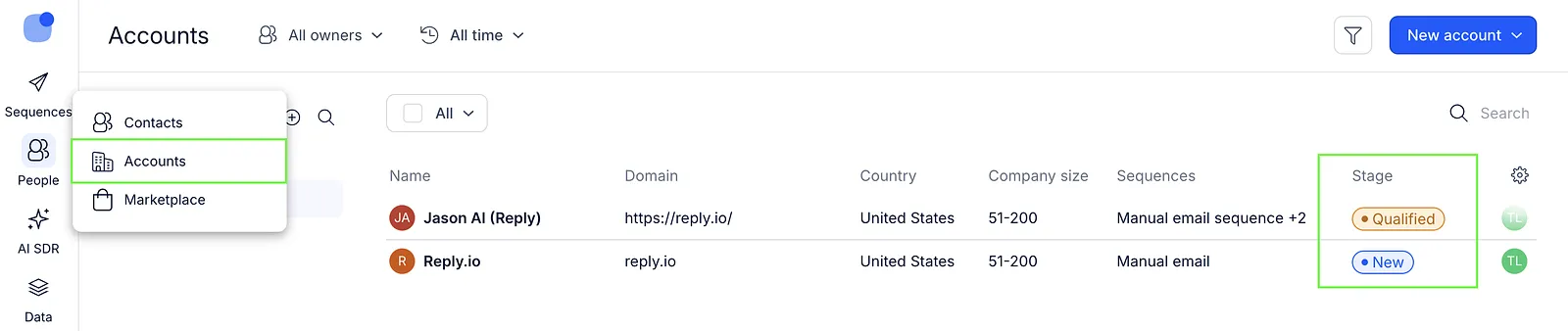
The Accounts page shows all companies that were created automatically based on contact information in your Reply account.
Each account has a stage, which is displayed in the Stage column in the accounts list.
What are account stages?
Account stages represent the progress of an account in your outreach process – from the first interaction to the final outcome.
They help you track where each account is in your pipeline and may include stages such as New, Qualified, Meeting booked, Negotiating, Disqualified, On hold, Closed-won, and Closed-lost.
Here's the list of available account stages:
| Stage | Description |
|---|---|
| New | The account is new to the outreach pipeline |
| Qualified | Sales-qualified account |
| Meeting booked | A meeting is booked with a decision-maker |
| Negotiating | Negotiations are in progress |
| Disqualified | The account is not relevant |
| On hold | Contact later |
| Closed-won | The deal was completed successfully. |
| Closed-lost | The deal was lost |
Stages are shown as labels in the Accounts tab, on the individual account page, and in the account sidebar.
Filter accounts by stage
You can filter accounts by stage to quickly find companies in a specific part of your pipeline.
To filter accounts:
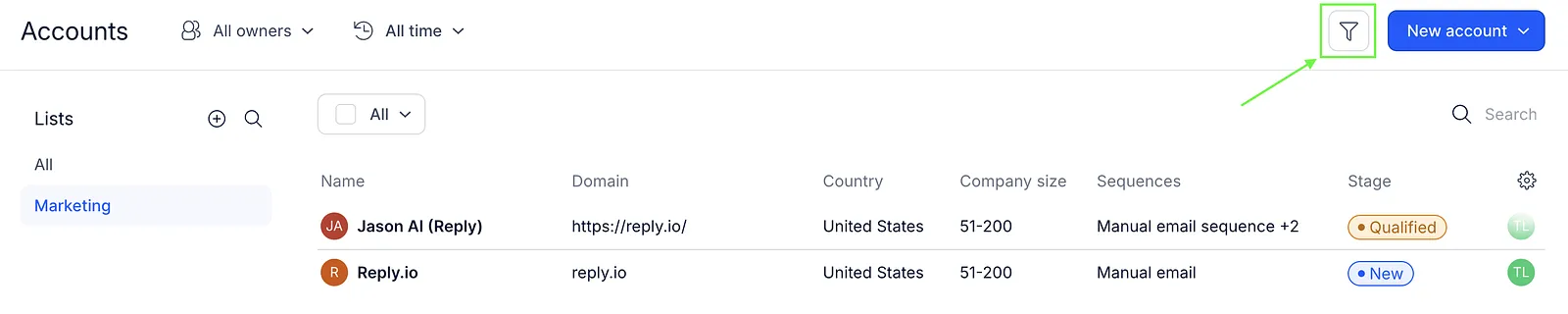
- Go to People → Accounts.
- Click the filter icon in the top right corner.
- Select Stages.
- Choose a condition and select one or more stages.
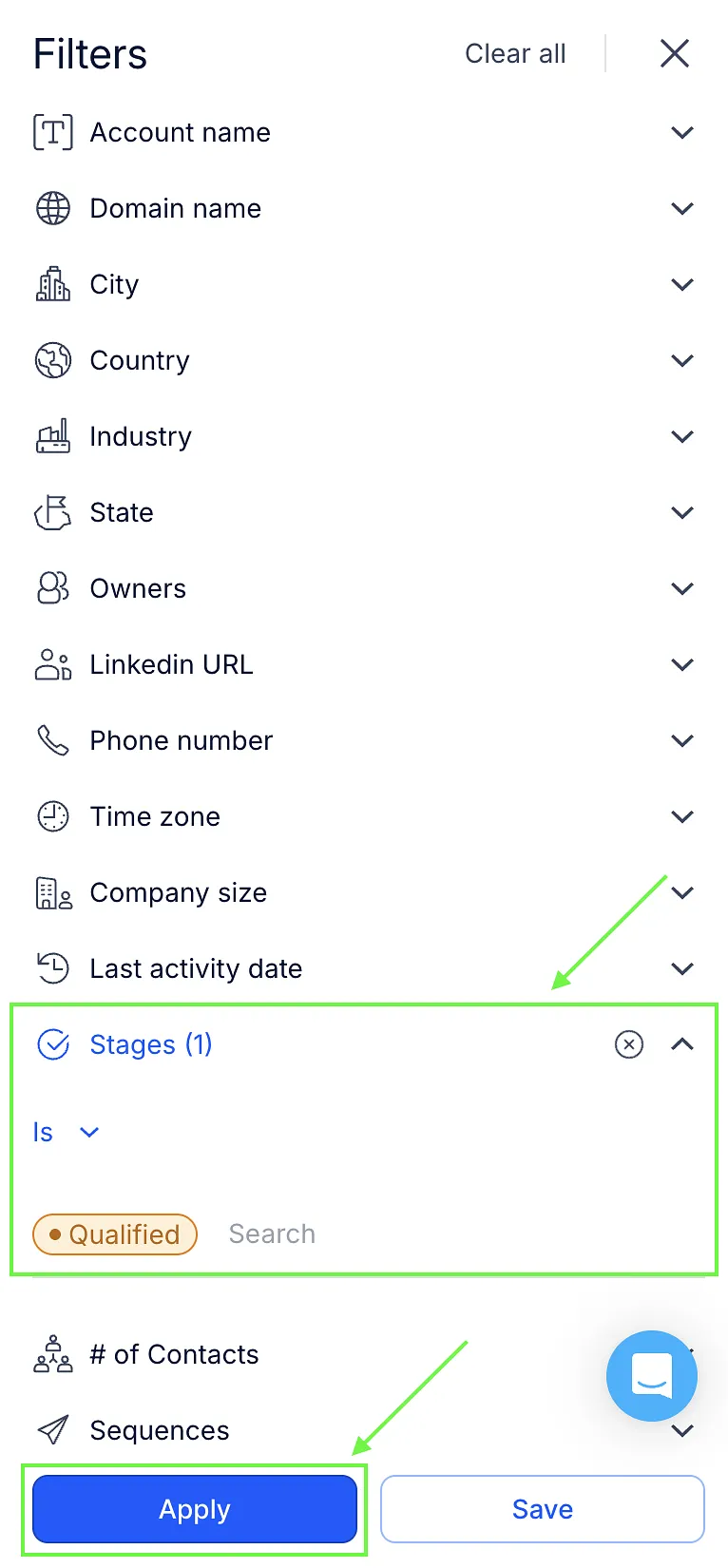
- Click Apply.
Available conditions:
- Is – shows accounts that have the selected stage(s)
- Is not – excludes accounts with the selected stage(s)
- None – shows accounts that do not have a stage set
You can select multiple stages when using Is or Is not.
Set or change an account stage
You can set or update account stages for one or multiple accounts.
To do this in bulk:
- Go to People → Accounts.
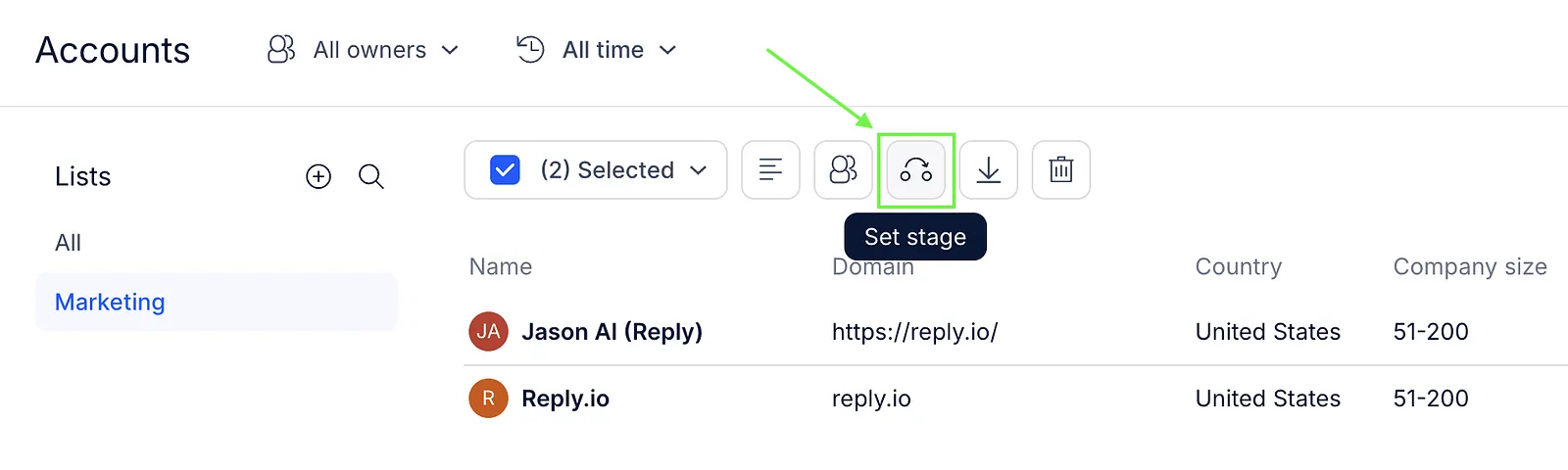
- Select one or multiple accounts using the checkboxes.
- Click Set stage.
- Choose a stage from the dropdown.
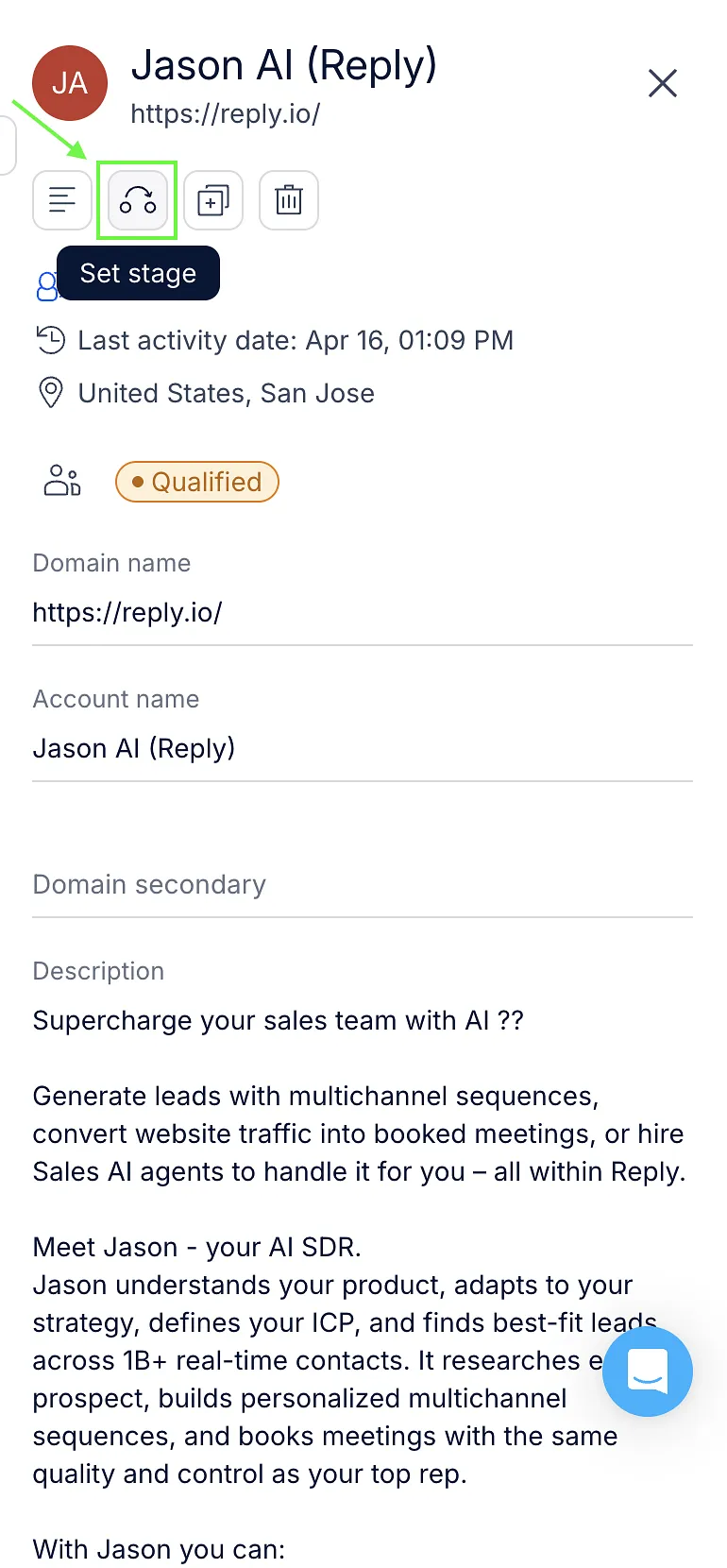
You can also set or change a stage for a single account:
- Open an account.
- In the sidebar, click Set stage.
- Select a stage from the dropdown.
Edit stages
You can update existing stages by changing their name, color, or description.
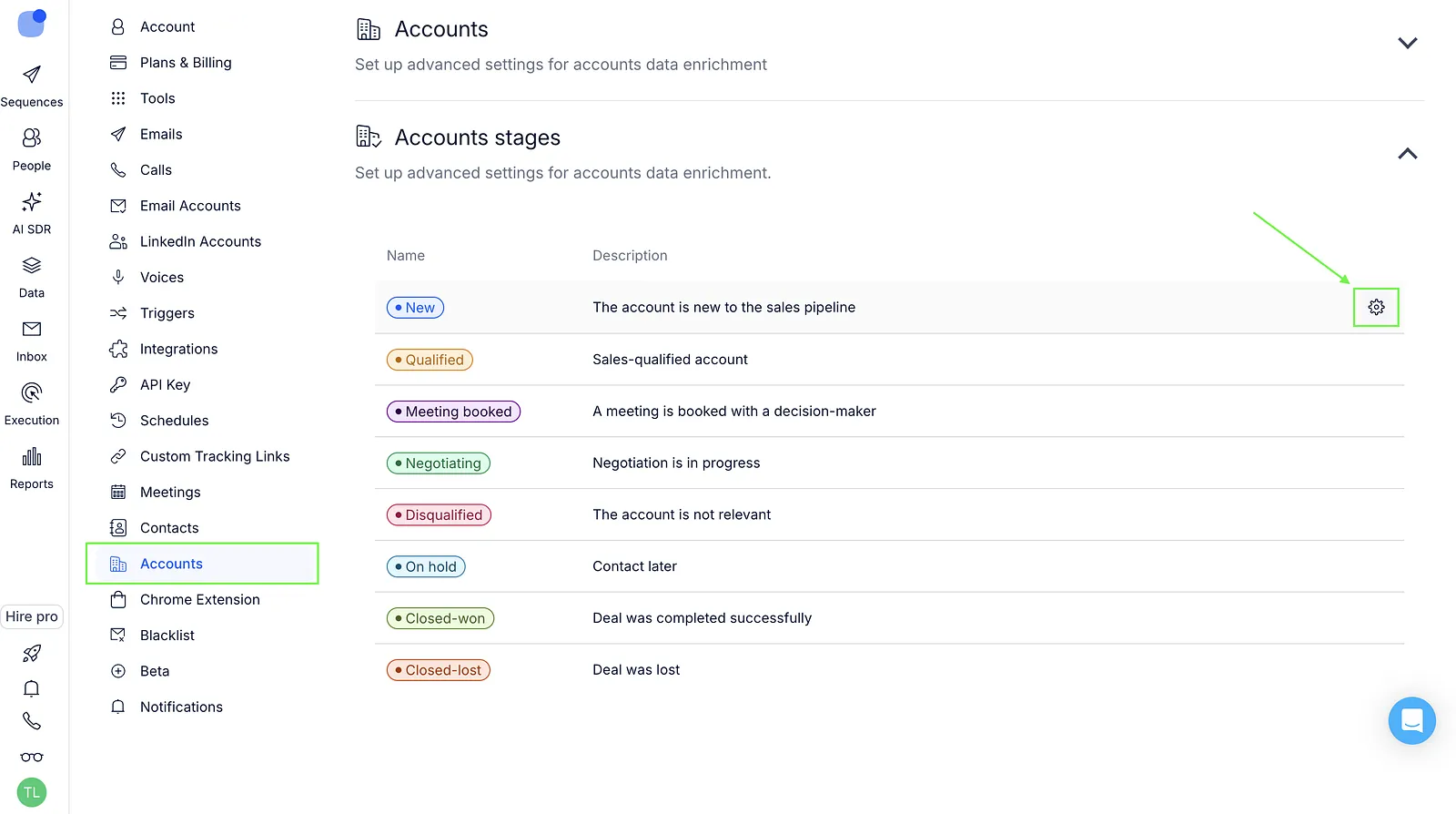
To edit stages:
- Open Settings.
- Go to the Accounts tab.
- Expand the Account stages section.
- Click the ⚙️ icon next to a stage
- Make changes and click Save.
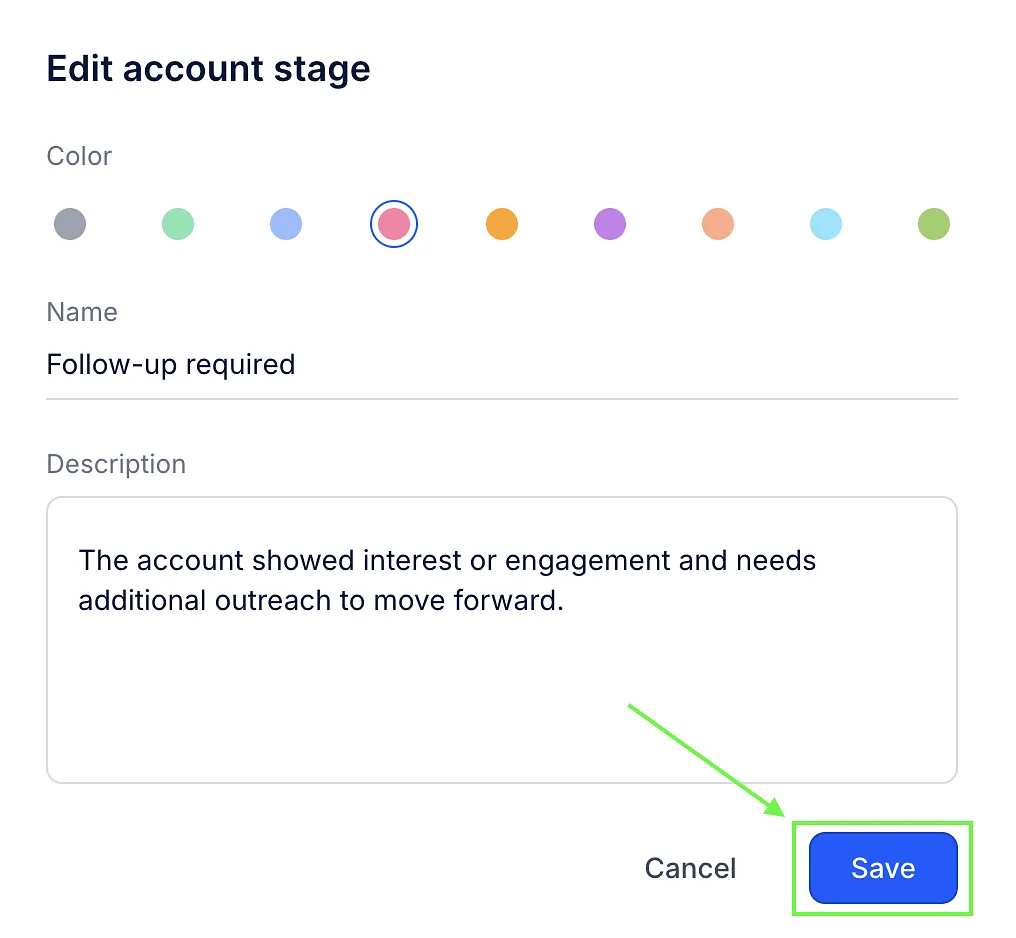
💡 Note: You cannot create new stages, but only edit existing ones. Account stage names are limited to 20 characters, and descriptions can be up to 512 characters.