LinkedIn safety limits help reduce excessive activity and lower the risk of your account being flagged or suspended. They control how many automated actions Reply can perform per day.
🎥 Check out the video below to see how LinkedIn safety limits work.
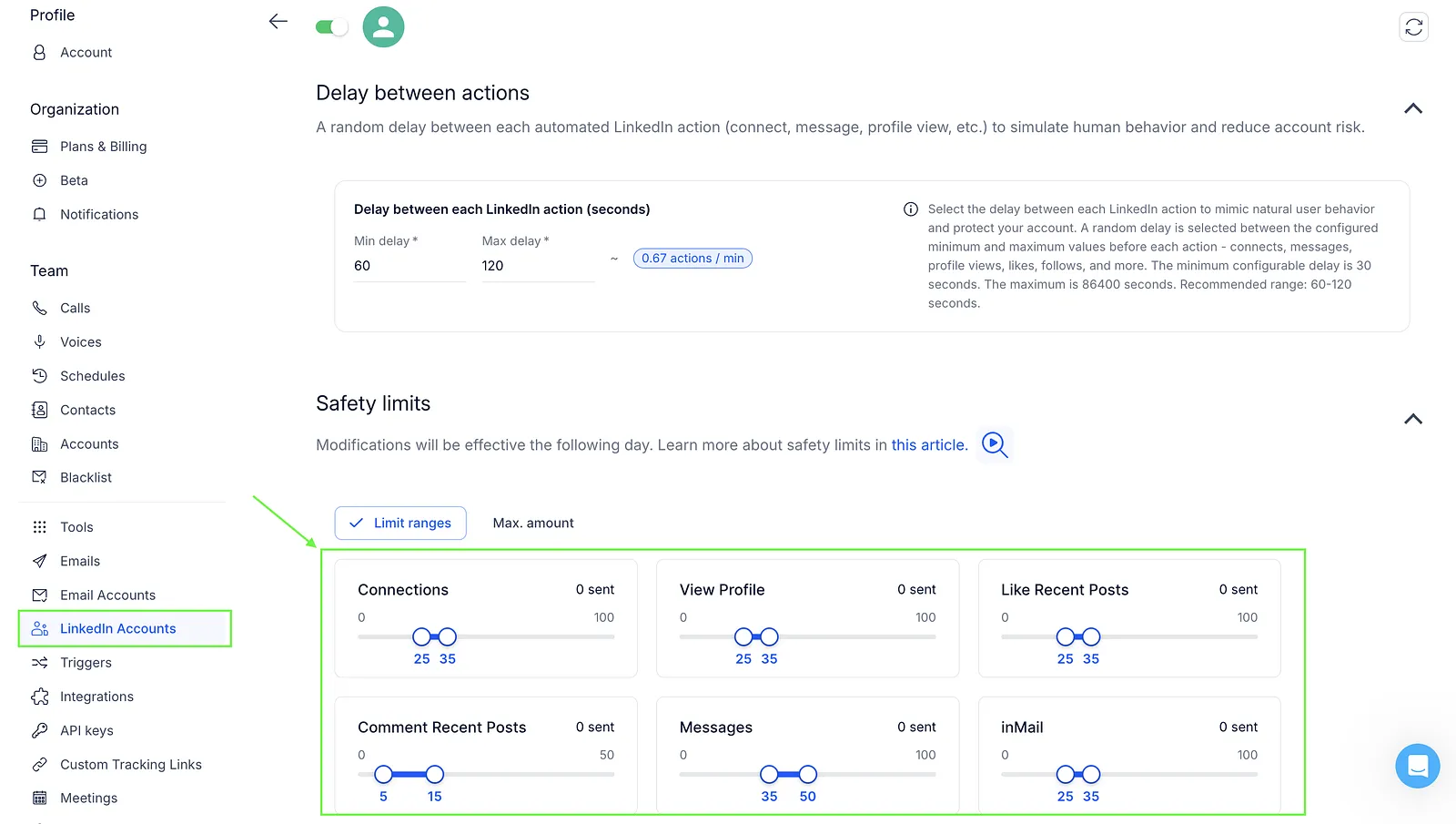
You can set limits for the following actions:
- Connections
- View Profile
- Like Recent Posts
- Comment Recent Posts
- Messages
- InMail
- Revoke Connections – Cancels unaccepted connection requests. Here's a detailed article on how to revoke sent LinkedIn connection requests and why it's important for your account's reputation.
- Endorse Skills
- Follow Profile
By default, Reply sets recommended limits for each LinkedIn action. You can adjust them based on your needs and keep track of your daily usage.
View your limits
To view your LinkedIn limits:
- Open Settings.
- Go to the LinkedIn Accounts tab.
- Click your connected LinkedIn account.
- You'll see your current LinkedIn limits below your profile information.
Types of safety limits
You can set safety limits in two ways: Limit ranges or Max. amount.
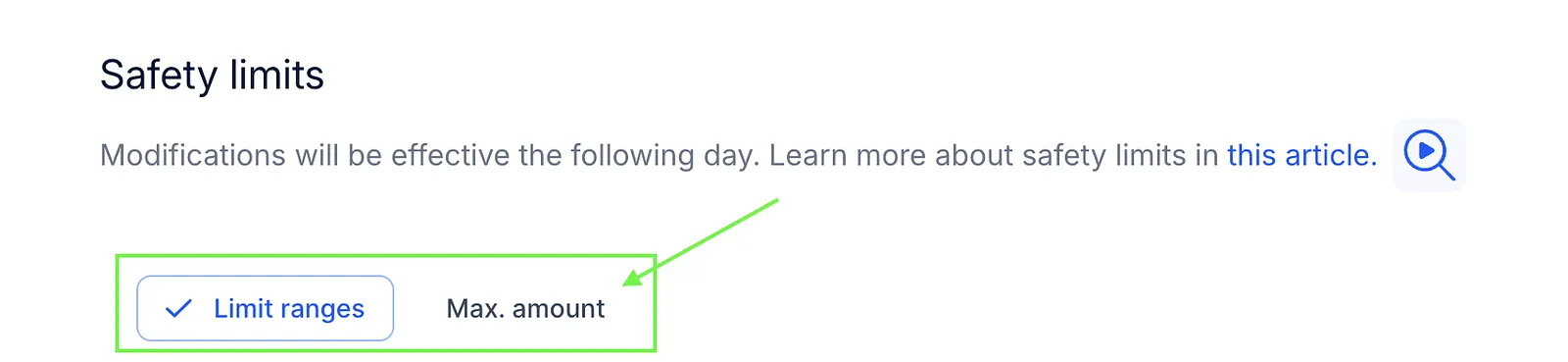
Limit ranges
Limit ranges let you set a range for daily actions. Reply picks a random number from this range each day. For example, if your limit is 20–30, Reply might send 22 requests on Day 1, 28 on Day 2, 25 on Day 3, etc.
Dynamic limits help make your actions look more natural to LinkedIn by varying the number of actions each day. This reduces the risk of your account being flagged for suspicious activity. By default, we suggest safe ranges for different actions:
- Connections, View Profiles, Like Recent Posts, InMails, Revoke Connections, Endorse Skills, Follow Profile: 25–35
- Messages: 35–50
- Comment Recent Posts: 5-15
Max amount
Max amount is a fixed daily limit. Instead of setting a range, you choose one specific number. For example, you can set your connection requests to stop at 25 every day. The default limit is 30 for each LinkedIn action, except Messages (42) and Comment Recent Posts (10).
💡 The limits apply only to LinkedIn automatic steps and do not include any manual actions.
Edit your safety limits
To edit your safety limits:
- Choose your preferred mode: Limit ranges or Max. amount.
- Select the LinkedIn action and set the desired limit using the slider.
- Click Save.
The highest limit you can set for each action depends on your plan. The slider stops at that number.
If you update your limits, the changes will take effect starting the next day. For the rest of the current day, your actions will follow the limits previously set.
Track your safety limits
You can see how many actions have been completed today in the top-right corner of each action.
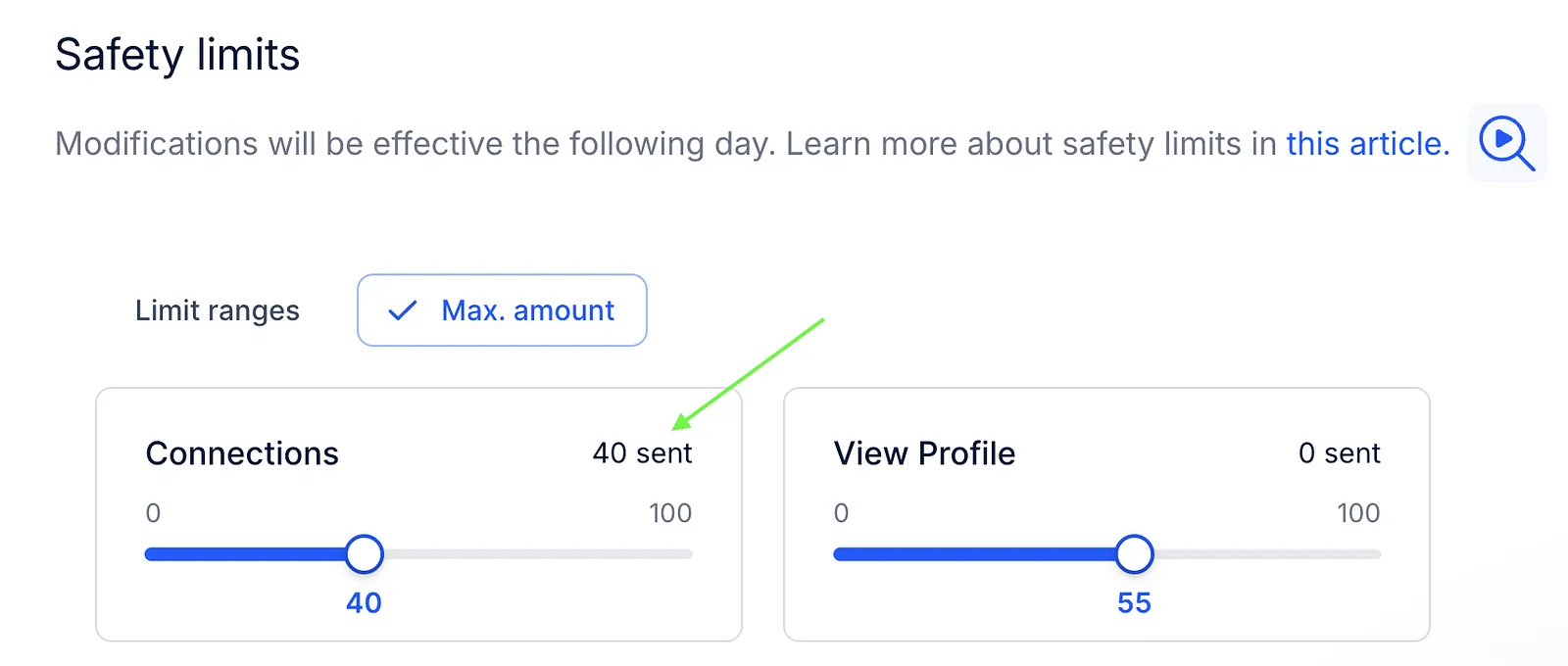
💡 LinkedIn limits reset according to the UTC time zone.
💡 Connection requests that don't turn into an invitation don't use up your daily Connections limit. This happens when the contact is already connected, a request to them is already pending, LinkedIn refuses the request, or the contact's LinkedIn URL is invalid. Up to 10 such requests per LinkedIn account per day don't count. From the 11th one on, they count toward the limit again to protect your account.
Delay between LinkedIn actions
You can set a minimum and maximum delay between automated LinkedIn actions for each LinkedIn account.
Before each action, Reply randomly selects a delay within the range you set. This helps vary the timing of automated actions and make them look more natural. The same range applies to all automated actions from that account.
To configure it:
- Go to Settings → LinkedIn Accounts.
- Click your LinkedIn account.
- Find Delay between each LinkedIn action (seconds).
- Set the Min and Max values.
- Click Save.
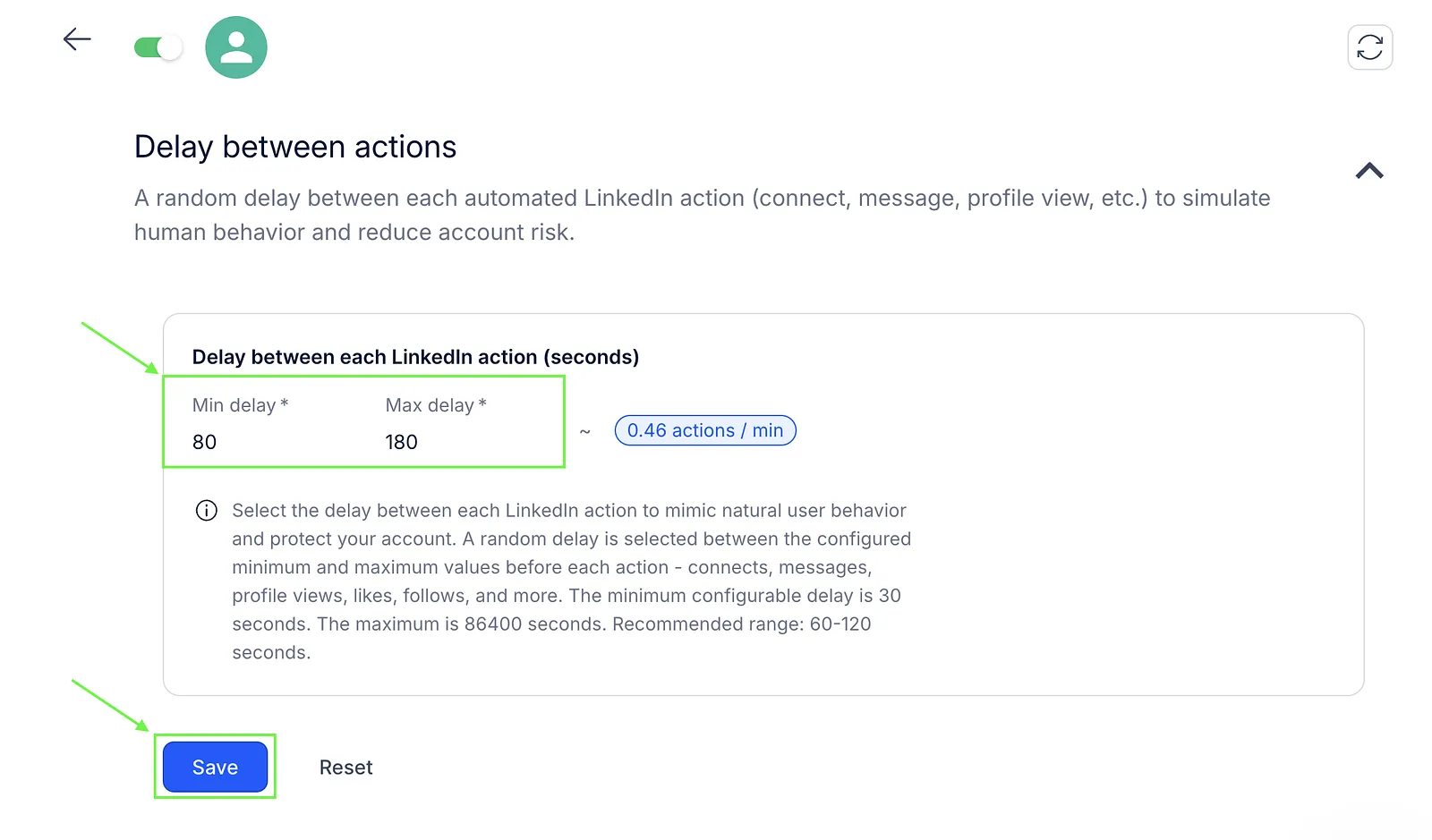
💡 The default delay is 60-120 seconds. You can set a minimum of 30 seconds and a maximum of 86,400 seconds. The range must be at least 60 seconds wide.
Next to the Min delay and Max delay fields, Reply shows an estimated rate, for example 0.67 actions / min for the default delay. It is only an estimate. The real rate can vary with your settings and the number of contacts in your sequences.
What happens when you hit a limit?
If you reach the daily limit for an action, Reply will pause that action until the next day. You'll also get a notification in the Sequence → Log tab.
Your limits reset the next day.
Weekly connection request limit reached
Besides the limits you set in Reply, LinkedIn has its own limit on connection requests per week. LinkedIn doesn't publish the number, and Reply can't change it.
When LinkedIn refuses a connection request because of this limit, you see Weekly connection request limit reached in the sequence and on the LinkedIn account. Reply then pauses connection requests from this account and tries again later, about once a day, until LinkedIn accepts them again. Other LinkedIn actions, such as messages and profile views, keep running.
- LinkedIn decides when the limit lifts. According to LinkedIn, it usually lasts up to a week.
- Withdrawing pending connection requests doesn't lift the limit.
- Requests you send by hand on linkedin.com count toward the same weekly limit.
💡 You may still manage to send a request by hand on linkedin.com while Reply shows the warning. The warning isn't stale: it appears only after LinkedIn refused a request from Reply.
Free LinkedIn accounts also have a small monthly number of connection requests with a note. See Common LinkedIn sequence errors for what happens when it runs out.
Sales Navigator authentication expired email
If Sales Navigator disconnects from your LinkedIn account in Reply, the account's creator gets an email that says the Sales Navigator authentication has expired. Until you reconnect, the account can't send InMail messages. Other LinkedIn actions are not affected.
To fix it, reconnect your LinkedIn account in Settings → LinkedIn Accounts.
💡 Reconnect even if the account looks connected in Settings.