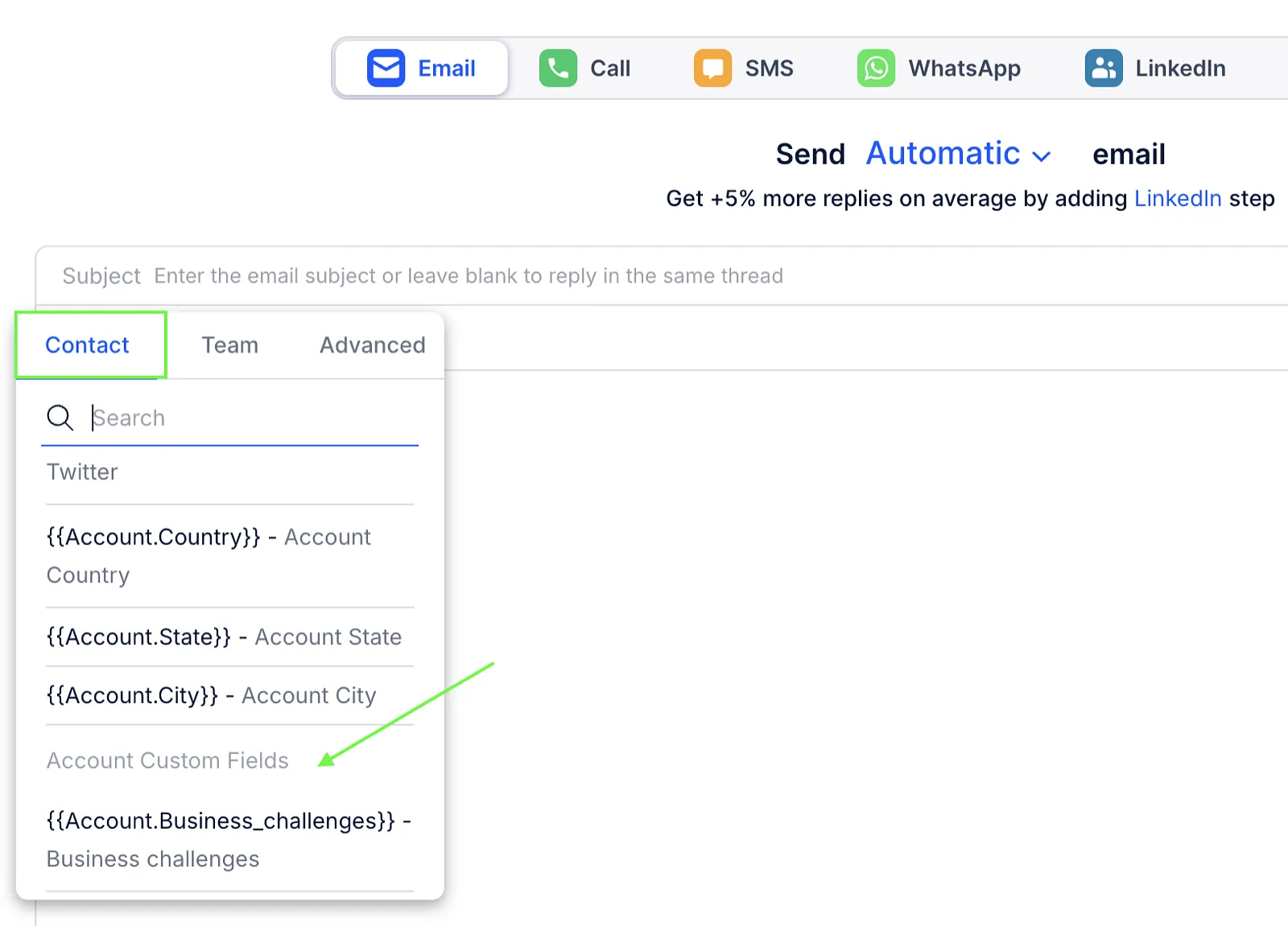
Account custom fields let you store additional company-specific information in Reply and use these fields as variables to personalize messages to prospects associated with those accounts.
Create a custom field
To create a new custom field for accounts:
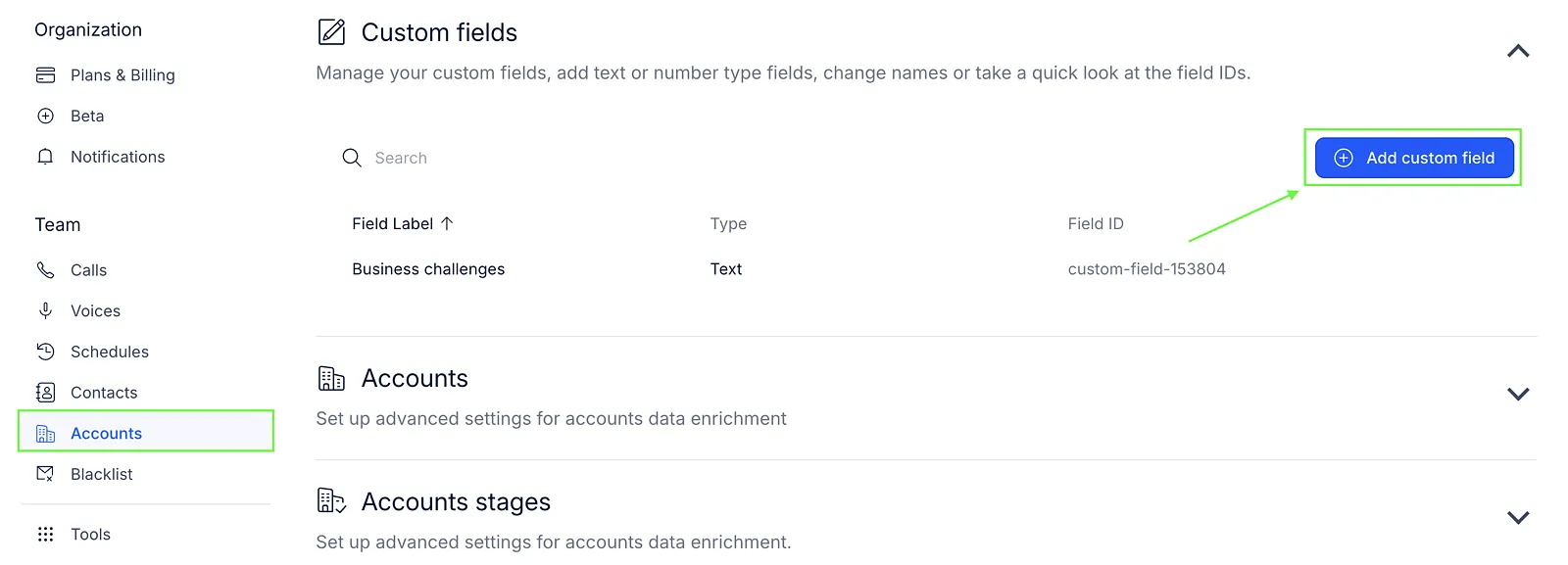
- Go to Settings → Accounts.
- Open the Custom fields section.
- Click Add custom field.
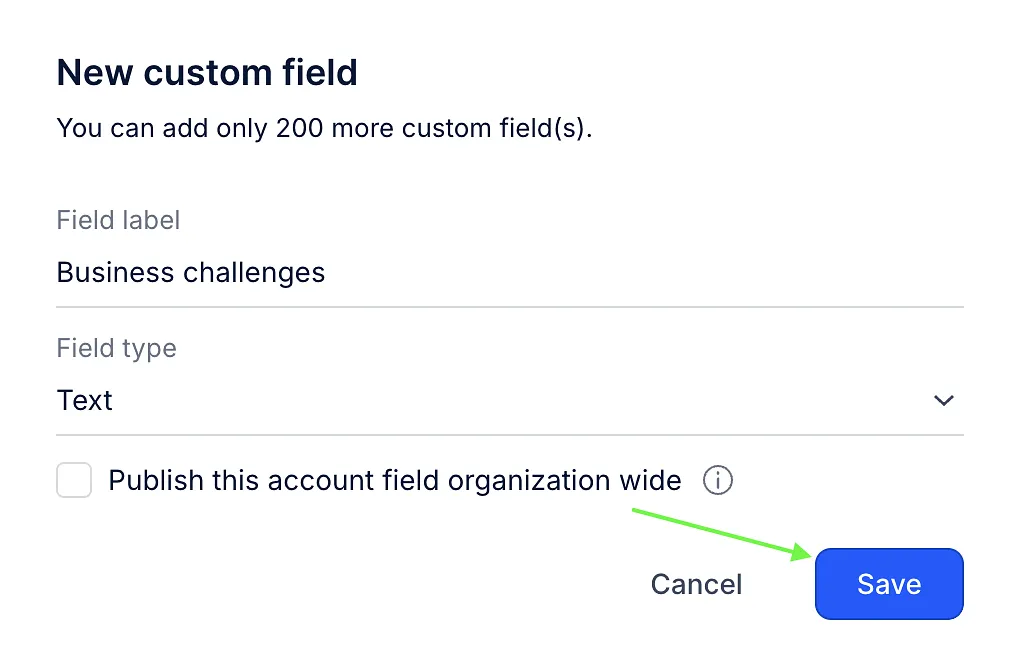
- Name the field and select the field type.
- (Optional) Publish the field organization-wide to make it available across the entire organization.
- Save.
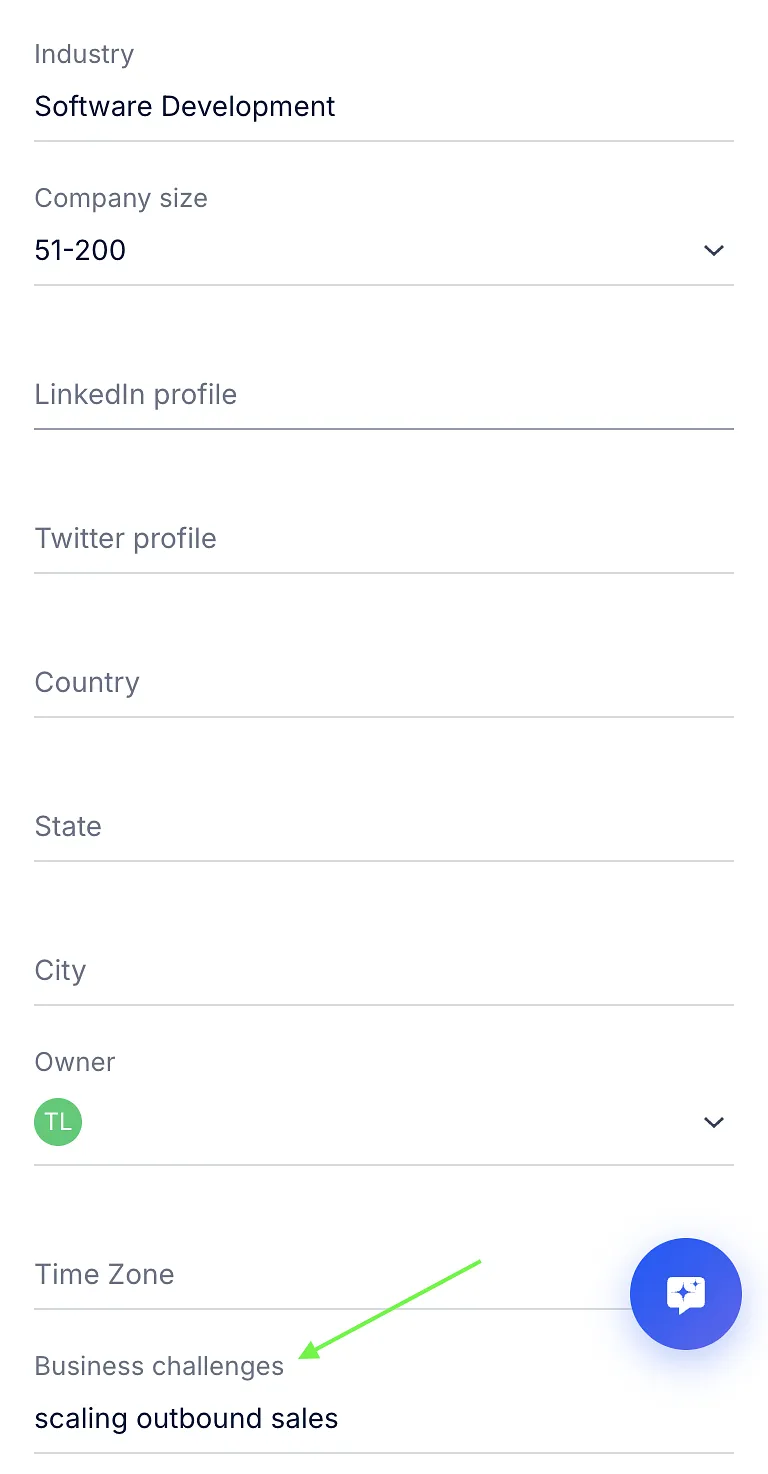
Once created, the field will appear in the account activity card, where you can add information manually or map it during CSV import.
To display account custom fields in the account grid, open the grid, click ⚙️, and select the fields you want to display.
Custom variables for accounts
Account custom fields are also available as variables. You can use them to personalize your messages with account-specific information.
To insert an account custom field into a message:
- Open your sequence and select a step.
- In the editor, click Variable.
- Select Contact.
- Scroll down to Account custom fields and select the field you want to insert.