You can see stats for each direct email or email sent from a manual step and make informed decisions based on whether the prospect opened and viewed the email.
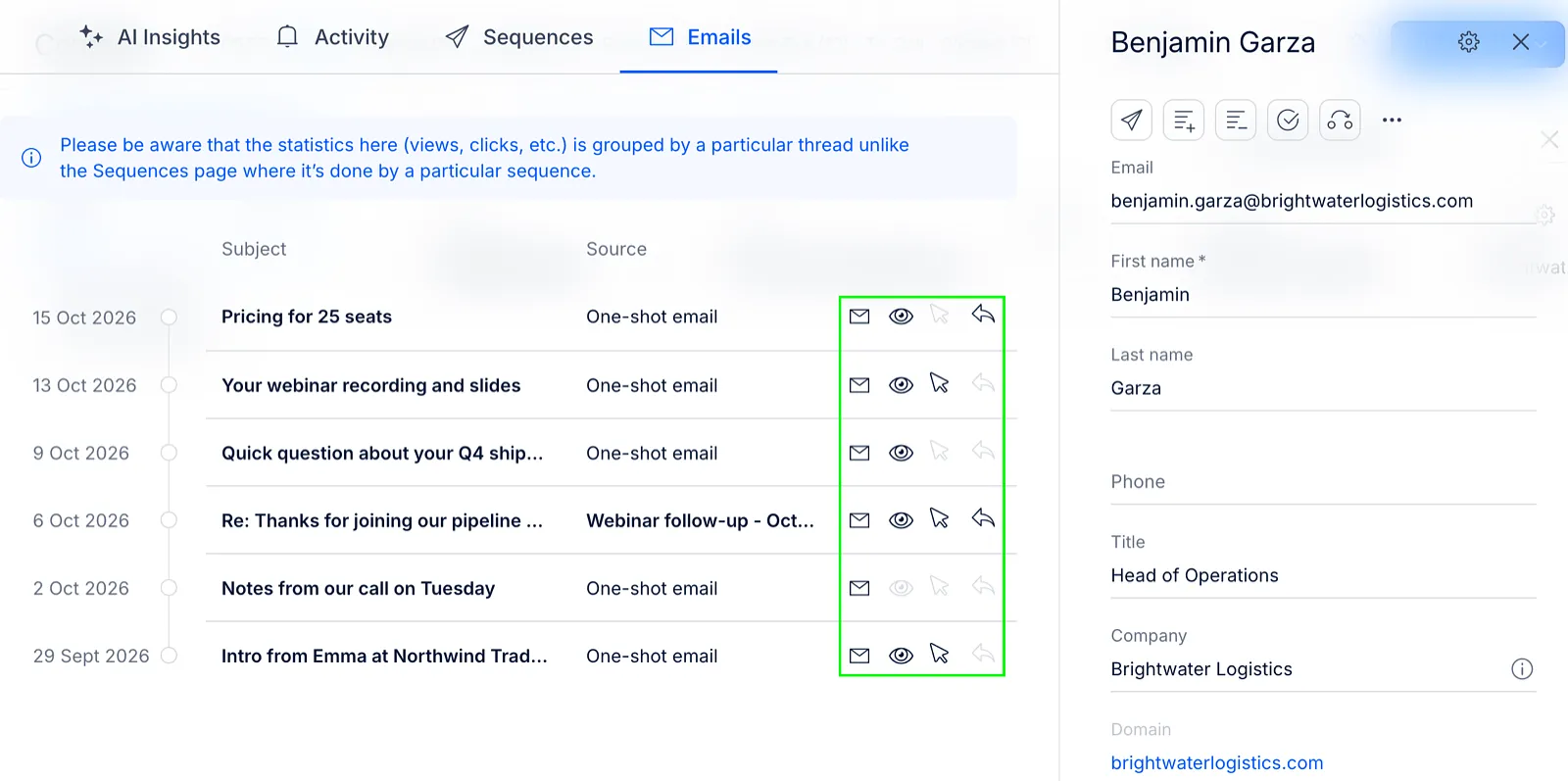
When you send a direct email and the prospect replies, a thread is created, the same as when this is done via a sequence. So the difference is in where the thread was originated from: a sequence or not a sequence, i.e. a direct email.
How it works
-
Log into your Reply account and go to People > Contacts.
-
Click a Contact to open the contact card.
-
Send a direct email to the Prospect from the contact card by clicking ... at the top and then Send email.
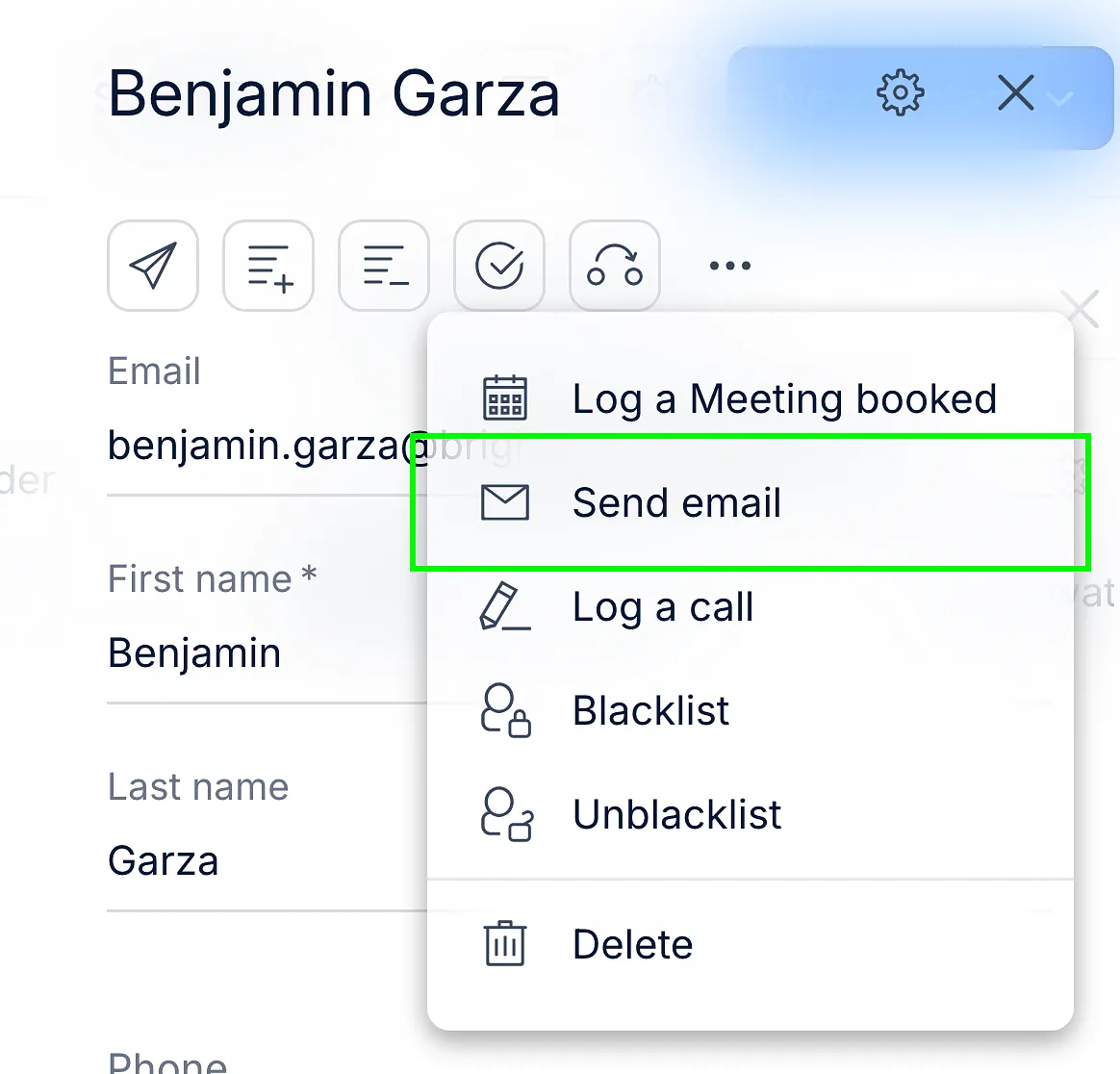
Note: You can also send an email from a manual email task in Reply's Chrome Extension. Manual emails generated inside a sequence will be considered a part of the sequence, and not a one-shot email.
- Click the arrow on the left side of the contact card and switch to the Emails tab to be able to view the stats.
For each email sent to the Prospect, the Emails tab shows (see outlined in green in the first screenshot):
- Date the email was sent
- Subject of the email
- Source of the email: "One-shot email" is displayed for any direct email sent either from the contact card or from a manual email task in Chrome Extension. If you send an email and get a reply from a sequence, you will see the name of the sequence here
- Email stats: see if the email has been delivered, prospect opened & viewed the email and how many times they did it (hover over the icons). If there are no deliveries, clicks and views, the icons are disabled.