The Tasks page helps you view, manage, and complete tasks for yourself and your team. You can filter tasks, perform bulk actions, and execute them using the Chrome extension.
Tasks are created automatically for manual steps in sequences – such as manual emails, LinkedIn actions, calls, WhatsApp messages, and others – and you can also create them manually if needed.
To open the Tasks page, go to Execution → Tasks.
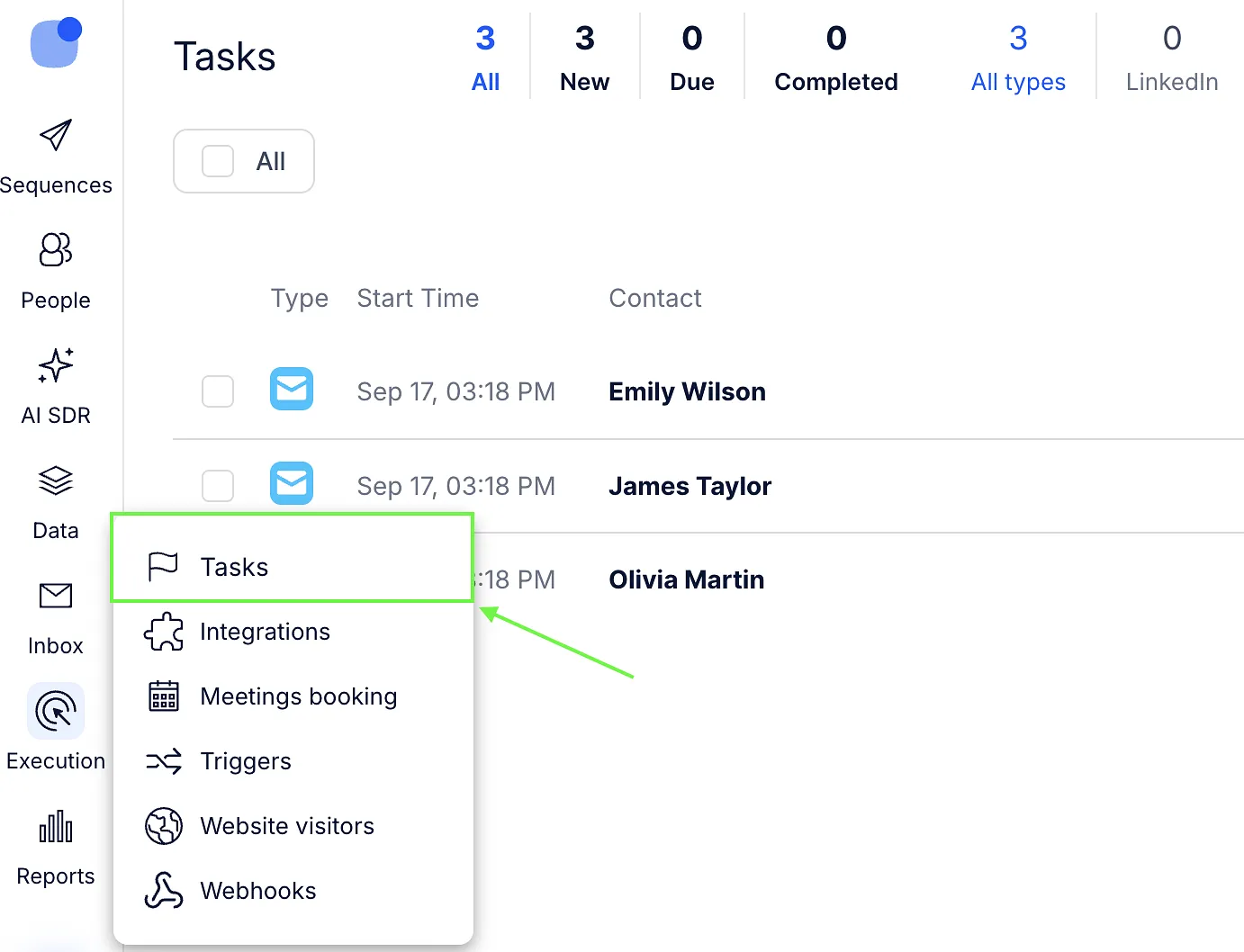
Tasks page layout
The Tasks page includes:
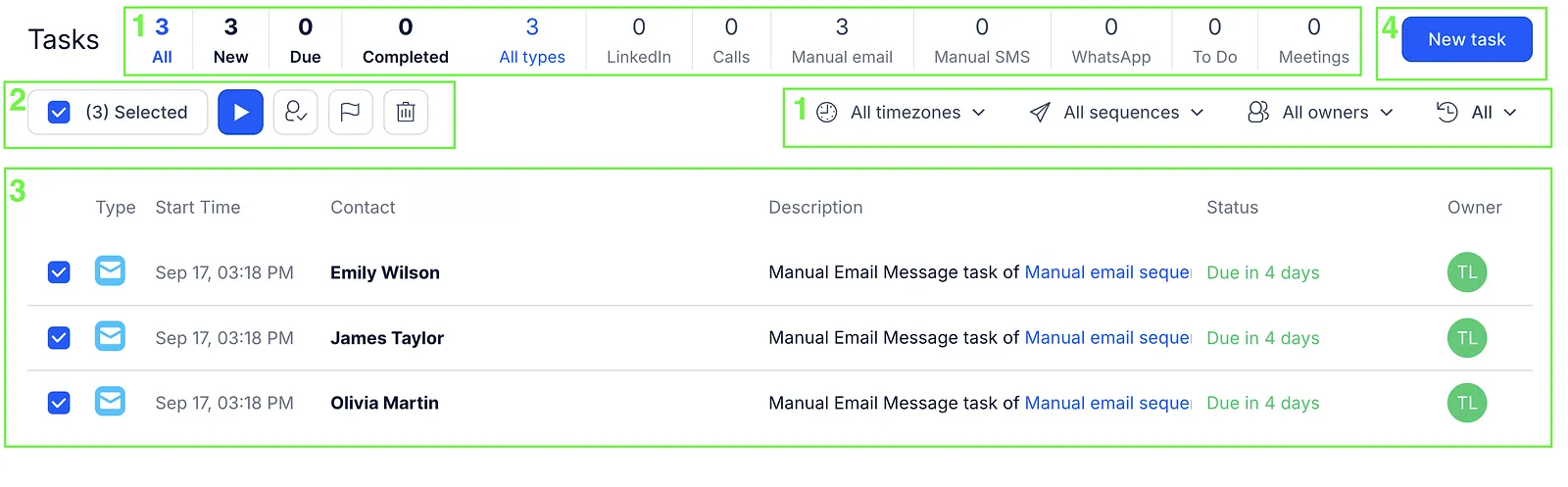
- Filters – including task status, task type, contact's timezone, sequence, owner, and time.
- Bulk actions – actions you can apply to selected tasks.
- Task list – where all tasks are displayed.
- New task button – lets you create a task that isn't linked to any sequence.
Each task in the list includes the following columns:

- Type – shows the type of task.
- Start Time – shows the start time in your timezone.
- Contact – shows the contact linked to the task.
- Description – shows the task type and the sequence name.
- Status – shows when the task is due in days, hours, or minutes. Hover over it to see the exact date and time.
- Owner – shows the teammate assigned to the task.
The due date is color-coded based on how soon the task is due:
- 🔴 – due in less than 1 hour
- 🟡 – due in 1-8 hours
- 🟢 – due in more than 8 hours
By default, tasks are sorted by due date (oldest first).
Filters
You can filter tasks to quickly narrow down your view. Filters are grouped into two main areas.
Task status and task type
The first group helps you define what tasks you want to see and their status.
- Task status
- All – all non-deleted tasks
- New – tasks that are not due or completed
- Due – overdue tasks
- Completed – finished tasks

- Task type – filter tasks by activity type.
- LinkedIn, Calls, Manual email, Manual SMS, WhatsApp, To Do, Meetings

- LinkedIn, Calls, Manual email, Manual SMS, WhatsApp, To Do, Meetings
Timezone, sequence, owner, and time filters
The second group helps you refine tasks by contact timezone, sequence, owner, and time filter.
- Timezone – filter tasks based on the contact's local time
- Sequence – show only tasks created from a specific sequence. After selecting a sequence, you can also filter by sequence step
- Owner – filter tasks by assignee
- Time filter
- All – shows all tasks
- New – tasks with a due date in the future
- Due – tasks that are due today
- Overdue – tasks with a due date that has already passed
- Custom

💡 All filters work together, so you can combine them to narrow down your task list (for example: due LinkedIn tasks from a specific sequence and owner).
Manage tasks
You can take action on one or multiple tasks directly from the list.

Available actions include:
- Launch – open tasks in the Chrome extension
- Change owner – reassign tasks to other members
- Complete – mark tasks as done
- Remove – delete tasks
To perform an action, select one or more tasks using the checkboxes, then choose the action from the list and confirm.
💡Important: Marking a task as Completed on the Tasks page does not execute the task itself. It only updates its status in Reply.
For manual tasks (such as manual emails, LinkedIn actions, SMS, or WhatsApp messages), you need to use Launch to open the task in the Chrome extension and complete it there. Otherwise, the task will be marked as completed, but the actual action will not be performed for the prospect.
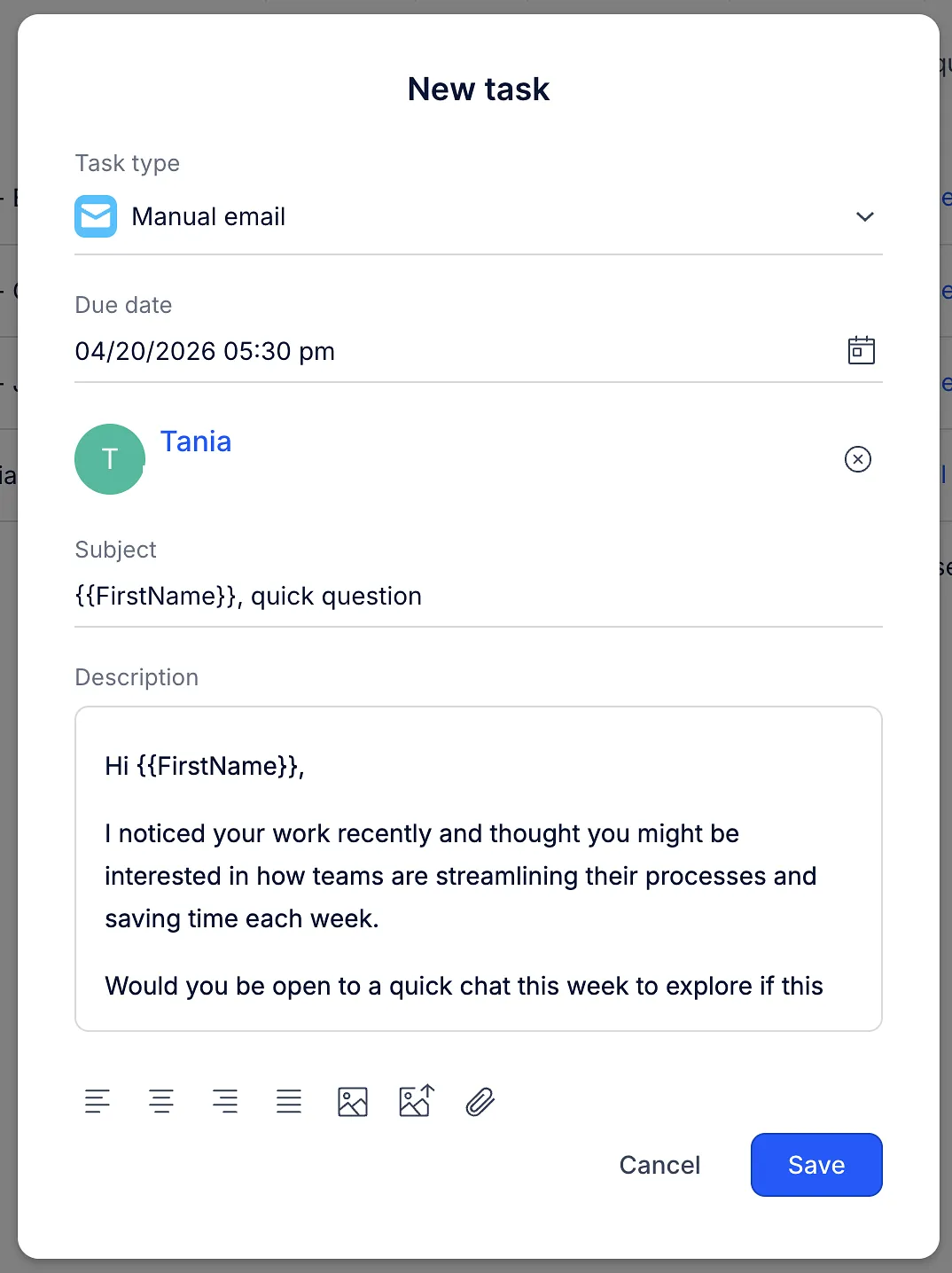
Create a task
In addition to automatically generated tasks, you can create tasks manually:
- Click New task button.
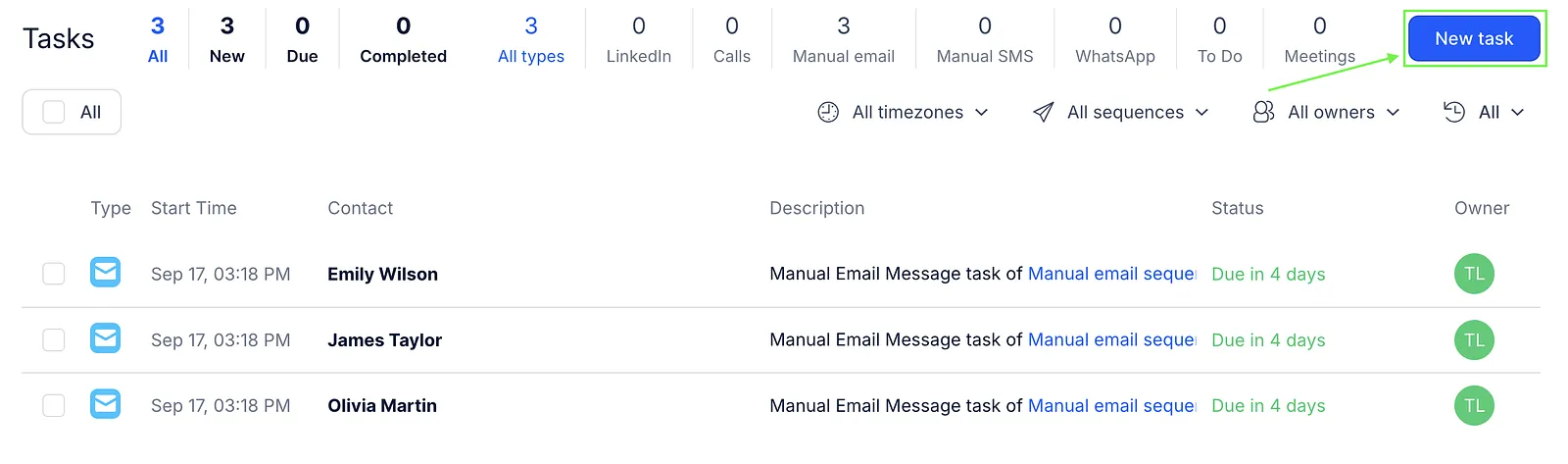
- Select a task type.
- Set the due date.
- Add a contact (not required for To Do).
- Add additional details (such as a description, subject line for emails, or attachments and images for manual emails and LinkedIn messages).
- Click Save to add the task to your list.
Task types
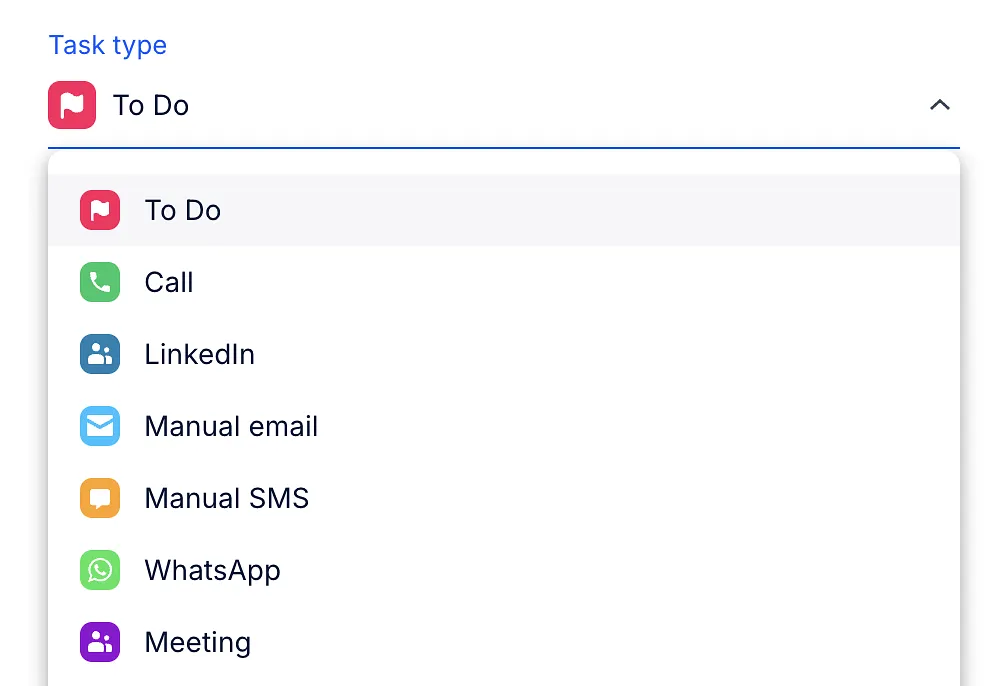
When creating a task, you can choose from the following types:
- To Do – a general reminder or note
- Call – call a contact
- LinkedIn – message, connect, InMail, or view profile
- Manual Email – send a personal email
- Manual SMS – send a text message
- WhatsApp – send a WhatsApp message
- Meeting – schedule a meeting