The People → Contacts page allows you to view, organize, and perform various actions on contacts, including moving them to sequences and lists, importing/exporting contacts, and utilizing quick filters for efficient search. Additionally, you can perform quick actions like email validation and enrichment for streamlined contact management directly from the grid view.
Viewing Contact Information
All contacts are displayed in a grid format, presenting all fields, including custom ones, for easy access and reference. Here you can access all the contacts added to your Reply account whether by you or your team members.
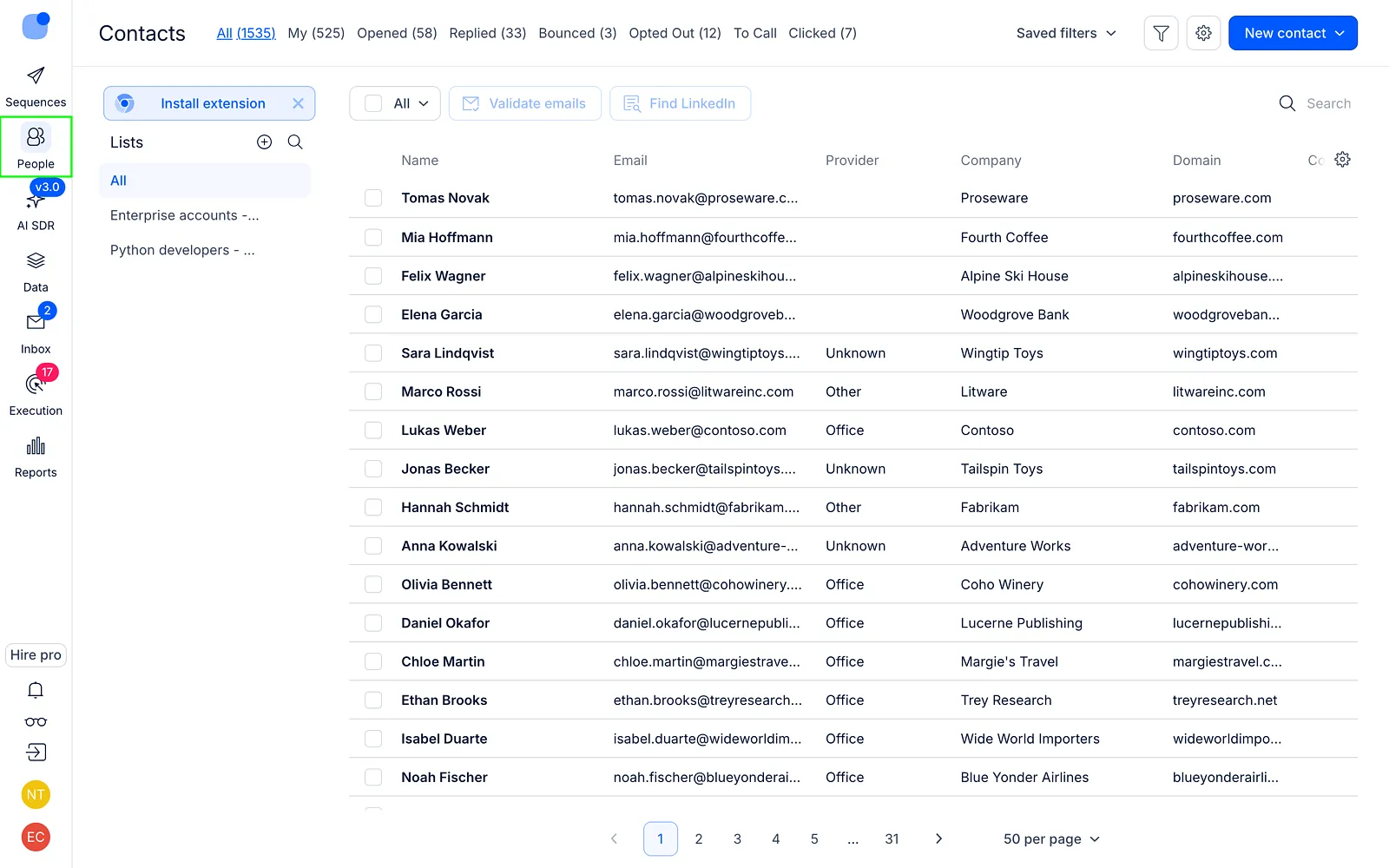
The standard grid includes the following columns:
| Column | Description |
|---|---|
| Name | The name of the contact. |
| The email address of the contact. | |
| Provider | The email service provider associated with the contact. |
| Account | The associated account or company of the contact. |
| Domain | The domain associated with the contact's email address. |
| Company Size | The size of the company associated with the contact. |
| Stage | The current stage of interaction or relationship with the contact. |
| Industry | The industry of the contact's associated company. |
| Owner | The user or team member responsible for the contact. |
| Title | The job title of the contact. |
| Sequence | The sequence the contact is associated with. |
| Status | The current status of the contact. |
| Inbox Category | The inbox category of the contact. |
| # Of Calls | The number of calls made to the contact. |
| Country | The country of the contact. |
| City | The city of the contact. |
| State | The state or region of the contact. |
| Phone | The phone number of the contact. |
| LinkedIn Recruiter | Indicates if the contact is on LinkedIn Recruiter. |
| LI Sales Navigator | Indicates if the contact is on LinkedIn Sales Navigator. |
| Timezone | The timezone of the contact. |
Customizing Columns
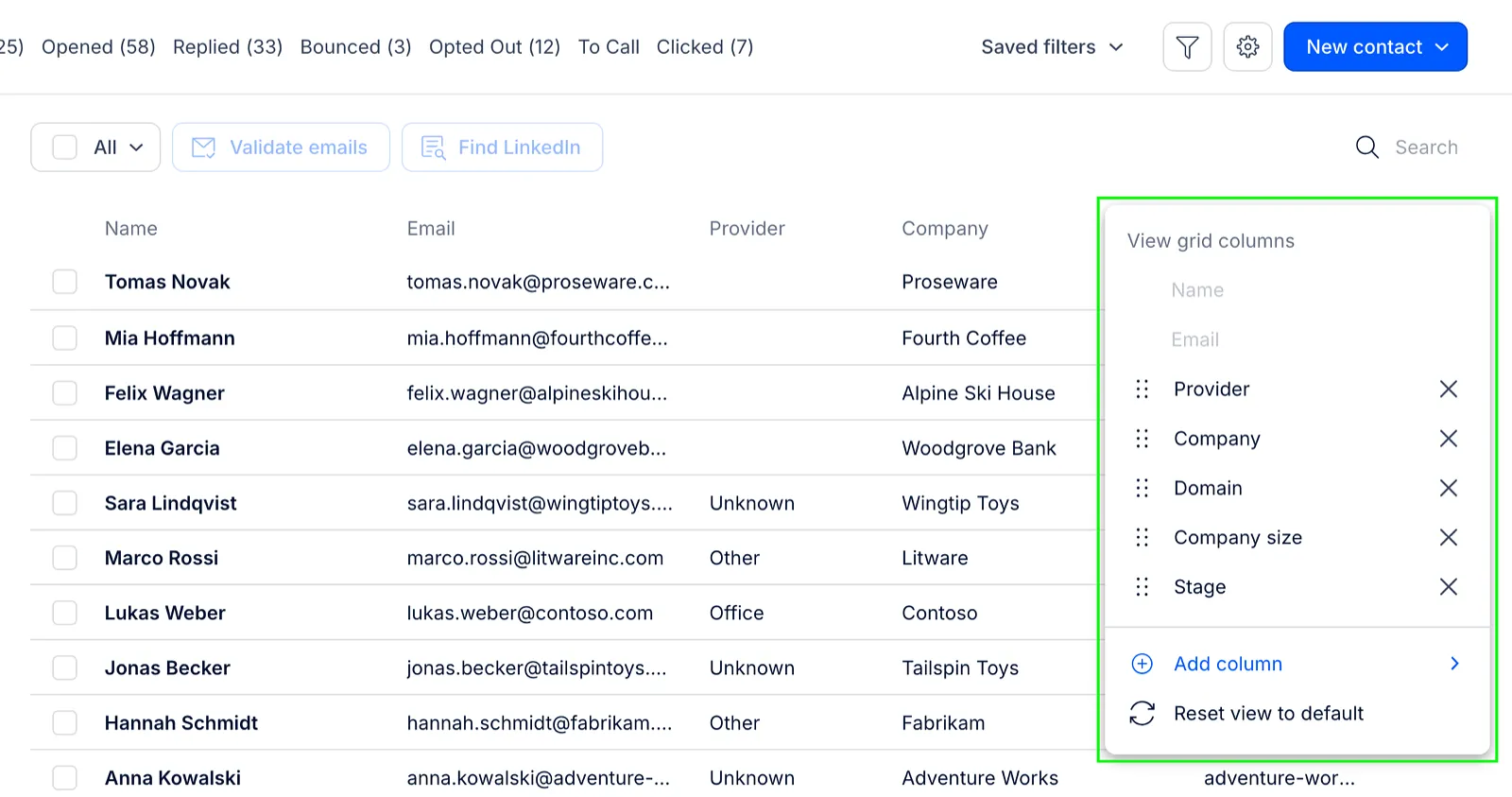
You can customize and manage the visibility of different columns according to your preferences. Click on the ⚙️ settings icon at the right end of the column headers. Select the desired option from the list, including adding custom columns, showing or hiding particular columns, or resetting the view to default settings.
Sorting Contacts in the Contacts Page
In addition to viewing and organizing contacts, you can sort contacts in alphabetical order, either ascending or descending, based on specific columns. The following columns are available for sorting: Name, Email, Domain, Owner, Title, # Of Calls, Country, City, and State.
To sort contacts, click on the respective column header. Click once to sort in ascending order and click again to sort in descending order.
Searching Contacts
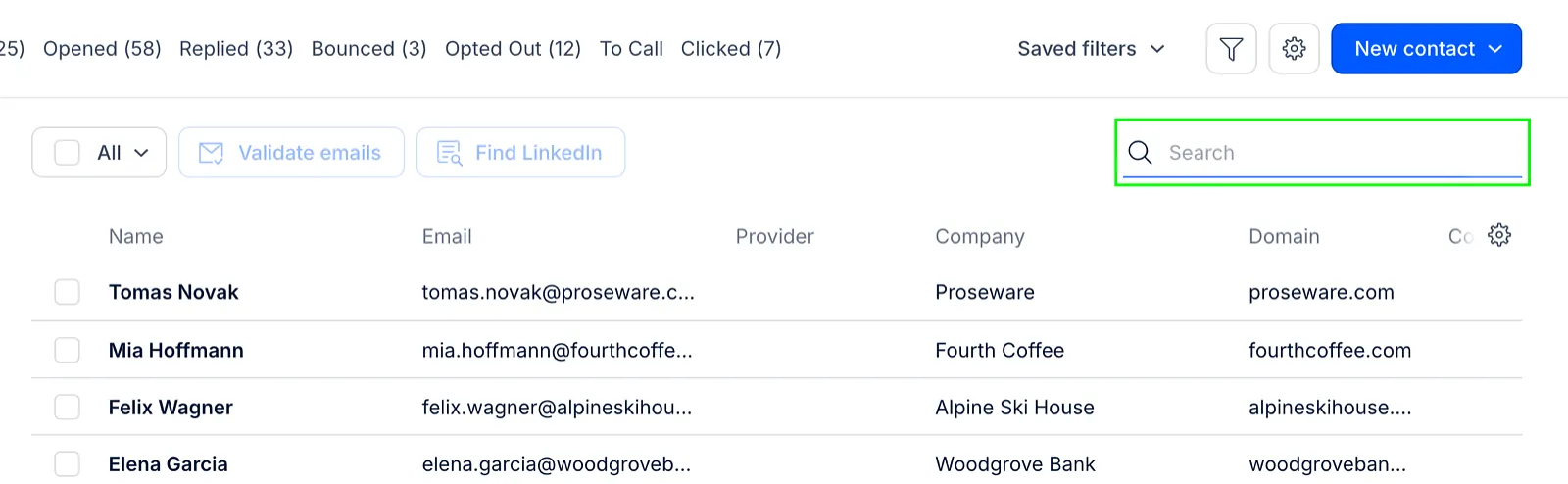
To search for specific contacts, utilize the Search field located at the upper right corner above the grid. Simply enter the desired search query, and the system will display relevant results accordingly.
Using Filters for Quick Search of Contacts
Use quick filters at the top for efficient contact sorting:
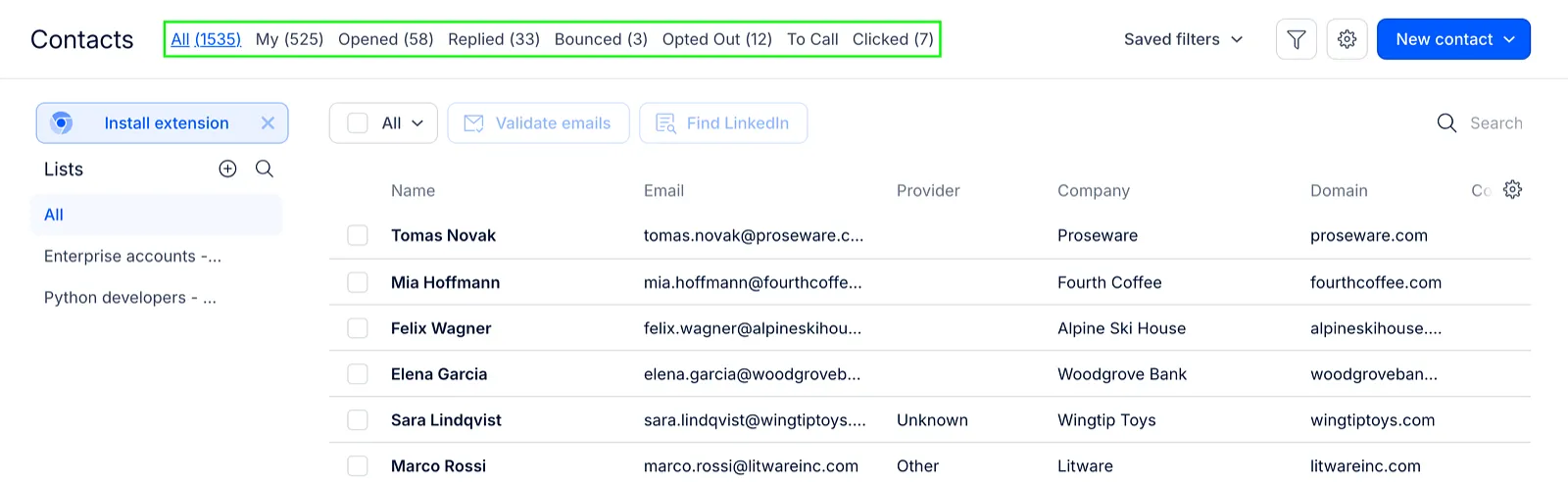
Here are descriptions of filters:
- All: Displays all contacts in your Reply account, including those assigned to other team members who share the same Reply account with you.
- My: Shows all contacts that are assigned to you, indicating that you are the owner of those contacts.
- Opened: Lists contacts who have opened any of your sent emails.
- Replied: Displays contacts who have replied to you in any of the sent connection types.
- Bounced: Shows contacts whose emails have been returned undelivered, possibly due to an invalid email address or other reasons.
- Opted Out: Lists contacts who have clicked on your opt-out link to unsubscribe from further emails.
- To Call: Displays contacts that are moved to the Call step in a sequence, indicating that you need to call them according to the sequence plan.
- Clicked: Shows contacts who have clicked on a link in your email, provided links tracking is enabled in Sequence > Settings > General Settings.
For each category, you'll see the number of contacts that belong to it. Simply click on the category to view all contacts within it.
Smart Filters
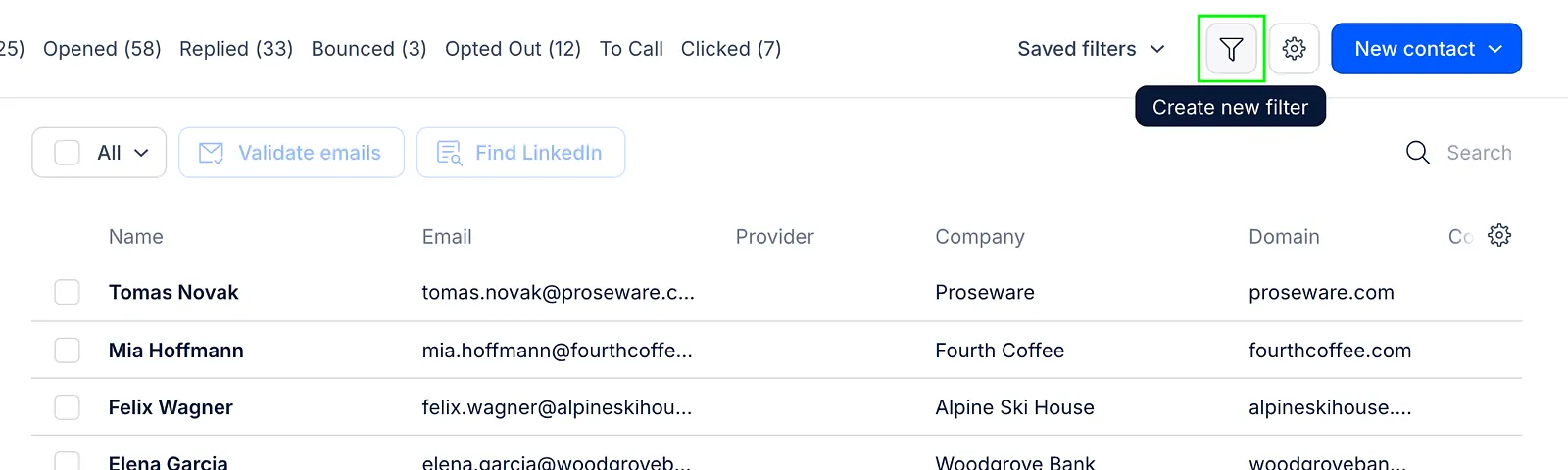
You can also access the smart filter icon in the upper right corner to open the smart filters wizard. This allows you to set advanced filtering criteria for contacts.
In the wizard, you can create your filter, assign a name for it, select the needed filter from the list of advanced filters, and set the exact value for it (property, value, and more).
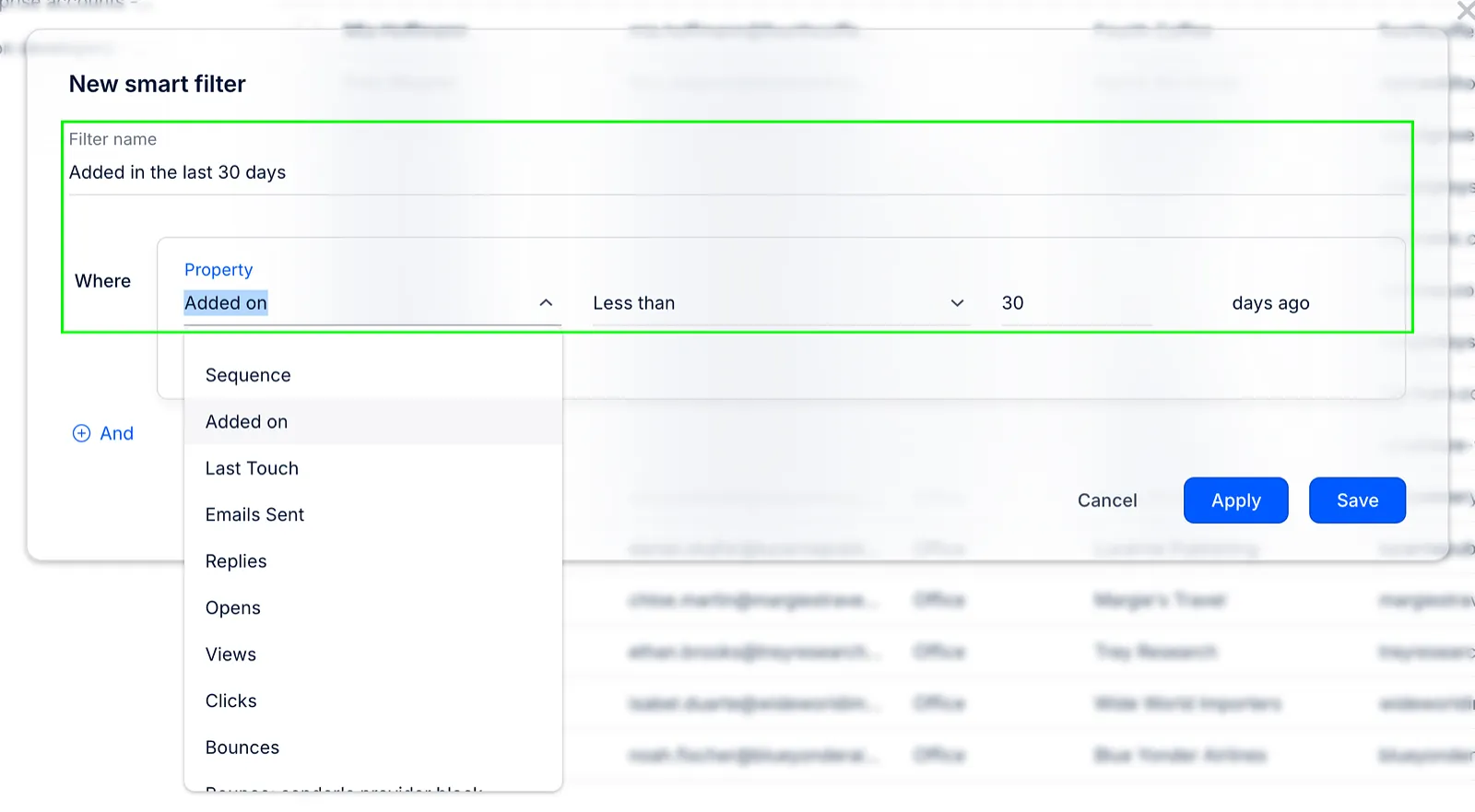
You can either Apply or Save the filter after you name it and set the properties:
- The Apply option allows you to temporarily save the filter until you navigate to another page.
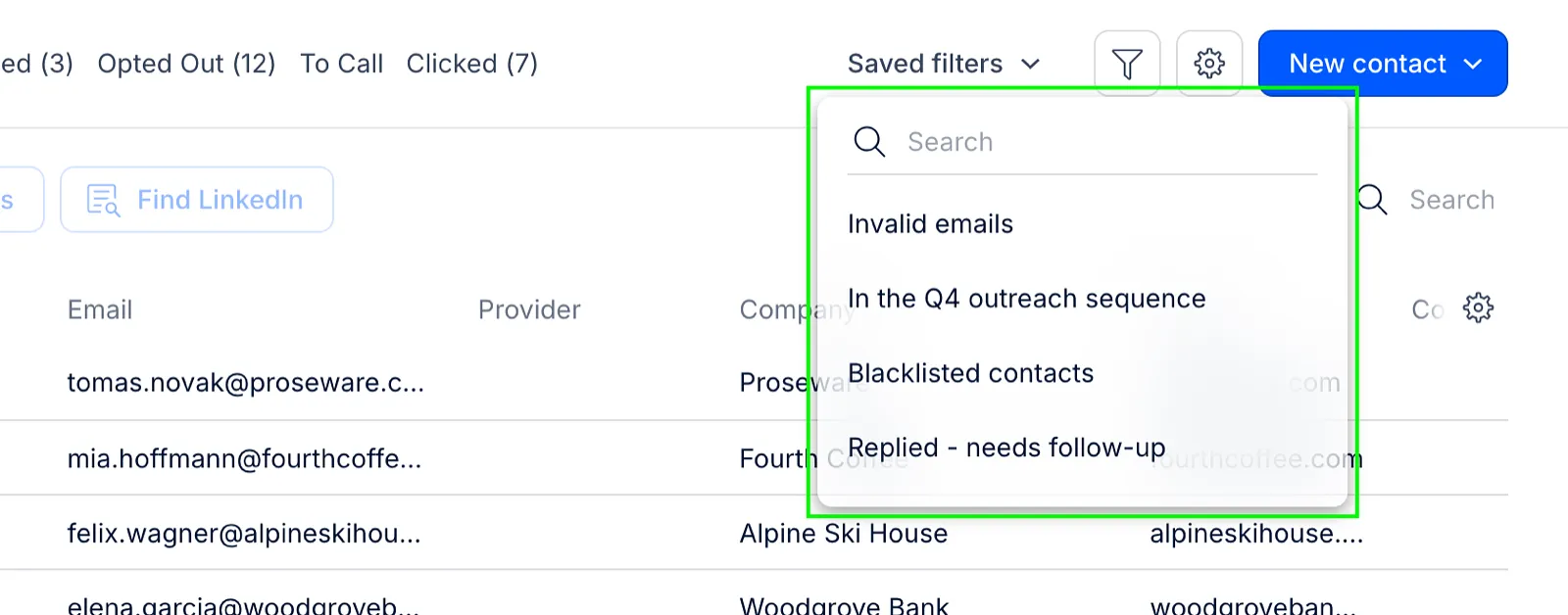
- The Save option keeps the filter in the Saved filters drop-down on the Contacts page.
Smart filters include options:
- Sequence: Filter by specific sales sequences.
- Added on: Sort by the date contacts were added.
- Last Touch: Filter contacts based on the last interaction.
- Emails Sent: Filter by the number of emails sent.
- Replies: Sort by the number of replies received.
- Opens: Filter contacts based on email opens.
- Views: Filter by views on specific content.
- Clicks: Sort contacts based on link clicks.
- Bounces: Filter contacts with bounced emails.
- Account: Filter by company size or industry.
- Missing Field: Identify contacts with incomplete data.
- Domain: Filter contacts based on their domain.
- Location: Filter by city, state, or country.
- Creation Source: Sort by how contacts were added.
- Provider: Filter by the source/provider of data.
- Contact Information: Filter by email, phone number, or LinkedIn URL.
- Current Step: Sort contacts based on their current stage.
- Status: Filter by various engagement statuses such as active, paused, or opted out.
- Inbox Category: Sort by email inbox categorization.
- Custom Fields: Utilize custom fields for personalized filtering options.
To learn more about how smart filters work and what filters you can use, refer to this page.
Using Saved Filters
All filters created using the smart filter wizard will be displayed in the drop-down menu. Use it to apply the needed filter quickly.
Using Lists
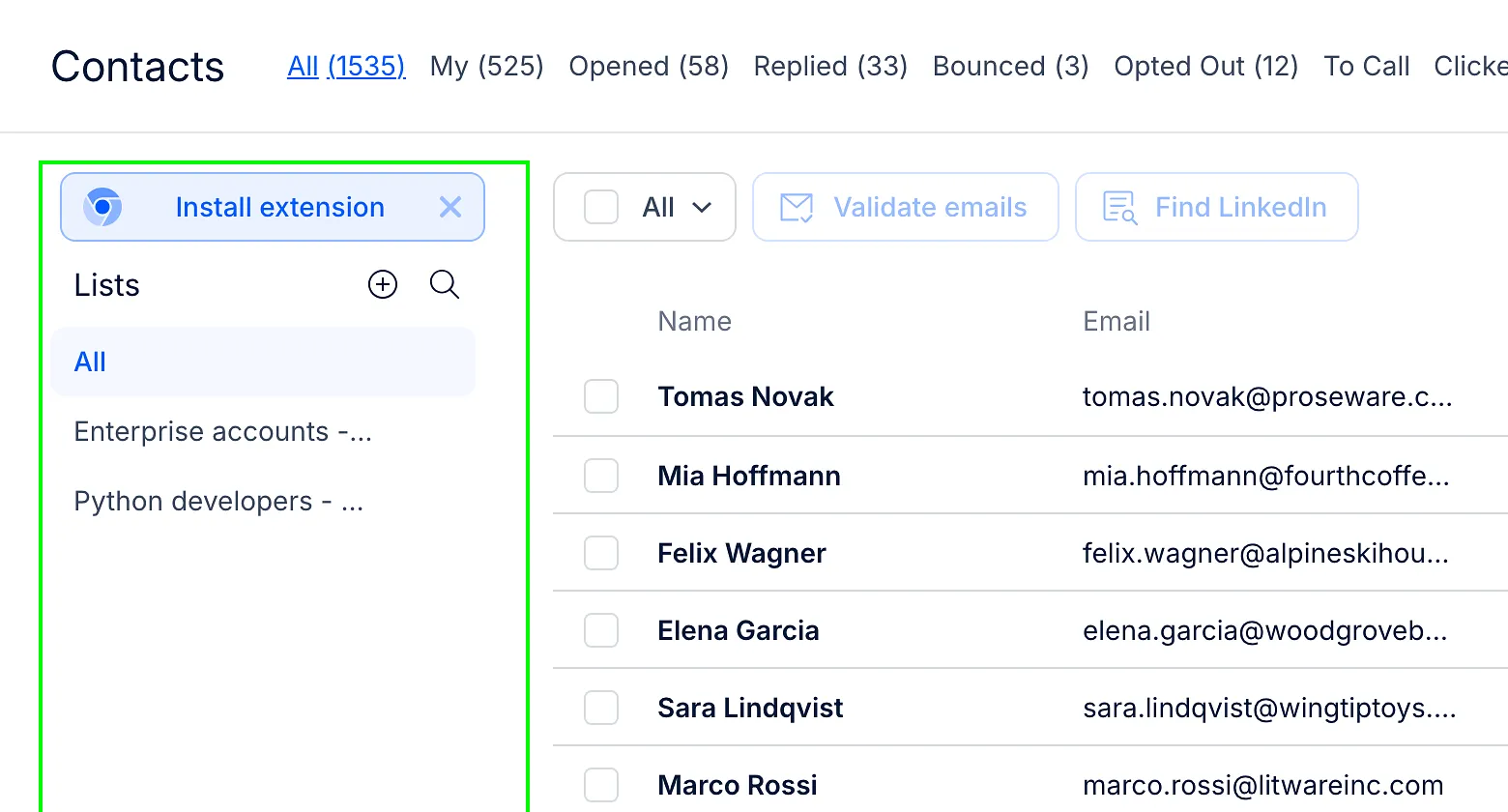
For streamlined contact management, use the lists panel located on the left side of the interface. Here, you can access all existing lists and seamlessly create new ones as required. Learn more about list management.
Using Quick Actions
When you select a contact, quick actions conveniently appear at the top of the grid. Whether you need to validate an email, enrich contact details, or move them to a sequence or list, these streamlined actions empower you to efficiently accomplish tasks directly from the grid view.
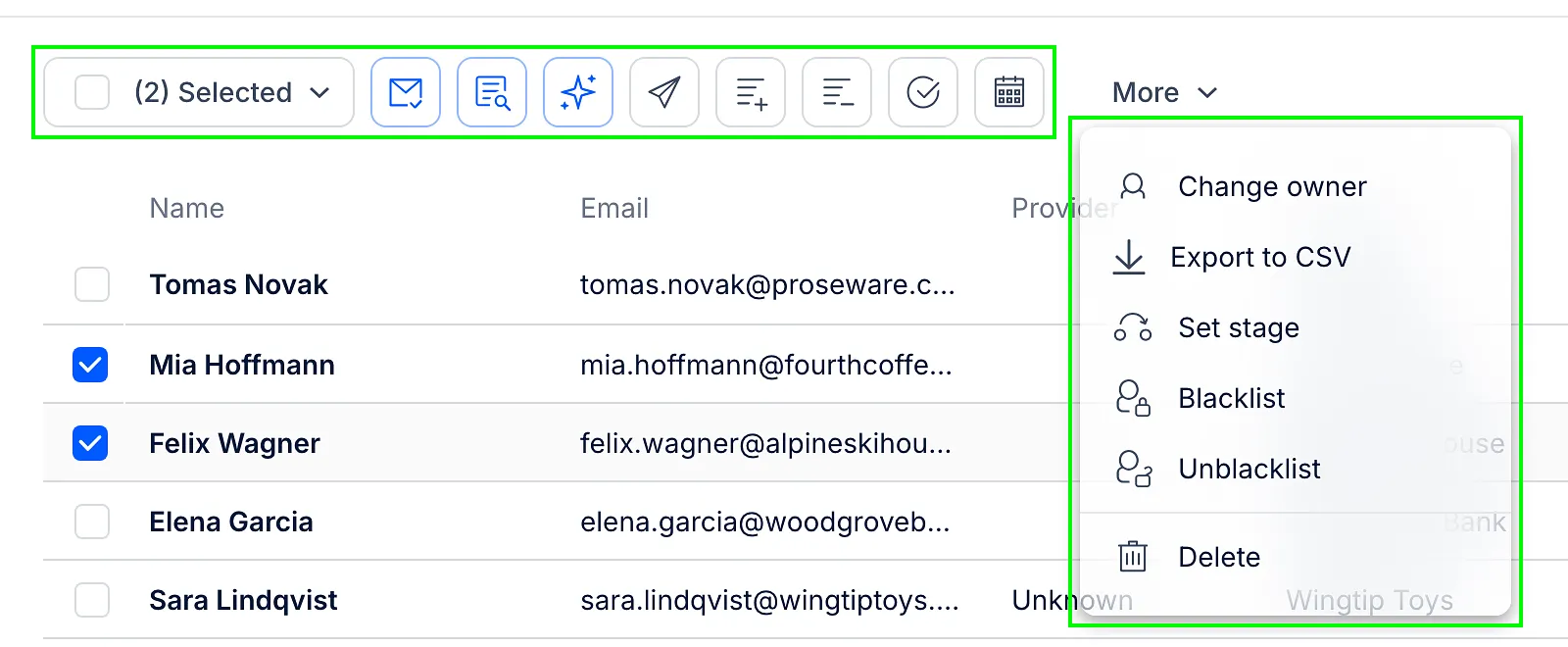
Here's a breakdown of the available actions:
| Quick Action | Description |
|---|---|
| Select | Choose how many contacts you want to select: All in list, All on page, or None. You can then perform actions for multiple contacts in bulk at once. |
| Email Validation | Verify the email address associated with the contact. For more details about our email validation service, refer to this article. |
| Find LinkedIn | Enhance contact details with additional information. |
| Move to Sequences | Add the selected contact(s) to a predefined sequence for outreach (if a contact isn't in any sequence currently), or select a Step (if you want to move contacts to a specific step, or if a prospect is already in another sequence). Important Note: By this action, all selected people will be automatically removed from the previous sequence, and the email will be delivered immediately despite the Step setting. |
| Move to Lists | Transfer the contact to a specific contact list. |
| Move to Account | Associate the contact with a particular account or company. |
| Change Status | Update the status of the contact based on your interactions. |
| Log a Meeting Booked | Record a booked meeting with the contact. |
| More | Clicking on "More" allows you to access additional actions from the drop-down menu: Change Owner: Assign another team member in your Reply account as the owner of contact(s); Export to CSV: Export contact information to a CSV file. You can choose between exporting Basic Fields and All Fields. For more information, see the following article; Set Stage: Define the stage of interaction or relationship with the contact; Blacklist: Exclude the contact from further communication; Unblacklist: Remove the contact from the blacklist; Delete: Permanently remove the contact from your list. |
View the Contact Profile Card
To view a detailed contact's profile, click on a prospect on the list.
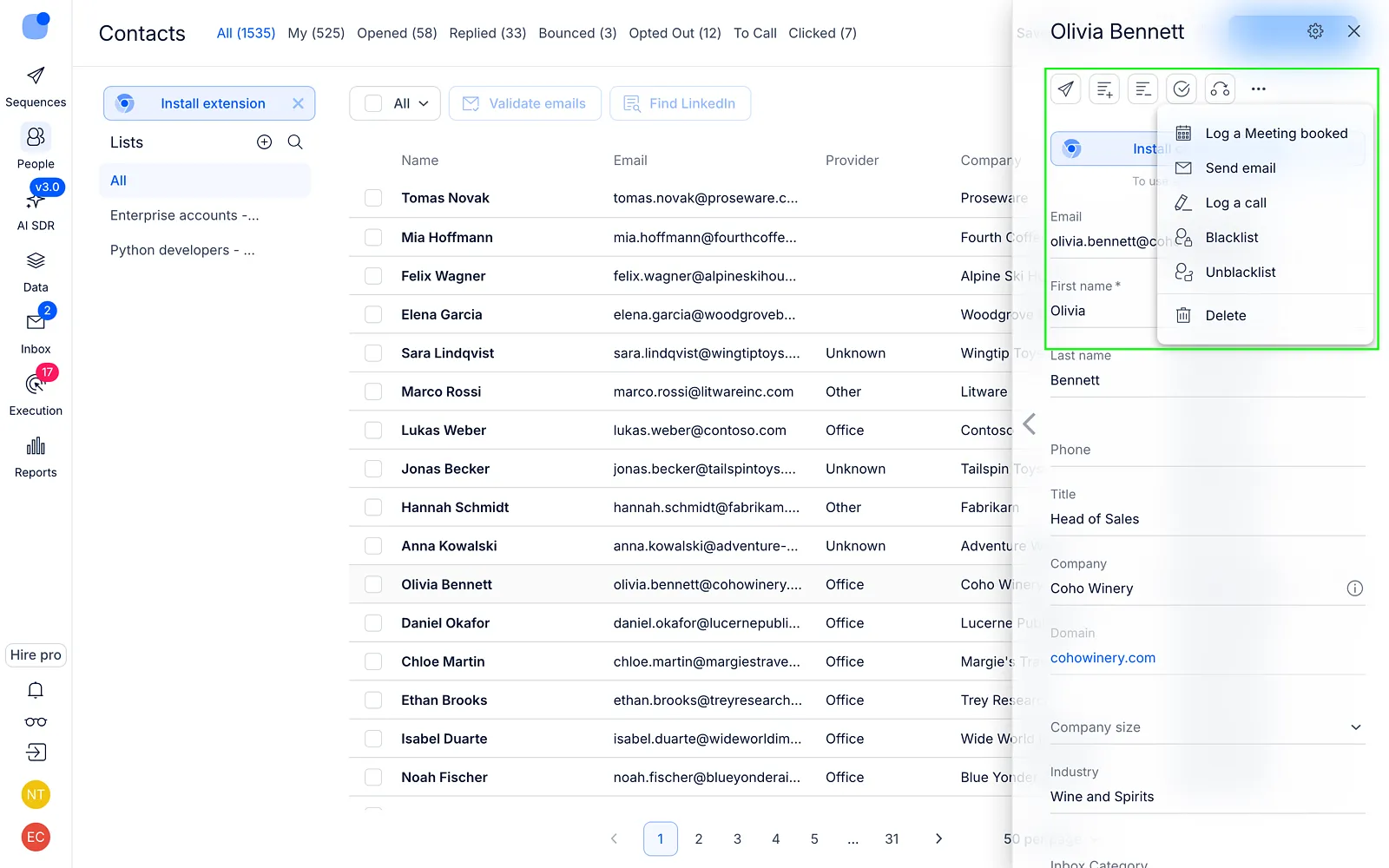
Learn more about what actions you can take in contact profile cards from these articles.