The magic sequence is a unique feature of Reply that allows you to automate personal outreach in seconds. Just provide a few details of your sequence and clear instructions on how to write it, and Jason AI assistant will shape up the entire sequence for you, including the text of email steps, while suggesting other channels to reach out to contacts on your behalf.
Jason AI uses deep learning to produce human-like text. It is based on a language model that has been trained on millions of top-performing templates, so it can craft sequences that are very accurate and realistic. At the same time, you also have full control over the AI-generated text and can adjust any step to your particular needs at any time.
Here's a detailed overview of Jason AI.
How to create a sequence From magic ✨
Open the Sequences page from the left sidebar. Click New sequence → select From magic. The magic-sequence-wizard with the set of steps needed to finalize your sequence will be shown.
Please note that while editing the sequence, you can also view the whole chain of steps in the lower part of the wizard and switch between them by clicking Back and Next. All the data will be saved.
Step 1: Write prompt
-
Add a name for your sequence using the corresponding field in the top left corner.
-
'Write prompt' is the first step that uses the power of Jason AI assistant to generate the text for the first email. Click Jason AI in the text editor and use the field "Tell Jason AI to do..." to add all the necessary details of your offer that will be taken into account while crafting your first and all the rest of your emails.
-
Click the arrow button next to the field.
The body of the text of the email will be shown along with the Business case and Subject fields. Check these fields and edit them if needed.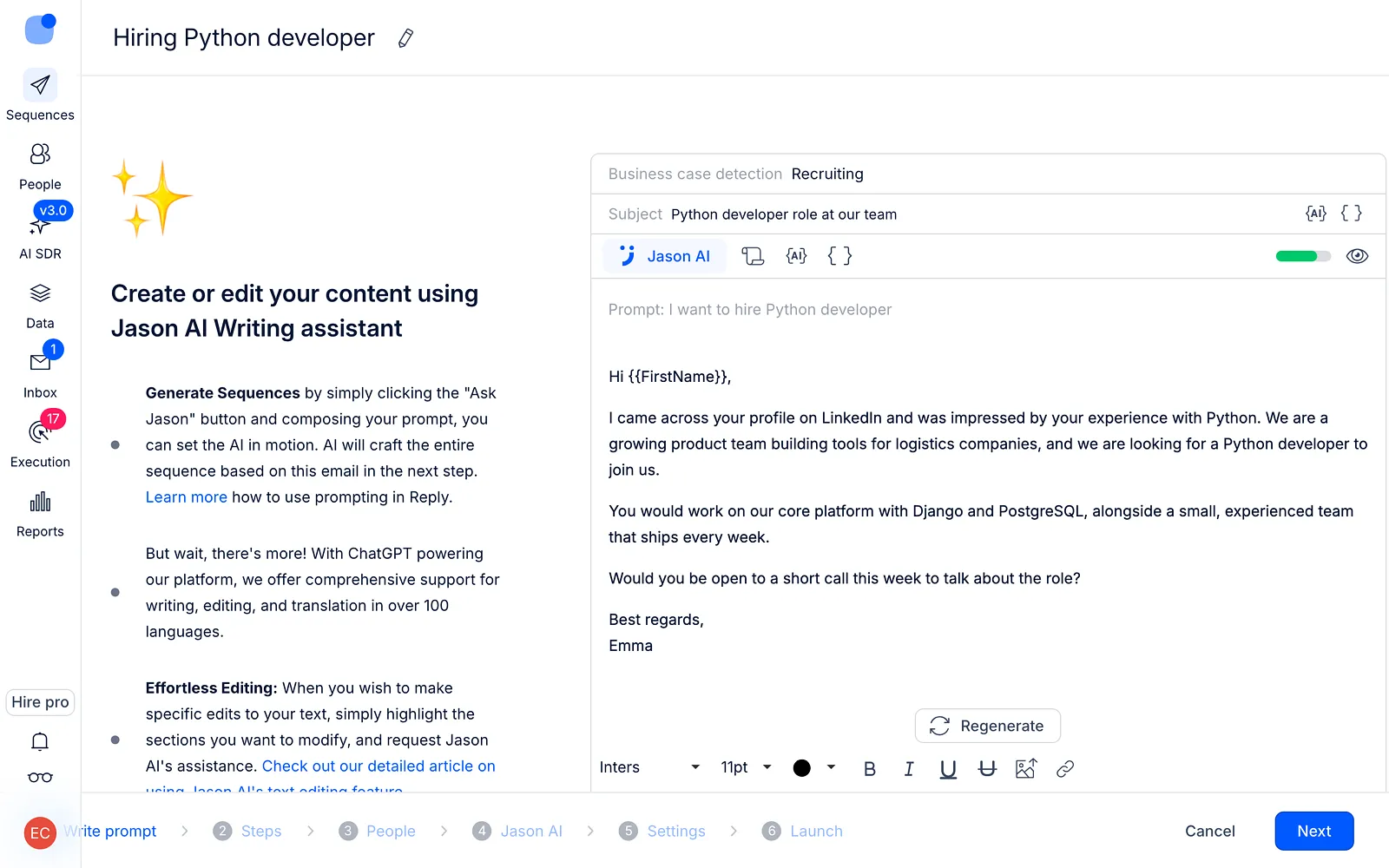
Tip: When writing a prompt for the first email, just type one or a few phrases that reflect the main goal of your email. Jason AI will take this piece of text as a starting point and, in a matter of seconds, come up with the entire sequence, combining different communication channels and crafting the best follow-up messages to appeal to your audience.
For example, you can write "I want to build partnerships through integrations between Reply and other sales engagement tools" or "I want to hire an SMM manager." Here's an article with a guide on how to write better prompts.Edit or improve the text of the first email
You can also use the text editor to format or edit the text. You can add links, images, and attachments, as well as templates and variables.
Other than that, you can write additional prompts in the editor and improve the text.
For this, click Jason AI in the text editor again and write down all your suggestions and instructions for the AI assistant. Then, click the arrow button.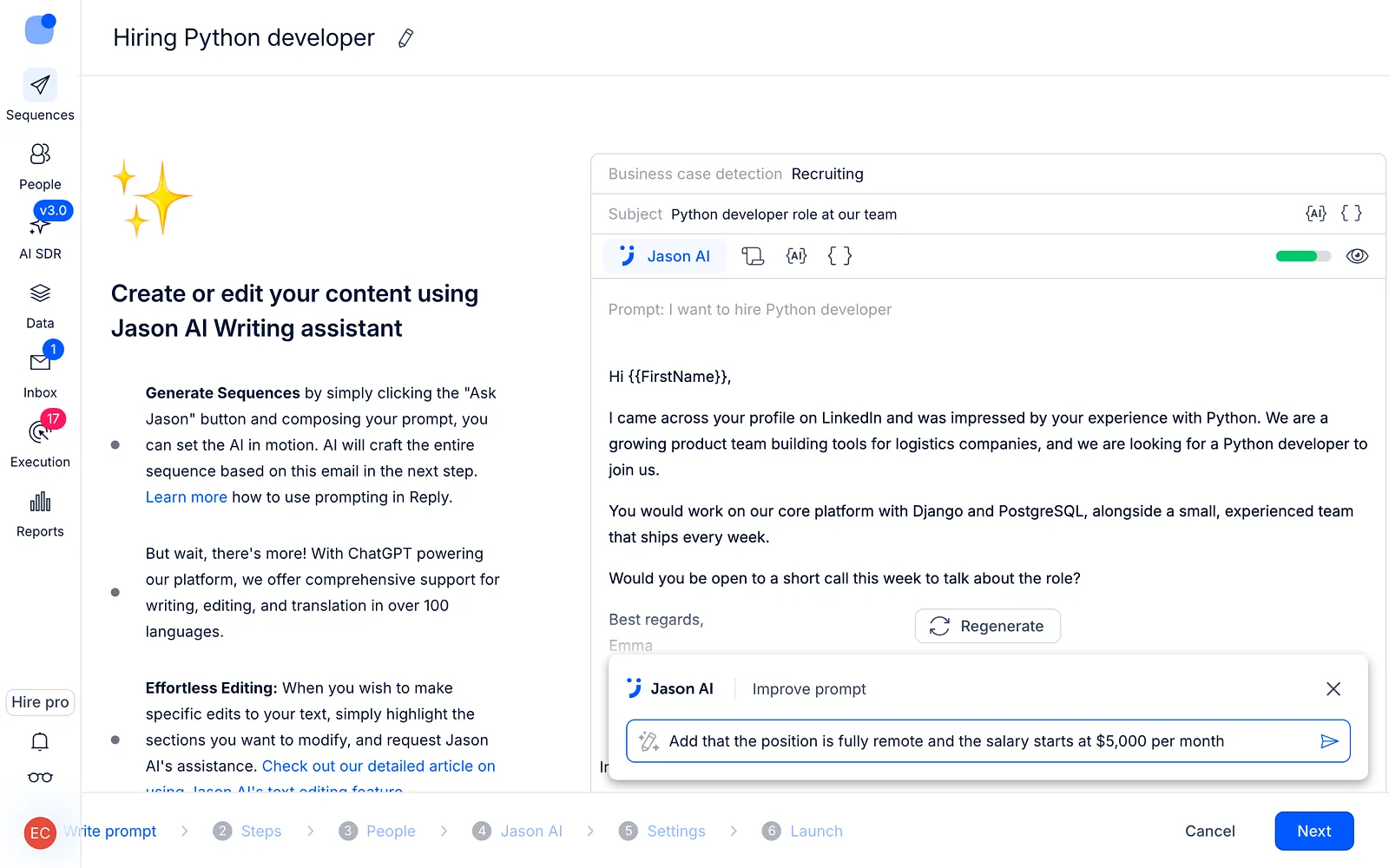
For example, you can add some specific details, ask an AI assistant to rewrite the text in a different style or tone of voice, translate the text into other languages, etc. -
Click on the "Next" button to move to the next step of the sequence.
Step 2. Finalize all the rest of the steps in your sequence
Once you click Next in the first step, Jason AI will create all the rest of the steps in the sequence.
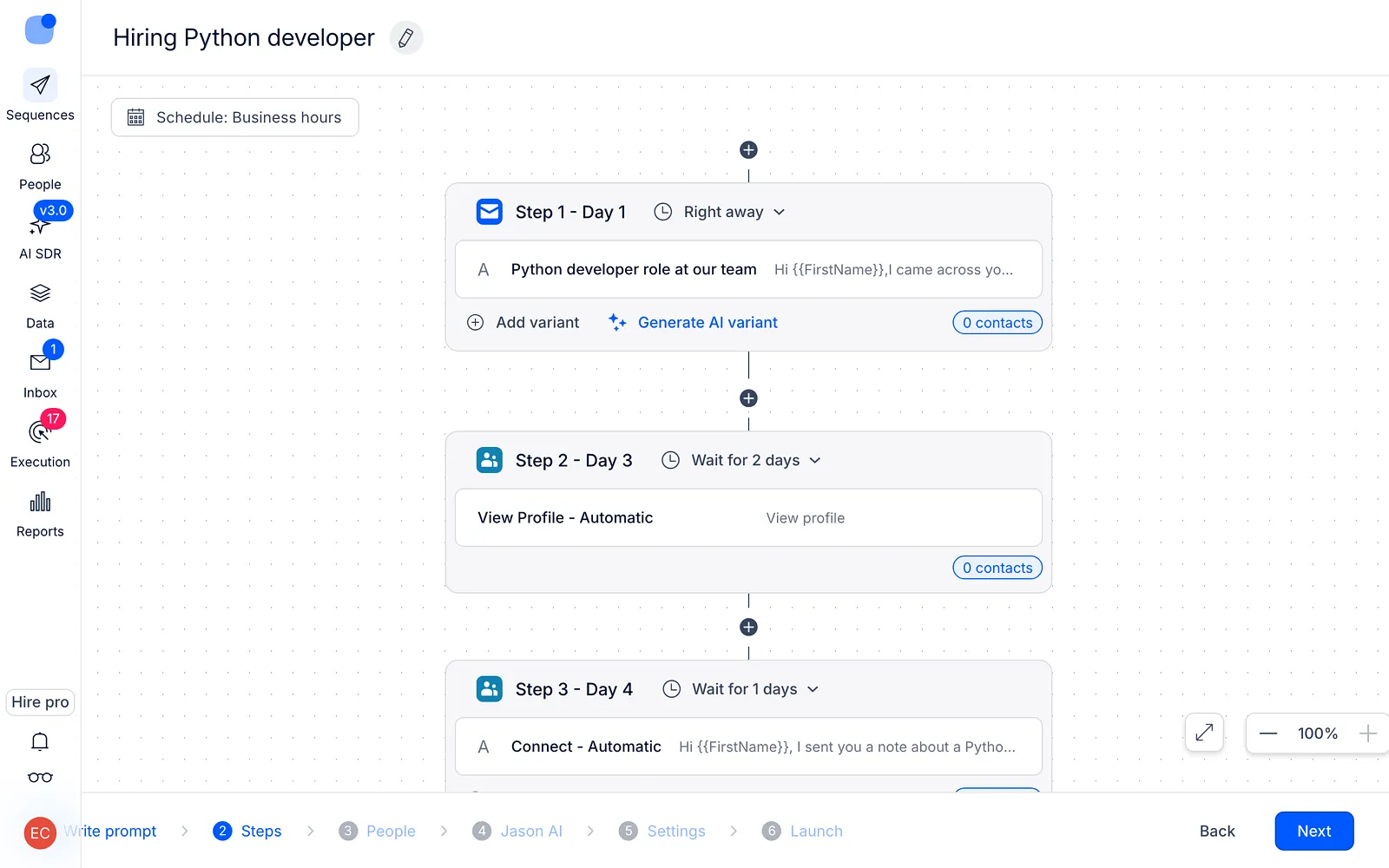
The texts of the follow-ups will be logically connected to one another. However, you can check each of the steps and edit them as well. You can also add some other steps manually.
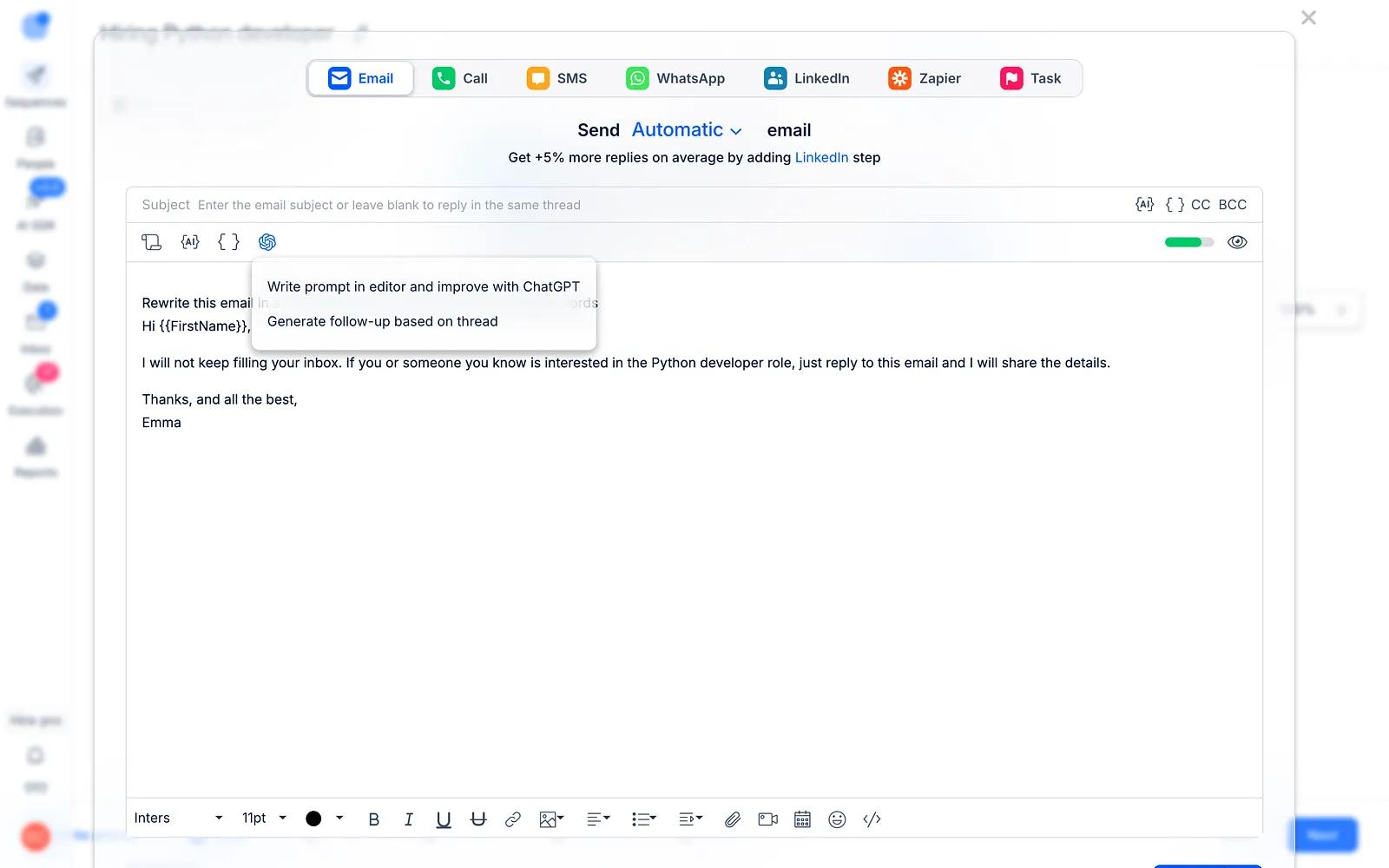
For email-type steps, you can also use the Jason AI assistant to regenerate or improve the text. For this, open the email and use the first line in the text editor to write your prompt. Click on the Improve with ChatGPT icon and then click Write prompt in editor and improve with ChatGPT. Here is a detailed guide on how to generate or improve the text of the email step with Jason AI.
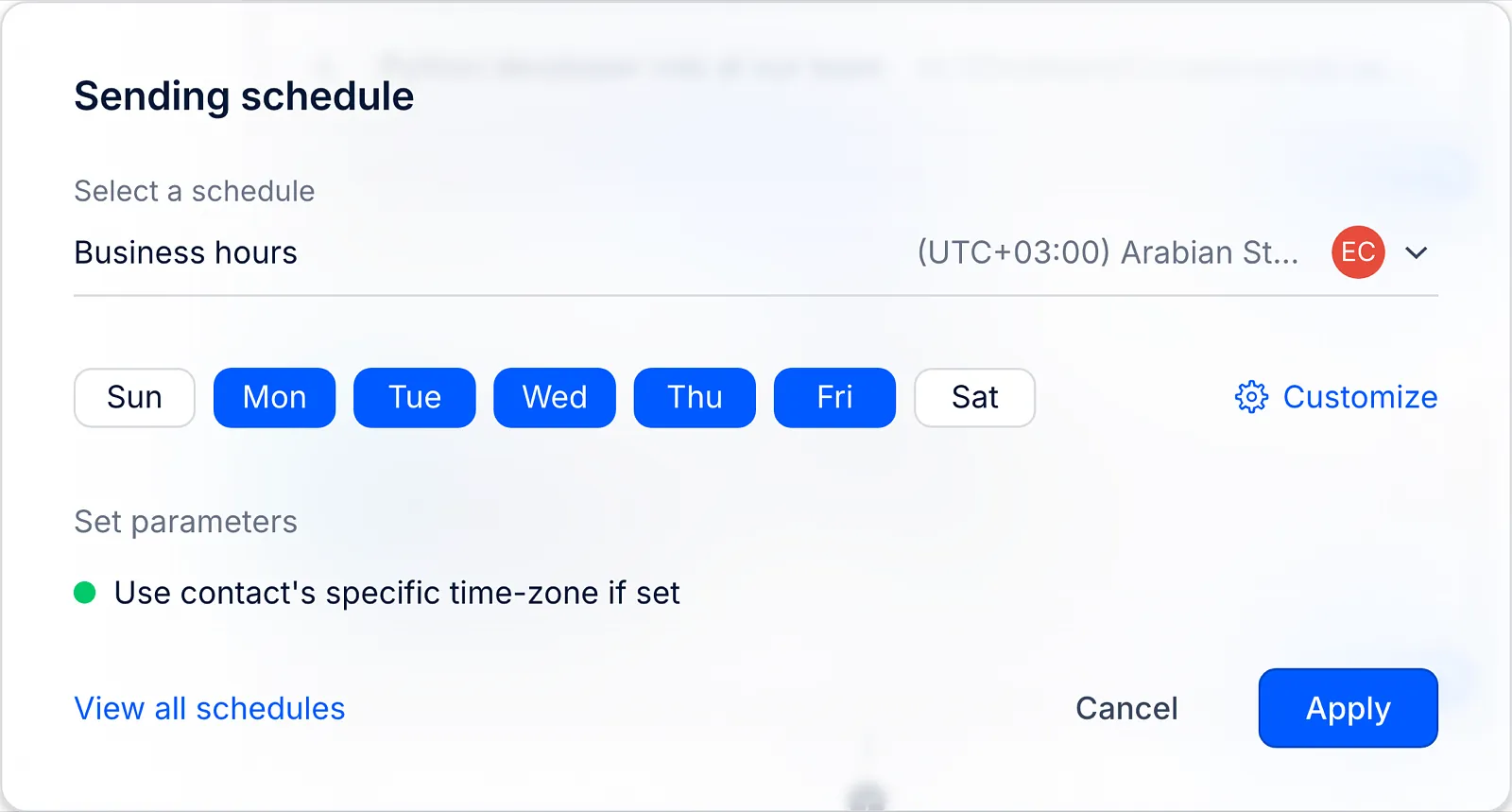
Set the schedule for the sequence. Click Schedule at the top of the page to open the Sending schedule window. The list of previously created schedules will be shown in the Select a schedule field, so you can easily select the needed one or click "Create new schedule" to create a new one. Then, click Apply.
When all the steps are ready, click "Next."
Step 3. People
Add contacts to your sequence. Use standard methods to add contacts, such as importing from a CSV, existing people lists, or manually creating contacts.
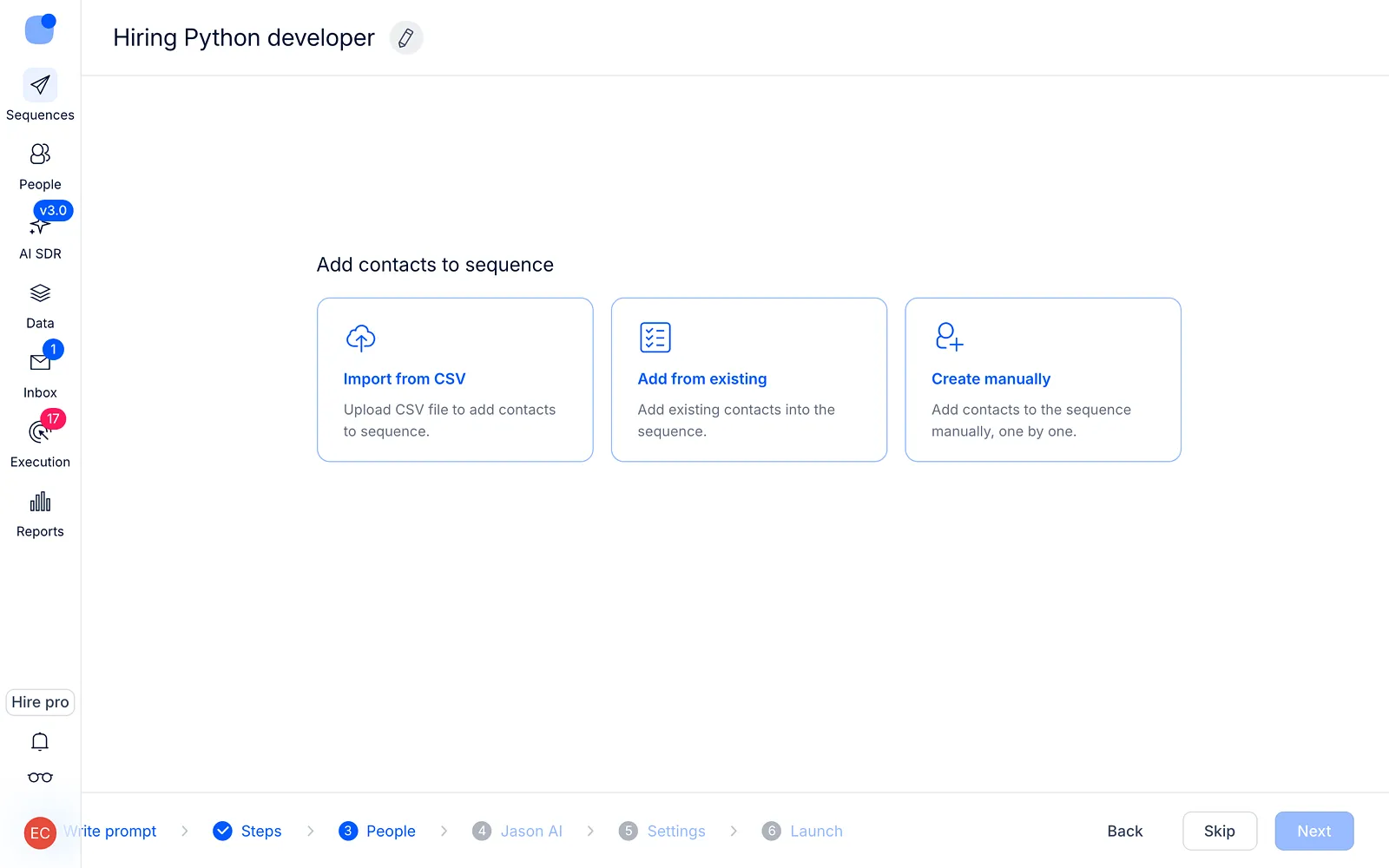
The People step allows you to add contacts as well as view all previously added contacts to your sequence.
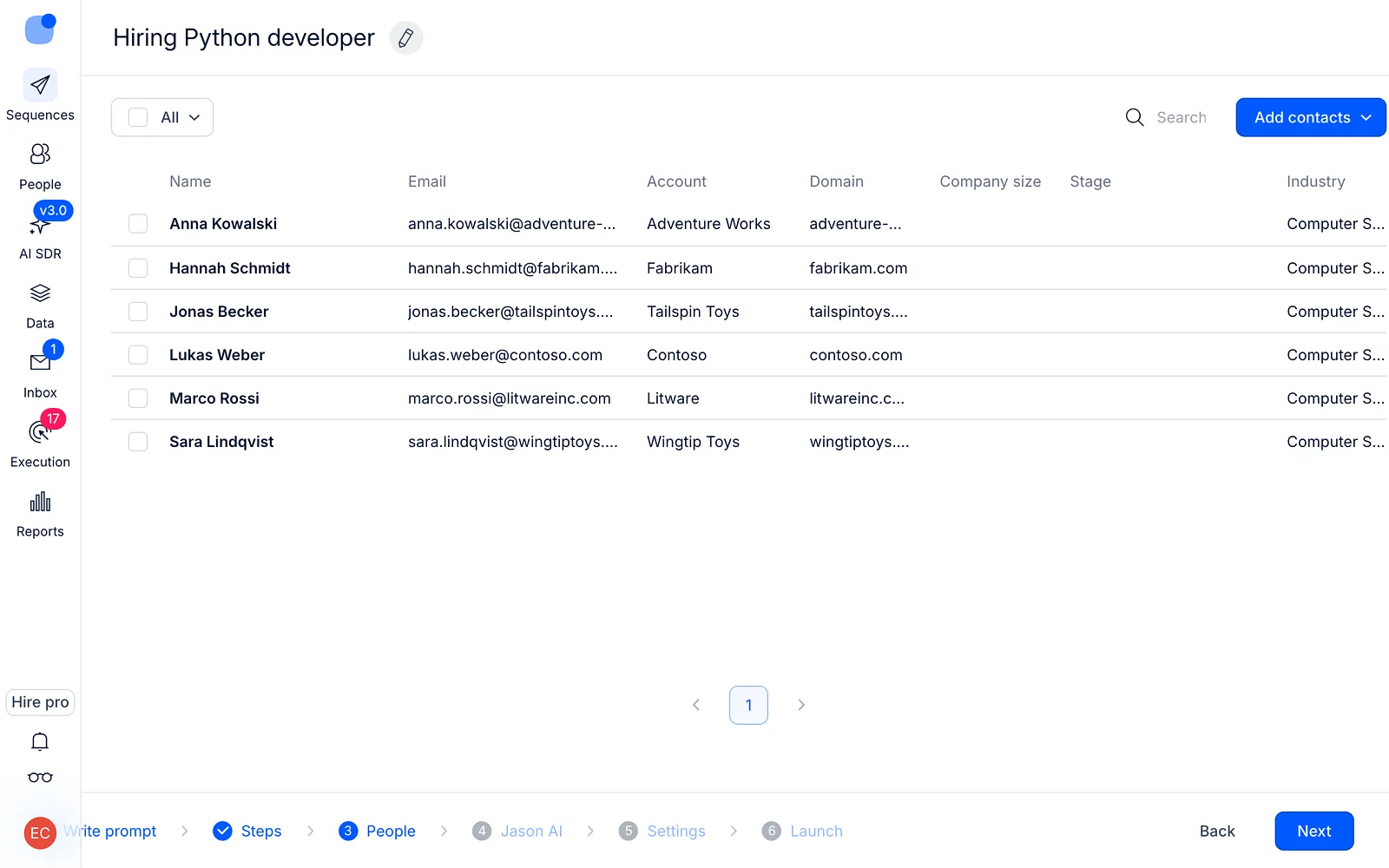
Click on one of the cards (or on the Add contacts button once your sequence has contacts) to add contacts using the following methods:
- Import from CSV
Upload the document with the list of your contacts and their data in CSV format.
Click on the CSV example to download the template for the file.
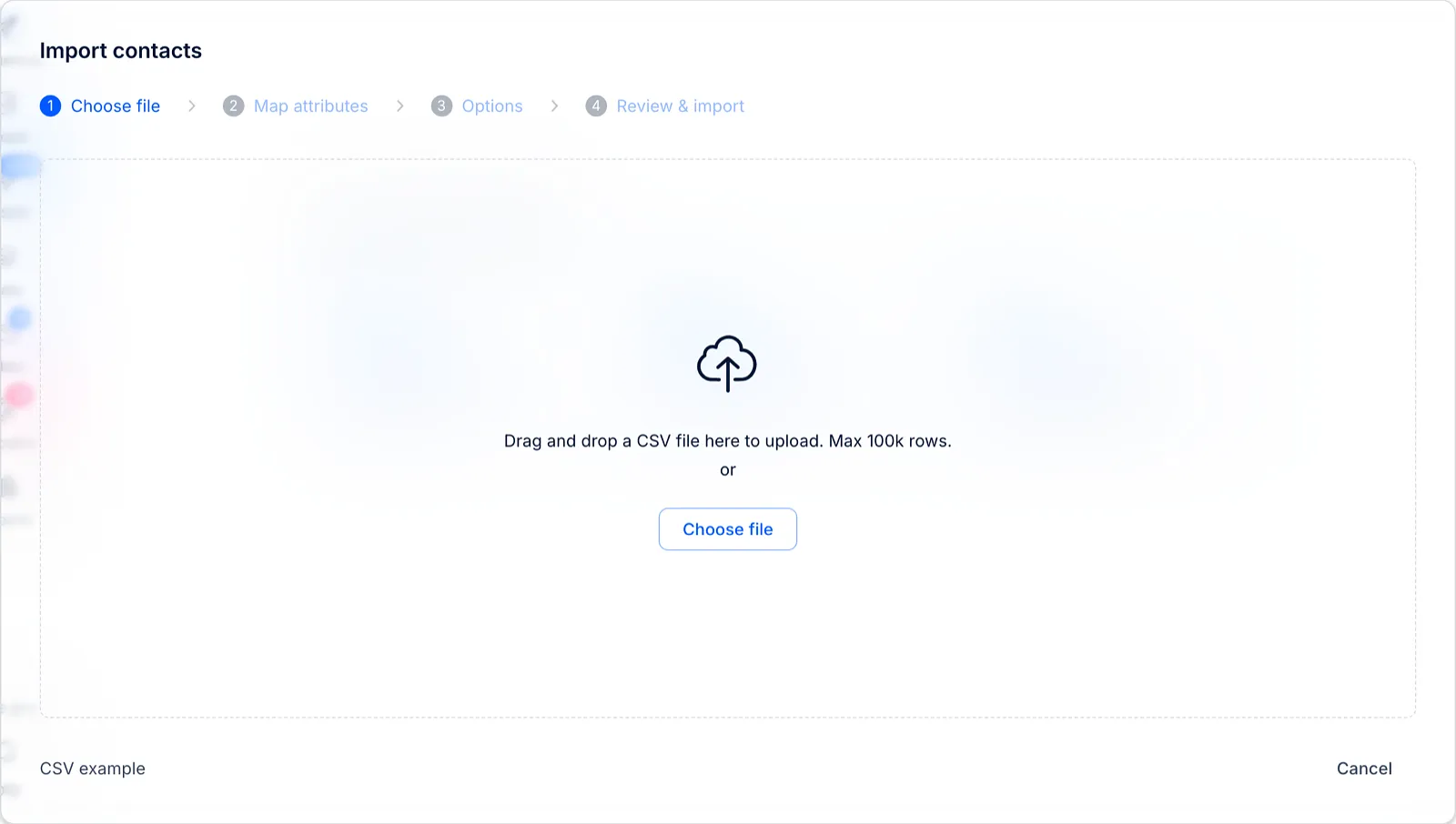
You can also map all the fields in correspondence with your data and Reply fields.
Here's a more detailed article about import from a CSV and recommendations for CSV import.
- Add from existing
When selecting this method, the lists of contacts that were previously added to your Reply account will be shown. Check the needed contacts and click "Add contacts."
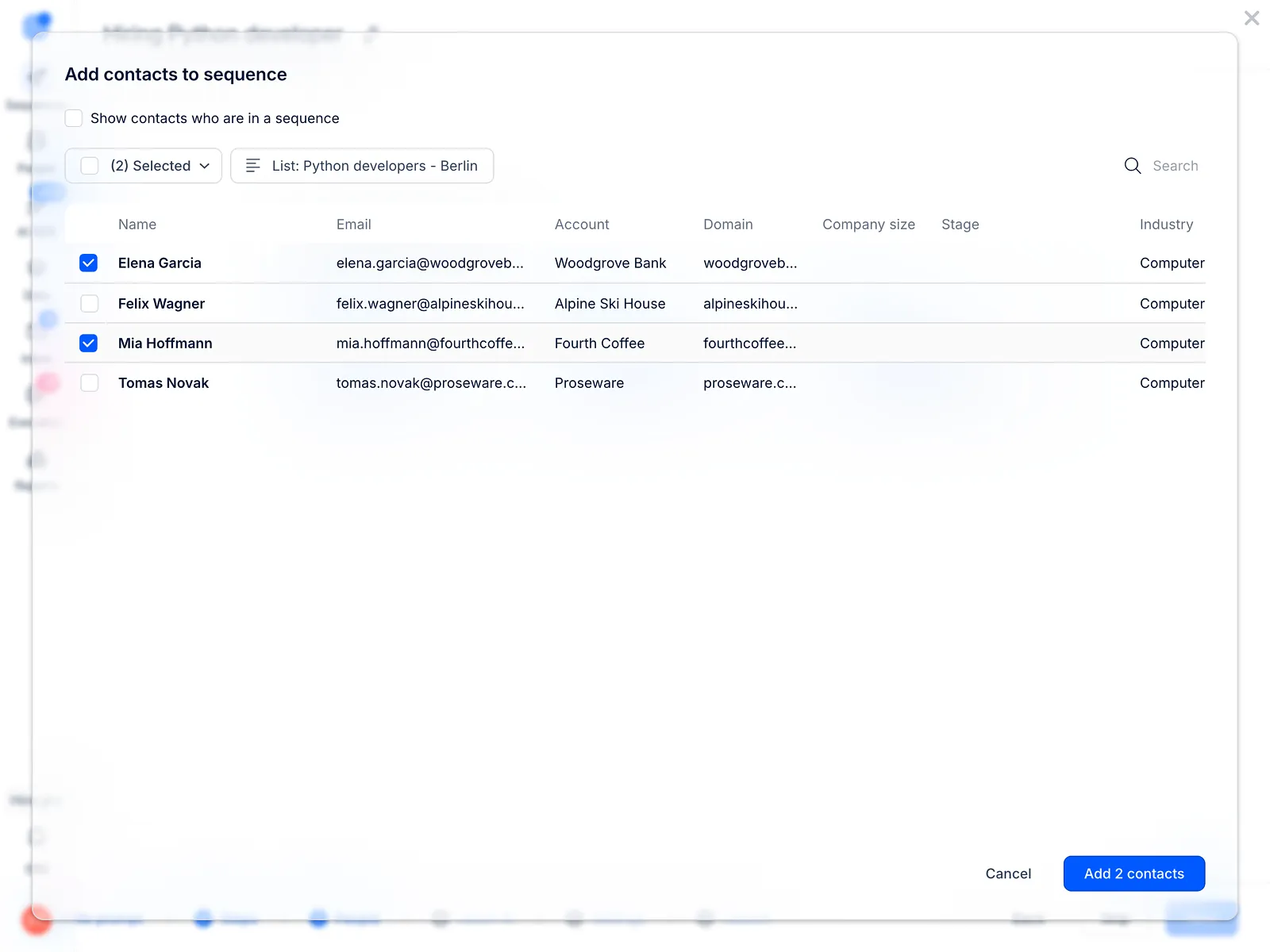
Use the All lists drop-down to switch between different lists of contacts. You can easily select all contacts in the list at once or add just particular contacts.
- Create manually
When you click on this method, you can add new contacts to the sequence. Just fill out the blank contact profile tab that will be shown on the right side of the page.
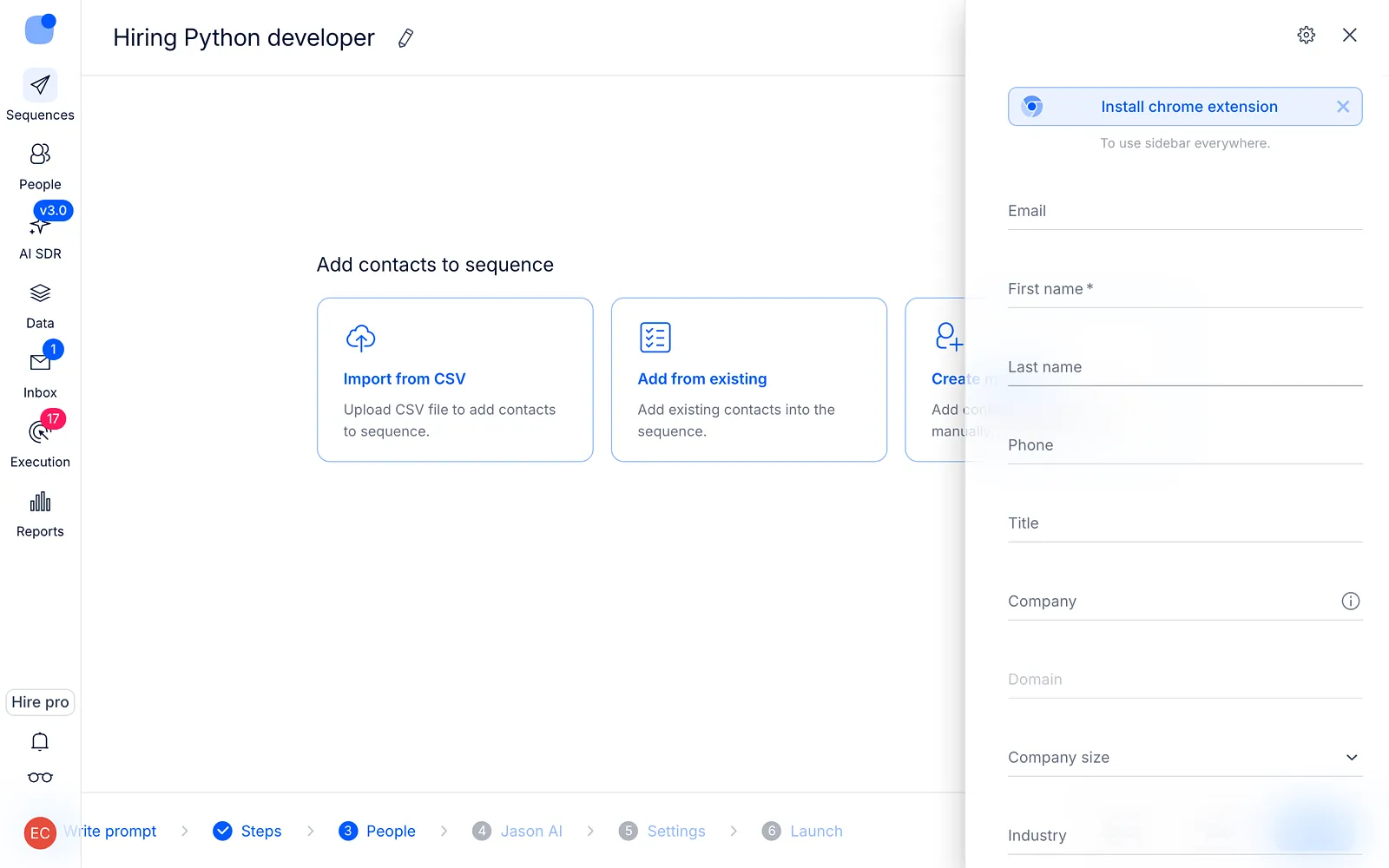
Once you add contacts, click Next.
Step 4. Jason AI
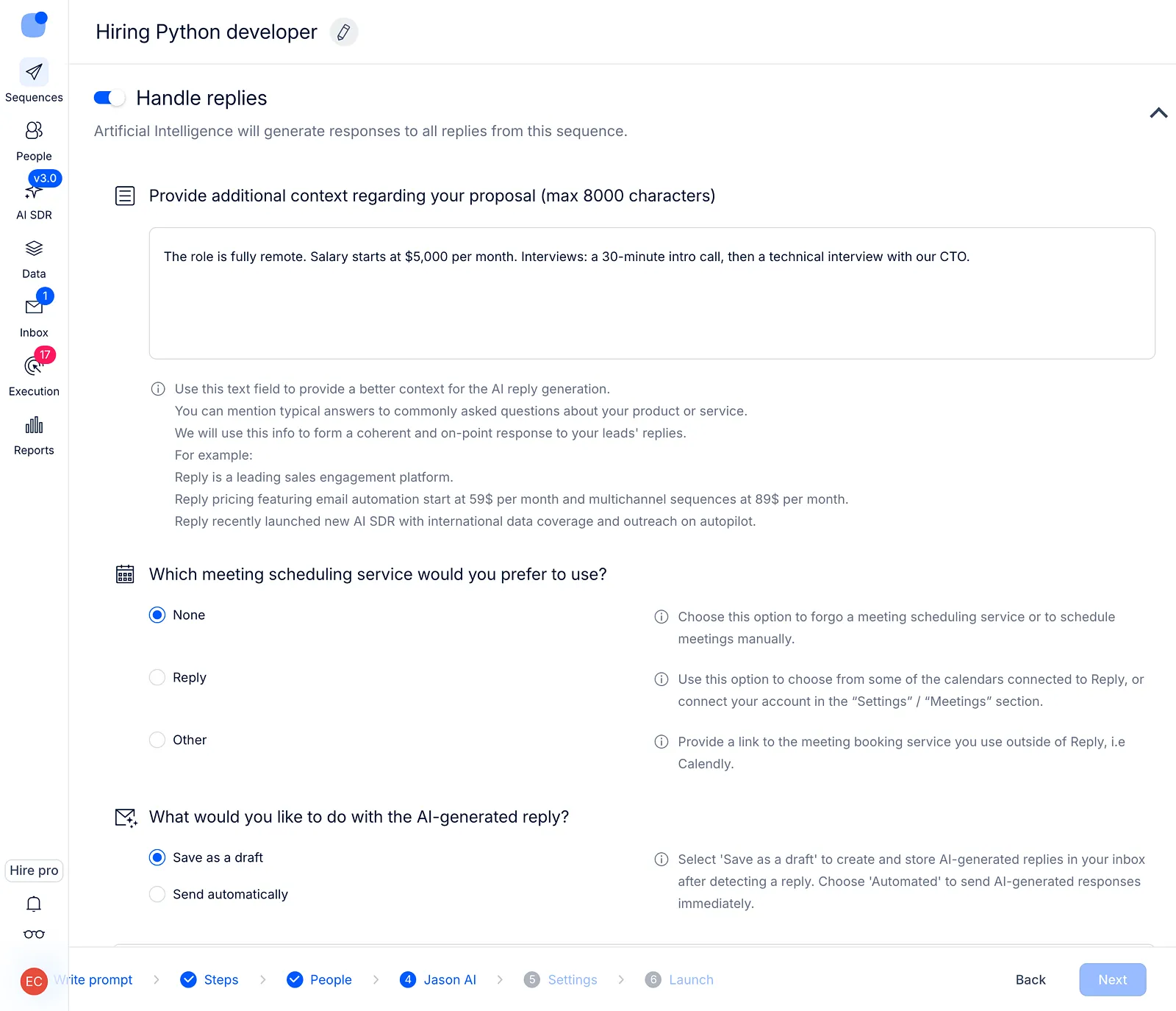
Configure additional settings for Jason AI that will improve your sequence.
-
Handle replies. Enable automatic response handling in your sequence. Learn more about how Jason AI works for reply handling in this article.
-
Provide additional context. Add additional details that will be taken into account by Jason AI assistant while generating auto-replies for your contacts. For example, you can mention typical answers to commonly asked questions about your product.
-
Choose preferred meeting scheduling service. The chosen system will be used by Jason AI assistant to automatically book meetings with your contacts.
-
Choose preferred actions with AI-generated replies. Possible actions are Save as a draft, and Send automatically.
Once you have set additional settings for Jason AI, click Next.
Step 5. Settings
Review or configure the necessary settings for your sequence.
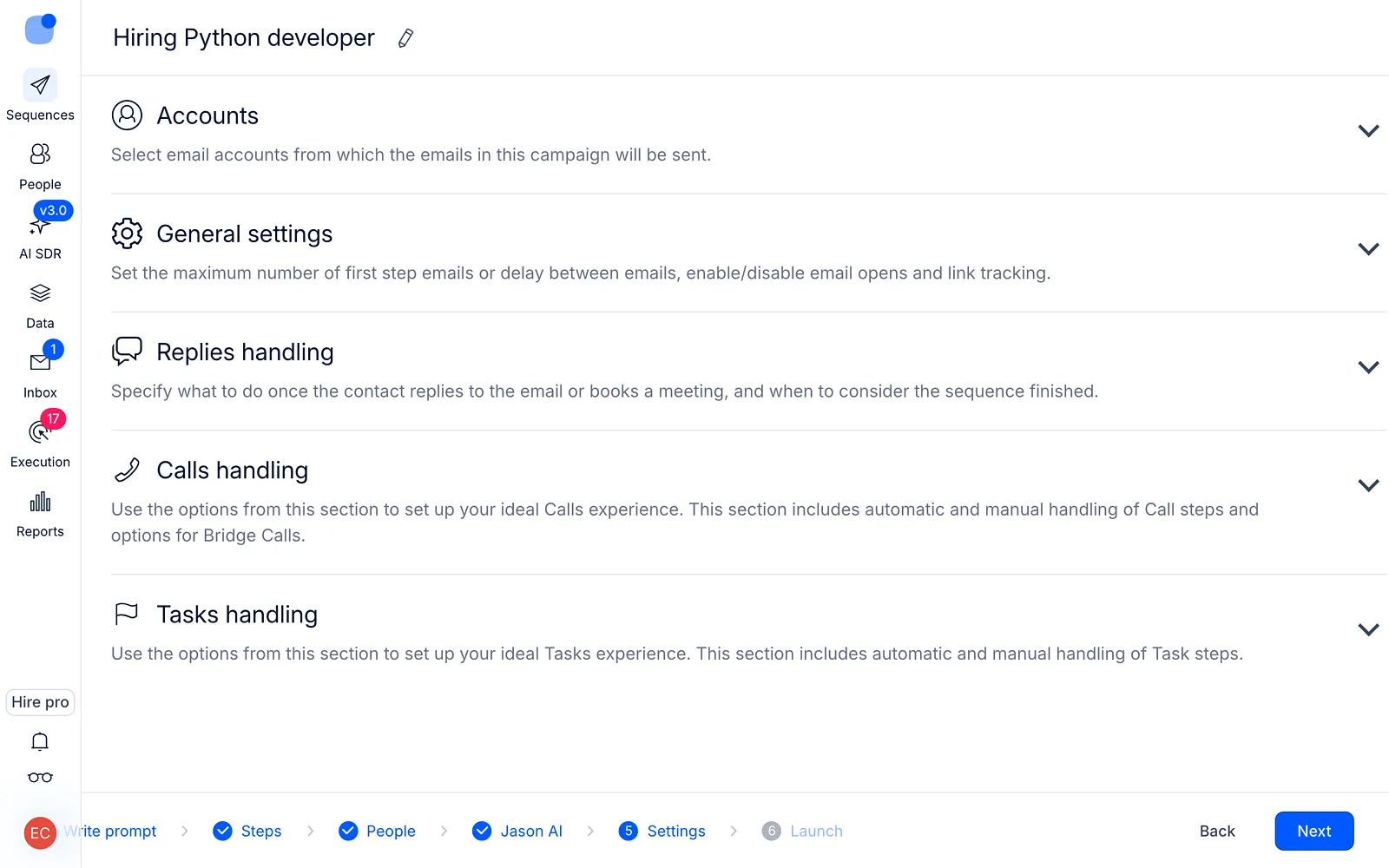
Here's the list of all blocks with settings:
-
Accounts. It is a mandatory setting that is needed to connect the sending email address and LinkedIn account from which you will send messages to your contacts. Click "Manage email accounts" to connect the email address from which the sequence will be sent. If your sequence includes LinkedIn steps, select the LinkedIn account from which the automation will be performed.
-
General settings. This is an optional block that allows you to set the maximum number of emails or delay between emails that can be used and enable or disable open link tracking.
-
Replies handling. Use this block to set what actions can be taken once the contacts reply to you.
-
Calls handling. Use this block to set up a call experience.
-
Tasks handling. Use this block to set up tasks.
Once you have reviewed or configured the settings, click "Next."
Step 6. Launch
Review the summary of all the steps in your sequence and launch it.
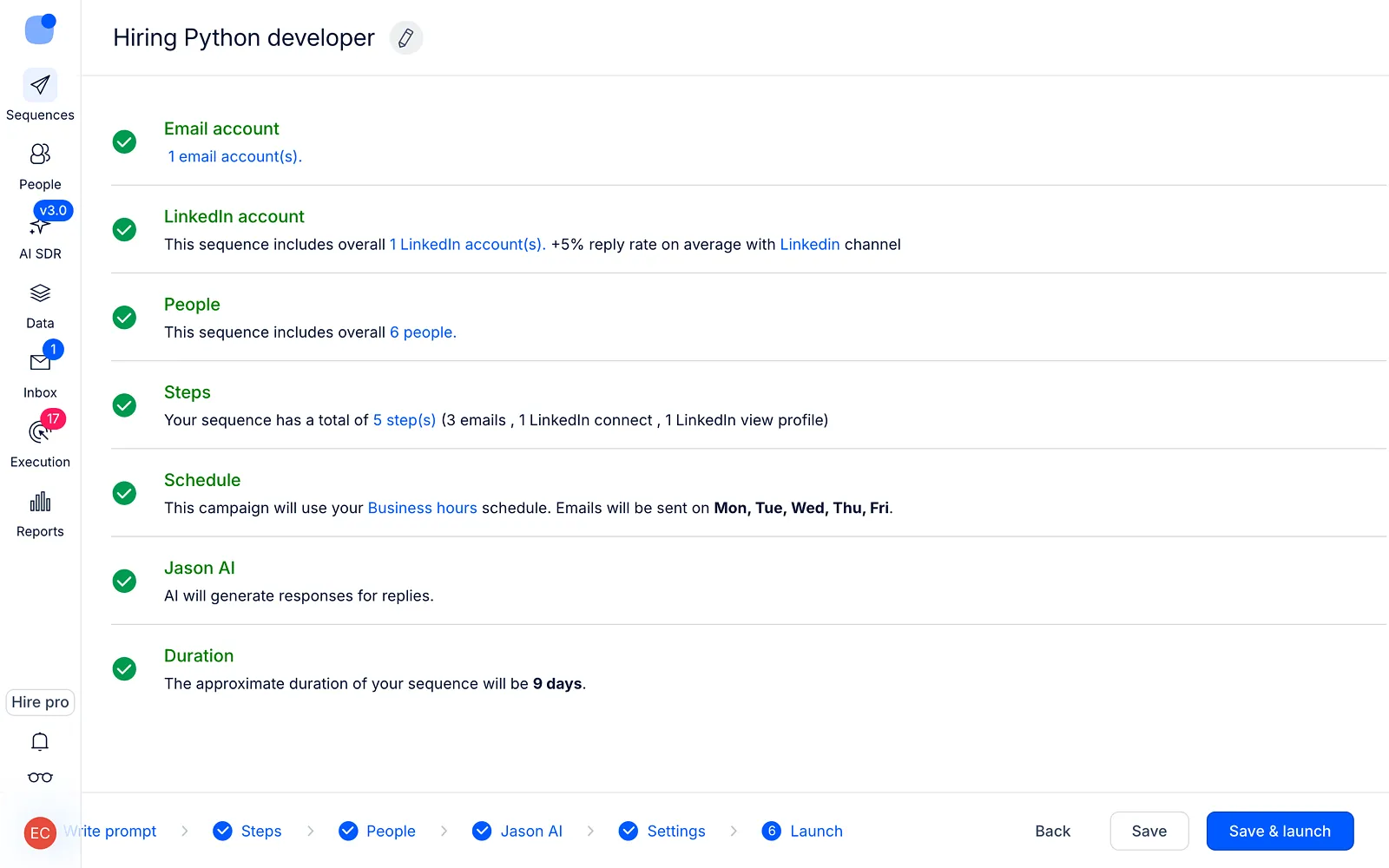
If all the points are green-checked, this means that the sequence is ready to be launched.
Please note if some points are red; this means you missed adding some mandatory data, without which the launch of the sequence is impossible.
Click Save & launch.
That's it! Your magic sequence is ready.