If you want to set up a custom opt-out link, this article will guide you through the needed steps. Here is what you can do👇
- Go to the Steps tab of your sequence;
- Click on the step to open the editor;
- Select the place for an opt-out link:
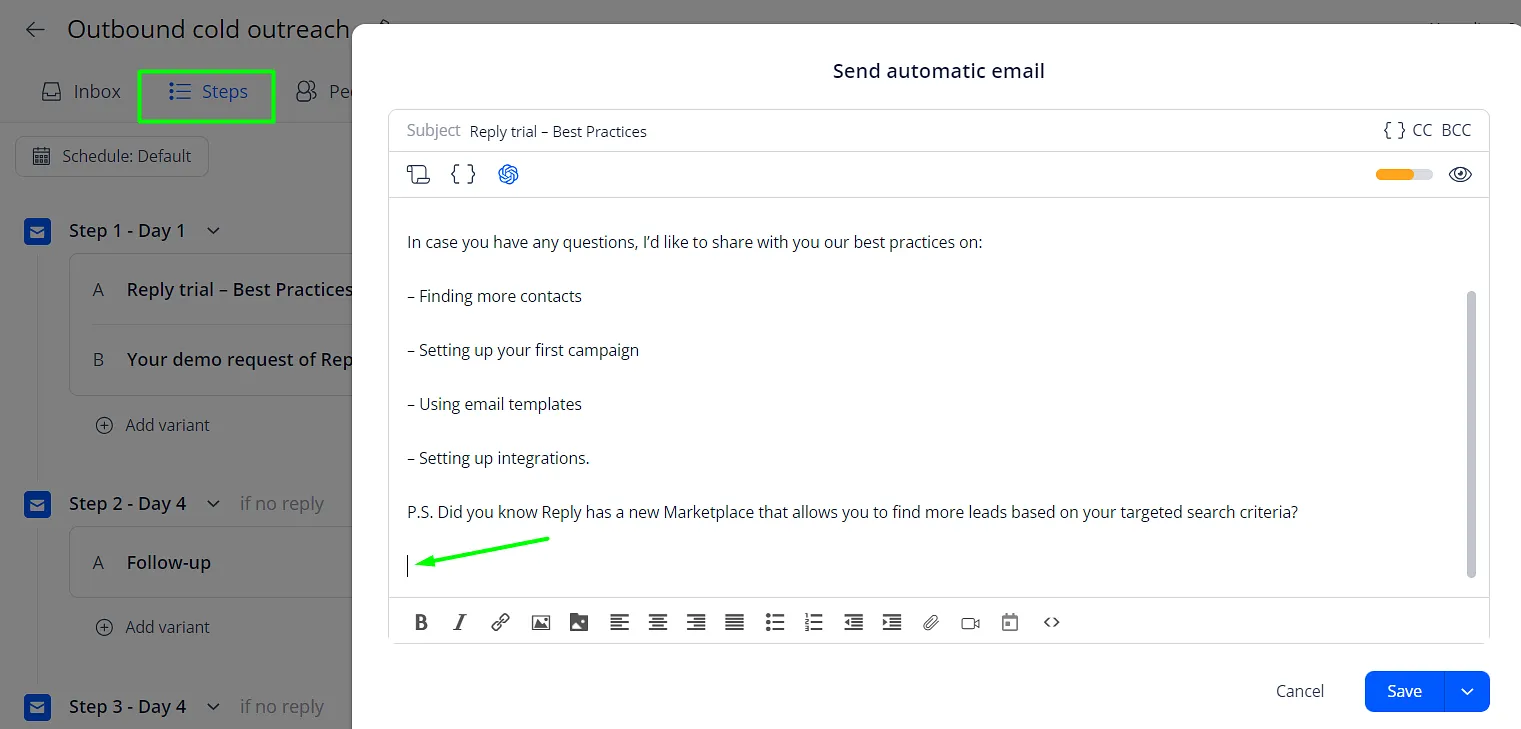
- Click the Insert/edit link button:

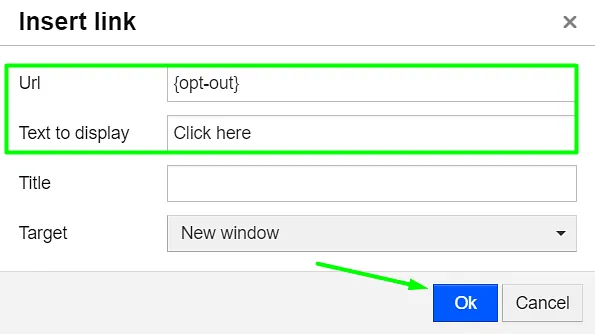
- In the Url field enter {opt-out};
- In the Text to Display field enter the link text (for example, here);
- Click Ok to insert the link:
💡 Important: If you have the Opt-out link set up in your email account settings, adding another one to the email body will create duplicates.
To avoid this:
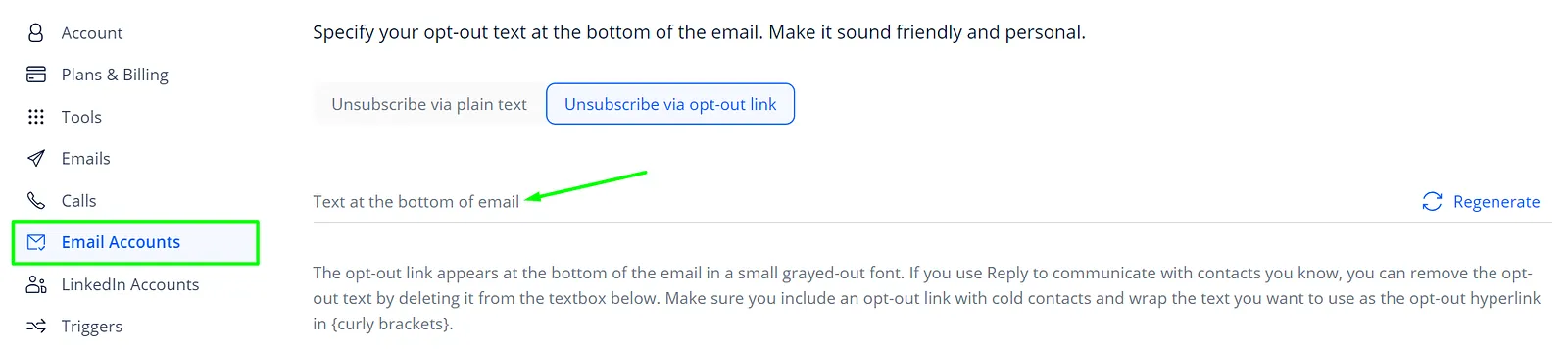
- Go to the Email Accounts tab of your settings;
- Click on the needed mailbox;
- Move to the Opt-out section;
- Remove everything from the Text at the bottom of the email field:
- Click Save to apply the changes.
And done! You have set up a custom opt-out link. Now you can follow the same steps for other sequence emails.