Email signatures are in email outreach as they provide extra “trust” and improve the overall click rate. This article will help you create a high-quality email signature. Let's dive in!
Key components
There are four basic components forming your signature. Here they are:
- Name - include your first and last name, so people can easily identify you.
- Job title - let your contacts know who they are getting emails from.
- Company - add the company name/logo as this is the fundamental data for cooperation.
- Website - a link to the website helps your contacts find more information about your company.
Additional details
You can also add some details to improve your signature. Here is a list of some for your inspiration. Feel free to pick any:
- Your blog - adding a link to your blog may anchor a prospect to your product.
- Freebies - attach a link to a free product or service you provide.
- Video - if you have a video about your product or industry, make sure you include it.
- Social media - social media is the keystone of the internet. Use icons to link to your social media accounts to add color and form.
- Graphics - you could include your company logo and a call-to-action.
- Industry data - include some data that supports your product or service.
Steps to create
The easiest way to create a signature is through Reply's Signature Generator. This tool lets you paste your photo, logo, add links to social media, and perfect your signature. Here is how you can do it:
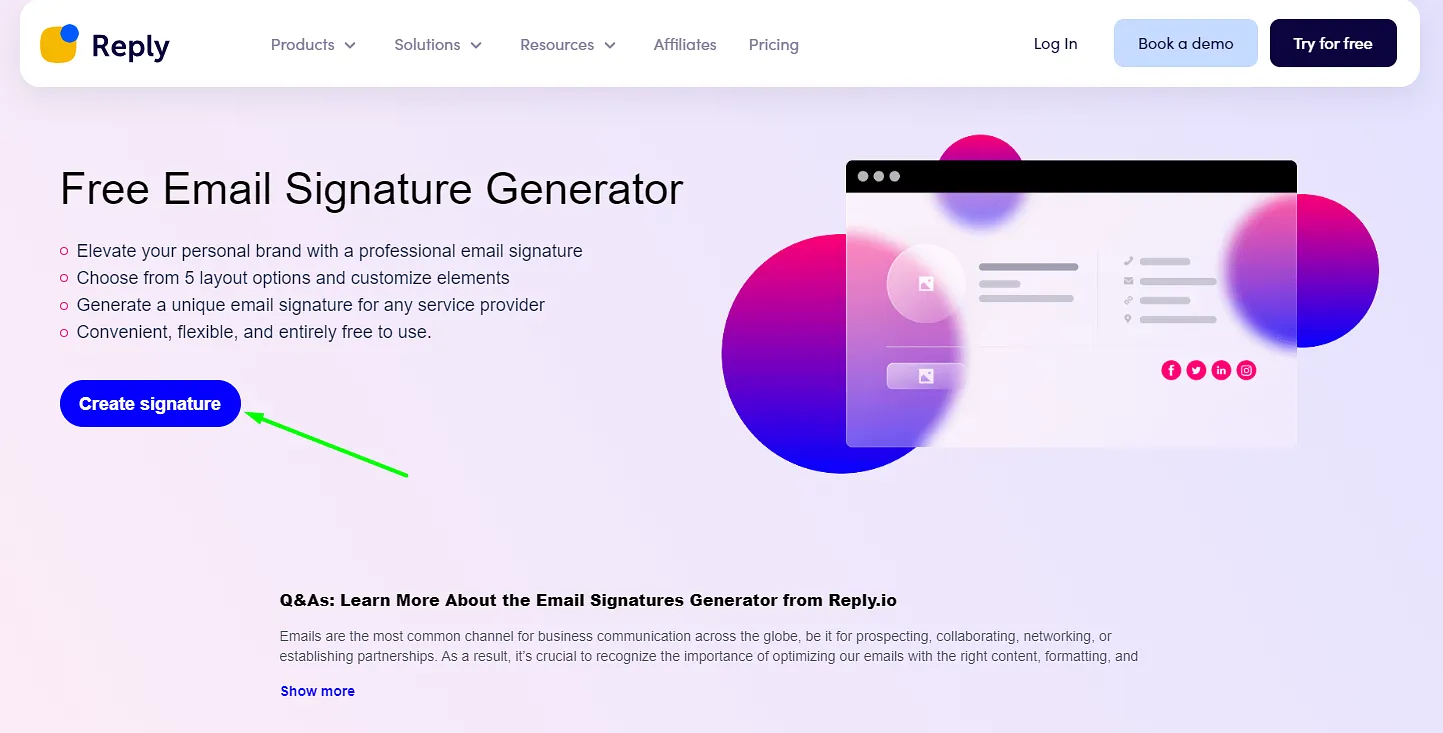
- Go to the Free Email Signature Generator;
- Click Create Signature or scroll the page down:
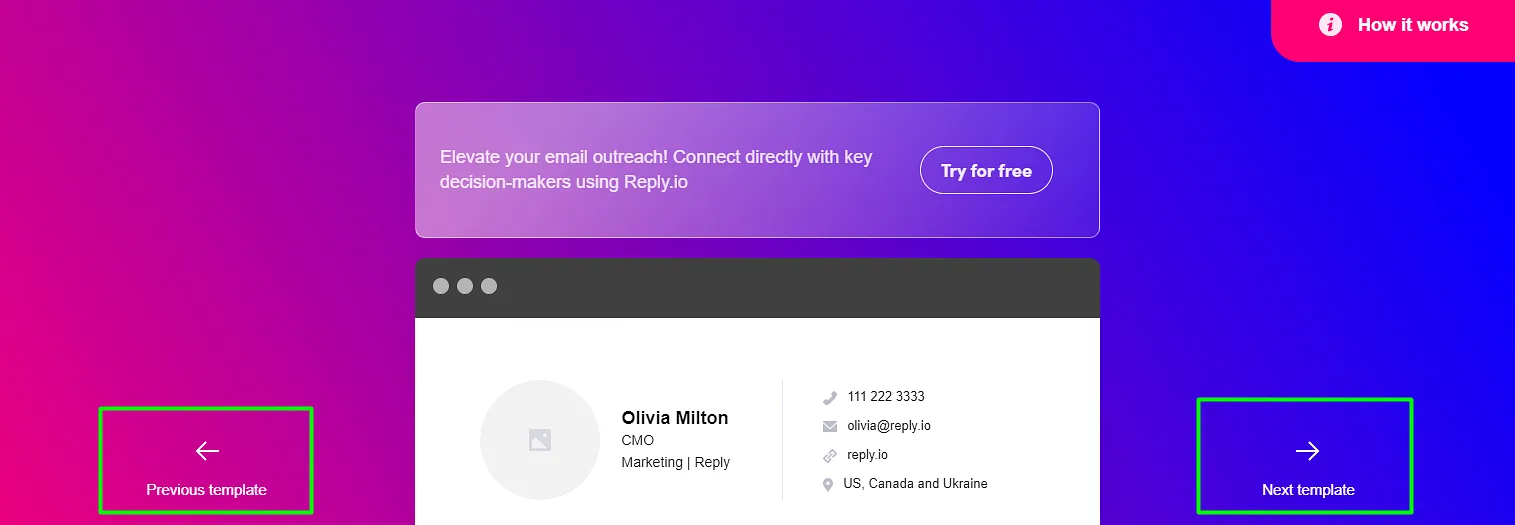
- Choose the template:
- Fill in the details on the right:
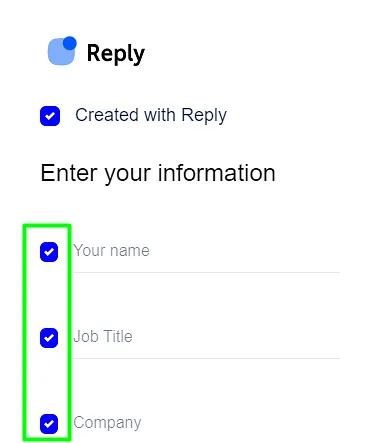
- To remove some fields, you can uncheck the boxes;
- Once you are ready, click Create Signature:
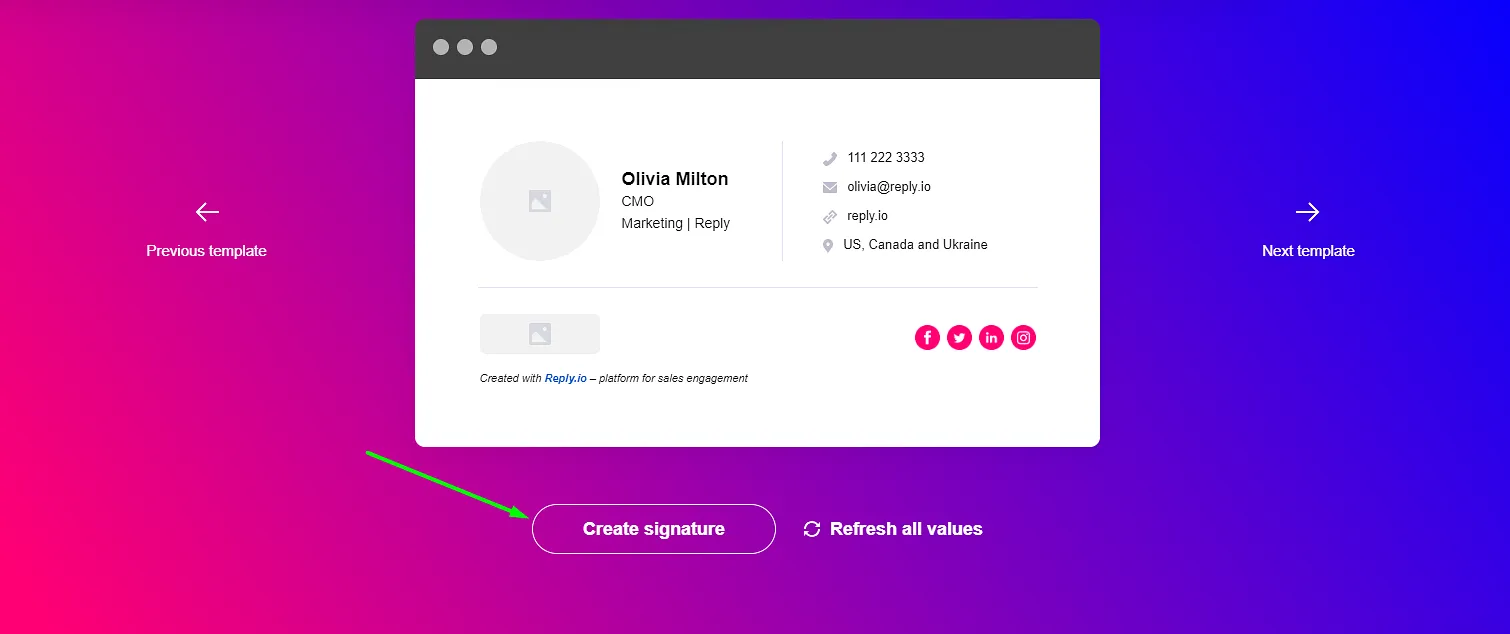
It is done! The HTML of the signature is copied! Now you may paste it into Reply or anywhere you need.
💡 Important: When you paste a link to the logo or photo, use the external link (for example, from Google search). The link from internal storage will not work (Google Drive).