If you need to add BCC to all the emails that we send from Reply, this guide is exactly what you need. Here are the steps you need to follow👇
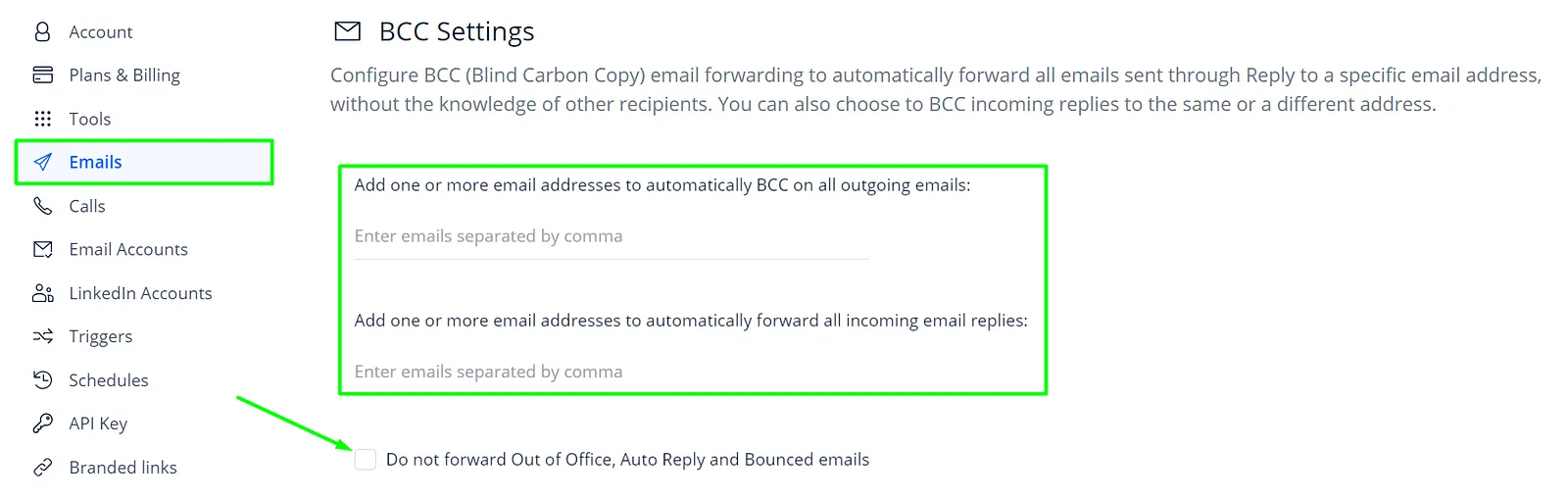
- Open the Emails tab of your Settings;
- Expand the BCC section;
- Choose whether you want BCC for outgoing or incoming emails;
- Enter at least one email address you want to receive BCCs:
- Press Enter to populate the email address;
- Click Save:

There is also an option to exclude the Out of Office, Bounced, and Automatic emails. Make sure to check the box if you want to avoid these.
💡 Important: This setting adds BCC to all the emails which means you cannot assign a particular sequence to your BCC.