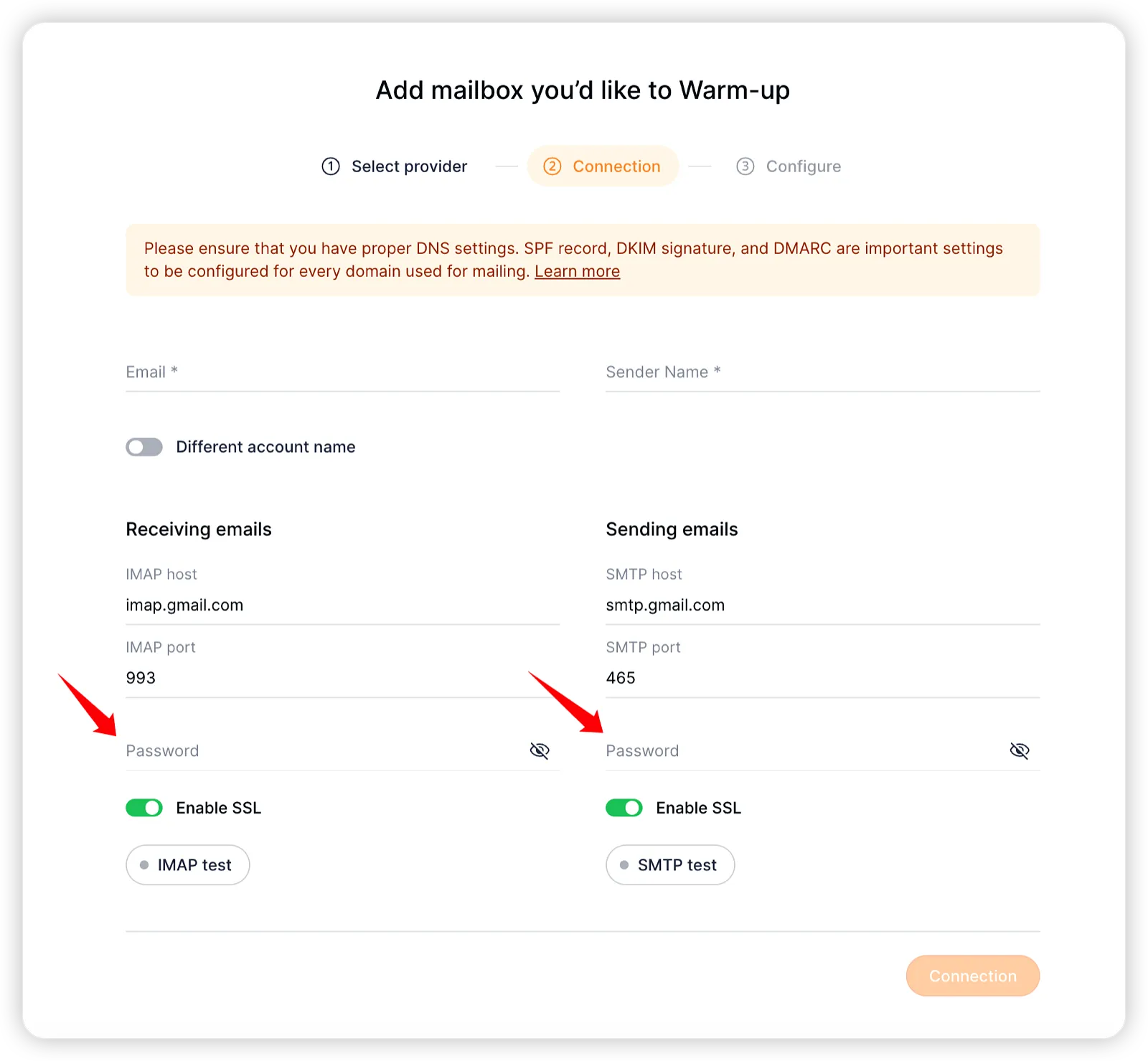
To warm up Gmail accounts, you need to connect your email account to MailToaster using the IMAP method. To do this, you need to activate two-factor authentication and create a unique password for the app. Here is a detailed explanation of the process.
How to enable two-step authentication in Gmail
To generate a unique app password, you first need to ensure that two-step authentication is turned on for your Gmail account.
- Go to Gmail and open the Manage your Google Account page. You can also open it using this link.
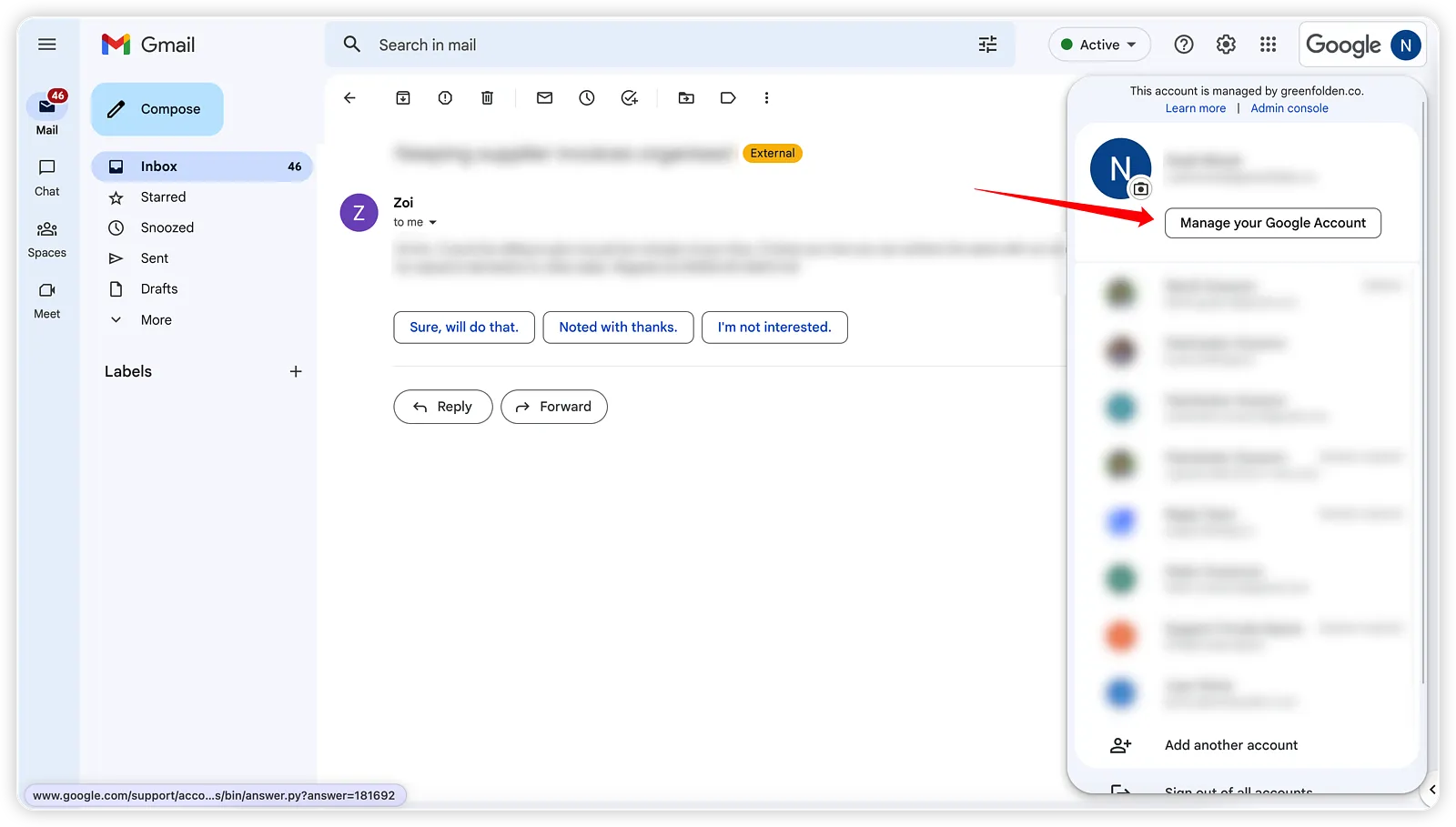
2. Click on the Security tab in the left-side menu and navigate to the How you sign in to Google section.
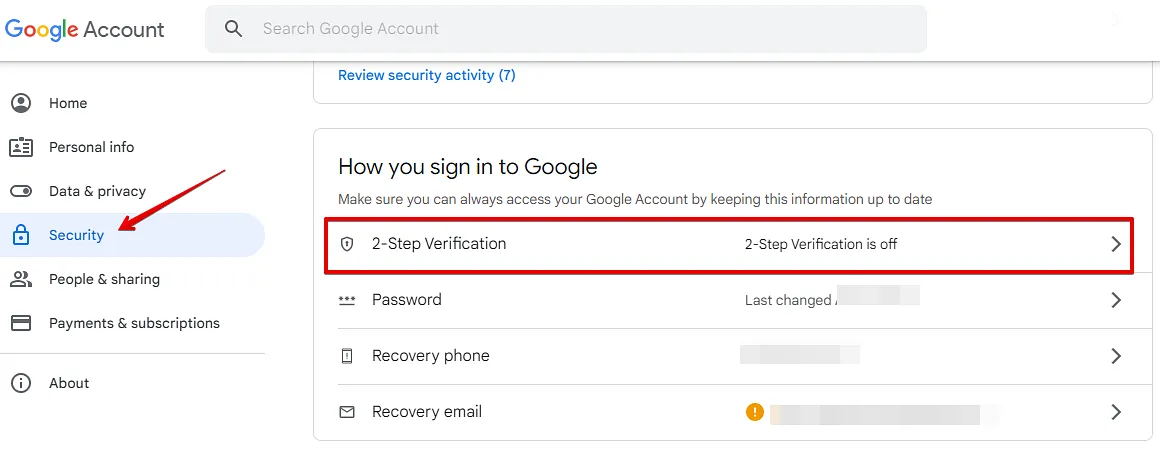
3. If two-step verification is turned on, follow the steps below to generate the app password for your warm-up.
If two-step verification is off, enable it by clicking on "2-Step Verification." Then click "Get started" and follow the on-screen steps.
Please note. If you cannot enable two-step verification because it is disabled by your administrator, please ask the administrator to allow users of your domain to enable two-step verification as described here.
How to create a unique app password
- Open your Google account and navigate to the Security panel.
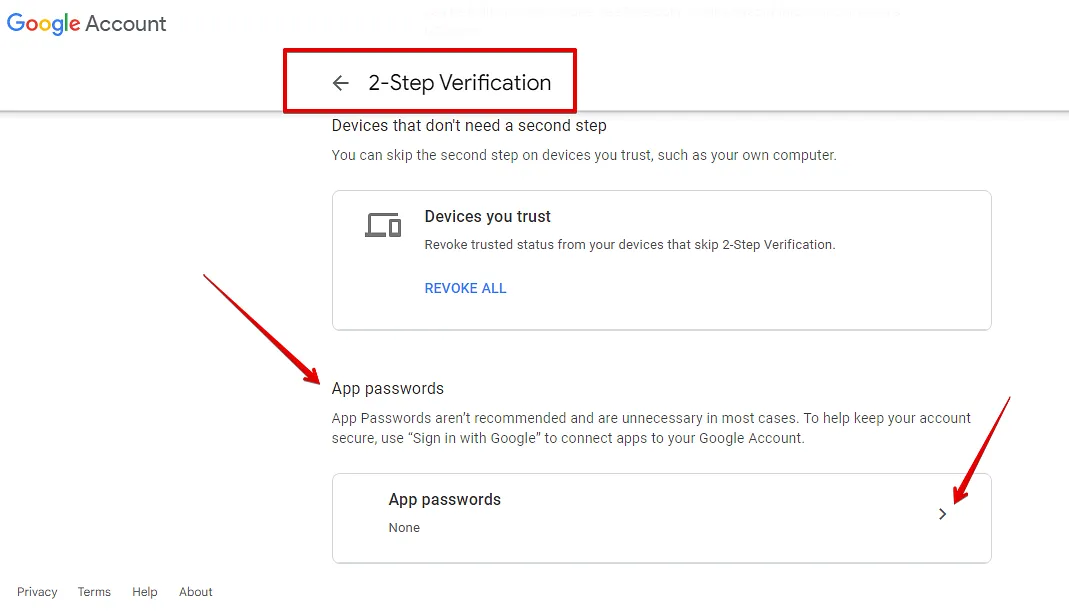
- Scroll down to the How you sign in to Google section and click on the 2-Step Verification
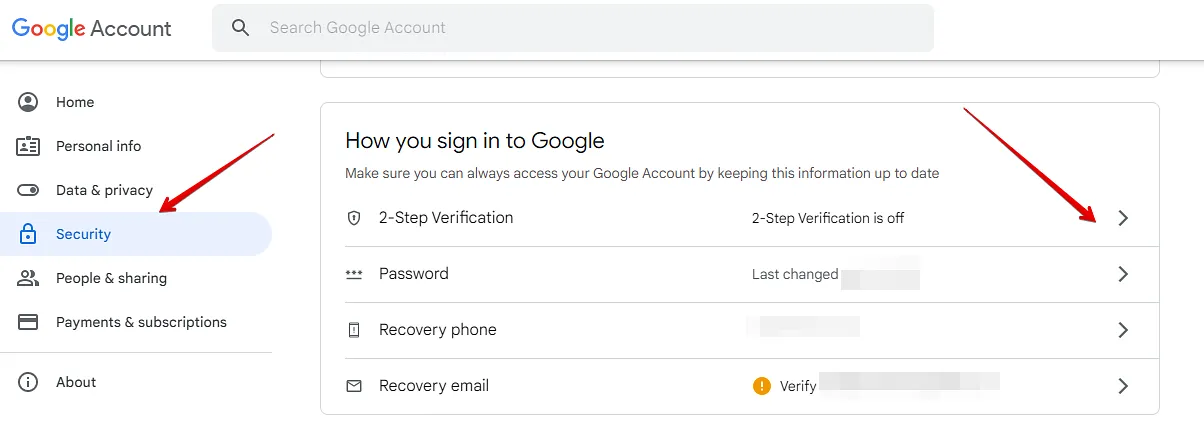
If you don’t have two-step verification enabled, you should enable it to generate app passwords.
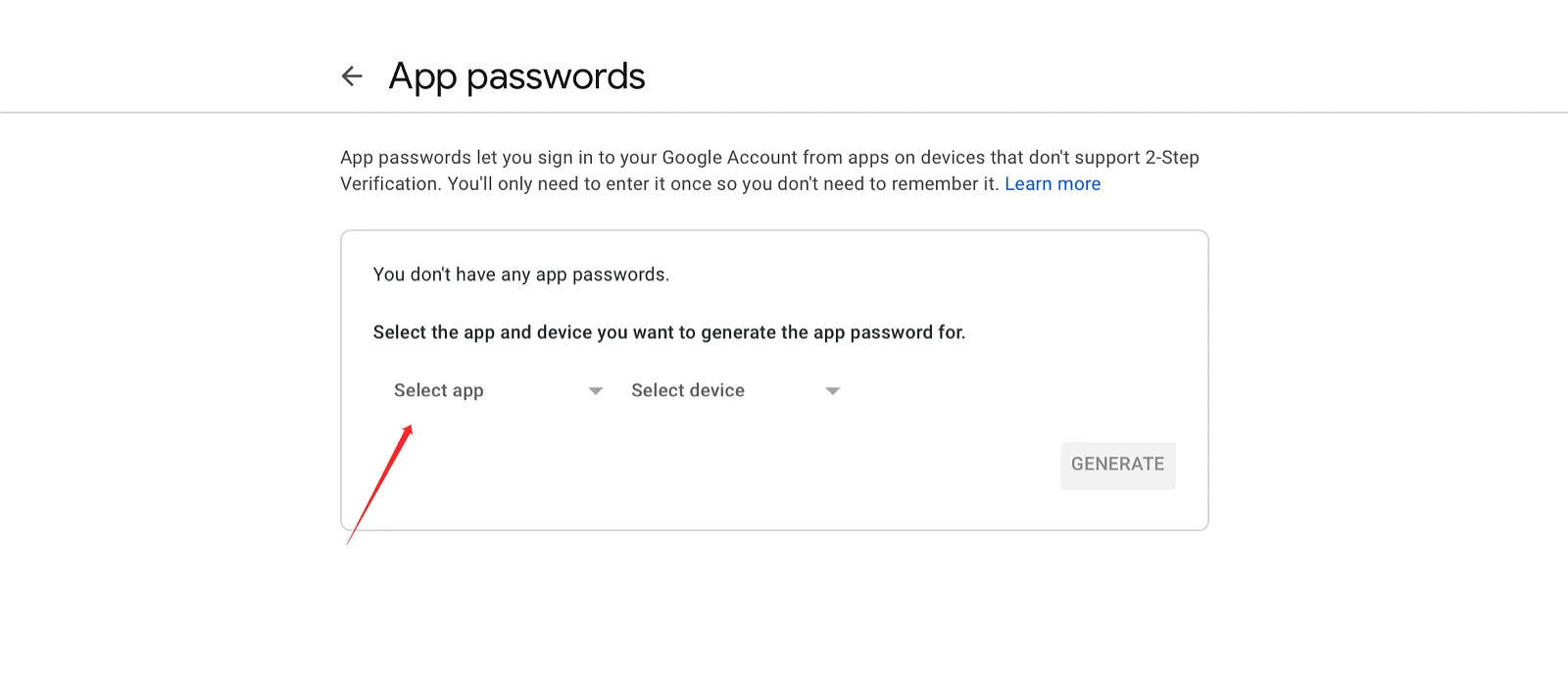
3. Click on the Select app and choose "Other (Custom name)" from the drop-down list. Then, enter the name that would help you identify the service, for example, "Warm up".
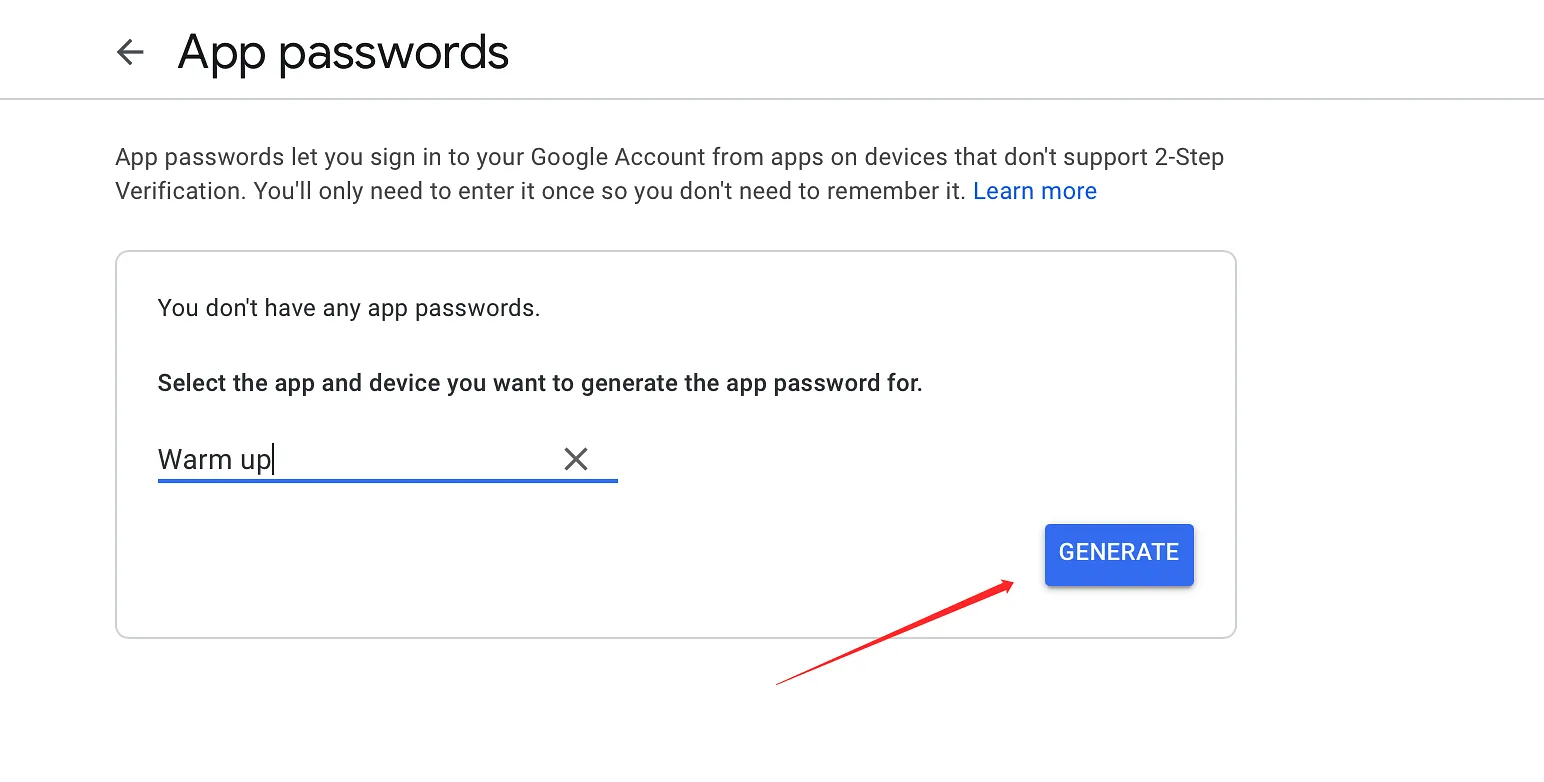
4. Click Generate.
5. Google will generate a 16-digit password that you need to copy. Please make sure to save this password since, after you close this pop-up, it will not be accessible anymore.
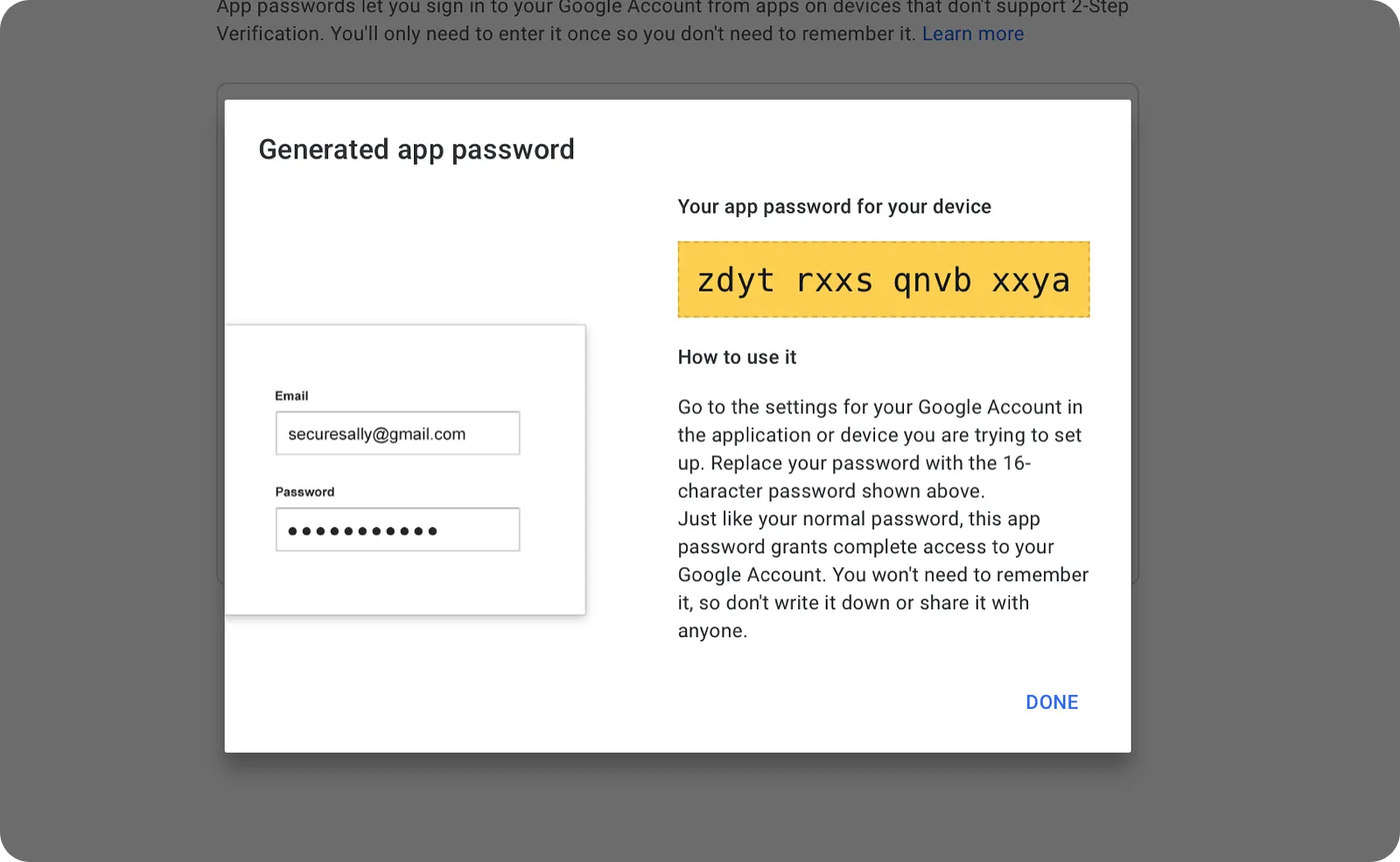
6. Paste the password into the password field for this email account in MailToaster.