Contact statuses show what's happening with a contact in a sequence. Reply updates them automatically based on contact activity, but you can also change some statuses manually.
The table below gives a quick overview of each status. Scroll down to learn when each status is assigned and how to manage it.
| Status | What it means |
|---|---|
| Active | The contact is being actively processed in a sequence. |
| Paused | Processing is temporarily stopped. |
| Missing data | Required contact information is missing. |
| Bounced | An email sent to the contact was returned as undelivered. |
| Out of office | Reply detected an out-of-office response. |
| Finished | The contact replied in a sequence or completed all sequence steps. |
| Contacted | The contact has received at least one email in the sequence. |
| Opted out | The contact has been marked as opted out and can't be added to another sequence. |
| Replied | The contact replied to an email, LinkedIn message, or SMS in the sequence. |
| Opened | The contact opened an email. |
| Clicked | The contact clicked a link in an email. |
| Auto-replied | Reply detected an automatic reply. |
| To call | The contact reached a call step in a sequence. |
| Called | A call was completed or logged. |
| Meeting booked | A meeting was booked through a connected calendar or logged manually. |
👉 See the People tab overview to learn how to change a contact's status.
💡 You can only change statuses for contacts in sequences you own, even if you have permission to manage team contacts. The only exceptions are Finished and Opted out statuses, which you can also assign to contacts in sequences owned by other team members.
Active
A contact has the Active status when they're enrolled in an active sequence. They can receive sequence steps, and Reply can track their replies once they've received at least one email in that sequence.
You can manually change this status to Paused, Finished, Out of office, or Opted out. You can also change it to Bounced or Replied, but only if the contact has received at least one email in the current sequence.
Paused
You can use the Paused status when you want to temporarily stop communication with a contact. Reply stops sending sequence emails to contacts with this status. You can manually change the status back to Active whenever you're ready to resume the prospect.
💡 You can only assign the Paused status to contacts enrolled in a sequence. If a contact isn't enrolled in any sequence, you can't set their status to Paused.
Missing data
A contact gets the Missing data status when Reply can't process them because some required information is missing. For example, a contact might be missing a variable used in an email template, a LinkedIn profile link for a LinkedIn step, or a phone number for a call step.
To resolve this, you can:
- Add the missing information to the contact's profile.
- Remove the missing variable from the email template.
- Move the contact to steps that don't require the missing information.
👉 See also: Why do contacts have the Missing data status?
Bounced
Reply automatically assigns the Bounced status when an email sent to a contact is returned as undelivered, for example, because the email address is invalid.
To resolve this, update the email address in the contact's profile, uncheck the Bounced option, and change the status back to Active. You can then resend the email within the same sequence.
You can also assign the Bounced status manually, but only if at least one email has been sent to the contact. Reply detects bounces in a similar way to how it detects replies.
A contact may have both Bounced and Opened statuses. This can happen if the recipient's email provider checks the email or if you open the bounce notification, which contains details of the original email.
💡 Reply doesn't retain the Bounced status when you move a contact to another sequence.
Out of office
Reply automatically assigns the Out of office status when it detects an out-of-office reply. This pauses the remaining sequence steps until Reply removes the status automatically after a set number of days or you remove it manually.
You can manually change the status back to Active or configure automatic processing of out-of-office replies.
Finished
Reply automatically assigns the Finished status when a contact replies in a sequence or completes all sequence steps.
You can manually change the status back to Active to resume processing, but only if the contact hasn't completed all sequence steps or you've added new steps to the completed sequence.
Reply doesn't track replies or send any further sequence steps to contacts with the Finished status.
Contacted
The Contacted status means that a contact has received at least one email from the current sequence. You can't change this status manually.
Opted out
Reply automatically assigns the Opted out status when a contact clicks your opt-out link to unsubscribe from further emails.
Reply can also assign this status when the text opt-out option is enabled, and a contact asks to unsubscribe via text. In this case, Reply's AI categorizes the message as Do Not Contact in the Inbox.
You can also assign or remove the Opted out status manually.
This status remains assigned even when the contact isn't enrolled in a sequence. Contacts with this status can't be added to another sequence.
Replied
Reply automatically assigns the Replied status when a contact replies to an email, LinkedIn message, or SMS sent as part of the sequence.
You can check how a contact replied (by email, LinkedIn, or SMS) in their contact activity.
You can also filter contacts by Replied, Replied by SMS, Replied by LinkedIn, or Replied by email in a sequence.
By default, Reply stops processing sequence steps for contacts with the Replied status. To continue sending the remaining steps, select Continue processing steps under Sequence settings → Replies handling.
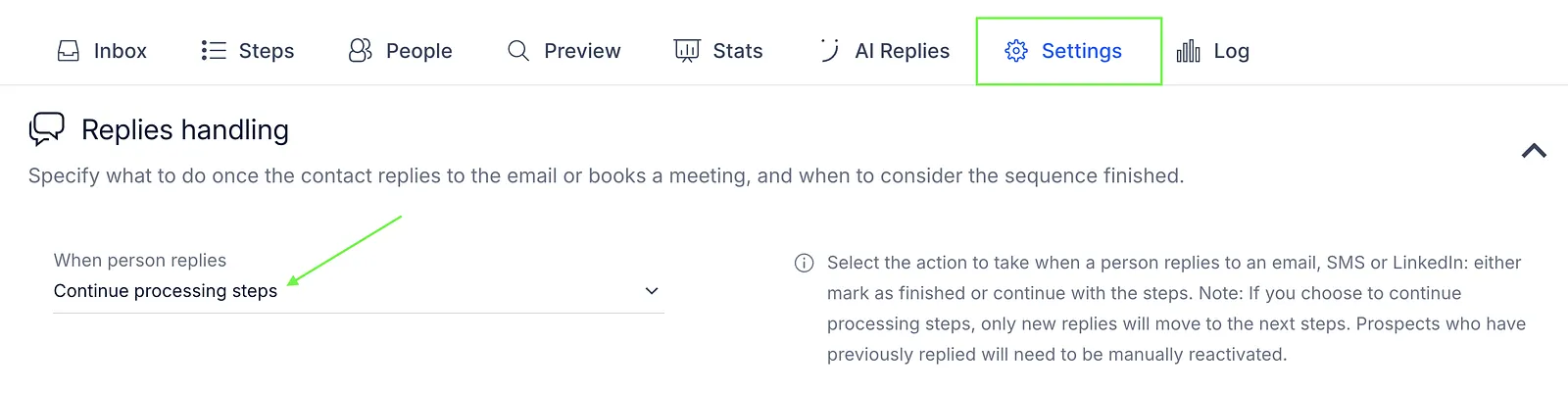
The Replied status is usually assigned together with Finished. Reply stops tracking replies for contacts with the Replied status, whether it's assigned automatically or manually.
👉 See also: Why are the replies not detected?
Opened
Reply automatically assigns the Opened status when a contact opens your email.
You can enable open tracking at the sequence level under Sequence settings → Email tracking.
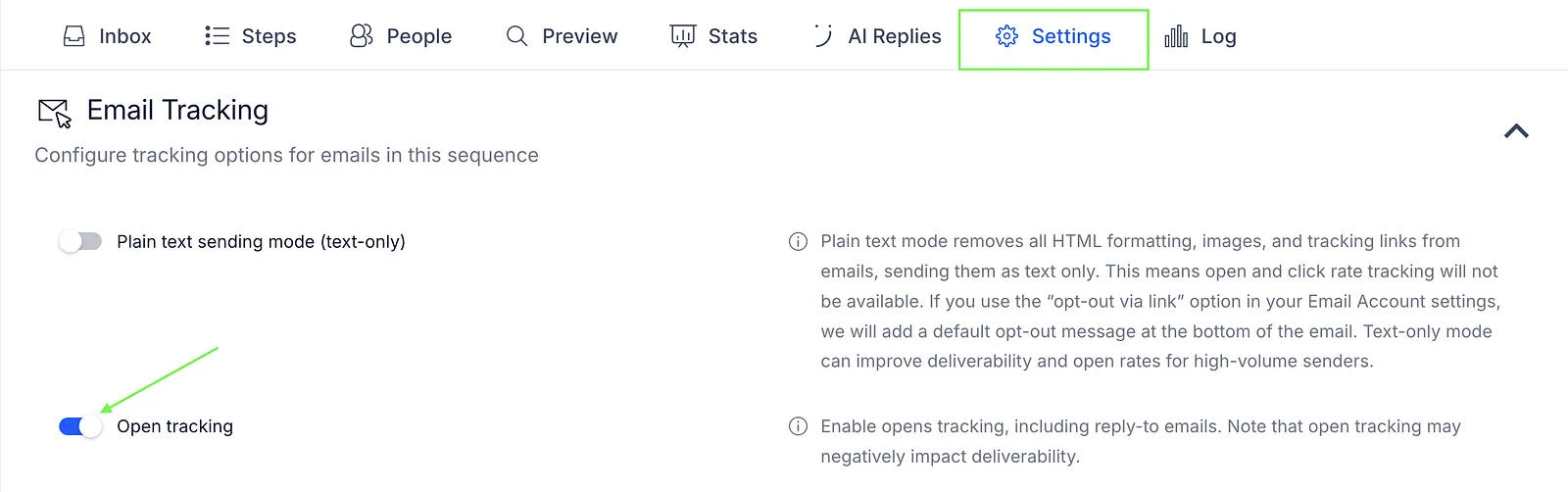
You can't change this status manually.
Clicked
Reply automatically assigns the Clicked status when a contact clicks a link in your email and link tracking is enabled. You can enable or disable link tracking under Sequence settings → Email tracking.
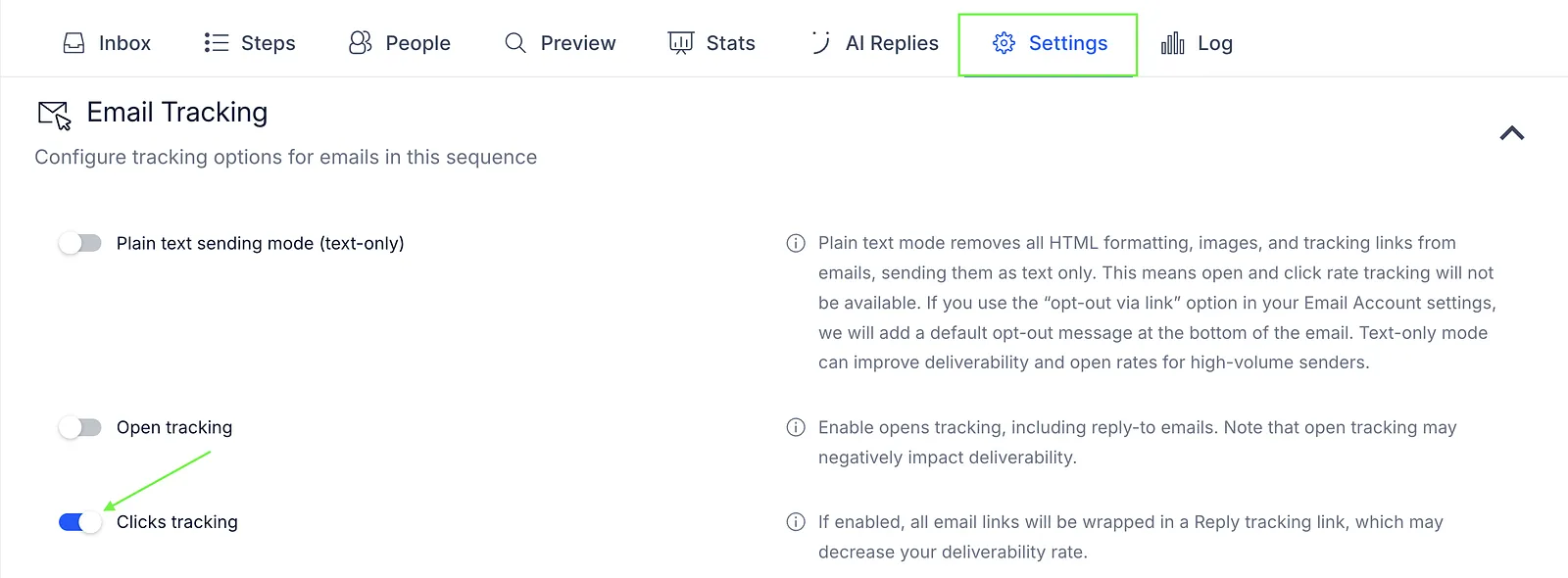
You can't change this status manually.
Auto-replied
Reply automatically assigns the Auto-replied status when it detects an automatic reply. This status is assigned together with Finished, which stops the remaining sequence steps from being sent.
To resume processing, you need to manually change the Finished status back to Active. You can't assign or remove the Auto-replied status manually.
To call
Reply automatically assigns the To call status when a contact reaches the Call step in a sequence. You can also assign this status manually.
Called
Reply automatically assigns the Called status when you:
- Complete a Call task.
- Make a call using the Cloud Calls feature.
- Log a call from the contact sidebar.
The Called status remains assigned until you remove it manually. You can also assign this status manually.
Meeting booked
Meeting booked means a meeting was booked through Reply or logged manually. You can set or remove this status manually.
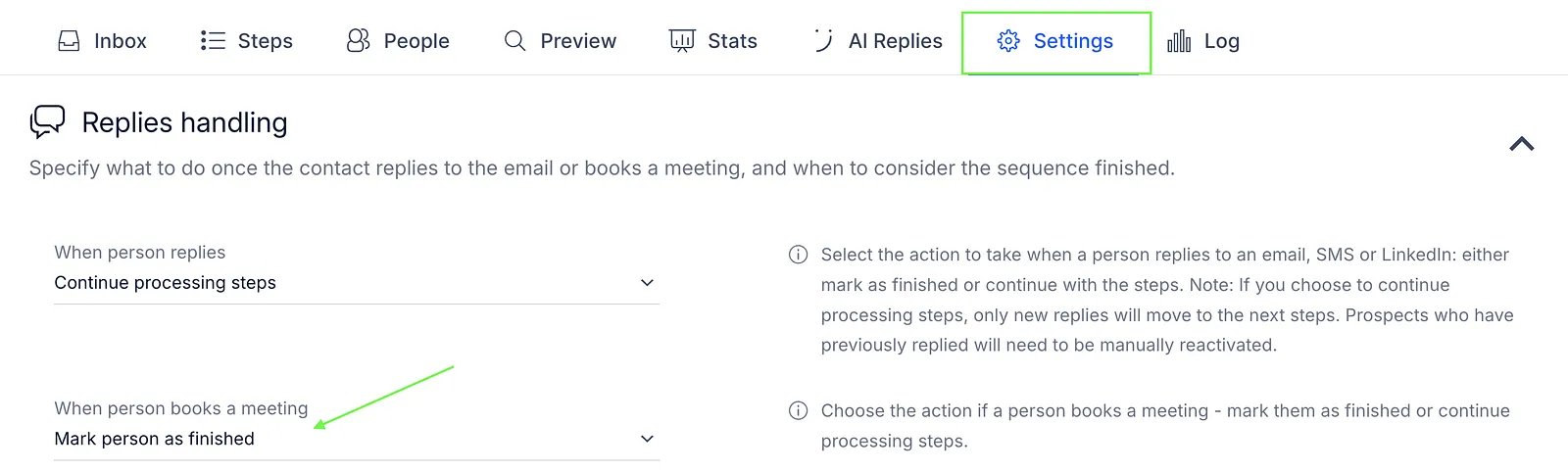
If you've connected your Google Calendar, Calendly, or Zoom, meetings are tracked automatically, and the status is updated.
For meetings booked through a sequence, go to Sequence settings → Replies handling to choose whether to mark the contact as Finished or continue processing the remaining sequence steps.
Status transitions
Not every status can be set for every contact. When you click Set status, Reply checks each selected contact separately. If the change isn't possible for a contact, Reply skips that contact and leaves its statuses as they were. The message that appears afterwards shows how many contacts were changed and how many were skipped.
For every status except Opted out, Called, To call and Meeting booked:
- the contact must not be opted out;
- the contact must be in a sequence that you own (Finished has an exception, see the table).
| Status | + (set the status) | − (remove the status) |
|---|---|---|
| Active | Makes the contact Active from any other status: Paused, Out of office, Finished or Missing Data. | Pauses the contact. Works only for Active contacts. |
| Paused | Works only for Active contacts. | Makes the contact Active again. Works only for Paused contacts. |
| Out of office | Works for any status. Reply stops sending steps to the contact. | Makes the contact Active again. |
| Finished | Works for any status except Finished. You can also set it for contacts in sequences owned by other team members. | Makes the contact Active again. Works only for Finished contacts. |
| Opted out | Works for any contact, after you confirm. The contact is opted out of all sequences and gets the Finished status in each of them. | Removes the opt-out. The contact stays Finished: to continue the sequence, set the Active status. |
| Replied | The contact must have received at least one email from the sequence, must not be Finished, and the last email must not have bounced. The contact also gets the Finished status. | Removes the reply. If the contact was Finished, they become Active again. |
| Bounced | The contact must have received at least one email from the sequence. The last email is marked as bounced (and no longer as replied), and the contact gets the Finished status. | Reply asks whether to re-send the last email. Either way, the contact becomes Active again. |
| Called, To call, Meeting booked | These are saved on the contact itself, not in a sequence, so you can set them for any contact, even one that isn't in a sequence. | Removes the status. |