API keys let your integrations and scripts work with Reply through the API. Each key has its own name, expiry date and scopes, so you can give every integration only the access it needs.
Where to find your API keys
Go to Settings → API keys (open the page).
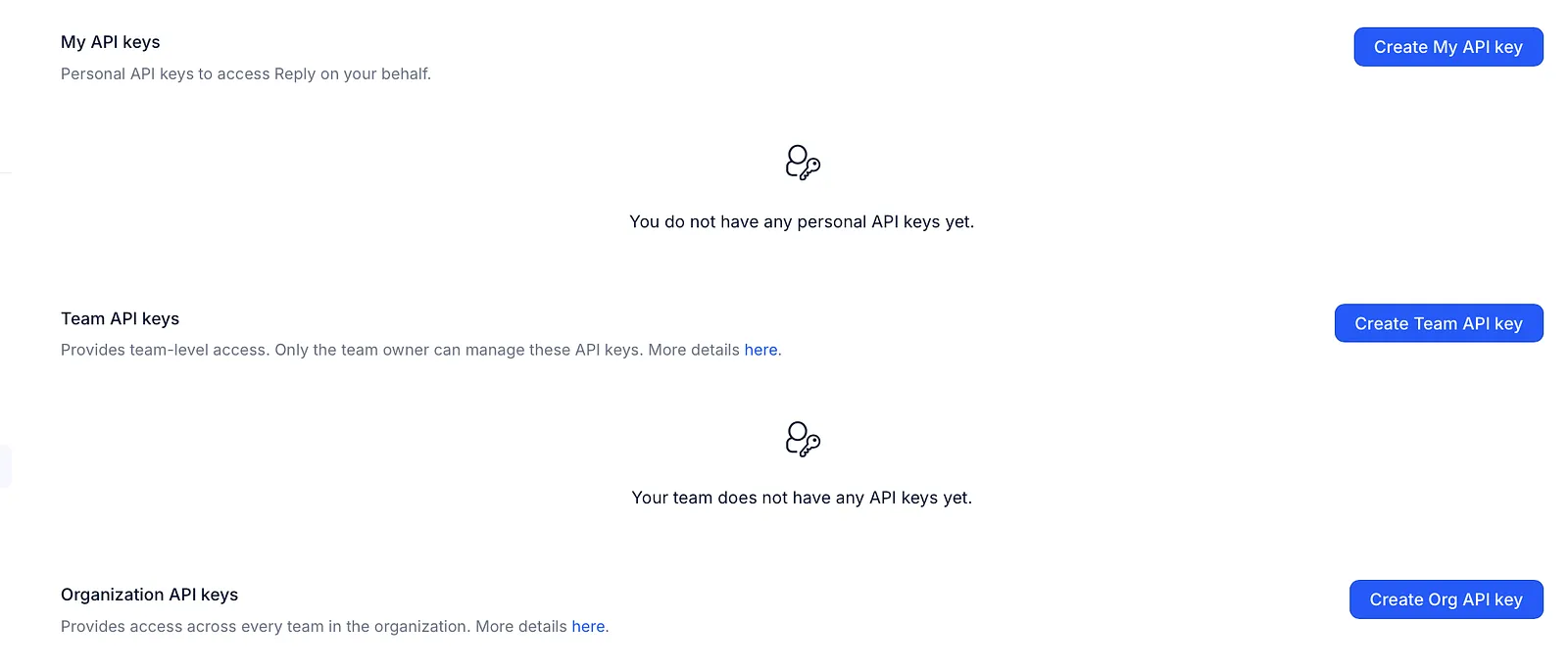
The page has three sections, one for each type of key:
| Section | Who can manage it | What the key acts as |
|---|---|---|
| My API keys | You | You |
| Team API keys | The team owner only | The team owner who created it |
| Organization API keys | Users with the Manage organization API keys permission (the organization owner always has it) | Any user in the organization, chosen in each API request |
💡 If your plan doesn't include API access, you'll see an Upgrade to use API banner instead.
How to create an API key
-
Click Create My API key, Create Team API key or Create Org API key.
-
Enter a Name so you can recognize the key later, for example "CRM sync". It can be up to 100 characters.
-
Optionally, pick a date in Expires at. Leave it empty for a key that never expires.
-
Set the scopes (see the next section). All scopes start at None.
-
Click Create key.
-
Copy the key from the API key created window and store it somewhere safe, then click Done.
⚠️ You can see the full key only once. After you close the window, Reply shows only its first and last characters. If you lose the key, create a new one.
Scopes
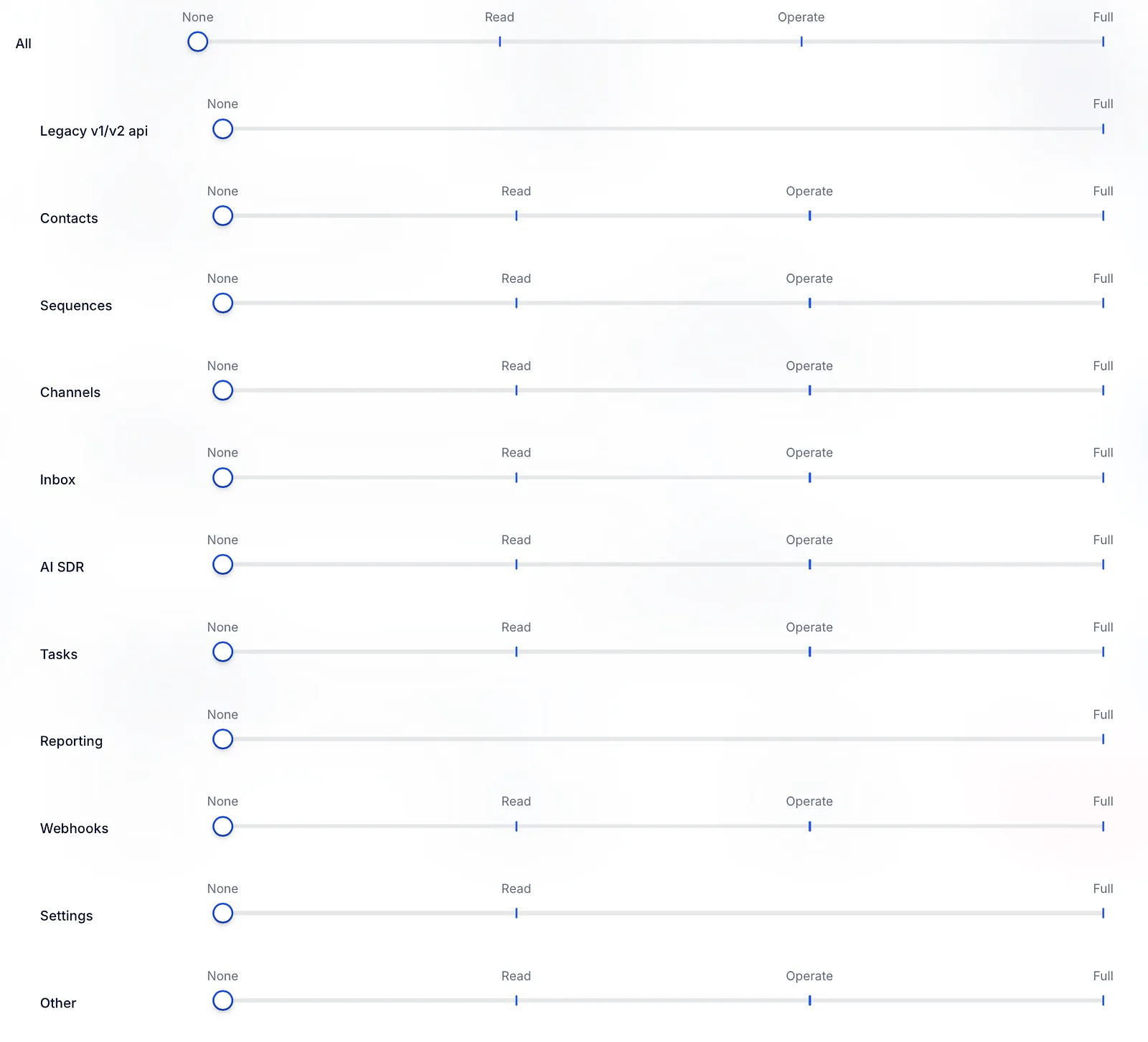
Scopes decide what a key can do. Each group of scopes has a slider with these levels:
-
None - no access;
-
Read - view data only;
-
Operate - everyday actions plus read, for example start or pause sequences, reply to Inbox threads or complete tasks. It doesn't allow creating, editing or deleting;
-
Full - everything: view, create, edit, delete and operate.
The groups are All, Legacy v1/v2 api, Contacts, Sequences, Channels, Inbox, AI SDR, Tasks, Reporting, Webhooks, Settings and Other. Some groups don't offer every level. For example, Reporting and Legacy v1/v2 api are either None or Full.
-
All sets the minimum level for every group. If you lower All, Reply asks whether to Lower all scopes or Change only All.
-
Legacy v1/v2 api must be set to Full for the key to work with API v1 and v2. API v3 checks the scope of each request.
-
Teams, under Dangerous scopes, lets the key add existing organization users to teams. It is never included in All: turn it on only if the integration needs it.
💡 Give each integration only the scopes it uses. If a key is ever leaked, it can do less harm.
How to manage an API key
Find the key in its section and use the actions in its row:
-
Rename key - change the name;
-
Edit expiration - change or clear the expiry date;
-
Edit scopes - change what the key can do;
-
Revoke key - delete the key for good.

When you revoke a key, Reply asks you to confirm. Any integration that uses the key stops working, and this can't be undone.
Legacy API keys
API keys made before scoped keys appear under Legacy API keys. They keep working and have full access, but you can't edit their scopes. To limit what an integration can do, create a scoped key, switch the integration to it, and then delete the legacy key.

Using a key in API requests
Send the key in the X-API-KEY header, or as Authorization: Bearer <key>.
Organization keys also need to say which user the request acts for: add the X-USER-ID header, or X-User-Email together with X-TEAM-ID. The user must belong to your organization.
Read more about the API: