AI prompts let you create a prompt that generates up to 6 outputs and maps them to custom contact fields. Unlike AI custom fields, which use one prompt for one field, AI prompts let you enrich multiple fields for a batch of contacts at once.
For example, you can create a prompt to find three competitors for a company and save each competitor to a separate custom field.
💡AI prompts require Reply credits.
-
1 AI prompt enrichment = 1 Reply credit per contact, regardless of how many output fields are filled.
-
You're only charged for contacts where at least one field gets a value. If nothing could be generated for a contact, its credit goes back to your balance.
-
Previews on the sample contact are free, up to 100 a day. After that, and for every preview on one of your own contacts, a preview costs 1 credit.
This feature is currently available in beta. To use it, enable beta in your account settings.
Create an AI prompt
To create a new prompt:
-
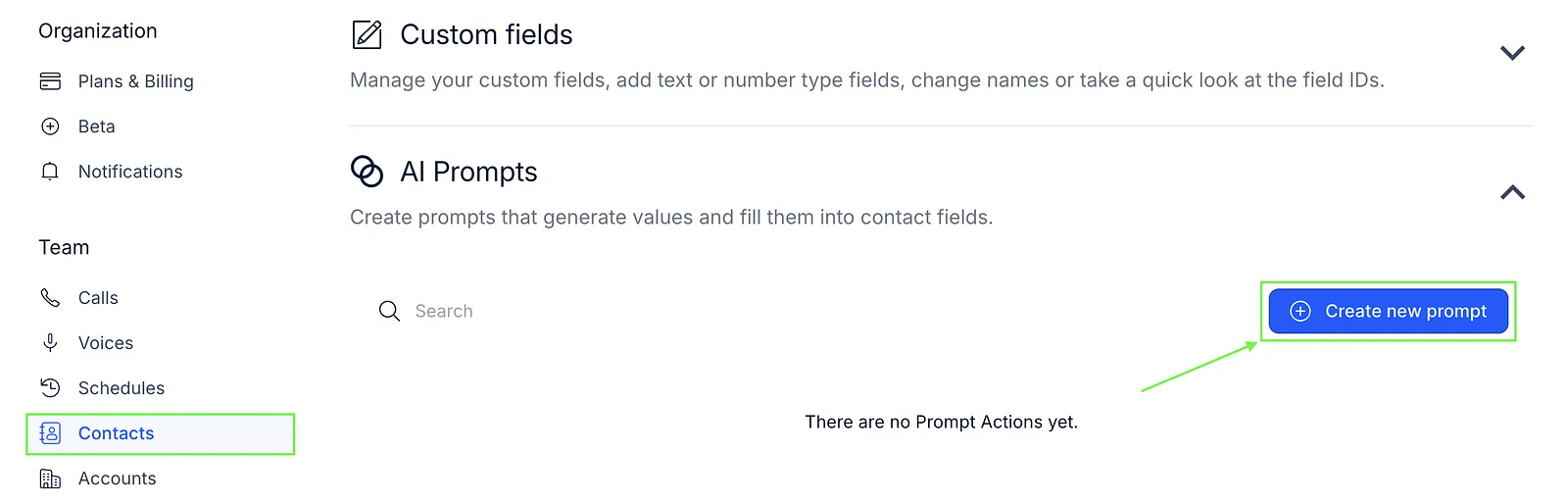
Go to Settings → Contacts.
-
Find the AI Prompts section and click Create new prompt.
-
Enter your prompt or select a template from the library.
-
Select the variables you want to use in your prompt.
-
Click Generate outputs from prompt.
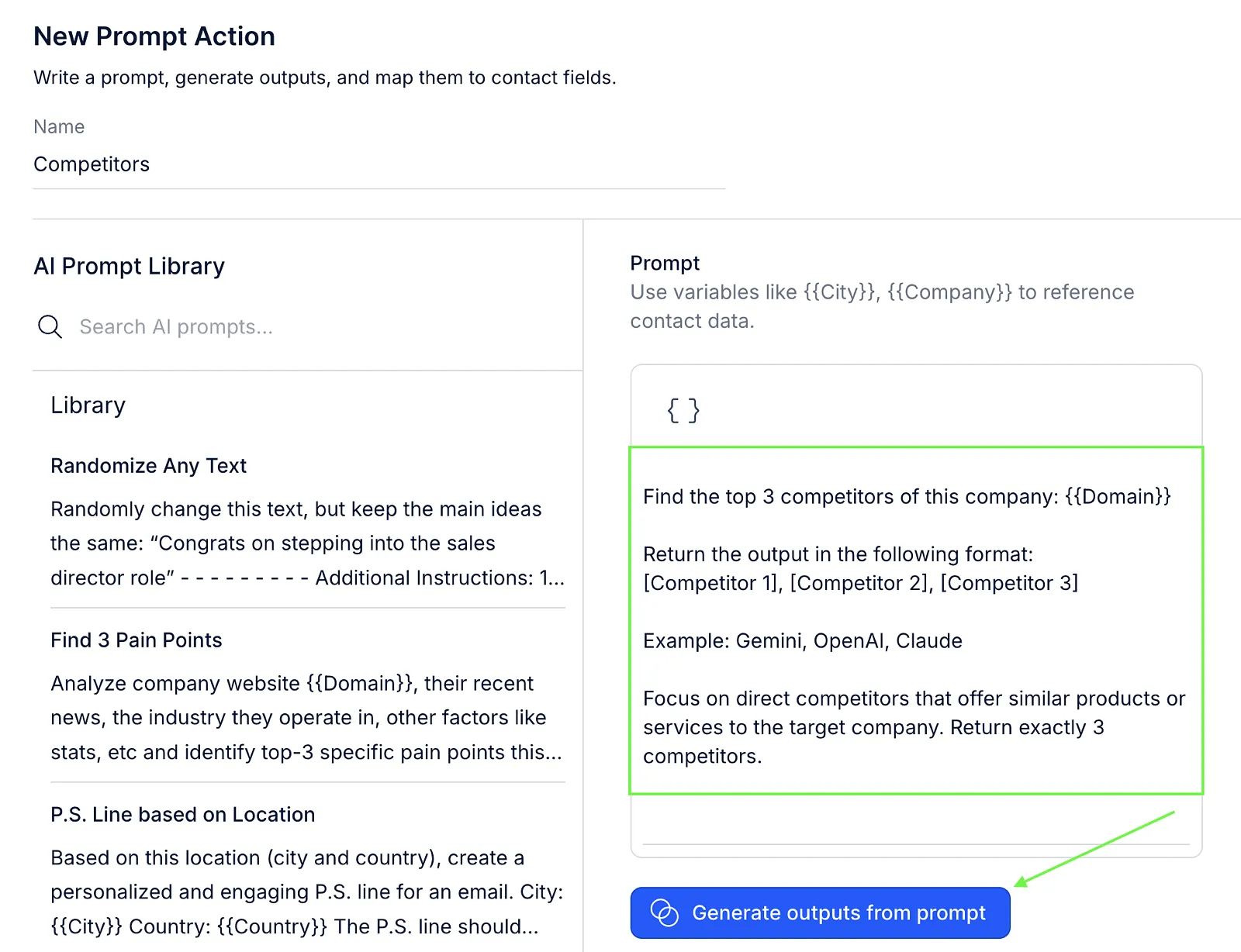
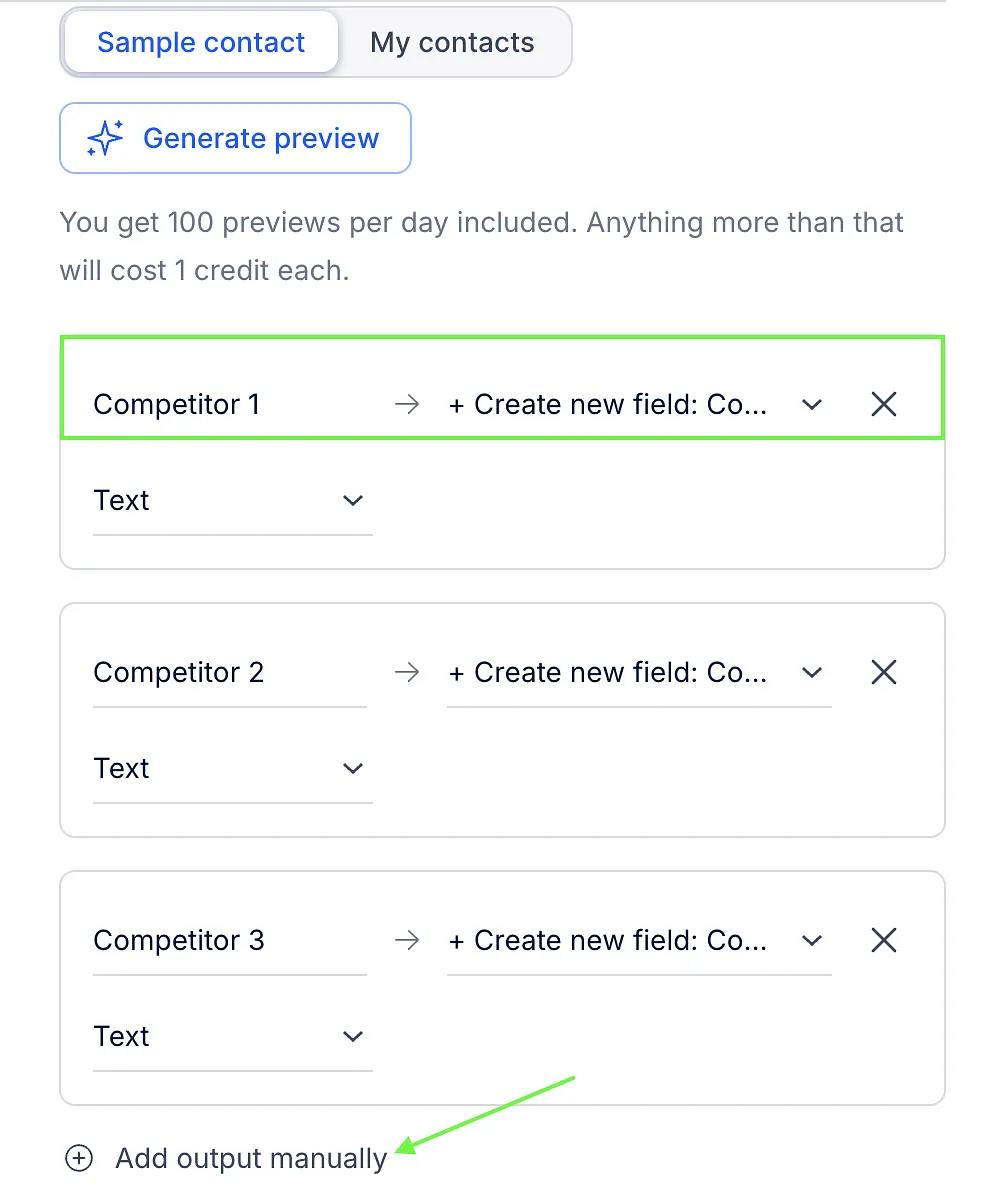
Reply will analyze your prompt and identify up to 6 outputs it can generate.
Each output will be pre-mapped to a custom field. You can review and change the mapping or create a new custom field if needed. To add more outputs, click Add output manually and select the Text or Number field type.
You can also generate a preview using a sample contact or your own contact. Click Save once you are done.
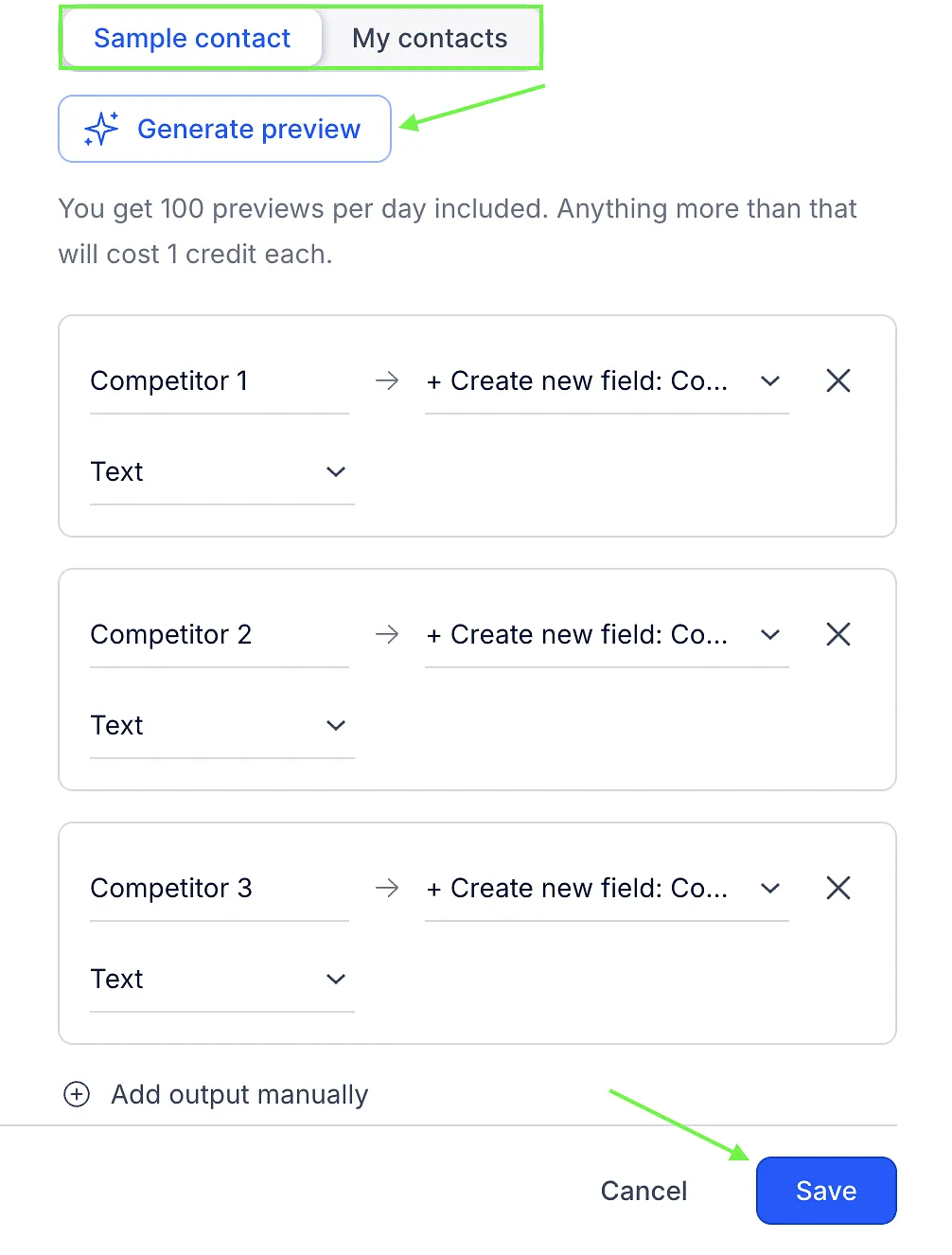
💡Currently, AI prompt outputs can only be mapped to custom fields.
Enrich contacts with AI prompts
After you've created an AI prompt, you can use it to enrich selected contacts.
To enrich multiple contacts:
-
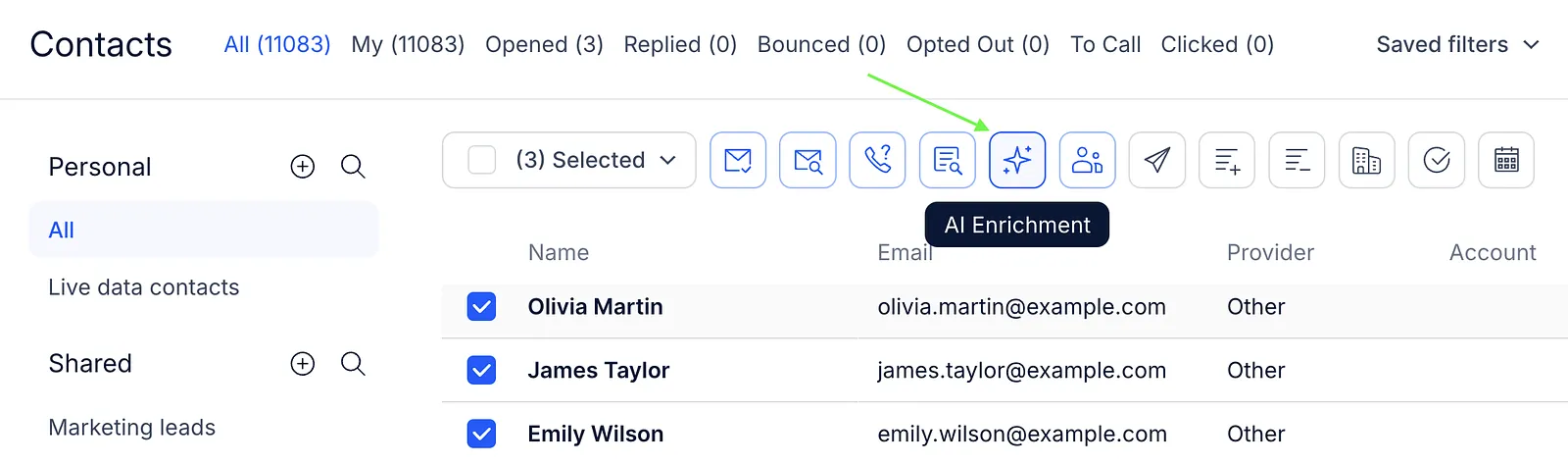
On the People page, select the contacts you want to enrich and click the AI Enrichment icon.
-
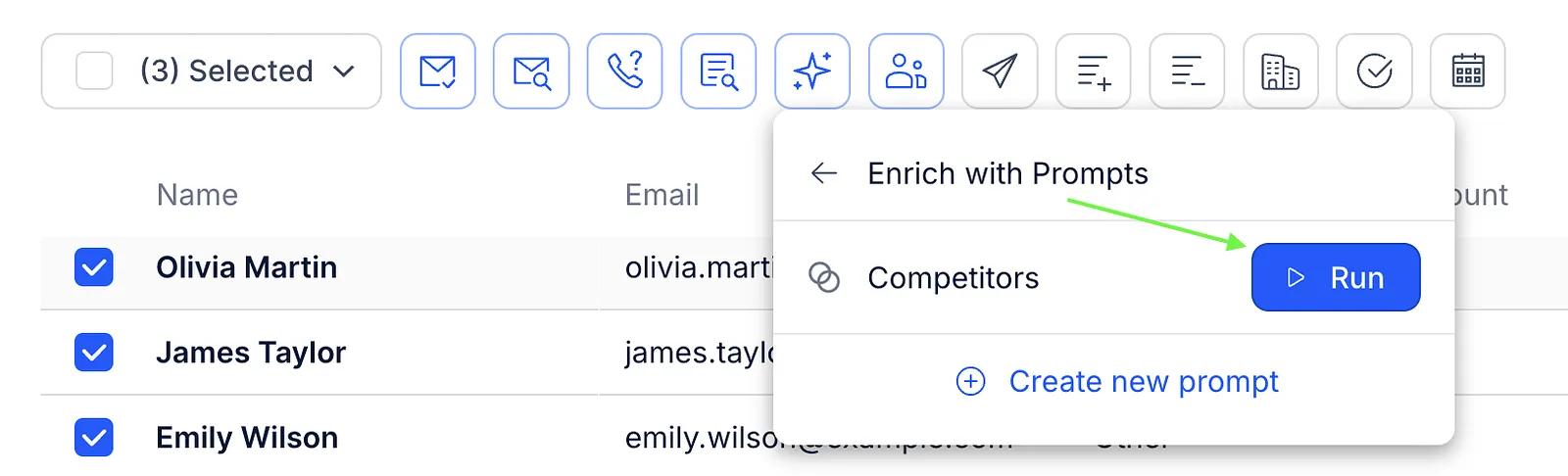
Select Enrich with prompts, choose the prompt, and click Run.
-
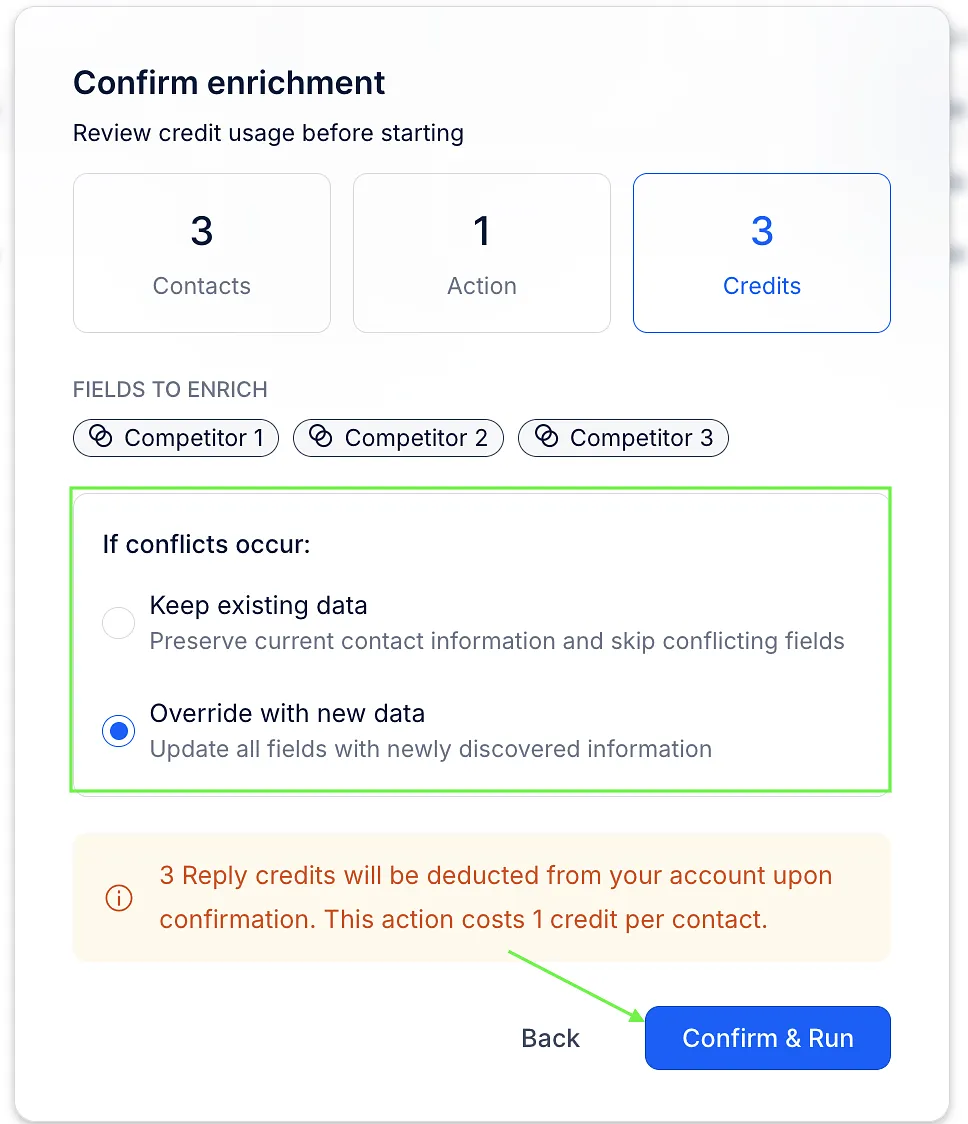
Select how to proceed when conflicts occur: keep the existing data or override it with the new data, then click Confirm & Run.
-
You will see the notification once the enrichment is done.
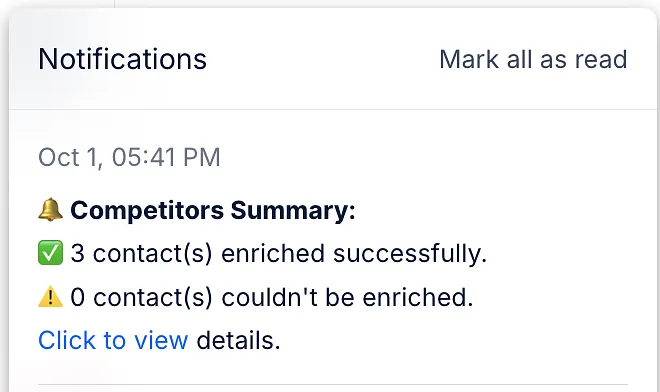
Click to view in the notification opens a CSV file with each contact's email, the generated values, and a status for every field:
-
Enriched - the field got a value.
-
Missing variables - the contact is missing data the prompt needs, such as an empty {{Domain}}.
-
No results found - the AI couldn't find an answer for this contact.
-
Insufficient credits - your credits ran out before this contact was reached.
-
Failed - something went wrong. The reason is usually shown next to it.
The generated values are added to the custom fields mapped to the AI prompt. You can view these fields on the contact card and have this information in the contact's activity. The activity shows the prompt that was used and when the enrichment happened.
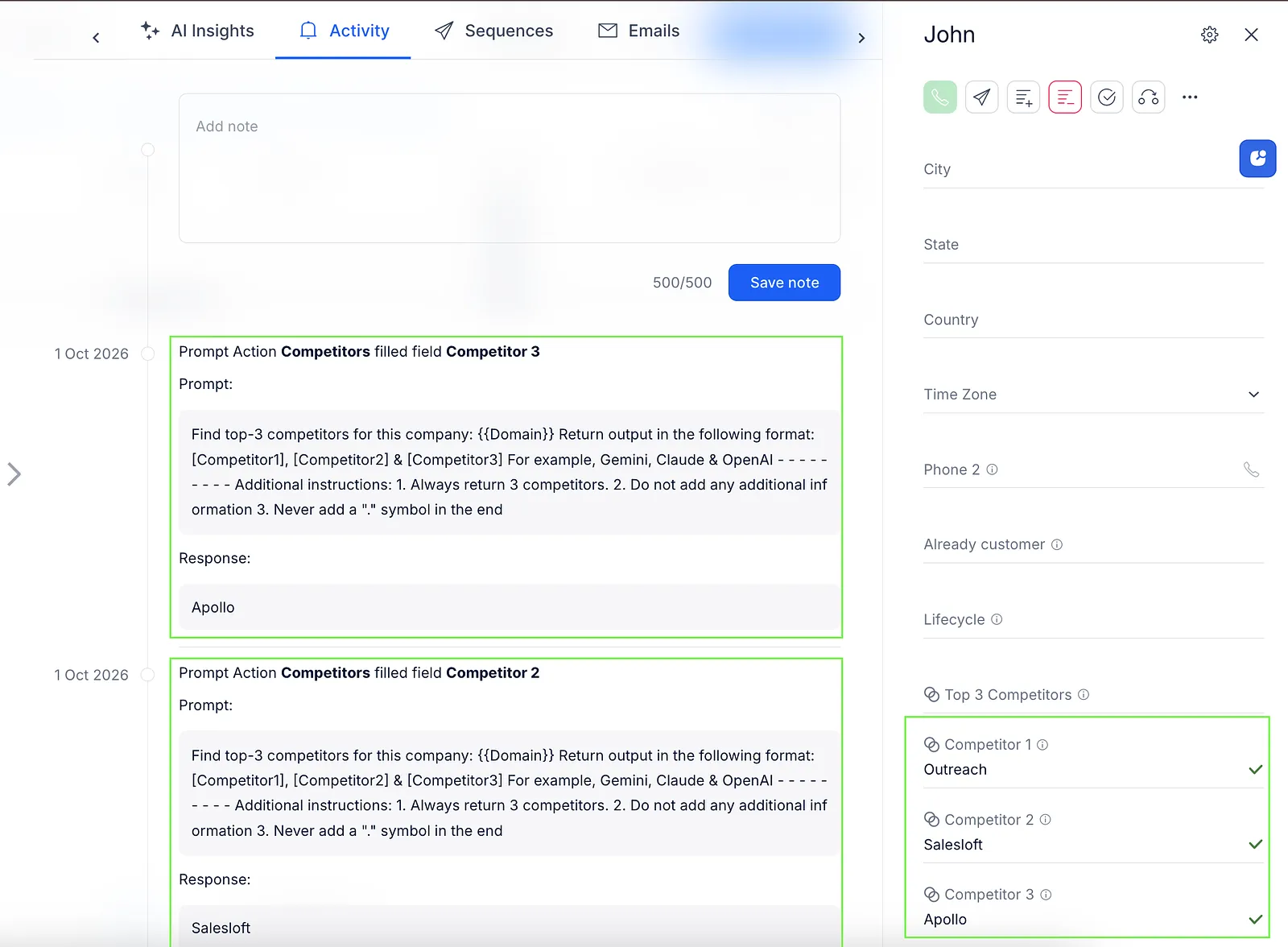
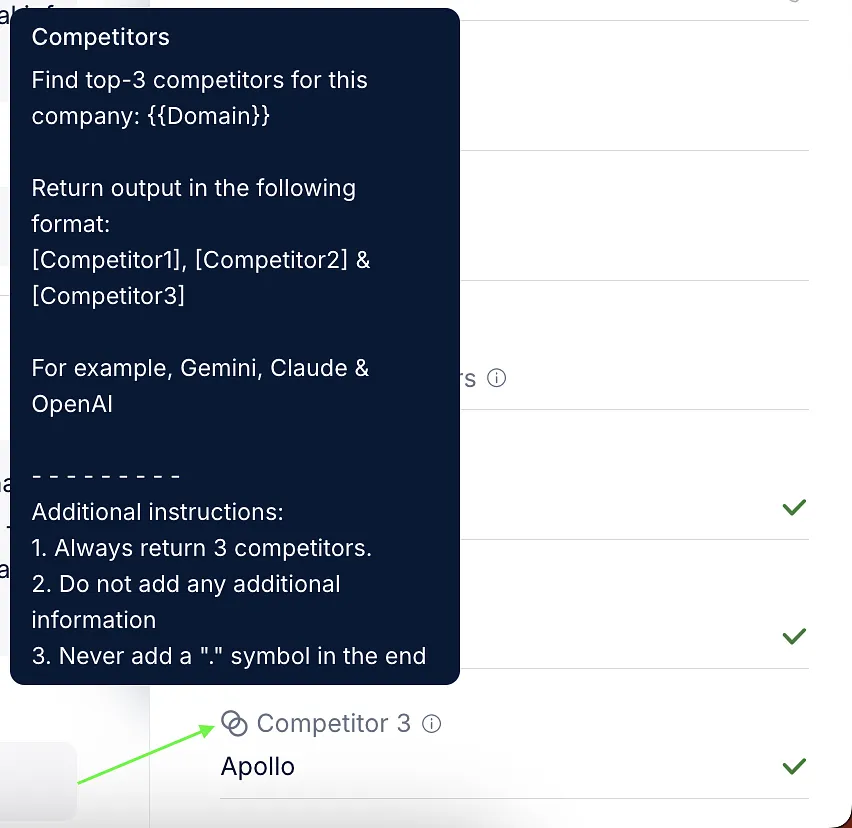
To see which prompt was used for a specific field, hover over the prompt icon next to the field. You can edit the generated field values manually. Manual changes are also shown in the contact's activity history.
Edit or delete an AI prompt
In Settings → Contacts, find the prompt in the AI Prompts section, click the three-dot icon (...) next to it and choose Edit or Delete.
Deleting a prompt doesn't delete its custom fields. The fields, and the values already filled in for your contacts, stay where they are.