Lists help you organize contacts based on your outreach needs. A contact can belong to multiple lists, so you can use lists to group the same contacts in different ways.
You can create and manage lists from the Lists section on the People page.
Create a list
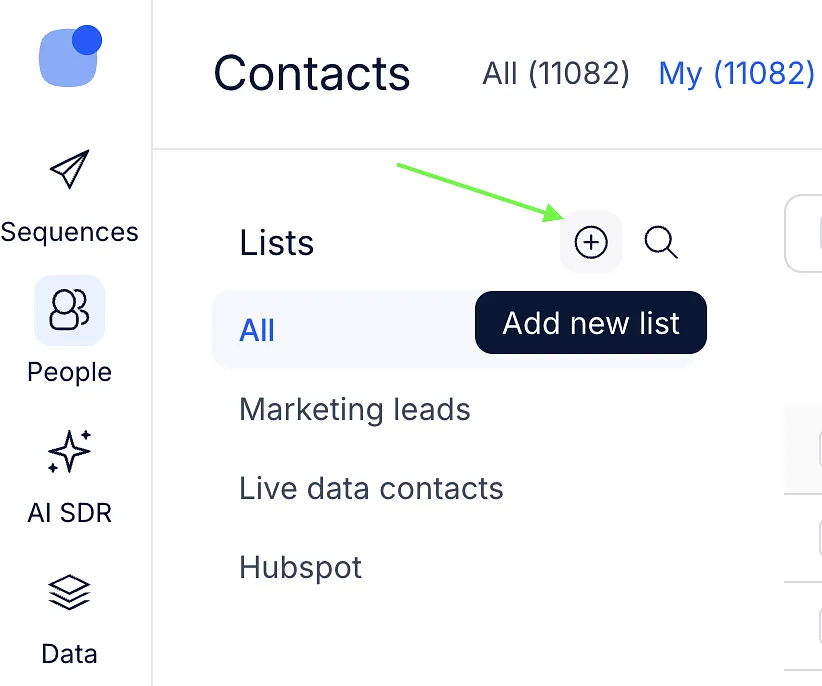
To create a new list:
- Go to the Lists section on the People page.
- Click the + button.
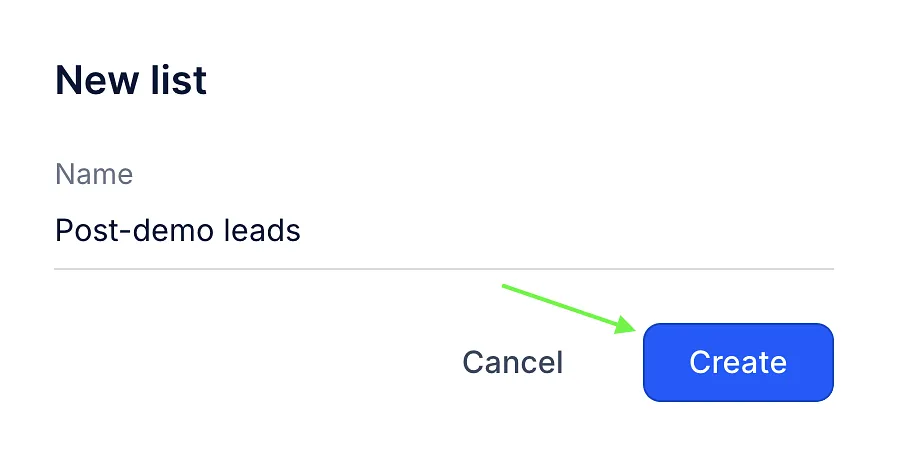
- Enter a name for the list.
- Click Create.
Edit, share, or delete a list
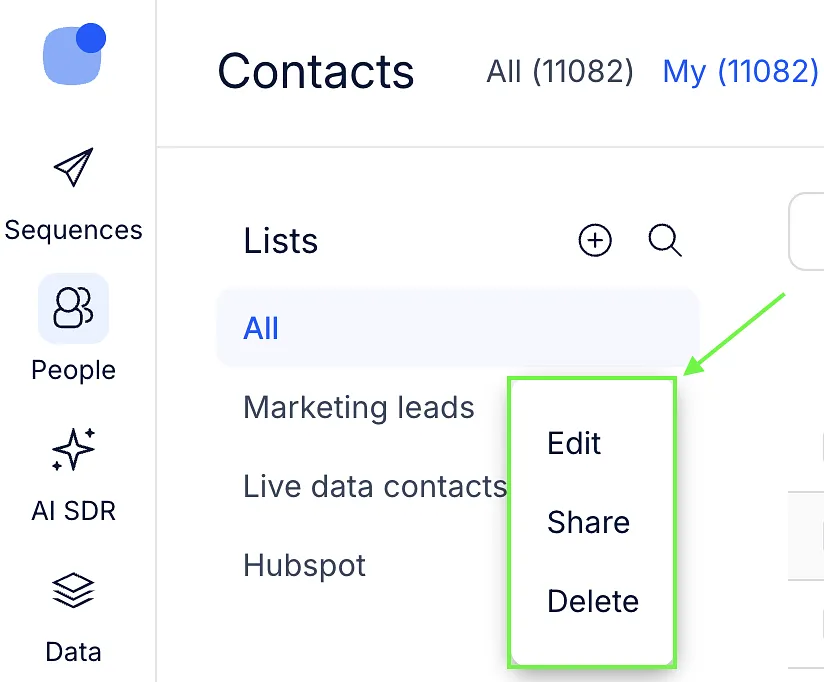
To manage a list, click the three-dot menu next to it and select the action you need.
- Edit - change the name of a list.
- Share - share the list with your team members.
- Delete - remove the list from your Reply account.
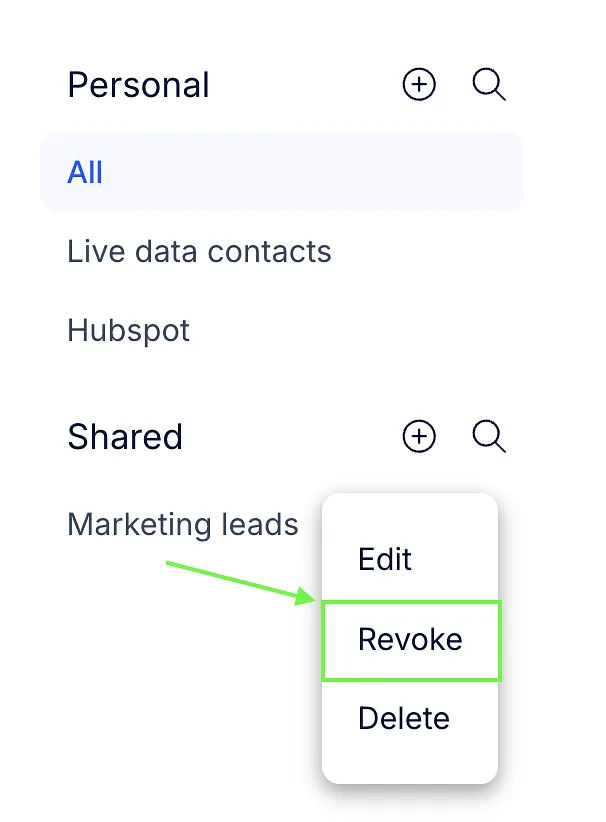
For shared lists, you can click Revoke to make them private again. Once you share a list, it appears in a separate Shared section, and your other lists move under Personal.
Add contacts to a list
You can add contacts to a list from the People tab or while importing contacts from a CSV file.
💡Move to lists only adds contacts. They stay in every list they already belong to. To take contacts out of a list, use Remove from list(s).
👉 See People tab overview for instructions on how to add or remove contacts from a list.
💡You can remove contacts only from your own lists and from lists shared with your team.
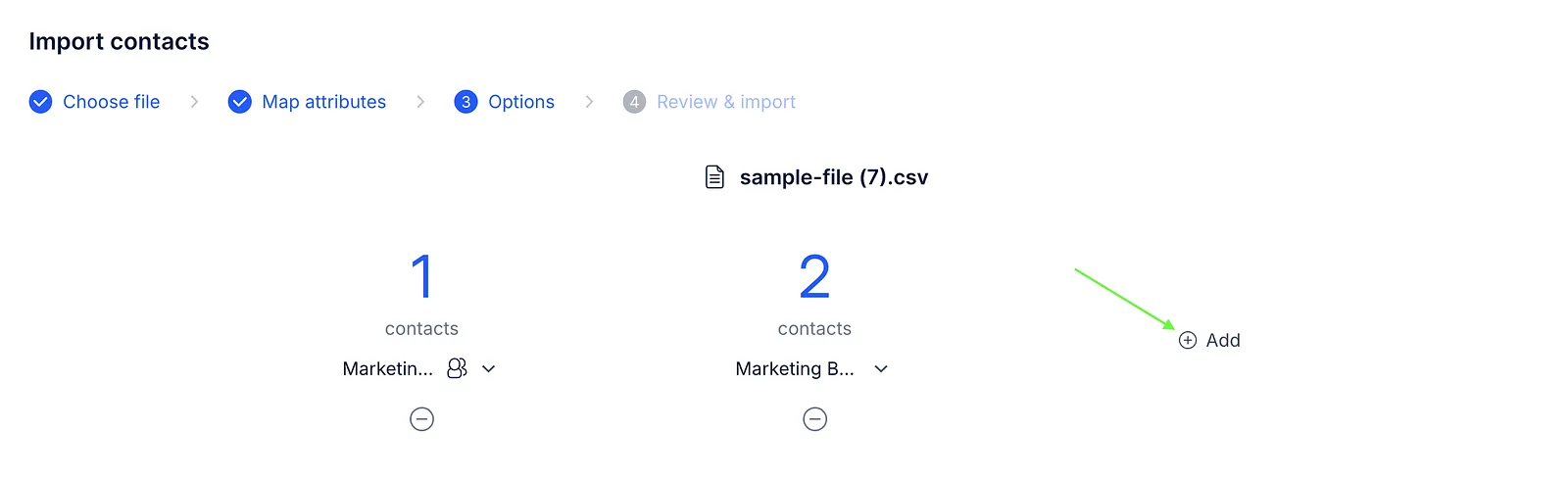
When importing contacts from a CSV file, select or create a list to add them to.
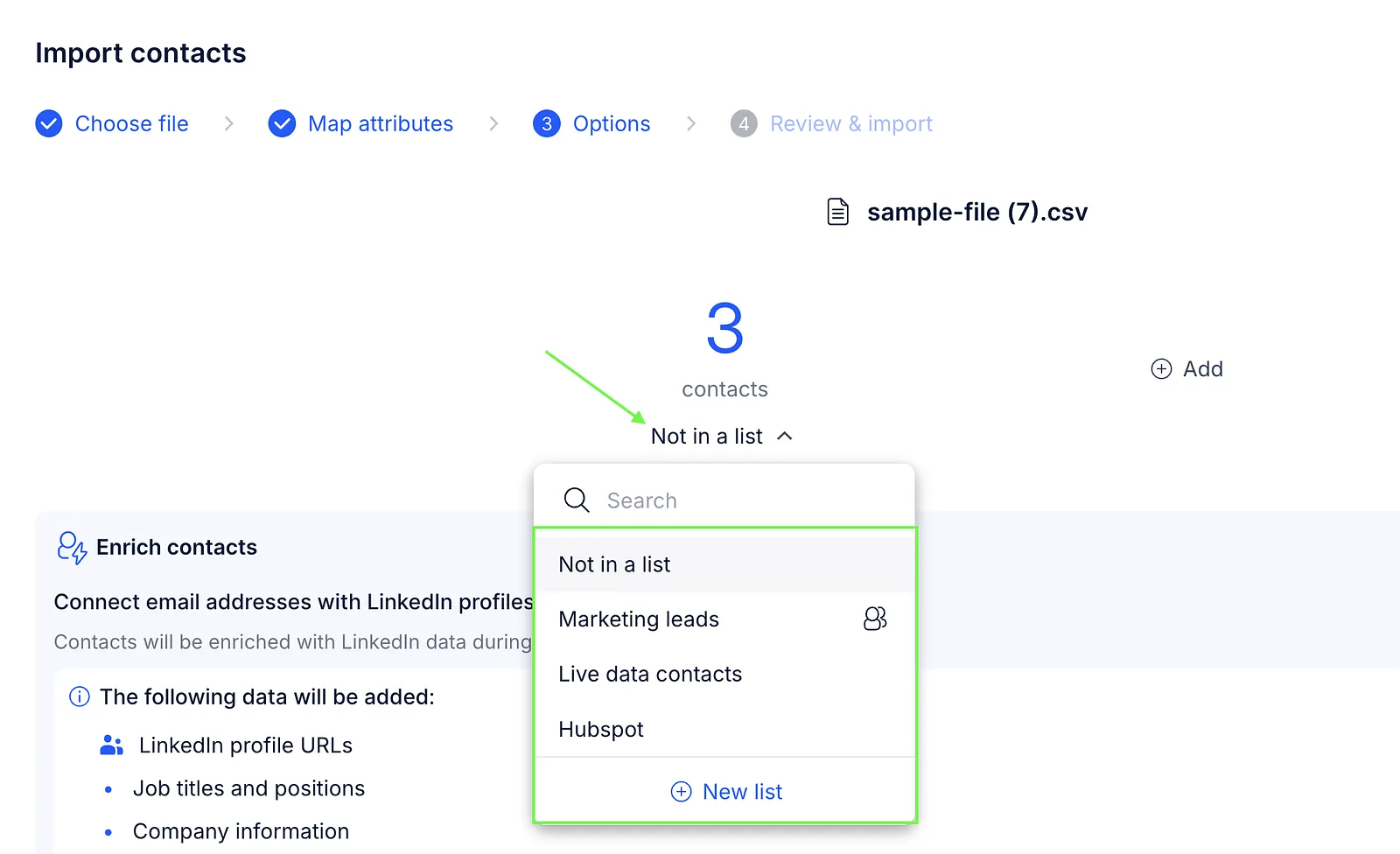
You can also split contacts between several lists, for example, when running A/B tests.