Reply lets you buy custom domains and set up mailboxes directly from the Email Accounts page. You can register new domains, configure mailboxes, and have them provisioned in Reply (and MailToaster, if your account is linked).
💡 Important: Mailboxes can only be created using domains purchased in Reply, not your existing domains.
This article explains how the process works and how billing is handled.
Where to start
- Log in as the team owner.
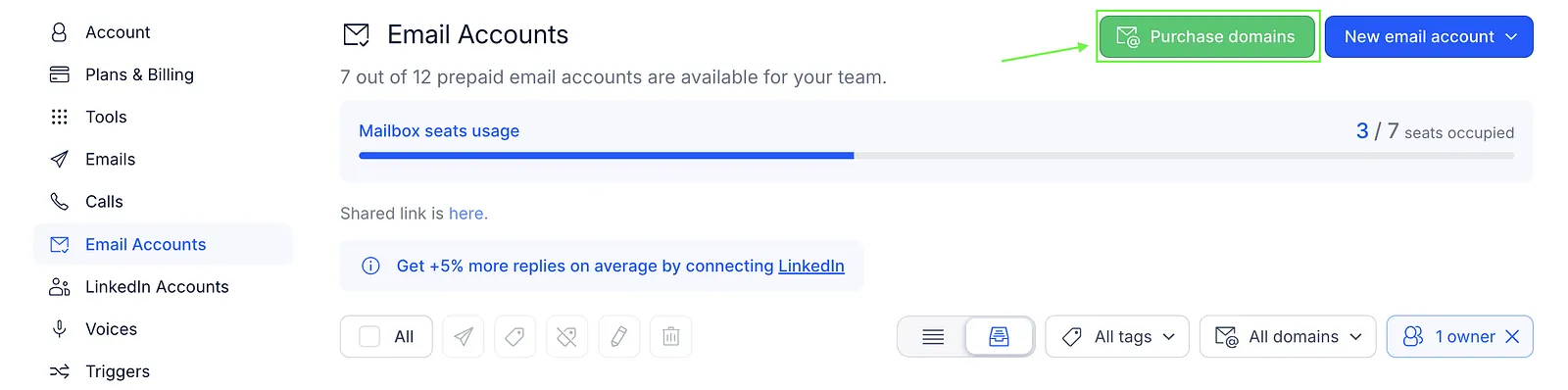
- Go to Settings → Email Accounts.
- Click Purchase domains.
Step 1: Register the domain purchaser
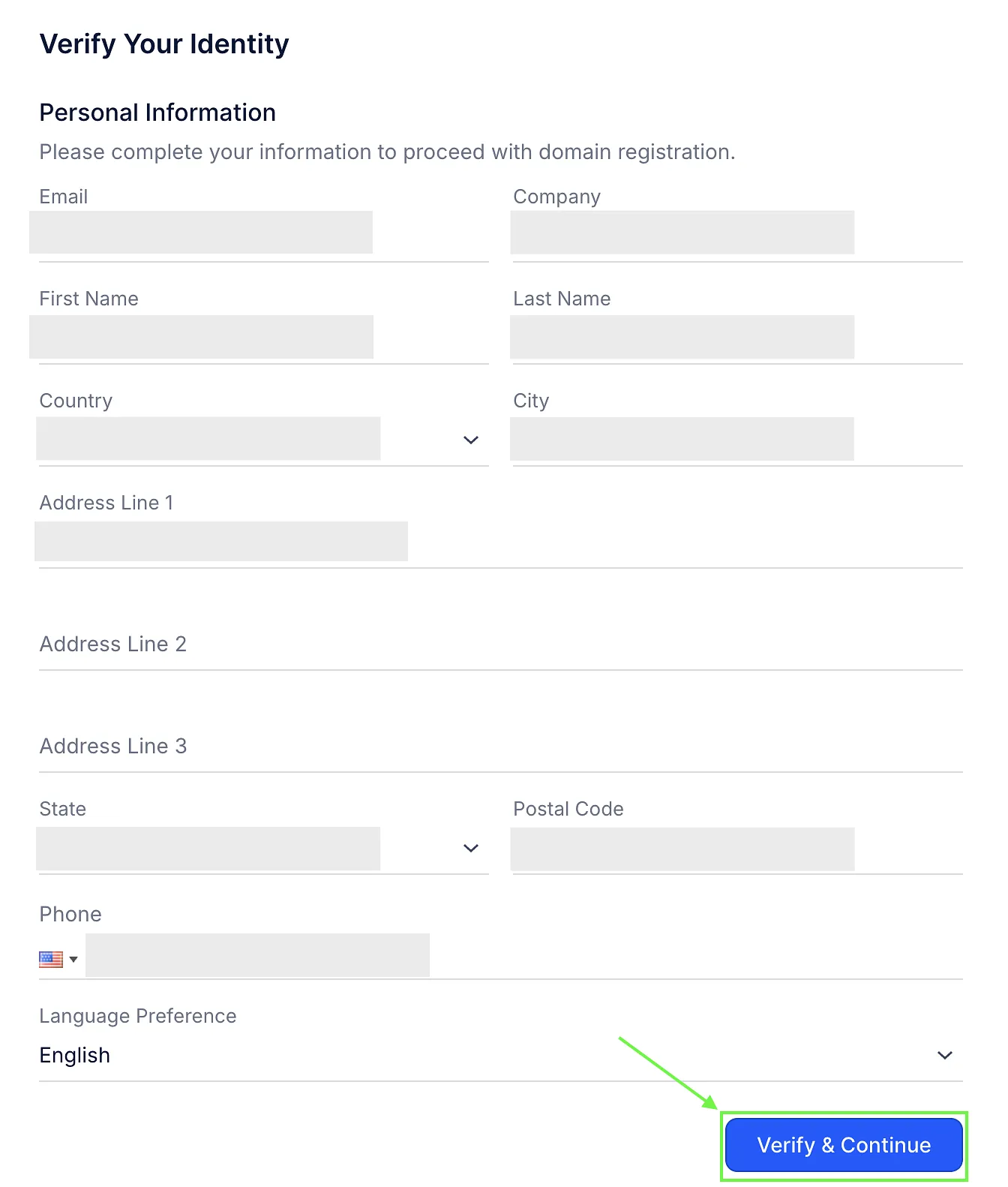
- After clicking Purchase domains, enter the required details:
- First name
- Last name
- Email address
- Company name
- Country, City, Address Line, and other fields.
- Click Verify & Continue.
Step 2: Choose your domain and provider
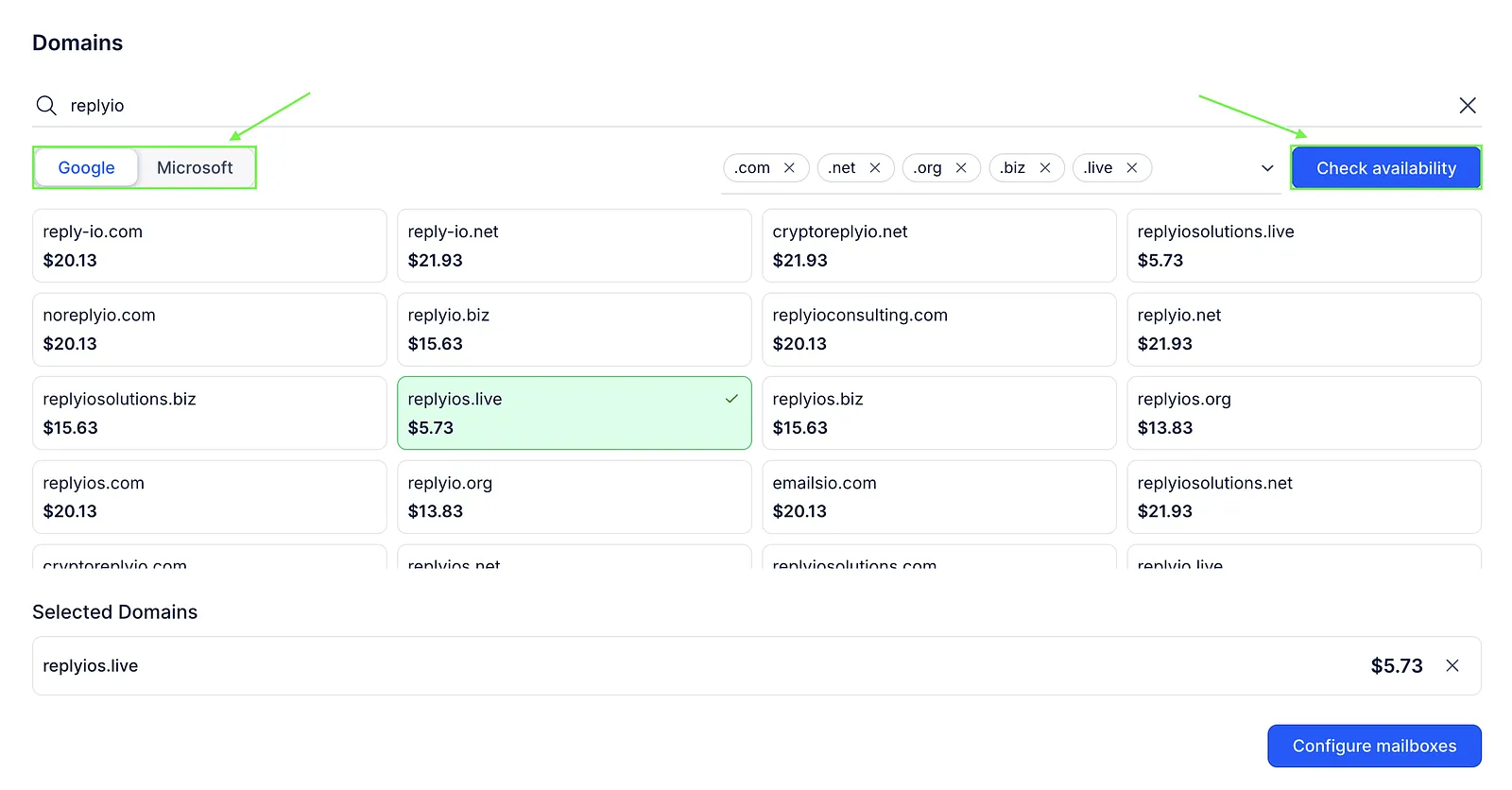
- Select your email provider (Google or Microsoft). 💡The provider cannot be changed after the domain is selected.
- Enter your company name or keywords in the domain search field.
- Click Check availability and review the suggested domain names and pricing.
- Select one or multiple domains and click Validate. 💡 If a domain already has a workspace with the provider you chose, Reply shows A workspace already exists for this domain. No payment was charged. Choose a different domain or contact support if you believe this is an error. If validation fails for some domains, remove them to continue: Remove the domains that failed validation to continue.
If a domain is available, it will be highlighted in green. The displayed price is the final cost for one year.
Step 3: Configure mailboxes
- Click Configure mailboxes. 💡 You can create up to 5 mailboxes per domain.
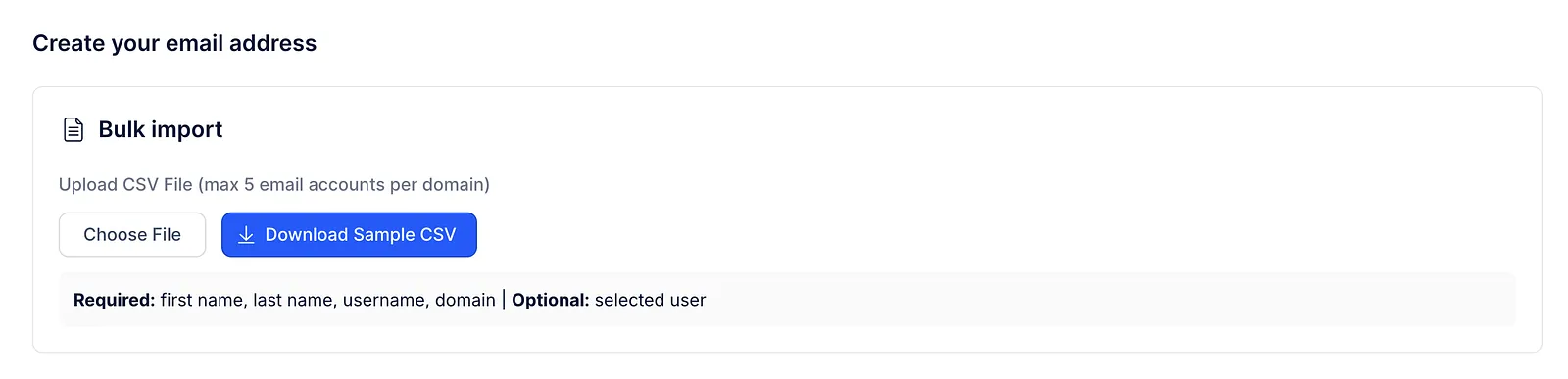
- Add mailboxes either manually or via CSV (bulk setup).
Add mailboxes manually
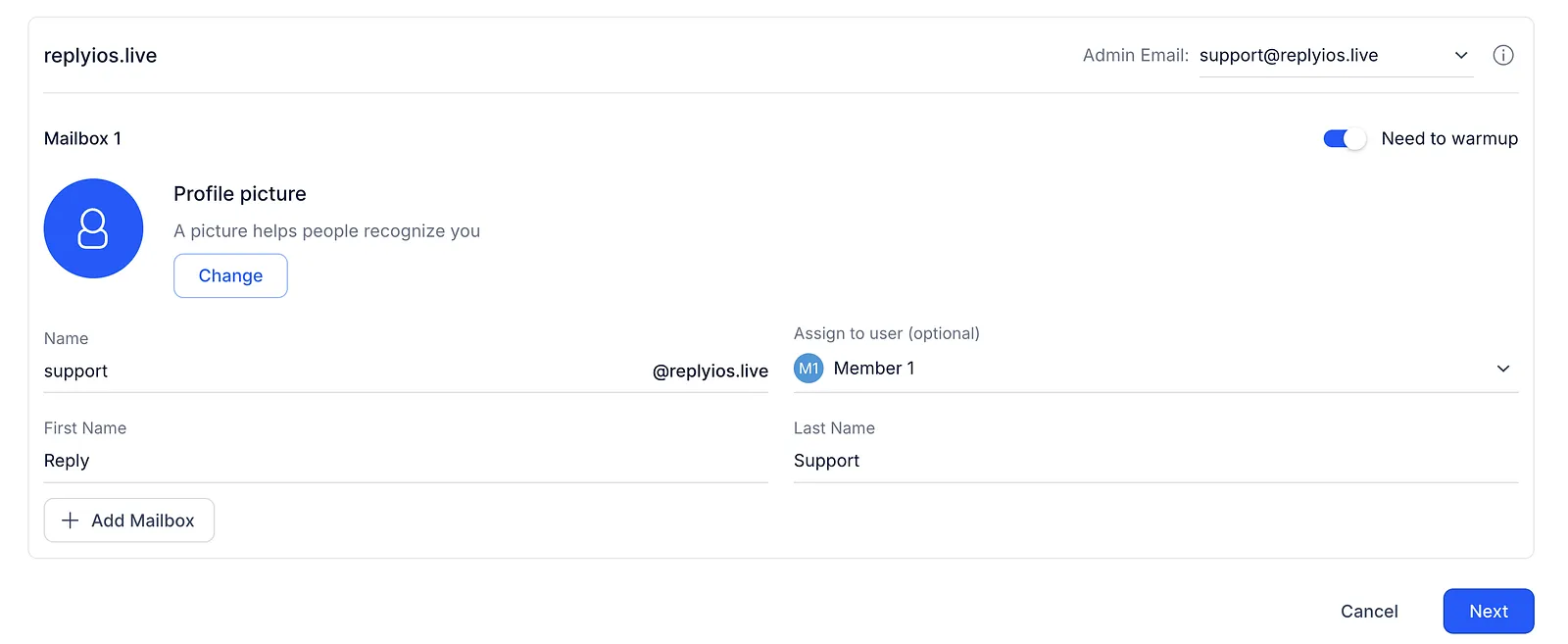
To add mailboxes manually:
- Enter the required details, such as Name, First name, and Last name.
- Select a Reply user in the Assign to user field.
You can assign mailboxes to yourself or other team members.
Add mailboxes via CSV (bulk setup)
Upload a CSV file with these required fields:
- First name
- Last name
- Username (for example, [email protected])
- Domain (domain.com)
Optional field:
- Selected user (your Reply account)
💡You can download a sample CSV file and use it as a template.
Admin mailbox
If you create multiple mailboxes, select one as the admin mailbox.
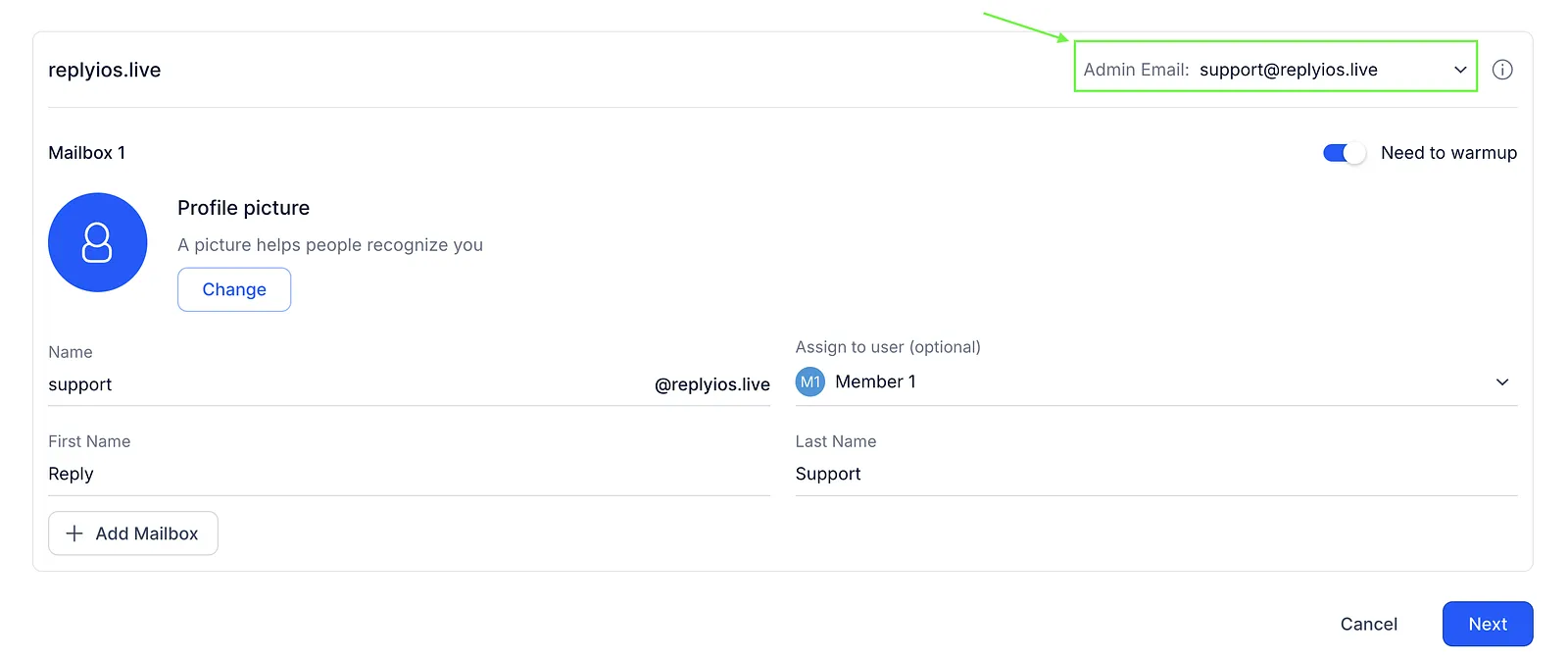
💡Important:
- The admin mailbox cannot be deleted individually.
- If the admin mailbox is deleted, all mailboxes under that domain will be deleted.
MailToaster & warm-up
By default, newly purchased mailboxes are added to MailToaster for warm-up. You can manage this using the Need to warmup toggle.
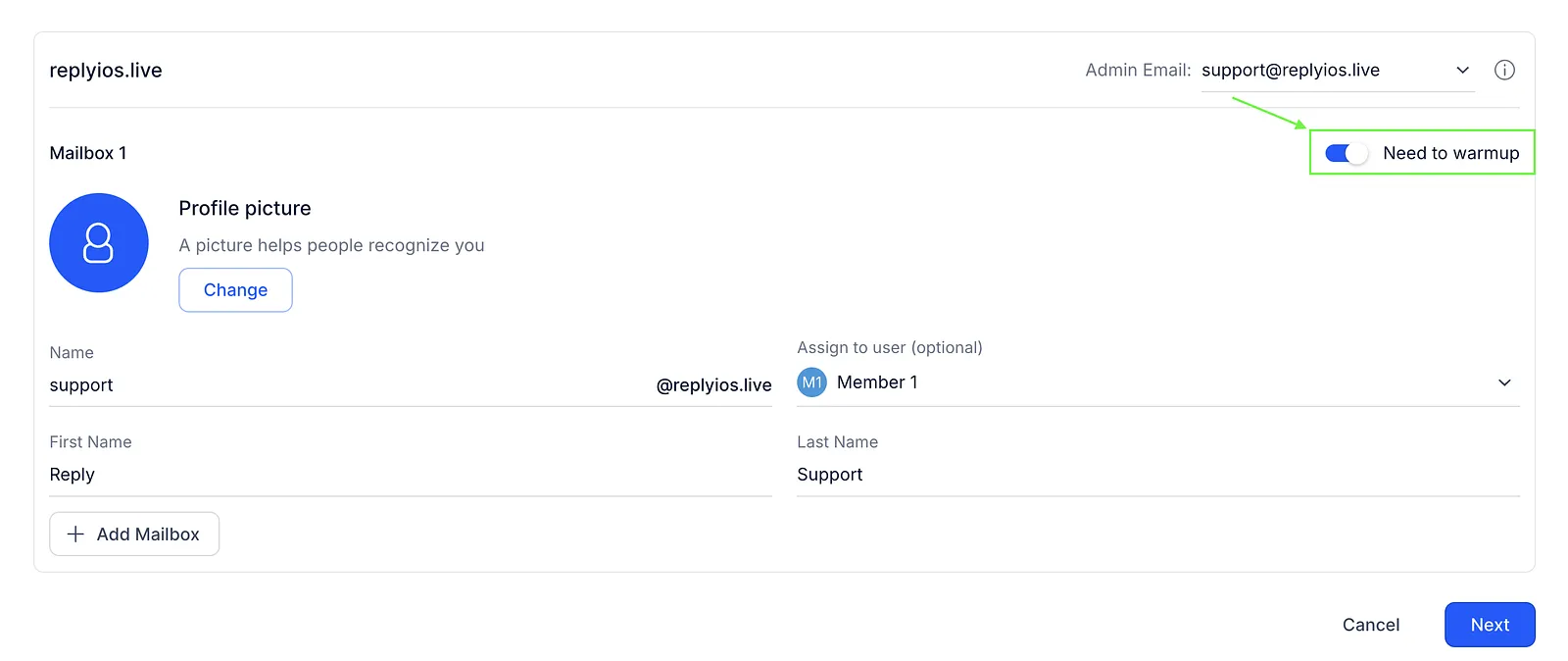
Since these are new domains, we highly recommend completing a proper warm-up to build your sending reputation.
(Optional) Set up website redirect
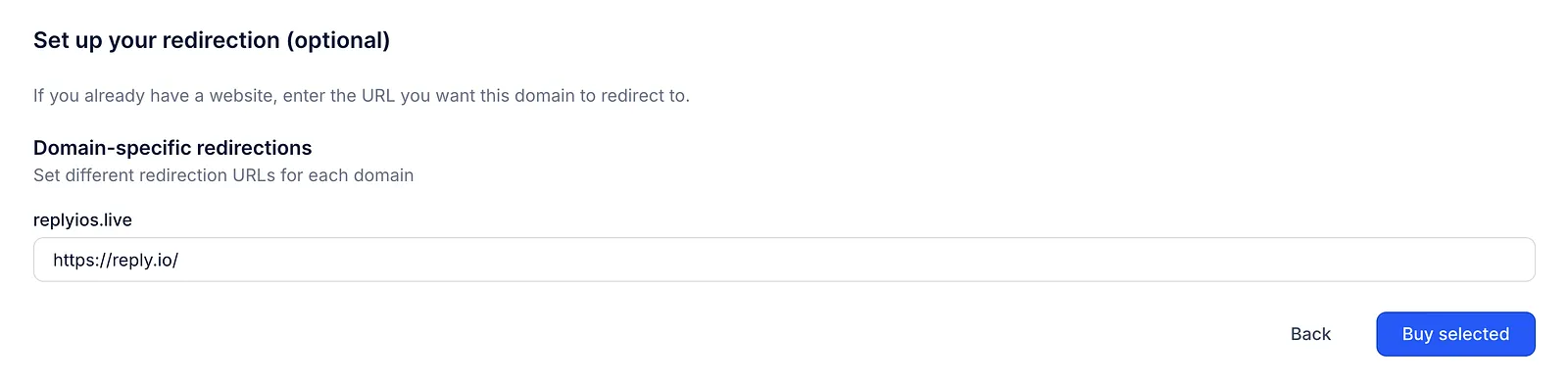
After adding mailboxes, click Next to set up a redirect. This automatically redirects anyone who clicks on your domain link in the email to your main website.
This step is optional, so you can skip it and proceed directly to payment.
You can use one URL for all your new domains (Same redirection for all domains) or a different URL for each (Domain-specific redirections). Set it up here: you can't change it in Reply after the purchase. To change it later, contact our support team.
💡 You can't set up email forwarding or view the domains' DNS records in Reply. To forward emails from a mailbox bought through Reply, contact our support team and tell them which address the emails should go to.
Step 4: Complete purchase
- Click Buy selected.
- You'll see the payment summary:
- Domains (Extended features)
- Mailboxes
- Additional email account seats (if any)
- Confirm payment.
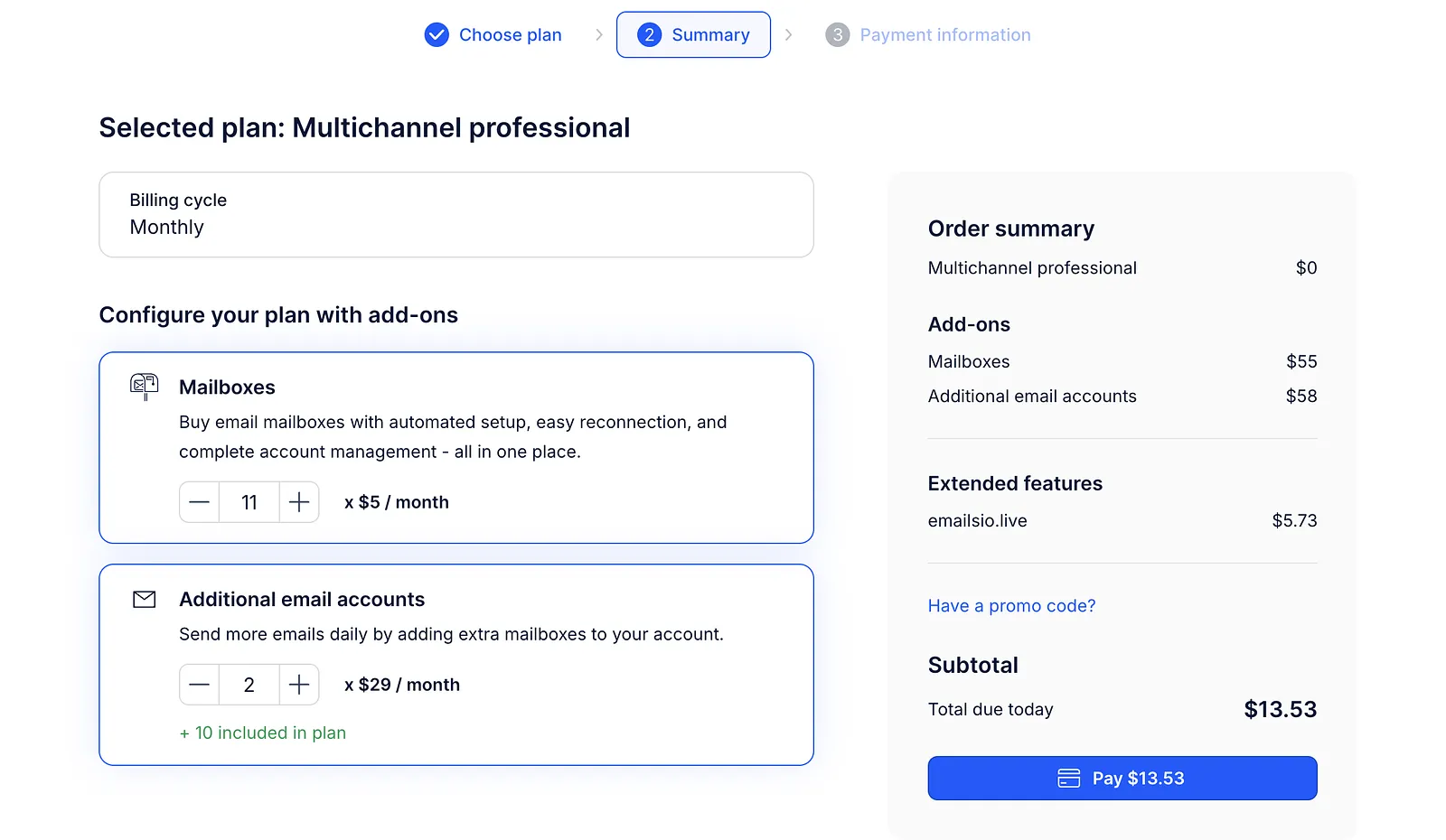
Billing
Domains
Domains are one-time annual purchases. They're charged in full at the time of purchase, are valid for one year, and are not tied to your Reply subscription. Domains remain active even if all mailboxes are later deleted.
⚠️ If you cancel your Reply subscription or move to the Freemium or Data Storage plan, all domains and mailboxes bought through Reply are deleted from your account. Upgrading again doesn't bring them back: you would need to buy new ones.
Mailboxes (Seats)
Mailboxes are billed as subscription seats. For monthly subscriptions, mailbox seats are billed monthly, and adding or removing seats will adjust your next billing cycle. For annual subscriptions, seats are billed annually, and any seats added mid-cycle are prorated for the remaining period.
Changing a mailbox name does not result in additional charges.
How seat billing works
Billing is based on the number of seats you've purchased, not on mailbox names. Adding a mailbox that increases your total number of seats will trigger a charge. Removing a mailbox does not issue a refund.
- Example: If you replace a mailbox with another → there's no extra charge.
- Example: If you add a new mailbox → you're charged for an additional seat.
- Example: If you add a second seat, then delete one → no refund will be issued.
How seats are displayed in Reply
On the Email Accounts page, you'll see a Mailbox seats usage bar. It shows how many seats are occupied out of the seats you've purchased (for example, 3 / 7 seats occupied). The difference is the number of paid seats not yet assigned.

This makes it easy to know whether adding a new mailbox will trigger extra charges.
Renew your domain
You can renew domains purchased through Reply directly from the Email Accounts page. Before your domain expires, you'll see the renewal price and expiration date. Reply also sends email reminders when it's time to renew.
The Renew domain button is available from 45 days until 1 day before the domain expires. Domains aren't renewed automatically: if a domain expires, its mailboxes are removed from Reply and from warm-up.

When renewing your domain, you can choose to renew both the domain and your mailboxes, or renew only the domain and create new mailboxes at the current price.
💡 Mailboxes older than one year may cost more to renew due to Google's pricing policy. Pre-warmed domains can't be renewed through Reply.
💡 Only users with billing permission can renew a domain. If a domain can't be renewed, Reply shows Renewal unavailable with the message "This domain can't be renewed right now, please try again later." Try again later or contact support.
After purchase
After successful payment, the domains will be registered, and mailboxes will be provisioned and connected to Reply within 48 hours. Supported mailboxes will also be exported to MailToaster if your account is linked.
💡 Newly purchased Microsoft mailboxes remain locked for 4 days to protect deliverability and will automatically unlock once that period ends. Pre-warmed Microsoft mailboxes are not locked.
You will see a shopping cart icon next to the email accounts and domains you've purchased, so you can easily identify them.
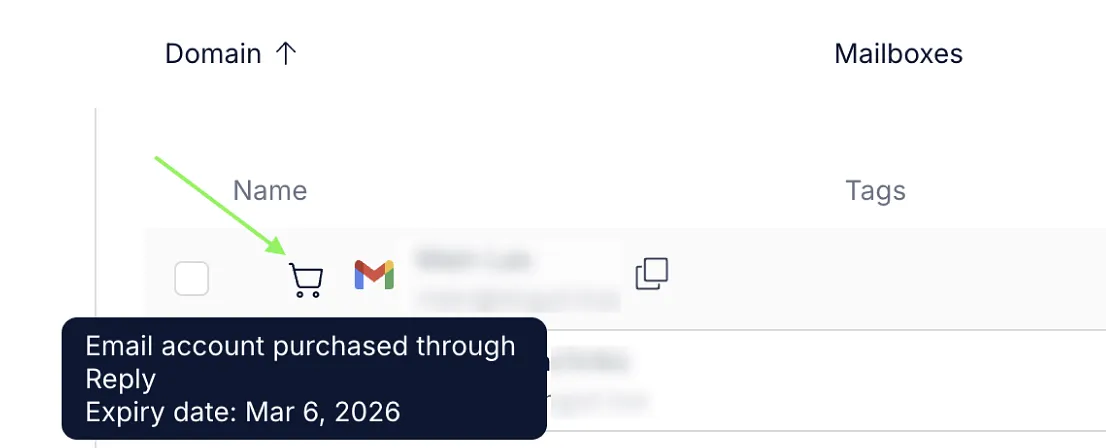
If you want to add more mailboxes later, click on the domain and click Add mailboxes.

Sending attachments
Mailboxes bought through Reply are Google Workspace or Microsoft 365 mailboxes. They send attachments the same way as any other email account you connect: add them with Add files in the email step editor. The same size limit applies (3 MB per file by default). If a file is too large, Reply shows the maximum size.
Transferring a domain to another registrar
The domains you buy through Reply are registered in your name, so you can move a domain to another registrar, such as GoDaddy or Namecheap. To do this:
- Wait until 60 days have passed since the domain was registered or last transferred.
- Deactivate the mailboxes on the domain.
- Make sure all fees for the domain are paid. Transfer fees are on you.
- Contact Support to request the transfer.
The transfer usually takes up to 10 business days. Domains that are still in pre-warming may not be transferred until it ends.
💡 Mailboxes bought through Reply can't be moved to your own Google Workspace or Microsoft 365 account.
For all conditions, see the Mailbox and Domain Services Terms.